Online and Mobile Banking Application
This chapter describes the functionalities available to the end-user, from here they can access accounts and initiate transactions. When a user of Online and Mobile Banking opens the solution, the login is done using Strong Customer Authentication Strong customer authentication (SCA) is a requirement of EU Revised Directive on Payment Services (PSD2) on payment service providers within European Economic Area. The requirement ensures that electronic payments are performed with multi-factor authentication, to increase the security of electronic payments.[1] Physical card transactions already commonly have what could be termed strong customer authentication in EU (Chip and PIN), but this has not generally been true for Internet transactions across EU prior to the implementation of the requirement,[1] and many contactless card payments do not use a second authentication factor.. Afterward, the homepage is displayed, a user can access banking services such as transfers and viewing accounts.
Homepage
The homepage has the following sections:
- Header
- Overview
- Accounts (liabilities)
- Products (assets)
- Transaction History summary and List of Orders
- Exchange Rates
- Footer.
Header
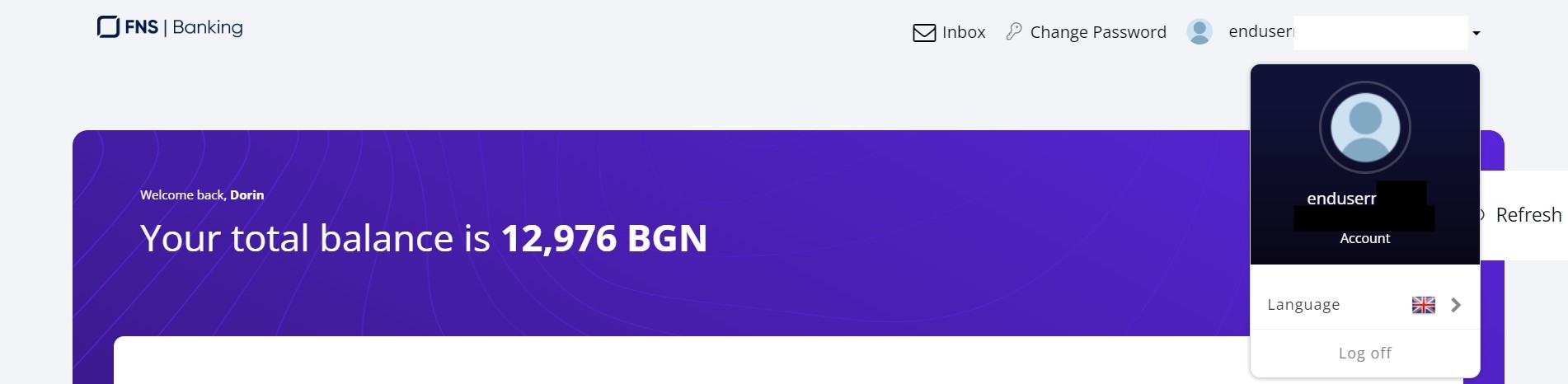
- Company logo. By clicking this icon, you return to the homepage.
- Inbox messages. By clicking this icon the list of messages received from the system is displayed.
- Change password. By clicking this icon symbolizing a key, the user can change their password.
- Username. The username is displayed here with a photo of the user. Click it to open several other features.
- The language selector. By clicking this icon, a list of available languages is displayed with the respective flags.
- Log off button. By clicking this button the user is able to log out of Online and Mobile Banking.
The main panel displays the Welcome back message and the first name
The Refresh button can be used to refresh the page (the accounts and balance)

Inbox
From the homepage, in the header, click the Inbox icon to display the following types of messages:
- the messages sent by the user to the bank
- the messages from the bank to the user
- pop-up messages from the bank to the user
- chat between the user and the bank with replies for bidirectional communication.
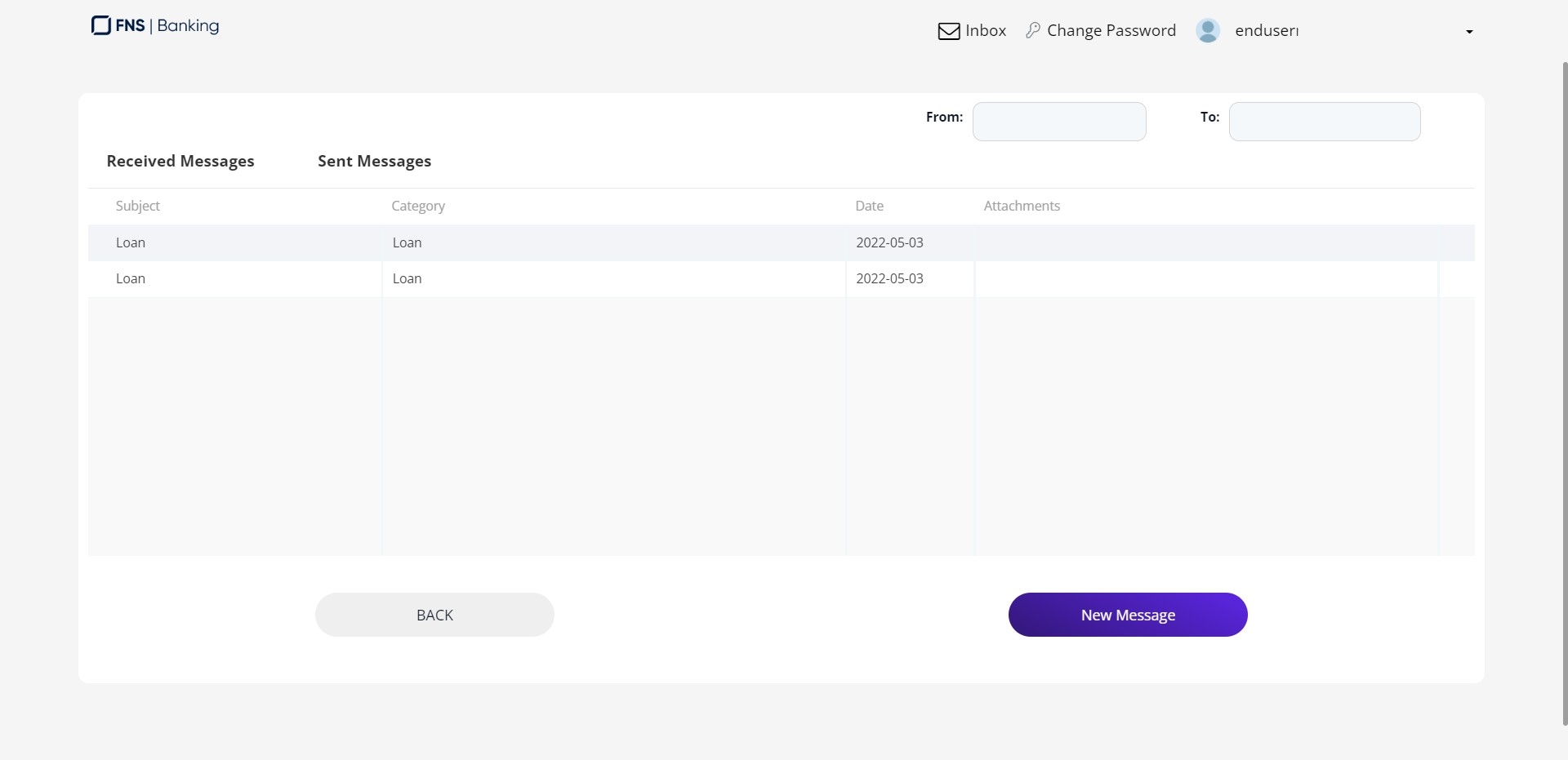
A user receives two types of messages:
- mailbox bulk messages: those displayed in Inbox
- mailbox pop-up messages: those displayed after login, mandatory to be read, afterwards, the homepage is accessible.
All messages are displayed per client, regardless of the user that logged in. If a customer has multiple users linked, it is sufficient that one user logs in and reads the message for the message to be marked as read.
Products Overview & Details
One of the most frequent use cases for any user is checking the account balance and verifying its product information. Users are able to view ay type of account. The information is presented as cards on the homepage and whenever there are more accounts the user is able to swipe and get to the intended product fast.
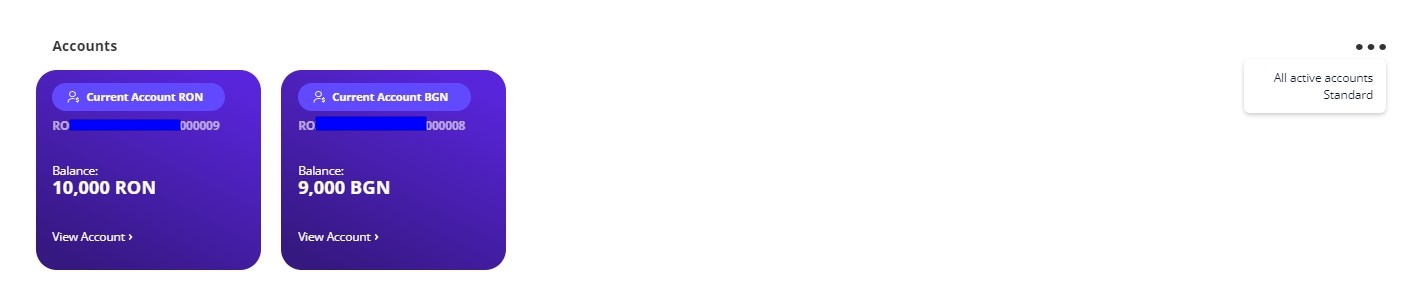
For each type of account the details come with a standard product characteristics to be presented.
Each financial institution has its product features and knows which are the most relevant information for its users, the application is built so that during the implementation choosing which information to be shown from Core Banking is done in minutes.
Accounts
This section contains the accounts of the customer including the current accounts, deposits, salary account, and more. The accounts are ordered via the balance from the biggest to the smallest amount. It contains cards with the following information:
- the account alias
- type of account
- balance on that account
- IBAN
- account type
- View details button.
The main components of the account details page can be split in:
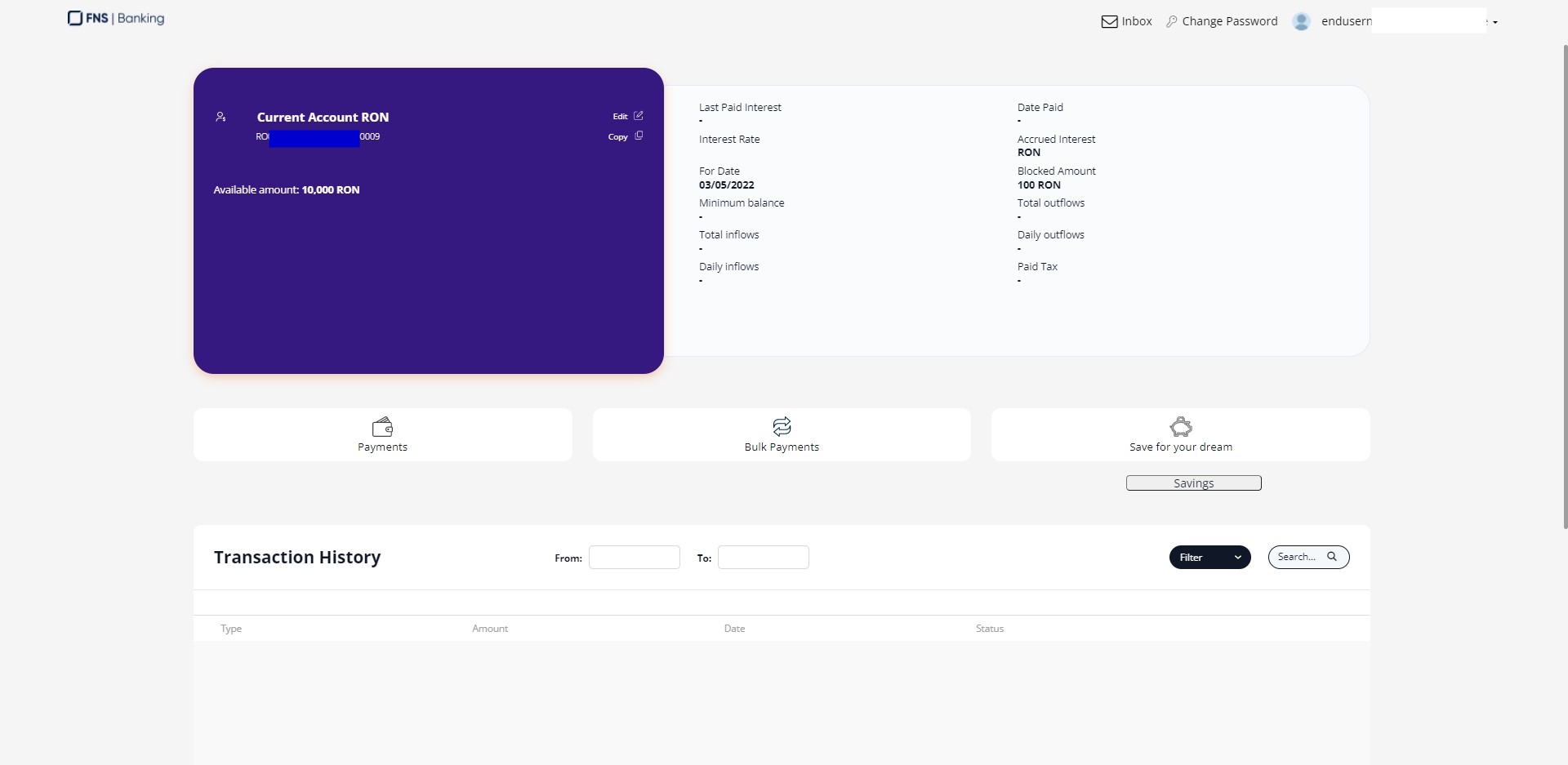
- Product information: click the Copy button to copy the IBAN to the clipboard.
- Actions: Payments (launches the Transferring Money functionality), Bulk Payments, Savings (launches the Online and Mobile Banking Application functionality).
- Transaction History.
Filtering between Accounts
On the list of accounts, there are three dots signifying the filter options on the right-hand corner of the Accounts list. Click the three dots to display the list of types of accounts that can be viewed:
- All active accounts
- Standard
- Term deposits
- Savings.
Loans
This section contains the loans of the customer such as overdraft, personal loans, mortgages, credit card, auto credit, etc. It contains cards with the following information:
- Overdraft Limit (applicable for overdrafts)
- Used Amount (applicable for overdrafts)
- Total Amount Borrowed of the loan
- Next Due Date
- Next Instalment Amount
- The remaining value
- View details button.
Transaction History
This section displays the history for the following banking products:
- Current, basic and saving accounts
- Term deposits
- Loan accounts (personal and mortgages).
For details, see Transaction History.
List of Orders
The List of Orders displays all transactions registered via Online and Mobile Banking:
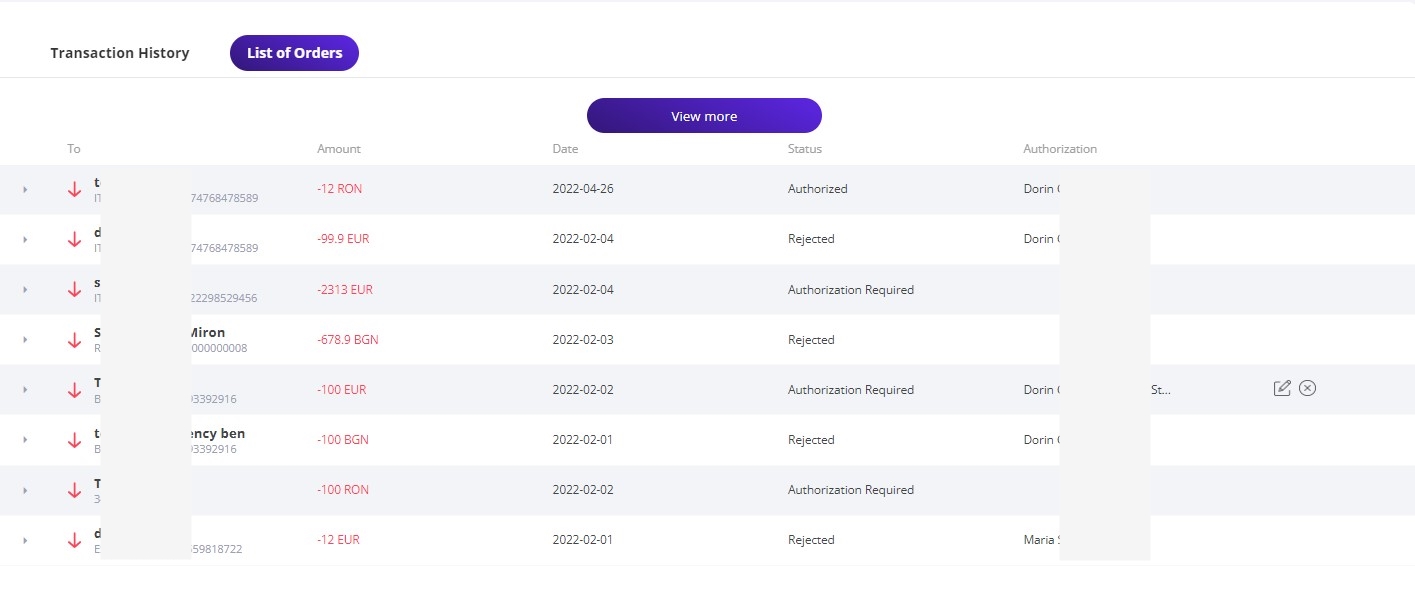
- payment transactions successfully executed
- rejected payment orders
- pending for authorization payment orders
- future scheduled payment orders.
For details, see List of Orders and Multiple Authorizations of a Payment.
Timeline
This is a horizontal time depiction of the repayment schedule. For more details, see Credit Management
Exchange Rates
This widget displays nine currencies with their respective buying and selling values related to the local currency. The default list contains the currencies: euro, American dollar, British pound, Swiss franc, Canadian dollars, Romanian Ron, Japanese Yen, Polish złoty, Swedish krona.
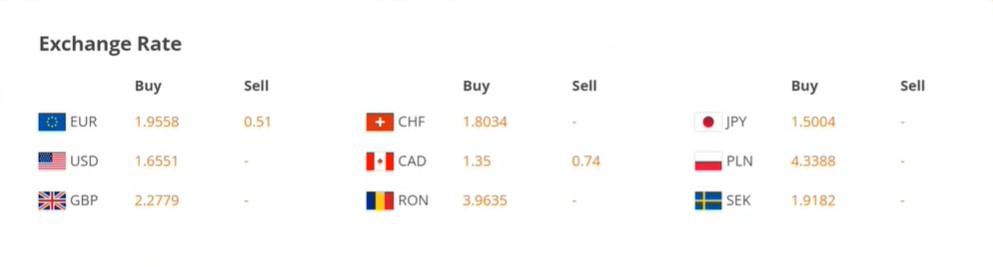
Core Banking returns several rates for exchange for cash withdrawal, two rates are used:
- BuyNonCash
- SellNonCash.
Overdraft
This section is a cross-sell widget where the banks presents you with additional products it has.
Bazaar
This section holds the moneyback partner stores where the bank offers a discount if you buy within those stores with the debit/credit card you have.
Footer
This section contains the buttons: Payments, Request Cash Withdrawal, Templates & Contracts, Products.
Click Payments to initiate a payment. A pop-up opens with the following types:
- Make a payment. Click this button to initiate a payment (see Initiating a General Payment).
- Utility Bills. Click this button to initiate a utility bill (see Utility Payments).
- Exchange. Click this button to initiate a foreign currency exchange.
- Own Account Transfer. Click this button to initiate a transfer.
- Bulk payments. Click this button to initiate a bulk payment (see Bulk Payments).
- Templates & Contracts. Click this button to display the Templates page with the list of existing templates. For details, see Beneficiary & Payment Templates.
- Request Cash Withdrawal. Click this button to initiate a message sent to the bank with the appointment when to take cash from the account.
- Products: Start Saving, Current Account, Saving Simulator and Access credit card.
For details on how to initiate payments, see: