List of Orders and Multiple Authorizations of a Payment
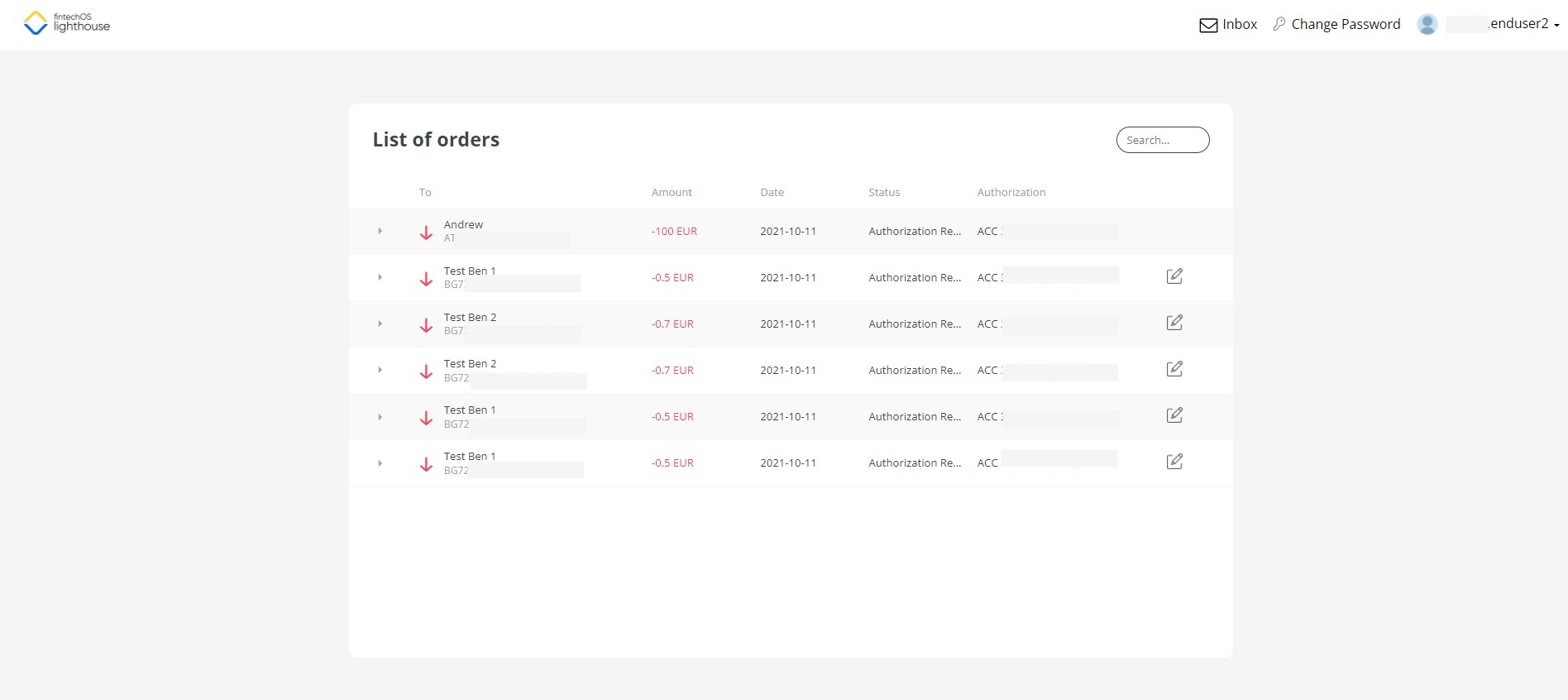
The List of Orders displays all transactions registered via Online and Mobile Banking:
- payment transactions successfully executed
- rejected payment orders
- pending for authorization payment orders
- future scheduled payment orders.
When you do NOT sign a payment, another user from the same business unit is able to see the payment pending in the List of Orders, and can click it to authorize it by signing it (applicable only if the signature engine rules allows this action).
Payments with the
Draft status are not be displayed here. For details, see Business Workflows Processor.To access the List of Orders:
- Log into the FintechOS Portal.
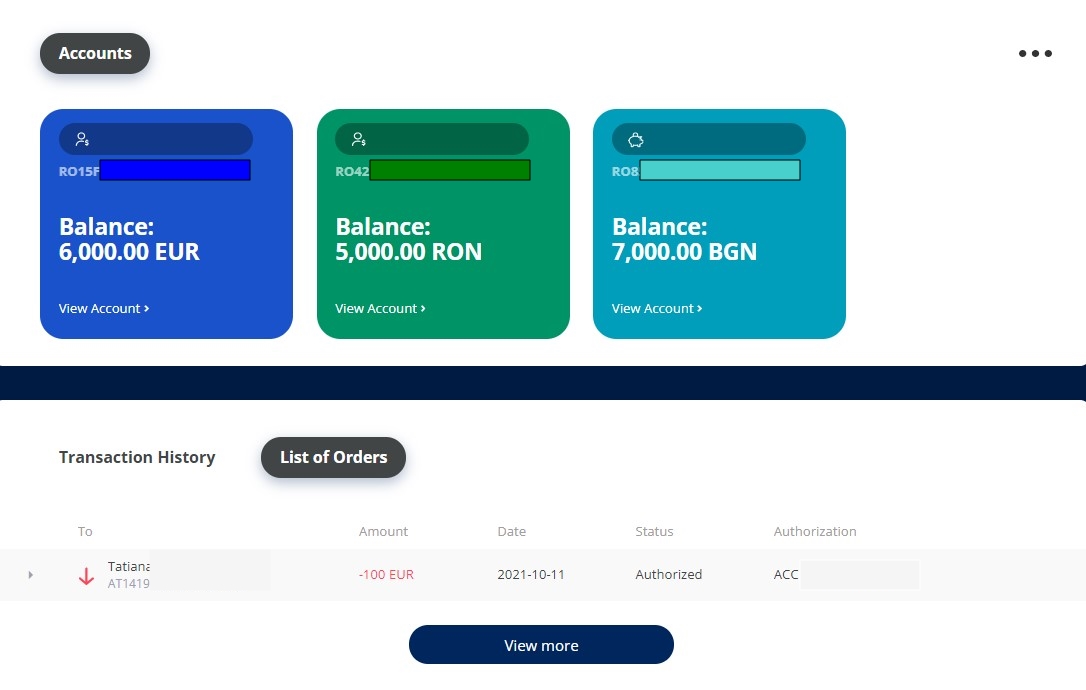
- In the Homepage, scroll down on the section Transaction History and List of Orders.
- Click List of Orders.
- Click View more.
- Use the Search bar on the top right-hand corner of the screen to type in data about a transaction and look for a payment. The search is done on a newly created field that concatenates the following information:
• Beneficiary Name
• Beneficiary IBAN
• Beneficiary Account
• Payer Account
- The page List of orders has the following fields:
Field Data Type Description To Text The name of the entity to whom the funds are wired. Amount Numeric The sum transferred. Date Invariant date The date when the payment was executed. Status Lookup The status the payment has:
- executed
pending available balance
- sent to core banking
- rejected.
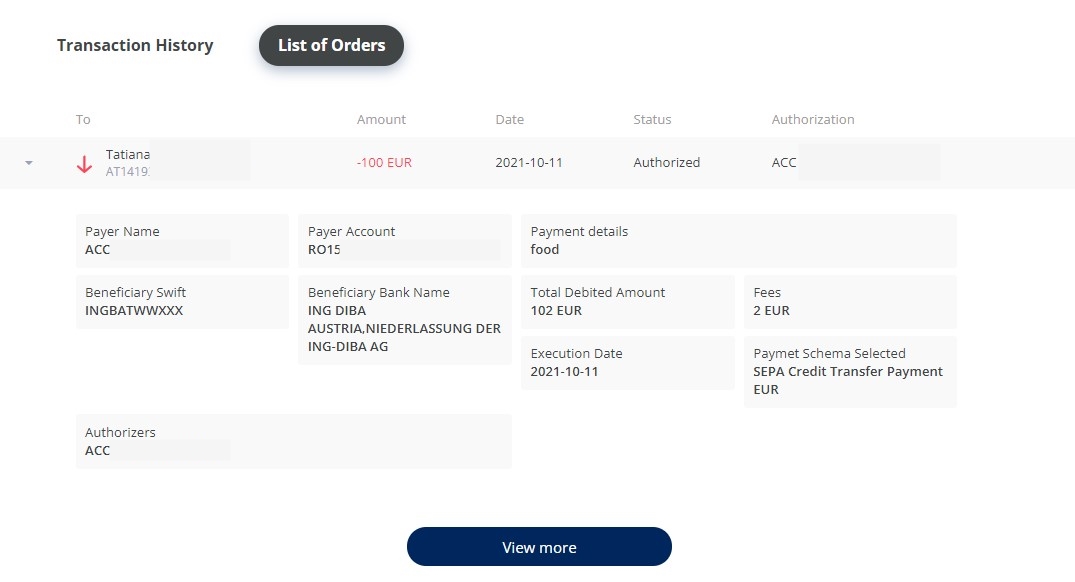
Authorization Text It displays the message regarding the person who approved the payment and the persons who still have to sign the payment as part of a joint signature rule (the potential approvals). To expand a transaction, click the arrow at the beginning of the row:
Field Description Payer Name The name of the transaction’s correspondent. Payer Account The IBAN of the transaction's correspondent. Payment Details The details of the payment. Beneficiary SWIFT The code of the correspondent. Beneficiary Bank Name The name of the bank. Beneficiary Address The address of the correspondent. Total Debited Amount The total amount plus fees. Fees The commission for the transaction. Execution Date The date when the transfer was done. Payment Schema Selected The type of the payment: Non-SEPA SWIFT Payments/Intra-BankOwn Account/Foreign Exchange/Intra-BankOther customer from the same financial institution/Instant Payments/High-value domestic payments OR Urgency/Small value domestic payments/SEPA Instant/SEPA Payments/TARGET2. Authorizers The list of people who signed (marked in bold) and the list of people who are going to sign the payment (normal text).
Redo Payment
A previously executed payment can be re-initiated with the same data. Depending on the type of payment, it saves all the fields that had values inserted. Some payment schema types have more fields than others.
To redo a transaction, a payment must meet the following criteria:
- they have the status
Executed, - they were not over-the-counter transactions
- the user has the authorizer role
- they are not utility payments and bulk payments.
To redo a payment, follow these steps:
- From the homepage, access List of Orders.
- Click to expand a payment.
- Click the Redo button. The system displays the Make a Payment screen with the fields already filled in with the data for the previous payment.
- All the fields are editable.
- Click Review Payment. The page Review Payment Details is displayed. It contains the read-only data:
Field Description From The source account. To The beneficiary name and account. Available balance The sum available in the FROM account. Total The total amount to be paid in the currency of the source account. Payment amount The amount to be transfered. Payment type The type of the payment: Non-SEPA SWIFT Payments/Intra-BankOwn Account/Foreign Exchange/Intra-BankOther customer from the same financial institution/Instant Payments/High-value domestic payments OR Urgency/Small value domestic payments/SEPA Instant/SEPA Payments/TARGET2. Execution Date The date when the amount arrives in the account of the beneficiary. Payment reason The reason for the transfer. - To proceed, click Confirm. To cancel, click Back.
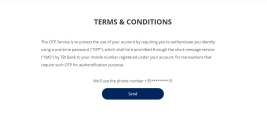
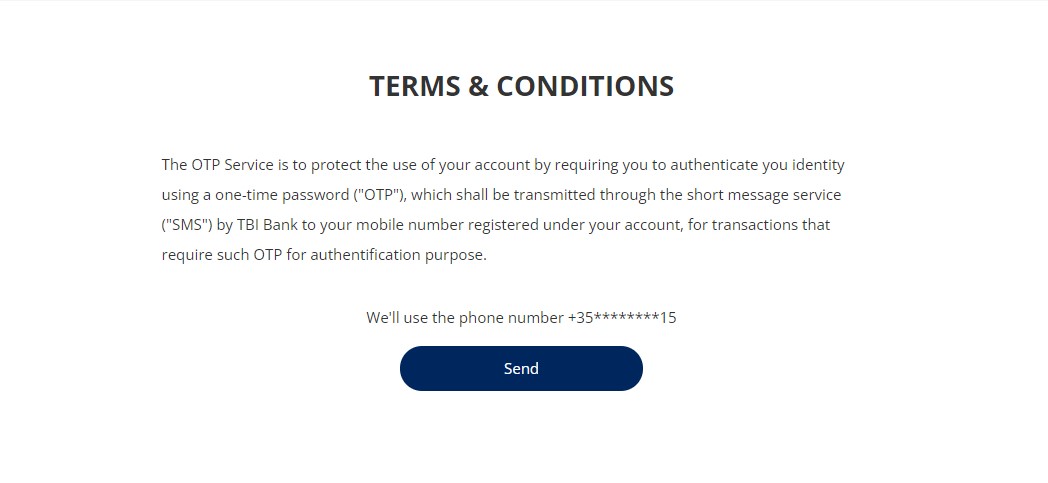
- The page Terms & Conditions is displayed. Click Send.
To sign the payment, an email was sent with a code. There are six boxes where to insert each letter of the OTP. To verify the OTP inserted, click Authorize.
If the code was not sent, click Re-send code.
If you have trouble seeing the code, click Call me.
If the code inserted was wrong, then the user is directed to the page Wrong authorization code.
Click Send to reinitiate the signature process.
Click the Try later button to save the payment and re-initiate it from the List of Orders and Multiple Authorizations of a Payment.
On the confirmation page, the message Your payment has been registered successfully. is displayed. If it is the case to be a joint signature, there is the message The payment has been posted in the Order List for the joint authorized Approver to sign. Click Home to return to the Homepage.
Authorized.NOTE
At every two minutes, the scheduled job named FTOS_IB_PaymentsQueue runs to send the payment to Core Banking after it has been authorized by all the persons needed and its status isAuthorized.
Next to each row there are two buttons displayed that trigger different actions:
- sign payment
It is displayed for the transactions that have multiple signatures needed and that are not fully authorized. It opens the page Terms & Conditions. Click Send to request the OTP.
or
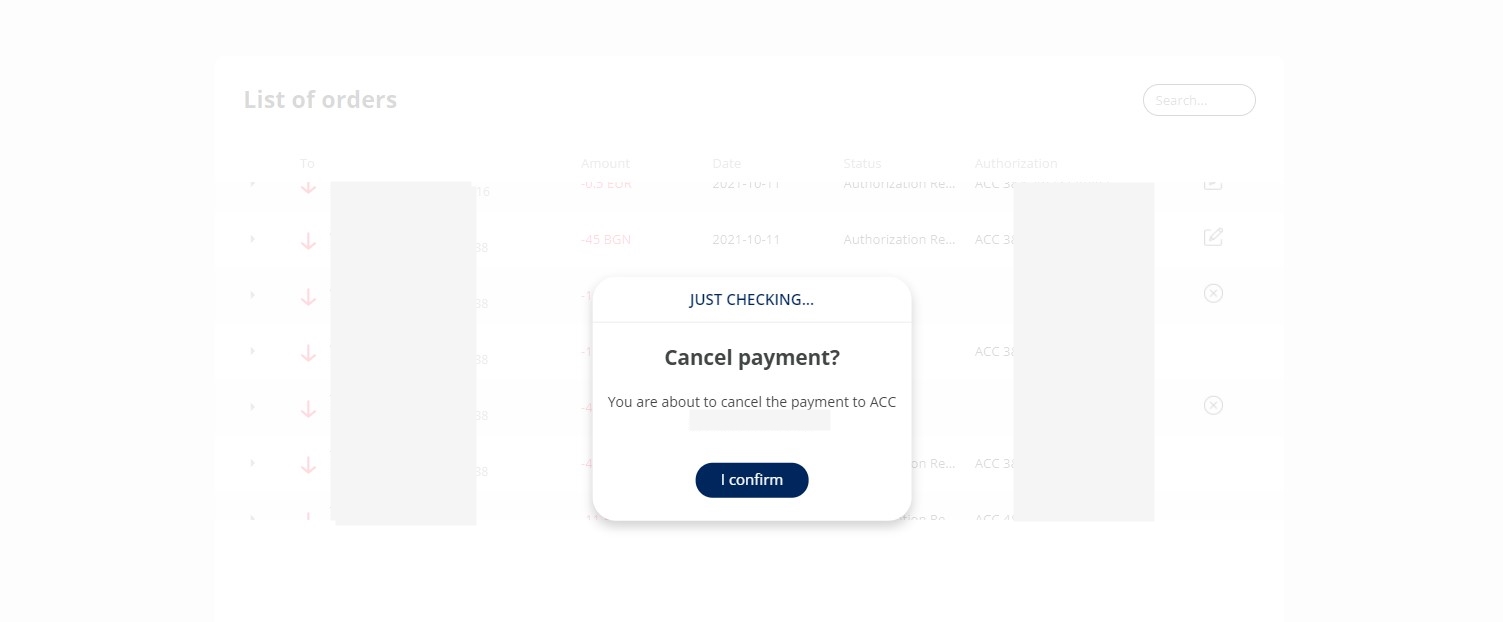
- cancel payment.
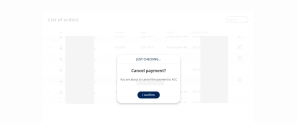
A pop-up is displayed. Click I confirm to finish the process. The payment has the status
RejectedorCanceled.

Depending on the status of the payment, the buttons above are displayed:
- If the transfer has the status
Initiated(when the user clicked the button Review Payment on the Make a payment page). The buttons displayed are:- Sign
- Canceled.
- If the transfer is with status
Authorization required(when the user confirmed to make the payment on the Review Payment page). The buttons displayed are:- Sign
- Canceled.
In the case of joint signature and the user already signed the payment, the Sign button is no longer available.
Download File with Details of a Transaction
It is possible to download the details of a transaction by clicking the Download button from the header of the list. The name for the downloaded file has the structure: transaction details +IBAN/Account Number+ the date when the file was downloaded YYYY.MM.DD.
The platform can generate the file in English, Romanian and Bulgarian. If you select a different language from these ones, the default language used for the file is English.
This functionality to generate the file in another local language is subject to internal modifications.
The file contains:
| Column | Description | Source | Attribute |
|---|---|---|---|
| Header | It has the financial institution logo and contact details. | N/A | N/A |
| Beneficiary Name | The name of the person/company. | FTOS_IB_Payment | beneficiaryName |
| Payment type | The payment schema. | FTOS_IB_Payment | paymentTypeDisplay |
| Payment amount | The value. | FTOS_IB_Payment | PaymentAmount paymentCurrencyID |
| Beneficiary | The name of the beneficiary of the payment, the IBAN and the code. | FTOS_IB_Payment | beneficiaryName beneficiaryIBANAccount organisationCode |
| Ordering party | The name, the account and the code. | FTOS_IB_Payment | Name payerAccountId organisationCode |
| Document | The Id of the transaction. | FTOS_IB_Payment | transactionID |
| Value date | The date when the payment was executed. | FTOS_IB_Payment | paymentExecutionDate |
| Processing date | The date when the payment was initiated. | FTOS_IB_Payment | paymentExecutionDate |
| Currency rate | The exchange rate. | FTOS_IB_Payment | currencyExchangeRate |
| Equivalent amount | The value of the payment in the local currency. | FTOS_IB_Payment | AmountLocalCurrency |
| Payment status | It displays the message: The transaction has been BusinessStatusId. | FTOS_IB_Payment | BusinessStatusId |
| Date of document | It displays the message: Printed on Current date. |