Apply Portal Profiles
Portal profiles allow you to customize FintechOS Portal instances by changing the company logo, backgrounds, favicon, system parameters, menus, dashboards, and so on. Using portal profiles you can offer a tailor-made experience to different types of users. For example, a customer-facing portal that can be used for exposing products and services will look and behave differently from an internal one used by employees.
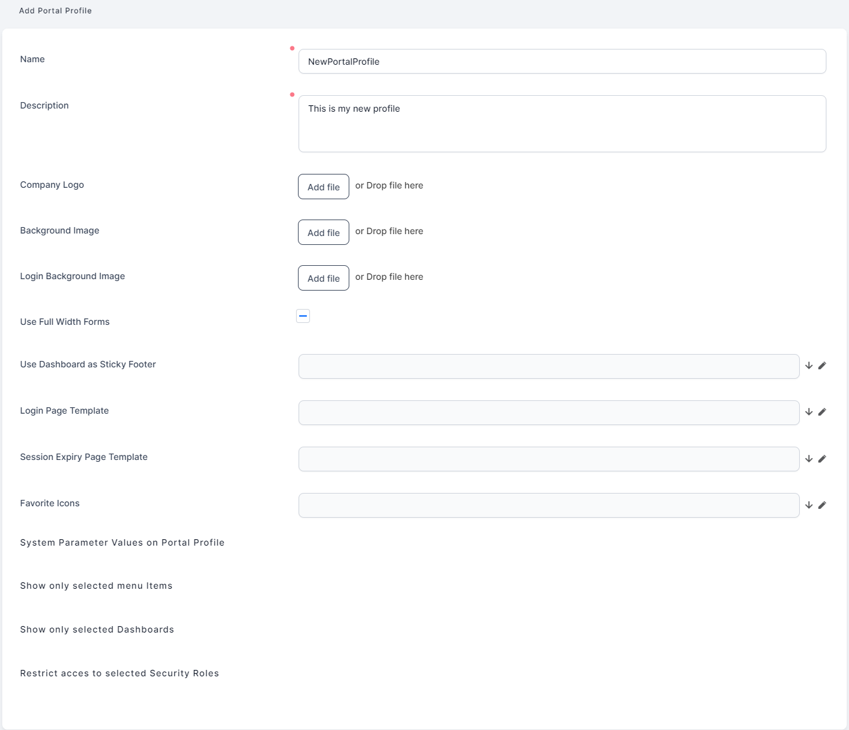
To create your profile portal, navigate to the Main Menu > Digital Experience > Digital Frontends > Portal Profile and follow the instructions from the Portal Profiles page.
 Apply a Sticky Footer to Portal Pages
You can add interactive ways to enhance the user experience through widgets and dashboards in your portal instance to fit your business needs.
When defining your portal profile, you can have one of your dashboards or widgets always be visible at the bottom of the screen by applying a Sticky Footer. To do so, select this option in the Use Dashboard as Sticky Footer drop-down.
Configure the Portal Branding
You can configure your portal profile instance based on your business's needs by setting the company logo image or background image. Additionally, you can set different favicons variations for your Digital Experience Portal depending on the icon's resolution and type of device.
The below system parameters help you to configure your profile branding by setting a document title or the right footer text.
Set the document title of your Digital Experience Portal
Use the sys-document-title to display a custom text as the webpage title. Its value must be set as a JSON object with a property for each supported language.
For example:
{'en-GB':'Custom Document Tile', 'ro-RO':'Document Title personalizat'}If the value is empty the default text displays:
"FintechOS", "DigitalOS", or "DCX360".Set the right footer text of your Digital Experience Portal
Use the sys-right-footer-text to set the text to be displayed in the right footer. Its value must be set as a JSON object with a property for each supported language.
For example:
{'en-GB':'Custom text', 'ro-RO':'Text personalizat'}If the value is empty the default text displays:
"ADVANCED DIGITAL LAUNCHPAD".Customize the Portal Home Page
You can use custom flows to create a custom home page with your own UI and business workflow process.
To define a portal instance with a custom flow as home page, add the following keys in the Configuration Manager.
| Key Path | Key Name | Value |
|---|---|---|
| kv/<environment>/<FintechOS Portal instance>/app-settings | CustomHomePageActionName | The action name used to manage the custom page for the application. |
| kv/<environment>/<FintechOS Portal instance>/app-settings |
CustomHomePageIgnore |
If true, the action with this name is called when the home page of the application is loaded. |