Configure Mid-Term Adjustment Types
The Mid-Term Adjustment (MTA) functionality enables users to modify active policies or master policies in response to customer requests. This section outlines the default MTA types and explains how to configure them to support your business requirements. Any changes made here apply to both the Policy Mid Term Adjustments process and the Master Policy Mid-Term Adjustments process.
View Default Mid-Term Adjustment Types
In FintechOS Portal go to Main Menu > Contract Management > Contract Management Settings > Insurance Settings > Mid Term Adjustment Types. The list is displayed.

The following alteration types are available for use during Policy and Master Policy Mid-Term Adjustments:
| Alteration | Display Name | Description | Product Type | Policy | Master Policy |
|---|---|---|---|---|---|
| Revoke Cancellation | Revoke Cancellation | Enables the reverse of a previously registered cancellation on a policy or master policy by reinstating the version that was active before the cancellation. This alteration allows modification of the effective date and/or due date for non-chronological mid-term adjustments and is available for all products configured to support non-chronological MTAs. | Health, Home, Personal Accidents, Pet Insurance, Travel Insurance | ✔ | ✔ |
| Start Date | Change Start Date | Updates the start date of a policy or master policy to support backdated or future-dated contracts. This alteration is applicable only to contracts that have not yet started and are in Draft, Proposal, or Issued status. | Health, Home, Motor, Personal Accidents, Pet Insurance, Property, Travel Insurance | ✔ | ✔ |
| Coverage | Update Coverage | Supports policy coverages modifications by updating insured sums, changing coverage cards, adjusting insured amounts, or modifying the excess value and type. | Health, Home, Personal Accidents, Pet Insurance, Travel Insurance | ✔ | |
| Due Date | Update Due Date | Changes the due date of installments by either assigning a specific collection day to all on-time installments or modifying an individual due date. | Personal Accidents, Health, Home, Pet Insurance, SME Insurance | ✔ | ✔ |
| Payment Frequency | Change Payment Frequency | Updates the installment payment frequency. The new frequency must be one of the active values defined in the paymentFrequency option set. | Personal Accidents, Health, Home, Pet Insurance, SME Insurance | ✔ | ✔ |
| Payment Type | Change Payment Type | Changes the payment method used for the installments. | Personal Accidents, Health, Home, Pet Insurance, SME Insurance | ✔ | ✔ |
| Renewal Type | Change Renewal Type | Updates the renewal behavior of the policy, such as automatic renewal, renewal with offers, or no renewal. | Personal Accidents, Health, Home, Pet Insurance, SME Insurance | ✔ | |
| Insured Object | Update Insured Object | Applies changes to the insured or covered object defined in the policy. | Personal Accidents, Health, Home, Pet Insurance, SME Insurance | ✔ | |
| Mentions | Mentions | Updates free-text mentions or notes associated with the policy or master policy. | Home, Pet Insurance | ✔ | ✔ |
| Update Policy Party | Update Policy Party | Updates the account associated with any role defined on the policy or master policy. | Personal Accidents, Health, Home, Pet Insurance, SME Insurance | ✔ | |
| Update Master Policy Party | Update Master Policy Party | Modifies registered parties on a master policy, such as changing the master policy holder. | Personal Accidents, Health, Home, Pet Insurance, SME Insurance | ✔ |
Use Cases
 Chronological vs Non-chronological MTAs
Chronological alterations allow changes in the exact order they occur over time. When a mid-term adjustment (MTA) is made, the system generates a cloned version of the policy, which stays in a Pending state until its effective date, at which point it transitions to In Force. These adjustments must be processed in chronological sequence. If a future adjustment has been scheduled but hasn't yet taken effect, it can still be cancelled. For instance, if there's an MTA scheduled to take effect on October 1st, but a change is required today, the process involves first cancelling the October 1st MTA, implementing the 2nd modification registered, and then reapplying the original MTA with its October effective date.
Non-chronological alterations allow changes to be applied based on operational necessity rather than strict time order. Mid-term adjustments (MTAs) under this structure are made directly on the active policy and take effect immediately. These adjustments cannot be reversed or cancelled once applied. However, a subsequent MTA can be used to counteract or override the previous change. If a cancellation is scheduled for a future date and needs to be undone, the Revoke Cancellation MTA must be used. This action nullifies the effects of the original cancellation and restores the prior version of the policy to InForce status.
The Revoke Cancellation mid-term adjustment type takes effect immediately and can't be cancelled, any changes must be made through a new alteration.
Alterations can be set with any effective date, provided it falls within the policy’s validity period and the chronology setting. If the policy renews as same policy, the MTA date must be on or after the original start date. Payment schedule updates only affect installments due on or after the mid-term adjustment’s effective date.
Backdated Policies and Master Policies
The Change Start Date mid-term adjustment type is applicable for both policies and master policies, and can be used for modifying the start date of a policy, particularly in backdating scenarios. Backdated insurance policies refer to insurance contracts that are issued with an effective date earlier than the actual date the policy is written or signed. In other words, the coverage is retroactively applied to a date in the past.
If the policy start date is in the past (before today's date, systemDate), and the payment schedule is set to apply the first installment to the start date, the system will overwrite this setting. It will then adjust the first payment to be due on the system date (today), instead of the past start date, ensuring the payment schedule is aligned with the current date.
Changes are also triggered for the payment schedule, this is generated based on the configured payment schedule type and any installments with a due date earlier than today's date will be updated to a new due date that’s equal to or later than today. The new due date will be adjusted monthly for monthly, quarterly, or annual payment frequencies, and weekly for weekly payments. The number of installments is kept, the due date is updated.
Backdated Coverages on Policy
Use the Update Coverages mid-term adjustment type to perform an alteration with an effective date that is earlier than existing alterations on the same policy. This option is available only for policies. After initializing the alteration, if the effective date is earlier than the system date (i.e., backdated), the system generates the clone from the currently in force policy. This process bypasses all previous alterations that are still in In Progress status.
The following conditions must be met before registering the mid-term adjustment:
-
No clones should exist in the system for the policy being changed;
-
All mid-term adjustments with an effective date later than the system date must be cancelled;
-
A clone of the policy version is created, its status updated to In Force, and the currently In Force policy version is marked as Closed;
-
No changes are made on versions closed between effective date and system date;
-
The price is calculated based on the effective date, policy changes take effect from the system date. The payment schedule is regenerated for on time details affected by the change on the coverage start date;
-
A backdated mid-term adjustments can be added on any type of product, if the chronology rule is met.
Backdated Mid-term Adjustments on Insured Object
For backdated mid-term adjustments on an insured object use the existing Update Insured Object alteration type. When backdating, the effective date is before the system date or another alteration’s effective date, and on or after the policy start date. Clicking Register creates a cloned policy version with status In Force, which cannot be cancelled; further changes require a new mid-term adjustment. Adding a new alteration is blocked if one is in progress and must be cancelled or finalized first. Clicking Validate recalculates the premium with the policy validity, then prorates the result depending on the selected effective date.
The following conditions must be met before registering the mid-term adjustment:
-
No clones should exist in the system for the policy being changed;
-
All mid-term adjustments with an effective date later than the system date must be cancelled;
-
A clone of the policy version is created, its status updated to In Force, and the currently In Force policy version is marked as Closed;
-
No changes are made on versions closed between effective date and system date;
-
The price is calculated on effective date, the changes on the policy are starting from the system date and the payment schedule is regenerated (only payment schedule details with the status OnTime are updated).
Future Dated Policies and Masterpolicies
The Change Start Date mid-term adjustment type is applicable for both policies and masterpolicies, and can be used for modifying the start date of a policy, in future dating scenarios. This means modifying the start date of a policy or masterpolicy to be greater than the system date. This is available for Proposal and Issued statuses, and not for InForce status.
For an independent policy, the end date is calculated as the new start date plus policy validity, with no amount updates, but updates are made to the policy’s coverage start date and payment schedule, regenerating if no invoice is issued or adjusting due dates for On Time payment statuses.
For a policy under a master policy, the new start date must be greater than or equal to the master policy’s start date, the end date remains unchanged (based on the master policy), the policy validity is recalculated, total premiums are adjusted based on new validity, and the coverage premium is updated, with final premiums reflecting any commercial discount; payment schedules are updated accordingly, and a new version of the master policy is created with the revised amounts and schedule.
Future-Dated Mid-term Adjustments and Payment Recalculation
For a mid-term adjustment with effective date in the future, if an installment is invoiced between the clone generation and the effective date of that change, then the payment schedule attached to that clone is no longer valid and needs to be recalculated. The alterations that allow changing the effective date are: Update due date , Coverage, Insured Object, Mentions, Update Policy Party, Update Master Policy Party, Start Date , Payment Type, Payment Frequency, Renewal Type, Revoke Cancellation.
If you make a future-dated change to your policy, but an installment is already invoiced before the change becomes effective, then the payment plan must be recalculated to reflect the updated policy and premium.
A real life example of this would be if you have a home insurance policy with a $1,200 annual premium, paid in $100 monthly installments. On July 15, the customer asks to increase the coverage, starting August 1. You create a future version (clone) of your policy with higher premium, starting from that date. But on July 20, the August installment is invoiced—based on the old premium. The payment schedule in the cloned (future) policy is now outdated, because an installment was already issued before the change took effect. The payment schedule is recalculated to reflect the new premium from August onward.
This is done with the PolicyCloneBecomePolicyVersion, which calculates the premium due based on the current version of the policy, using the due date minus statement generation days (SGDays) to determine when to generate the bill.
When you revoke a future-dated cancellation with an already-paid refund, the system automatically adds an on-time installment dated on the revoke date for the exact refund amount to reinvoice it in the payment schedule. This applies to both chronological and nonchronological revoke cancellations for policies and masterpolicies.
Here is a use case example: You cancel a policy in advance on Nov 30th, and on Nov 27th the system calculates and pays you a refund of $6.27. Later, you change your mind and revoke that cancellation on Nov 27th; when you do that, the system now creates a new installment of $6.27, due on Nov 27th, not paid yet, so that the refunded money is billed back to you.
Change the Card on a Policy
Use the Update Coverage mid-term adjustment type to update the content card on the policy. These cards represent the plans for insurance products and are generated when creating Offers. These may contain coverages with different insured sums, start or end date, effective dates, etc.
After picking a new card, the list of coverages is updated. The begin and end date are system driven. The begin date equals the sum of the mid-term adjustment effective date and the waiting period. The end date equals the policy end date. You can only chose the effective date of the alteration.
When making changes, an update to the payment schedule is triggered. In case the policy is paid, a new payment schedule detail is generated with due date min(AlterationEffectiveDate+1, EndDate) and the amount resulted as difference. Otherwise, the on time installments are updated.
Coverage Changes
The system ensures that each policy coverage reflects its correct validity period (start and end dates) and associated premium amount. Policy coverages and sub-coverages are stored, with updates managed through MTAs. Historical values are only accessible in closed policy versions.
When a coverage or sub-coverage is removed, its end date is set to one day before the effective removal date. If re-added, a new record is created. Premiums for changes (additions, removals, or modifications) are prorated based on the coverage’s actual period of validity. This ensures that earned premium for the active period is included, even if the coverage is later removed, preventing discrepancies between total policy premium and the sum of individual coverage premiums.
Risks can be reported and linked to claims using the product Id tied to the policy’s product version.
MTA After Renewal
You can perform mid-term adjustments (MTAs) on policies that have already been renewed using the same policy in non-chronological flows:
-
when you approve a non-chronological MTA on a renewed policy or master policy, the existing renewal policy moves from Pending to Unapproved status;
-
the policy clone created by the MTA becomes the new active policy version, following the standard versioning behavior;
-
after the adjustment is processed, the renewal job is automatically triggered using the new policy ID to generate an updated renewal policy.
Configure Mid-term Adjustment Types
-
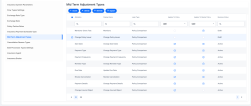
In FintechOS Portal go to Main Menu > Contract Management > Contract Management Settings > Insurance Settings > Mid Term Adjustment Types. The list is displayed.
-
Click Insert to configure a new mid-term adjustment type.
-
Fill in the following fields:
-
MTA Type Name: Input a unique name for the mid-term adjustment type;
-
Display Name: Input a display name for the mid-term adjustment type;
-
Category: Select MTA; Cancellation, Reinstatement;
-
Specify the MTA Type Valid From and MTA Type Valid Until;
-
Available Offers Validity: choose between Current and On policy issue date;
-
Check the boxes whether it applies to Policy and/or Master Policy;
-
Add the Policy Form Name and/or Master Policy Form Name. In both cases, select in which policy or master policy status the mid-term adjustment can be issued. Also, select a mid-term adjustment form driven flow to apply in this case. You can choose an existing flow, or create a new one, and select it.
-
Add the Policy Eligible Statuses and/or Master Policy Eligible Statuses;
-
Tick the box if you want to Exclude Policy Under Master Policy. This applies to standalone policies and cannot be applied to policies under a master policy.
-
Add the Specific Form by Product;
-
Product Types: From the drop-down, select one or more product types to which you want the alteration to apply;
-
Product Names: Select an insurance product from the drop-down, filtered by the insurance type chosen above. If you haven't selected a product type, all insurance products are displayed in this field.
-
-
In the Effective Date Settings section, fill in:
-
Check whether you allow Editable Effective Date;
-
Specify the Default Days To Add to Current Date;
-
Add the Allowed Backdated Days related to Current Date;
-
Specify the Allowed Future Days Related To Current Date.
-
-
In the Behavior Settings section, fill in:
-
Logic Type: From the drop-down select either Policy Comparison or Specific Logic. The Policy Comparison logic is explained in the Register and Cancel an MTA Request section;
-
Set an Approval Step and specify the Approval Roles;
-
Calculate Premium: Check this field to trigger a premium recalculation;
-
Set the Pro-rate Type Config and Pro-rate Type;
-
Check the box for New Installment, Reactivate, Reactivate Security Roles;
-
Check Underwriting Rules: If you check this field, when the alterations occur, they are verified by the underwriting rules. If validated, this allows the alterations, or else the flow stops;
-
Allow Card Change: allow changes in offers;
-
Set to Automatic Register;
-
Specify whether you wish to Show In Customer Portal or not. If yes, select a Customer Portal Flow.
-
-
In the Technical Settings section, fill in:
-
Use Business Service Component: specify the component;
- Clone Initialization Library Name: Enter the library that contains the method written in the
Selection Server Side Methodfield; -
Clone Initialization Function: Enter the method that is called when the mid-term adjustment type is selected on the Mid-term Adjustment form;
-
Register Library Name: Enter the library that contains the method written in the
Register Methodfield; -
Register Method: Enter the method that is called when the mid-term adjustment type is validated on the Mid-term Adjustment form;
-
Validate Library Name: The library that contains the code used for final validation of the mid‑term adjustment;
-
Validate Function: The specific method that performs the final validation check before the adjustment is accepted;
-
Summary Text: Enter the text to be displayed after validating an mid-term adjustment type. It should contain tokens, for example:
Starting{effectiveDate} {identifier} {attributeDisplayName}is modified from{initialValueDisplayName}to{newValueDisplayName}The used tokens must be from the
PolicyAttributeChangeentity.
-
-
In the Extend Standard Flow section, add additional libraries and functions.
-
Click Save and then Publish in Portal.
