Perform Master Policy Adjustments
Master policy mid term adjustments (MTAs) comprise of a collection of alterations that apply in the same way for all the policies that are part of said Masterpolicy. These MTA types are: change payment frequency, change payment type, update due date.
You can make adjustments either to a Masterpolicy or to a single policy that is part of a Masterpolicy.
When you create a new adjustment, the system generates a clone of the existing masterpolicy. Actual modifications done for the clones corresponding to the policies linked to a masterpolicies are done after the Register button is clicked. Any modifications that are made to each related policy are processed in parallel and as such the total impact in premium and payment schedule are calculated for the master policy adjustment once all the policies processing is over.
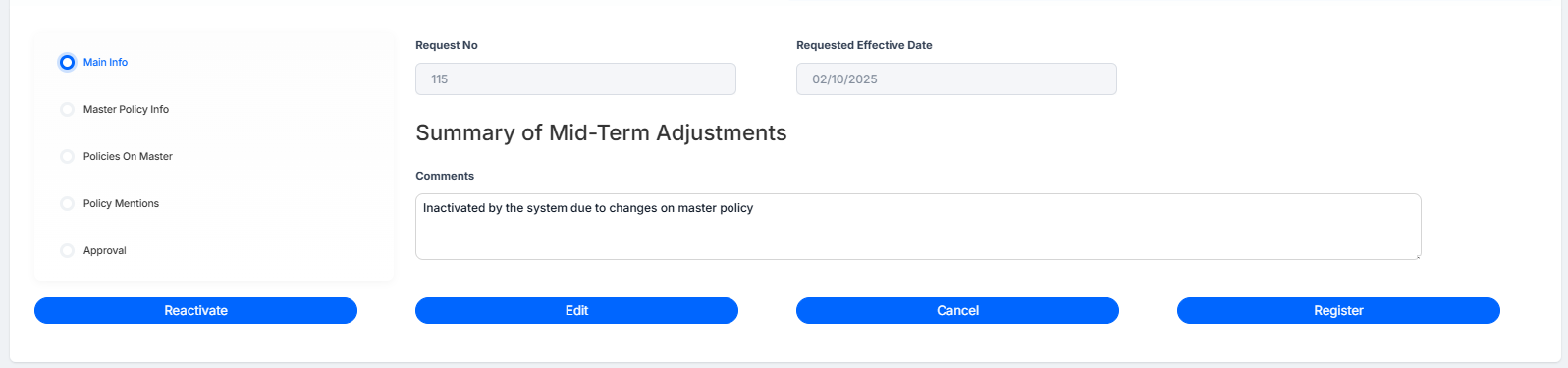
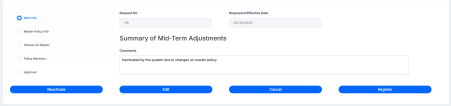
If you start an adjustment (MTA) on a master policy and leave it in Draft status, then add or cancel a policy under that same master policy, the draft adjustment will automatically move to Inactive. The system will display the message: “Inactivated by the system due to changes on master policy.” This is also applicable for a cancellation on a policy that has a draft adjustment or for a cancellation on a master policy that has a draft adjustments.
To avoid this, always check whether the policy or master policy has any draft adjustments, and either register or cancel those adjustments before adding or cancelling policies under the master policy.
 Open Your Master Policy
-
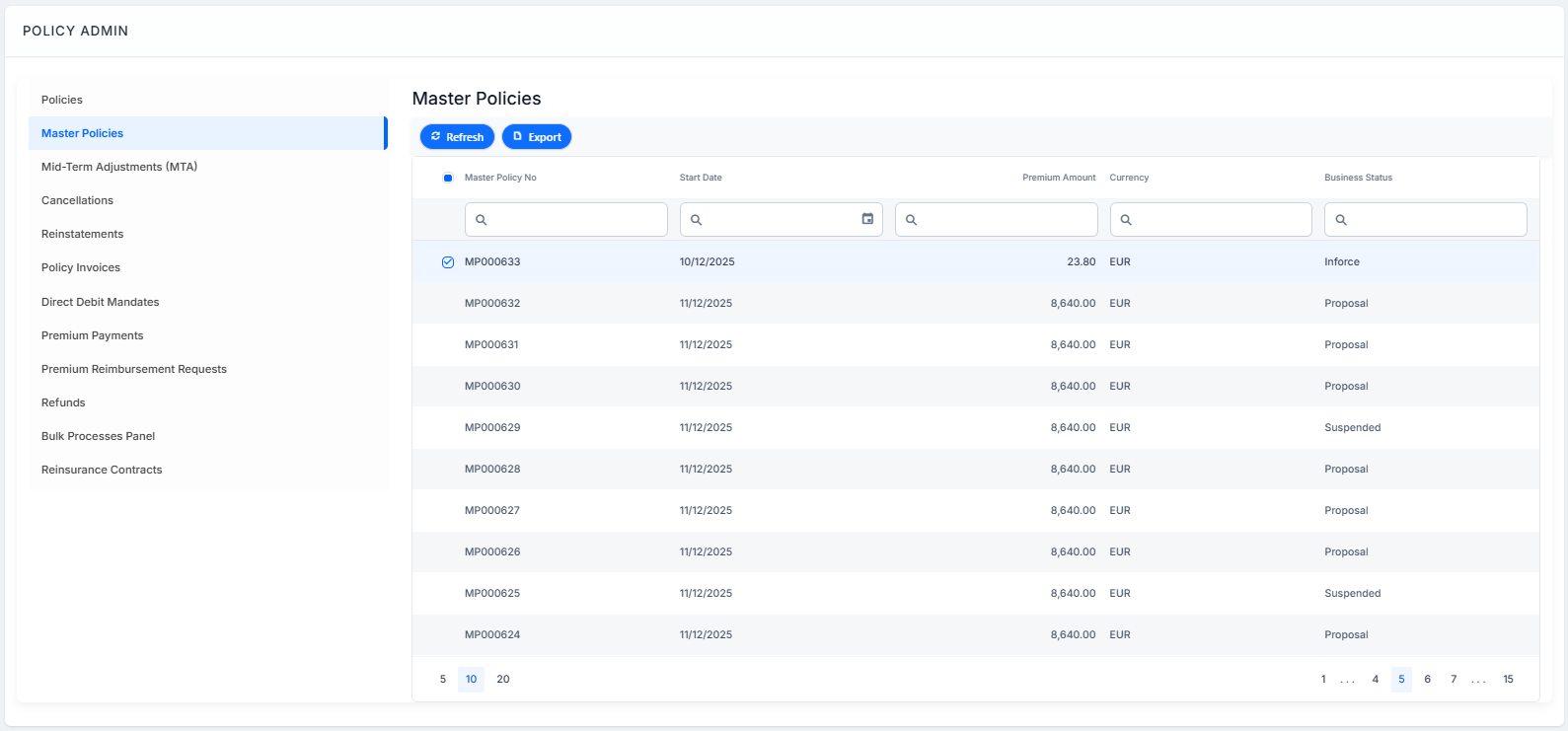
In the FintechOS Portal, go to Contract Management > Policies > Master Policies:
- Filter by Master Policy No to find your master policy and double-click to open it. Make sure the master policy is in In Force status to be able to issue an MTA.
-
Click the Add MTA.
Alternatively, you can choose to modify a single policy belonging to a Masterpolicy. For this, Perform Policy Mid Term Adjustments follow the steps in the page.
Make an MTA
Multiple alteration types are permitted in the same MTA, so you can expand multiple selections at the same time, complete, and validate them in the desired order.
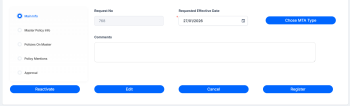
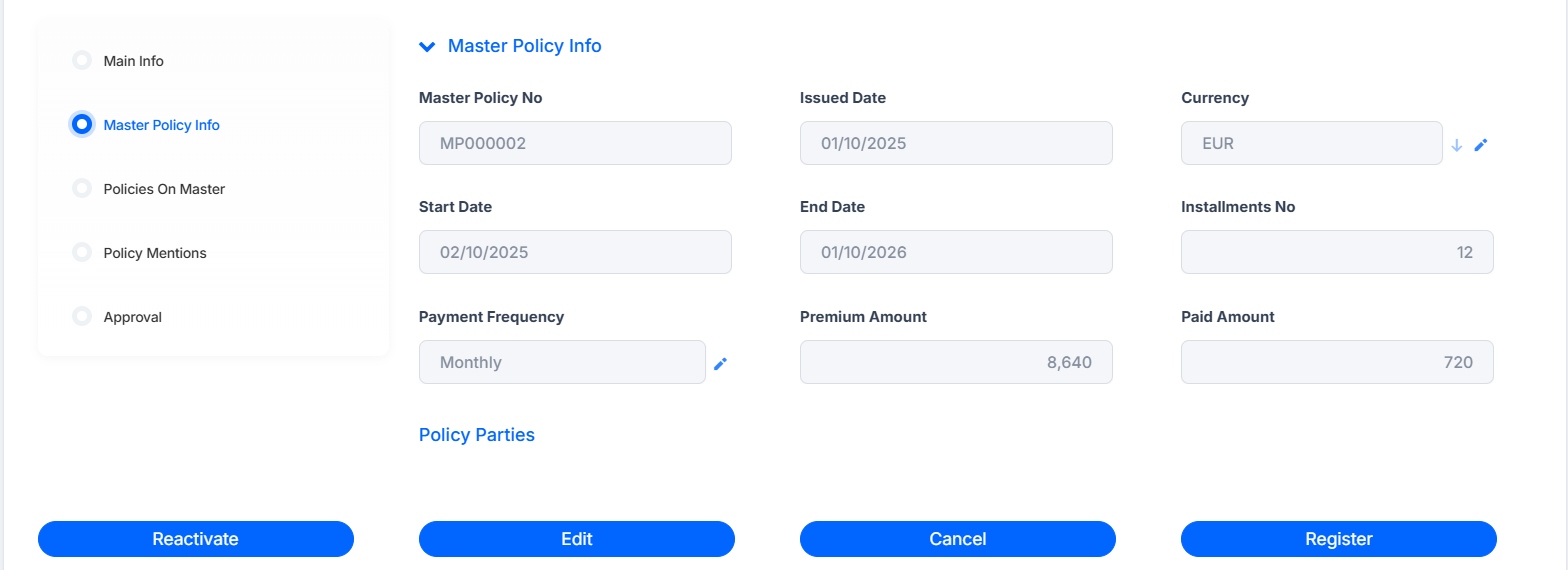
After completing the steps above, the Mid-Term Adjustment form opens with the following sections:
-
Main Info: This section lists the adjustment request number, the Requested Effective Date for the adjustment, the Summary section, and the Comments section.
-
Master Policy Info: with information on the master policy number, issued date, currency, installments, policy parties, and so on.
-
Policies On Master: shows a list of policies associated with the master policy.
-
Policy Mentions: Editable section, where you can write any mentions regarding the policy;
-
Approval: Shows the user who approved the adjustment and on which day.

Follow the steps below to make an adjustment to this Masterpolicy:
-
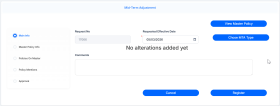
Click the Add MTA button at the top of the form, then click Choose MTA Type
-
Choose one of the available options:
-
Update Due Date
-
Change Payment Frequency
-
Change Payment Type
-
Update Master Policy Party
-
Update Renewal Type
-
Change Payment Details
-
 Update Due Date
-
Click Update Due Date. The form with installments and due dates for the policy opens.
-
Update the due dates that you want to change inline, within the schedule.
-
Click the Validate button to complete.
Change Payment Frequency
-
Click Change Payment Frequency. A form with options opens.
-
Click the New Payment Frequency dropdown and choose one of the options:
-
Full
-
Annually
-
Semi-Annually
-
Quarterly
-
Monthly
-
Weekly
-
Fortnightly
-
-
Click Validate.
Change Payment Type
-
In the Mid-Term Adjustment form, click Choose MTA type and select Change Payment Type from the list. The Change Payment Type form is displayed.
-
Choose a value for the New Payment Type field, from the drop-down.
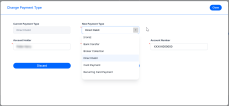
Depending on the option, add the following:
-
Bank transfer: No additional data needed;
-
Broker Collection: The
BrokerIdmust be provided, the broker is an existingAccountIdin the system; -
Direct Debit UK:
-
Account Holder: Prepopulated with the name of the account mapped to the standard role Policy Holder. This can be edited and is a mandatory field.
-
Bank Sort Code: Identifies a bank and its specific branch. It is a mandatory field.
-
Account Number: Uniquely identifies a customer’s individual account. It is a mandatory field.
-
-
Direct Debit SEPA:
-
Payer first name: Prepopulated with the first name of the account mapped to the standard role Policy Holder. This can be edited and is a mandatory field.
-
Payer last name: Prepopulated with the last name of the account mapped to the standard role Policy Holder. This can be edited and is a mandatory field.
-
Payer PIN/UTR: Prepopulated with the PIN of the account mapped to the standard role Policy Holder. This can be edited and is a mandatory field.
-
IBAN: Uniquely identifies a bank account for international transfers. It is a mandatory field.
-
Bank branch: Identifies the specific physical location of a bank. It is a mandatory field.
-
Amount type: Specifies the category or purpose of a transaction amount. It is a mandatory field.
-
Amount: The specific monetary value involved in the transaction. It is a mandatory field.
-
Begin date: The date on which the transaction or validity period starts. It is a mandatory field.
-
End date: The date on which the transaction or validity period ends. It is a mandatory field.
-
-
Card Payment: No additional data needed;
-
Recurring Card Payment: No additional data needed.
-
-
Click Validate. The record is updated.
-
In the Mid-Term Adjustment form, view the Summary of Mid-Term Adjustments section. Here you find the record with the summary of the alteration that you have just made. You can Edit or remove the change you've previously made.
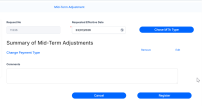
-
When done, click Register.

 Update Master Policy Party
-
Click Update Master Policy Party. A form with options opens.
-
In the Policy Parties section, click the record under the Party column. The list of registered parties is displayed.
-
Pick another party from the list and click OK.
-
Click Validate.
Update Renewal Type
-
In the Mid-Term Adjustment form, click Choose MTA type and select Change Renewal Type from the list. The Change Renewal Type form is displayed.
-
Choose a value for the Renew Type field, from the drop-down.
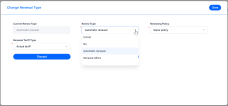
Edit the following options:
-
for Automatic renewal, choose the Renewing Policy, either Same policy or New policy, and pick the Same tariff or Actual tariff type;
-
for Renewal Offers, choose the Renew Offer Type and Renewal Tariff Type.
Read more about Renewal in the Policies Renewal page.
-
-
Click Validate. The record is updated.
-
In the Mid-Term Adjustment form, view the Summary section. Here you find the record with the summary of the adjustment that you have just made.

You can choose to Edit the adjustment, or to Remove it.
Change Payment Details
-
In the Mid-Term Adjustment form, click Choose MTA type and select Change Payment Details. The Change Payment Details form opens.
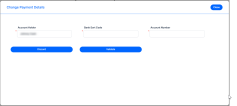
-
Change the Account Holder, Bank Sort Code, and Account Number, and click Validate.
-
In the Mid-Term Adjustment form, view the Summary section. Here you find the record with the summary of the adjustment that you have just made.
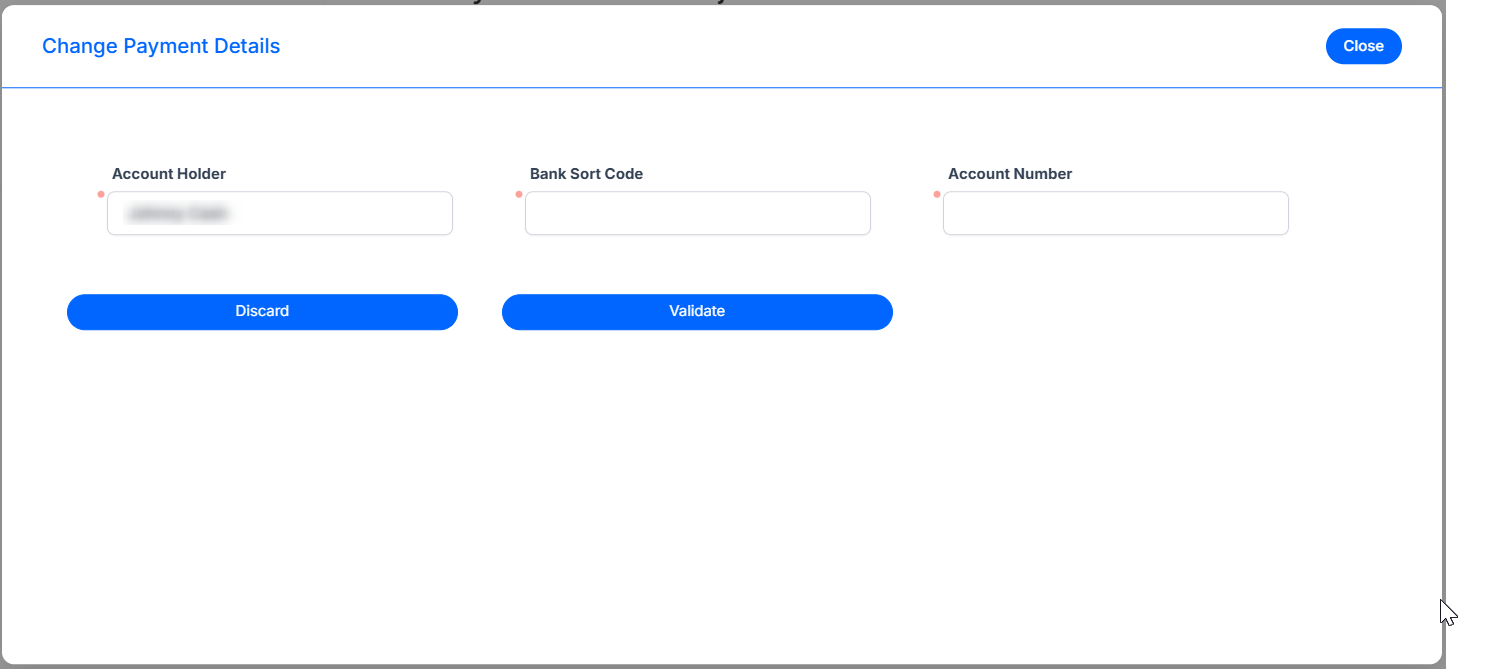
You can choose to Edit the adjustment, or to Remove it.
Register Adjustments
After clicking the Validation button for each of the adjustments options above, you are redirected to the Mid-Term Adjustment form with the details of your master policy.
Notice that the Summary section now contains all the changes you've made in the previous steps. You can cancel, edit, or make another adjustment from this section. If you updated the due date, the grid shows each installment with the old and new due dates.
When done, click the Register button to record all of your changes and the adjustment status to change to Pending Approval.
You can approve or decline an MTA request according to the customer’s decision regarding the modifications on the master policy. In the cases when adjustments are configured to bypass approval, the MTA request transitions from Draft directly to the Registered status upon registration. However, if the request contains at least one adjustment that requires approval, you will need to approve the entire MTA request in Pending Approval status. Only a user with a preconfigured security role can approve or decline the request. The security roles are configured per adjustment type. If additional changes are required, the user with approval rights can click the Edit button to transition the adjustment back in the Draft status. If the user making the adjustment is also the one with security roles for approval, then this step is skipped.
Actual modifications for the clones corresponding to the policies linked to a master policy are done after the Register button is clicked.
Reactivate an MTA
Use Reactivate to bring an inactive mid-term adjustment back to an active state when the master policy has changed. Once reactivated, you can continue working on the adjustment and register it without errors, even if the master policy has new versions or updates. This scenario happens when you initiate an adjustment to a policy and its adjustment is in Draft status. In the meantime, a new policy is added to that master policy, which generates a new master policy version. The initial adjustment goes into Inactive status and you can reactivate it in the new context.
-
In the Mid-Term Adjustments tab, go to your adjustment with the Inactive or Pending Approval status and double-click to open it.
-
Click the Reactivate button. The adjustment is reactivated and moved back to Draft status. From where you can continue with the mid-term adjustment.