Master Policy Cancellation
The Masterpolicy cancellation works in a similar way as the masterpolicy’s MTA. This means that cancelling a Masterpolicy also cancels all the policies with status In Force MTA that are linked to it.
 Register a Master Policy Cancellation
To initiate the cancellation of a master policy, the relevant policy must first be identified through a search. After locating the correct master policy, a cancellation request may then be submitted.
-
In the main menu, navigate to Policy Admin > Cancellations.
-
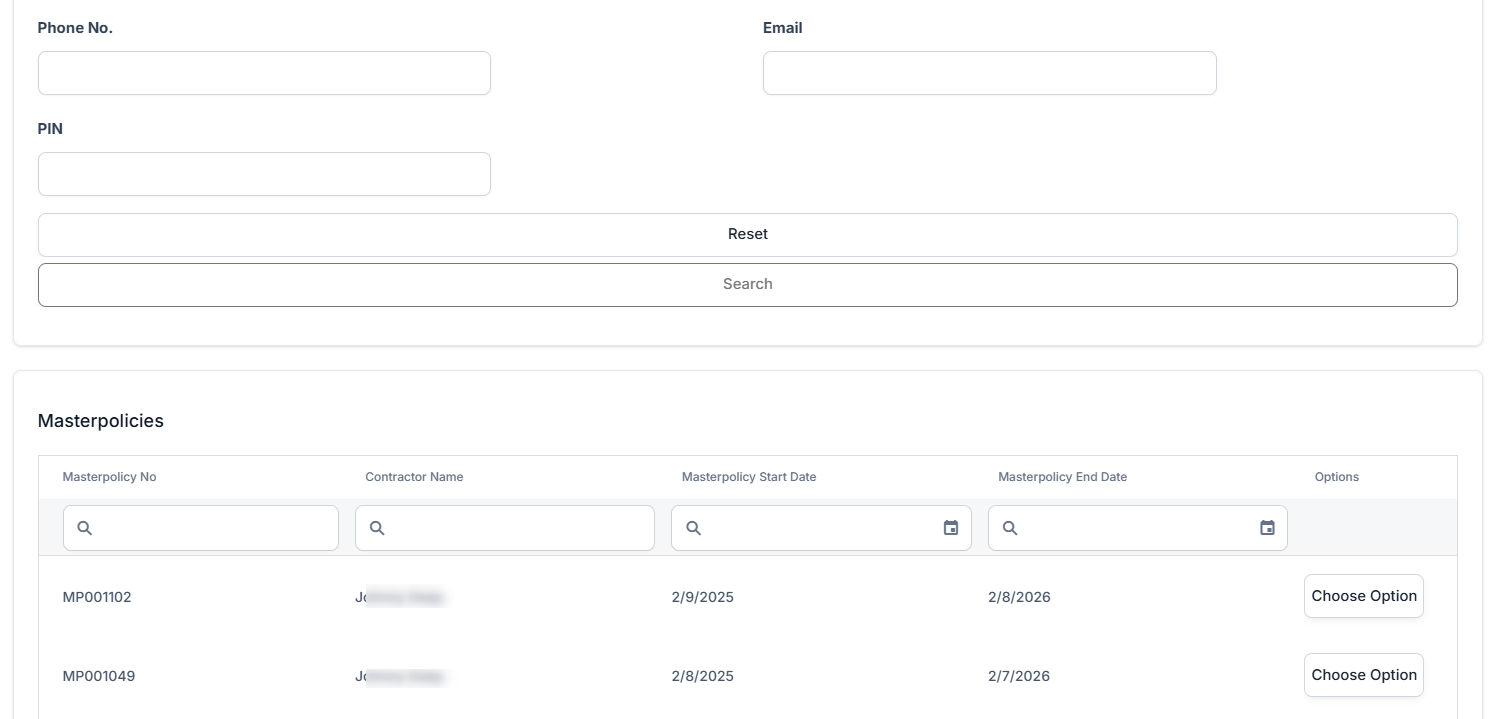
Click the Insert button. The Masterpolicy Search form is displayed. Select the Masterpolicy option from the drop down.
-
You can further refine the search by filling at least one of the fields representing search criteria, as per below:
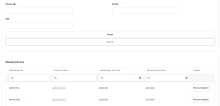
-
Click the Search button. A grid is displayed, showing the Masterpolicies with the matching details inserted in the previous form. The grid contains the following columns:
-
Masterpolicy No;
-
Contractor Name;
-
Masterpolicy Start Date;
-
Masterpolicy End Date;
-
Options.
In this grid, only Masterpolicies having the specific statuses configured in the correlated processor appear.
-
-
When you've found the right policy, click the Choose Option button.
-
The Change Request form is displayed in order to register a request.
If you choose a policy which already has a Cancellation request in the InProgress status, the process is not available, and the following warning message is displayed: ”This Masterpolicy already has a Cancellation request opened on it!”. The policy status should be Draft, Pending Approval, or Registered to allow new requests.
-
When starting the registration, two sections are displayed in the interface: Change Request and Master policy.
-
The Change Request tab presents the following 3 sections:
-
The Change Request Summary section, with the following fields to be filled in:
Field Description Cancellation Notification Date Manually filled in by the user.
Masterpolicy Begin Date <= Cancellation Notification Date <= Current Date.Reason Type The list composed by the existing cancellation reason types in the system and their configuration.
This list is calculated as the intersection of all the cancellation reason types configured in the system having the Masterpolicy attribute checked.Requested End Date If manually filled:
Masterpolicy Start Date <= Requested End Date <= Masterpolicy End Date
This field can also be automatically filled for some specific reason types.Final End Date If manually filled:
Masterpolicy Start Date <= Final End Date <= Masterpolicy End Date
This field can also be automatically filled for some specific reason typesThe behavior for the Final End Date and Requested End Date fields according to the selected Reason Type is the following, taking into consideration the validations stated above:
Reason Type Requested End Date Final End Date Cancelled It can be manually filed with any date. It is automatically completed with the Notification Date + 21 days to go. Cancelled by Client It can be manually filled with any date.
If the Notification Date - Policy (Issued) Date <= 15 days (free withdrawal limit date), then this field is automatically completed with the Policy Begin Date with the possibility to be adjusted.
Otherwise, this is automatically completed with the Notification Date + 21days to go.NOTEIf the Final End Date is in the 15 days (from the free withdrawal limit date), then the policy is transitioned to Withdrawal on client request, and if it is after those X days, then the policy is transitioned to the Cancelled status.
Closed by Claim It is pre-filled with the Notification Date + 21 days from the present on. It is filled with the value from the Requested End Date, but with the possibility to edit. Decline by screening It can be manually filled with any date. It can be filled with the value from the Requested End Date, but with the possibility to edit. Insured Death It can be manually completed with any date. It is filled with the value from the Requested End Date, but with the possibility to edit. Property sold The Requested End Date can be set to any day before or including the day of the request for cancellation. The Final End Date is filled with the value from the Requested End Date but with the possibility to edit. Withdrawal Automatically completed with the Masterpolicy Start Date. Automatically completed with the Masterpolicy Start Date. -
The Masterpolicy section, with the following read-only fields.
-
Masterpolicy No;
-
Masterpolicy Start Date;
-
Masterpolicy End Date;
-
Contractor Name;
-
Premium Amount;
-
Premium Currency;
-
Paid Amount;
-
Paid Currency;
-
Earned Premium;
-
Earned Premium Currency;
-
Canceled Premium;
-
Canceled Premium Currency;
-
Uninsured Period Type;
-
Uninsured Period;
-
Claims.
A specific grid with all the policies included in that Masterpolicy is displayed below the mentioned fields. Double click a record to be redirected to that policy form.
-
-
-
-
The Premium Returned tab is displayed, containing more information about the reimbursement, including the Payment Beneficiary section. If the returned premium is higher than 0, then a Premium Reimbursements request is created in Draft status if the data for the beneficiary is incomplete, or Approve if the data was fully filled in during the cancellation request. Fill in the fields based on the type of payment:
Bank Transfer
-
Payment Beneficiary: choose from Policy Beneficiary, Insured, Policy Holder, or Other Person. For the first three options, the data is automatically filled in. For the last option, you need to add:
-
Payment Beneficiary First Name;
-
Payment Beneficiary Last Name;
-
Payment Beneficiary PIN;
-
-
Bank: pick the bank from the list.
-
IBAN Account: type in the IBAN account.
Direct Debit UK
For Direct Debit UK, if the policy is paid with direct debit, then a valid mandate is in the system. Tick the checkbox Use current mandate to prefill the fields. Otherwise, fill the fields for Direct Debit UK:
-
Payment Beneficiary: choose between Contractant and Other person;
-
Account Holder: prepopulated with the First Name of the contractant;
-
Account Number;
-
Bank Sort Code.
Direct Debit SEPA
For Direct Debit SEPA, if the policy is paid with direct debit, then a valid mandate is in the system. Tick the checkbox Use current mandate to prefill the fields. Otherwise, fill the fields for Direct Debit SEPA:
-
Payment Beneficiary: choose between Contractant and Other person;
Payer first name: prepopulated with the First Name of the contractant;
-
Payer last name: prepopulated with the Last Name of the contractant;
-
Payer PIN/UTR: prepopulated with the PIN of the payment beneficiary;
-
IBAN;
-
Bank branch;
-
Amount type;
-
Amount;
-
Begin date;
-
End date.
-
-
After completing all the information, click the Register request button, to transition the status for the request to the Pending Approval status.
Alternatively, click the Cancel button to close the current request. You have to complete the Resolution Reason attribute in order to explain the reason of canceling the current request.
-
The request status is transitioned to the Cancelled status.
You cannot cancel a Masterpolicy with Approved cancellations or MTAs on the policies that are part of it with effective date bigger than the current Final End Date.
The policies belonging to a masterpolicy that have an Accepted MTA can be cancelled, following the same conditions as for the standalone policies. Read about cancelling policies with Accepted MTAs in the Policy Cancellation page.
Similarly, you cannot cancel a Masterpolicy if it has any MTA requests in Draft or Registered status. If you try to cancel it in this condition, the following error message is displayed: "Cancellation cannot be inserted because there are open (Draft or Registered) MTAs on this Master Policy."
Cancel a Masterpolicy
If in the Masterpolicy searching grid you choose a policy which already has a Cancellation request in InApproval status, the process is not available and the following warning message is displayed: ”This Masterpolicy already has a Cancellation request opened on it!”.
After registering a Masterpolicy cancellation, the Premium Returned tab is displayed and you either have the possibility to Propose the request further to be approved, or to Cancel it.
The Premium Returned tab contains some static information regarding the premium to be returned. The Returned Premium Amount section contains the premium returning details for the Masterpolicy and a specific policy grid with all these details but for each policy.
The following fields are displayed in read-only mode for this section:
| Field | Description |
|---|---|
| Start Date | The start date of the Masterpolicy. |
| End Date | The end date of the Masterpolicy. |
| Premium Amount | The sum of premium amounts of all the included policies. |
| Currency | The currency of the premium. |
| Paid Amount | The sum of premium amounts of all the included policies. |
| Paid Currency | The currency of the paid amount. |
| Returned Premium Amount | The sum of premium amounts of all the included policies. |
| Cancelled Premium Currency | The currency of the returned premium. |
| Compensation Amount | The amount the insurer pays to cover losses, costs, or contractual obligations caused by ending the policy early. |
| Final Refund Amount | The portion of the payment after deducting the portion of the premium for the period they were covered, the compensation amount. |
| Return Payment Method | The payment method for paying the refund. |
| Payment Beneficiary | The person to receive the refund. |
The Policies grid includes the following columns:
-
Policy No.;
-
Policy Begin Date;
-
Policy End Date;
-
Contractor;
-
Premium Amount;
-
Premium Currency;
-
Paid Amount;
-
Returned Premium Amount: the amount refunded to the client when a policy ends early, calculated as the paid premium minus the earned premium, meaning the client gets back the portion of their payment that corresponds to the period they were not covered. This is used for calculating the final refund amount, which does not include the compensation amount.
After checking the information, you can:
-
click Propose Change Request and the Request Approval tab is displayed;
-
cancel the request, and you have to fill the Resolution Reason to explain the reason of cancelling. Also, the request status is transitioned to Cancelled.
In the context of a masterpolicy, if you cancel one policy with a negative installment, which offsets the amount from the other policies, the remaining negative sum can be issued as a credit note. This credit can be allocated to pay future standard invoices, changing the negative installment’s status from StatementIssued to Paid once allocation is finalized. If there are no invoices to offset, the credit note’s edit view allows creating an outgoing payment; when the payment return is marked Closed, the negative installment is updated to Paid. This is done using the Refund button on an invoice.
If you have a masterpolicy, and cancel one policy with a negative installment, but the invoice total amount is greater than 0, then the negative installment will be updated to status StatementIssued on invoice generation, then Paid when the payment is recorded in the system and the allocation finalized.
Cancel Multiple Policies Belonging to a Masterpolicy
You can cancel multiple different policies that are part of a Masterpolicy. However, you cannot cancel one of the policies, is its Requested End Date is less than the Requested End Date of another policy that is in its own cancellation process.
In the example below, a Masterpolicy has two active policies.
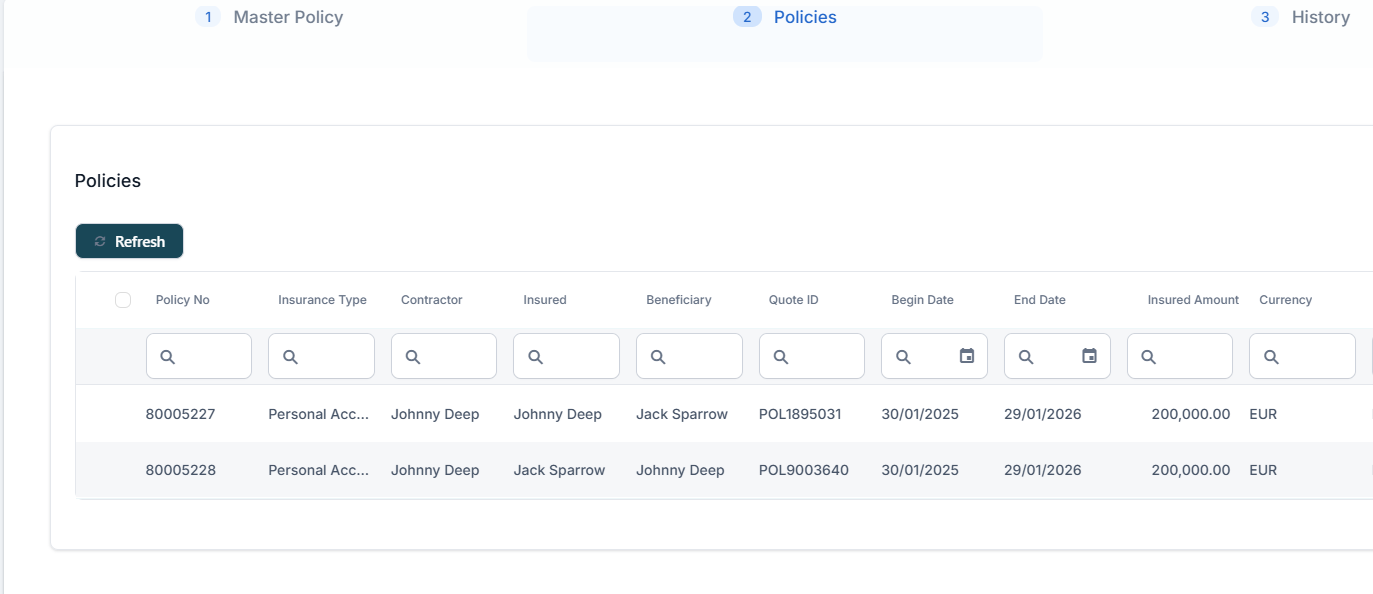
-
Cancel the first policy. In this case, the Requested End Date is set as the 28th of February 2023.
-
Cancel the second policy, and set its Requested End Date greater than the one for the policy above. In this case, the cancellation is successful.
If you cancel the second policy with a Requested End Date less than the one for the first policy, the following error message is displayed.

Revoke an Approved Cancellation
You can cancel an already Approved cancellation for a Masterpolicy if the Final End Date of said cancellation is greater than the system date. Another condition is that the policies belonging to the Masterpolicy to have no MTAs in Accepted status with the Final End Date greater than the Final End Date of the cancellation.
At the end of the process, the cancellation record transitions from the Approved to the Cancelled status, and the Masterpolicy transitions to versionUnapproved.