More Pet Details
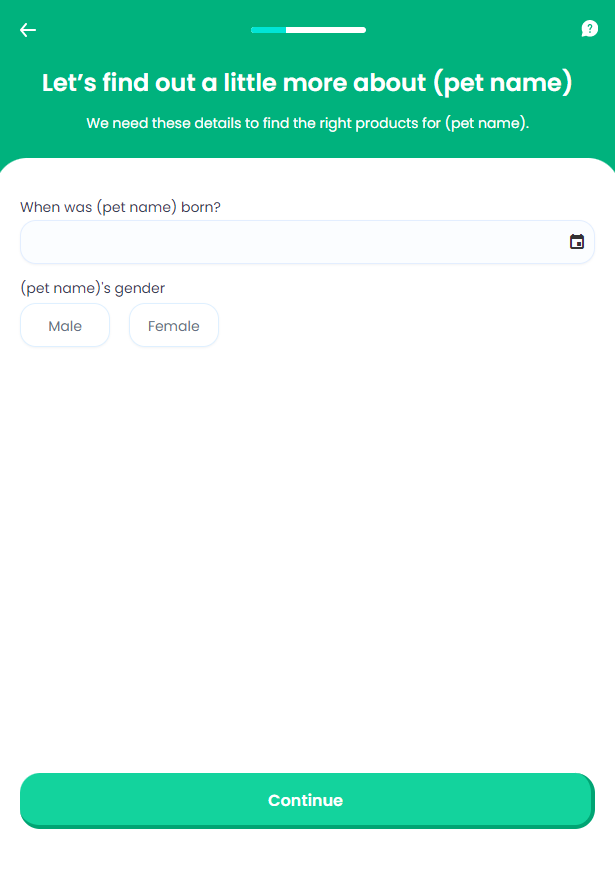
This screen displays a series of input fields that collect details about pet's date of birth and gender. Based on the details inserted by the pet owner the Pet Insurance solution establishes - in line with certain assumptions and parameters for pet rating, whether the pet is eligible for cover or not. This underwriting process is completely automated. For the rating values that are used on the Pet Insurance product level, consult the Pet Rating pages. For this step, the values inserted by the user are stored in the Pet entity.
From here: When the user taps Continue, the Quote screen is displayed OR, based on rating results, the Unable To Quote screen is displayed.
On-Screen Assets
The following user interface components are included with the More Pet Details screen:
| UI Components | Description |
|---|---|
| Progress Bar | The progress bar gives the user a visual answer to the "How much till I get insurance for my pet?" question. |
| Back Button | The back button helps the user to re-take previous steps in the flow. |
| Help Button | The help button allows the user to find support for completing the flow. |
| Heading Title | The following heading title is displayed in the header section: Let’s find out a little more about (pet name) |
| Supporting Text | The following supporting text is displayed under the heading title: We need these details to find the right products for (pet name). |
| Pet Birthday Date Picker | Under the label When was (pet name) born?, this date picker captures the value (pet birth date) indicated by the user. |
| Pet Gender Buttons | Under the (pet name)'s gender label, two buttons - Male and Female, allow the user to indicate the pet gender. |
| Action Button | Continue - This button is used to display the next flow step. |
For details about the default UI style components used for creating the journey, consult the UI Style Components list on the Customer Journey page.
Below is an example of the More Pet Details screen: