Integrations
Integrations connect the platform to core systems and third-party providers that deliver specialized services, such as fraud detection, identity verification, risk assessment, and credit scoring.
Available out of the box, these integrations support essential banking and insurance processes and can be configured without writing code. The only technical setup required is the configuration of a business service component for stage completion.
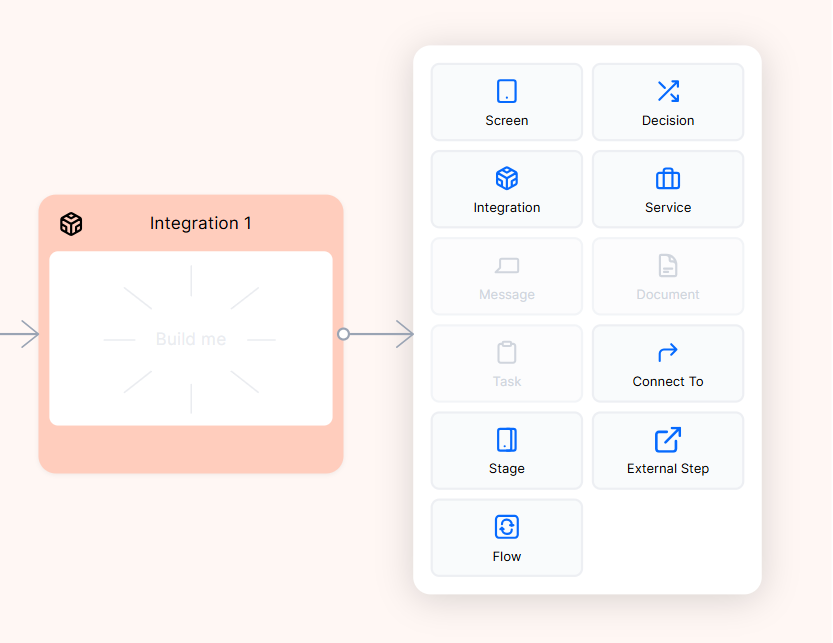
To add an integration to your Customer or Backoffice Workflow, click the "+" symbol and pick Integration from the modal.
Prerequisites
-
Request Account Creation: Submit a ticket to the Support team to create your Onfido or IDnow account.
-
DCI Configuration: The SRE team will configure the Digital Connectivity Interface (DCI) and provide the necessary integration details.
-
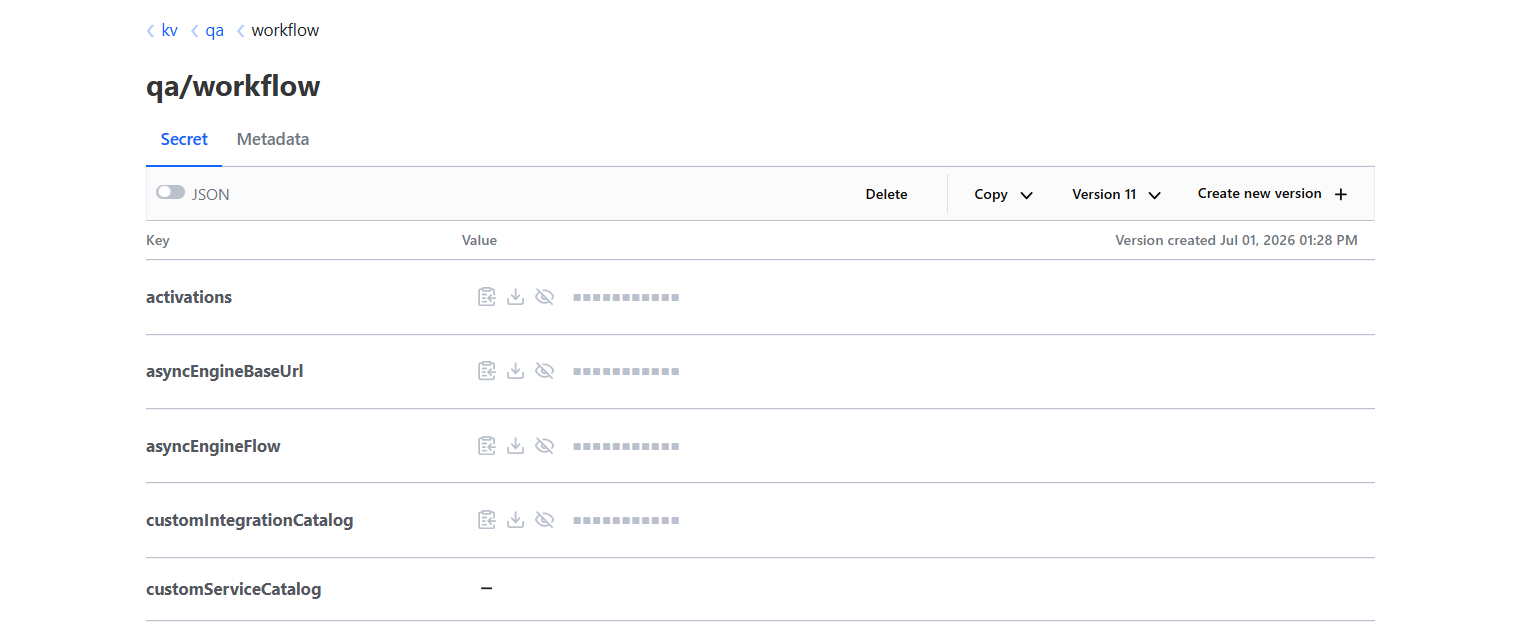
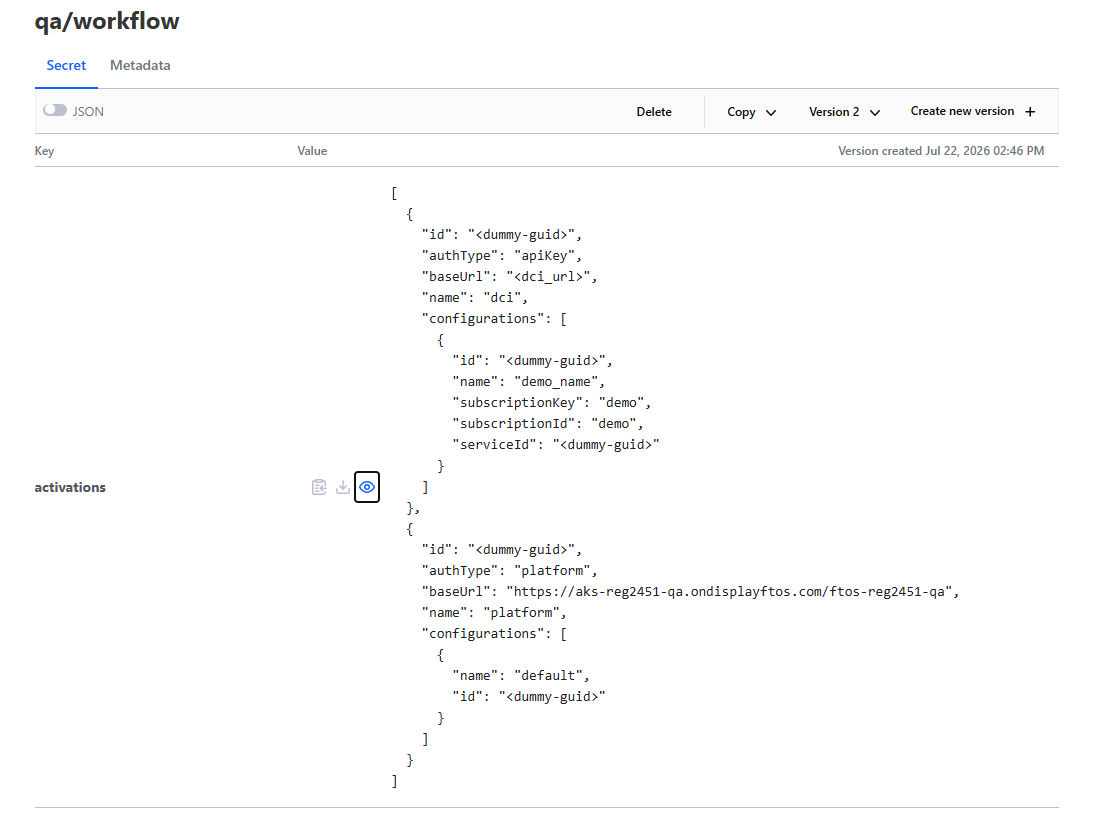
Vault Update: To activate the integration, update the Vault under Workflow > Activations with your provider details, ensuring the baseUrl points to the correct DCI environment. This configuration automatically populates the Activation dropdown in the Workflow Designer for easy selection during design. If you are working in DEV or UAT, remember to whitelist your services to the DCI Test/UAT endpoints to enable connectivity.
-
IP Whitelisting (Environment Specific): For developers working in DEV or UAT environments, ensure that your environment IPs are added to the whitelist for DCI Test/UAT services to enable connectivity.
Available Integrations
With this version, the available integrations are:
- Onfido
-
Data Core integrations, such as: Credit Report, Format Address, Check Perils Scores, Search Companies by Name, Search Companies by ID, and more.
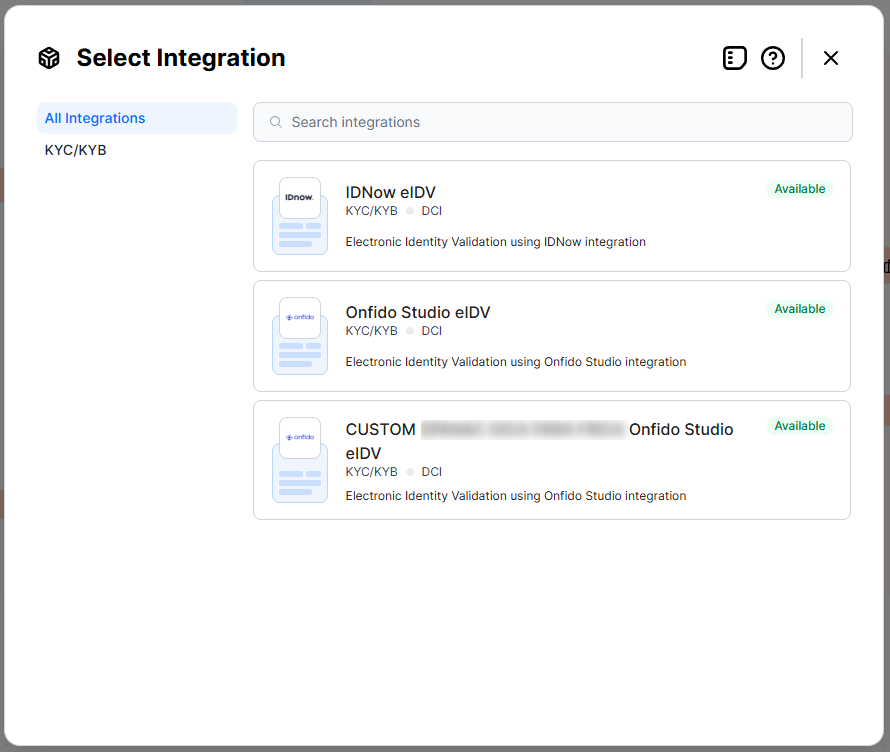
The way Onfido and IDnow integrations work is they use metadata configuration which allows you to define custom information that is attached to an applicant record, such as for Onfido. This information is not used during the identity verification process itself. Instead, it helps link applicants and verification results inside the Workflow Designer, with minimal coding on your part. You can do some of these configurations inside your flow using the JSON editor and the VS code extension.
These automation blocks are compact services that orchestrate multiple APIs behind the scenes. In the backend, they generate the SDK token for use with client SDK methods in a custom frontend and cache security elements to prevent unauthorized access to your URL. While many operations happen in the backend, FintechOS developers only need to use the UI features to benefit from this full, low-code integration.
Read more on the dedicated Onfido and IDnow pages.
Configuration Templates
Although integrations are straightforward, you do need to configure and tweak them to fit your flow, even if this is done mostly from the UI. The settings are locked in and available only in the current flow. However, you can create a reusable template to use in multiple flows.
-
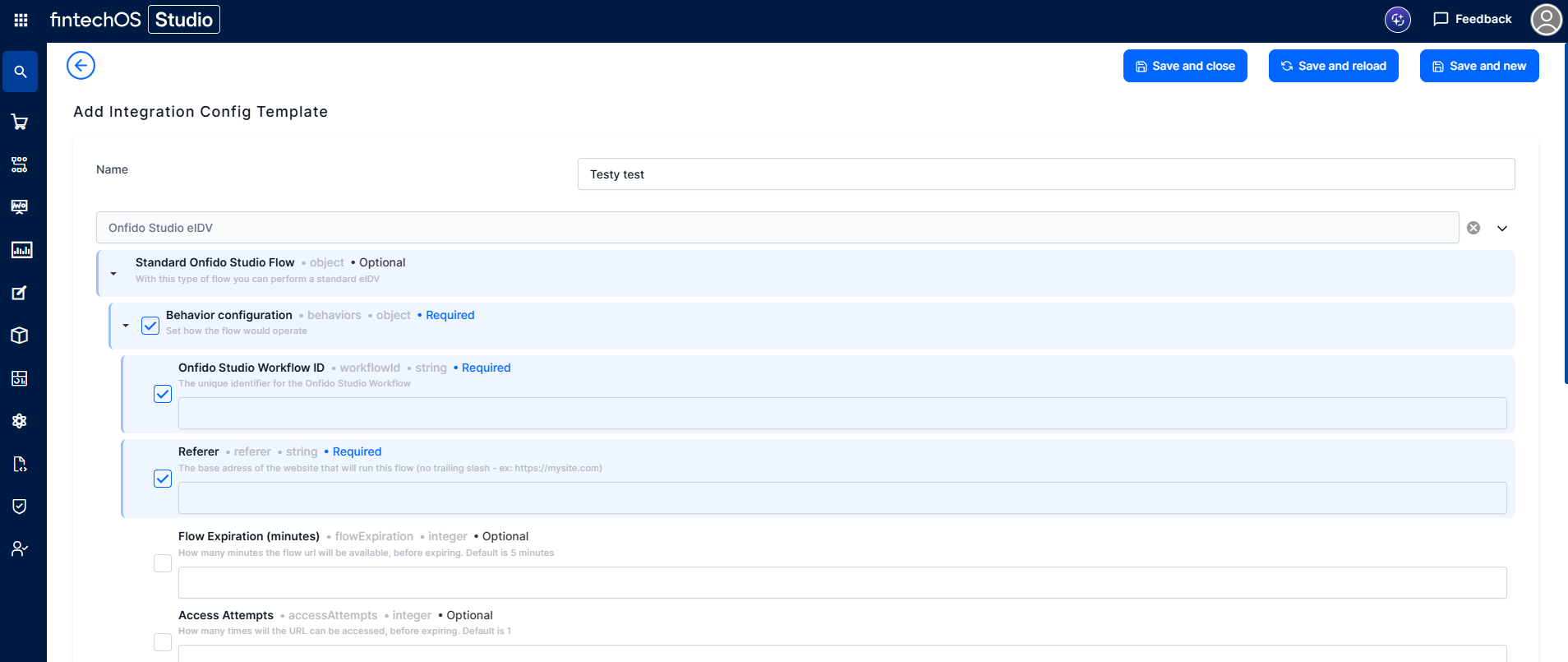
Go to Main menu > Workflows > Integration Config Templates. Click Insert to create a new one.
-
Add a name and select a service. The settings are loaded and you can add your configurations as explained above.
-
Click Save and close and use the template in other flows.
-
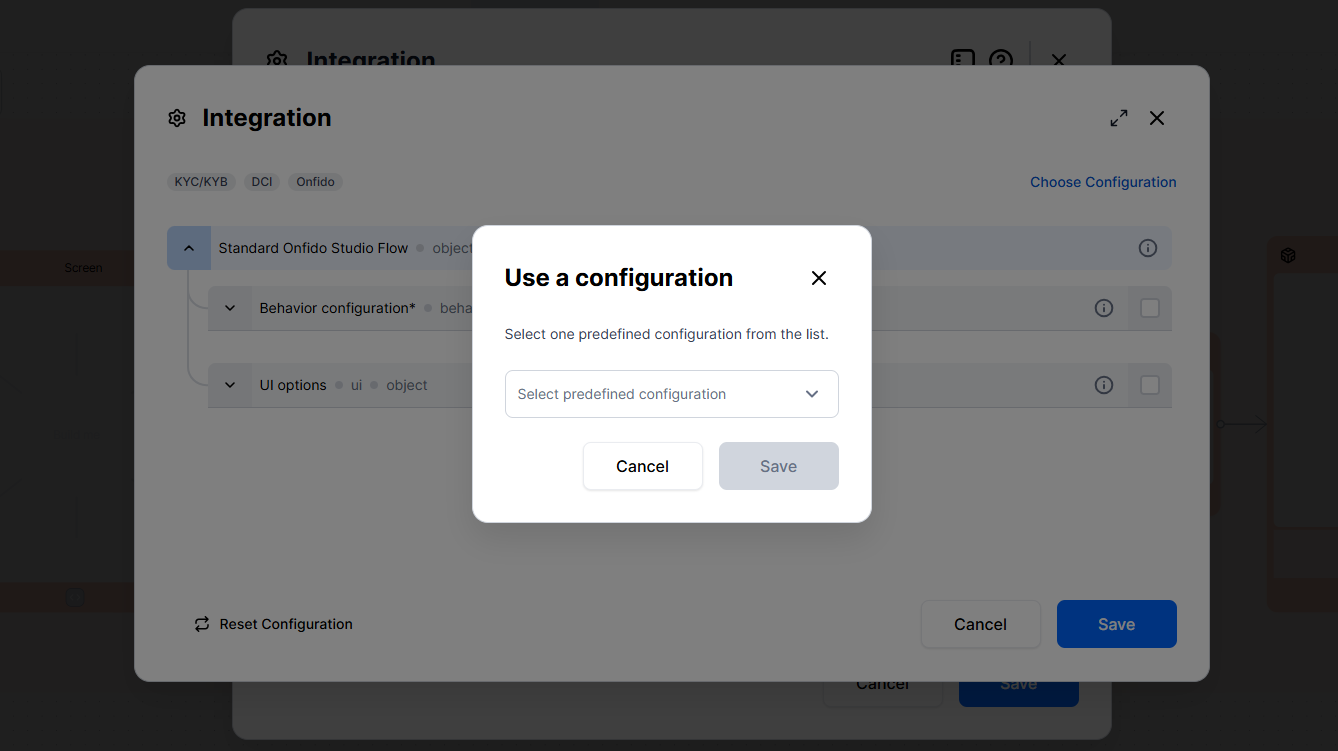
When inside a flow, from the Integration screen, you can click Choose Configuration and select your predefined template to use. Adjust settings if necessary for your current flow.
Create Custom Integrations
These allow you to set up your own connection with an external provider, one that is not yet available out-of-the-box. To do so, you need to head over to your Configuration Manager > [your-environment] > Workflow, and view customIntegrationCatalog.