Workflow Lifecycle Management
The Workflow Designer allows you to manage your workflows across their lifecycle, from initial design through validation, preview, and documentation. Once a workflow candidate is defined, you can activate its components, evaluate the user experience, and generate formal specifications, ensuring a controlled transition from design to implementation.
Workflow Publishing
Use the Publish button at the top right corner of the Workflow Designer to generate the workflow assets and enable the Workflow Logic Blocks, Workflow UI Designer, and Custom Business Services for implementation.
If publishing fails, an Errors and Warning side panel appears, which lists the relevant issues. This panel remains available until the next publish operation and can be reopened at any time using the Errors button at the top of the screen.
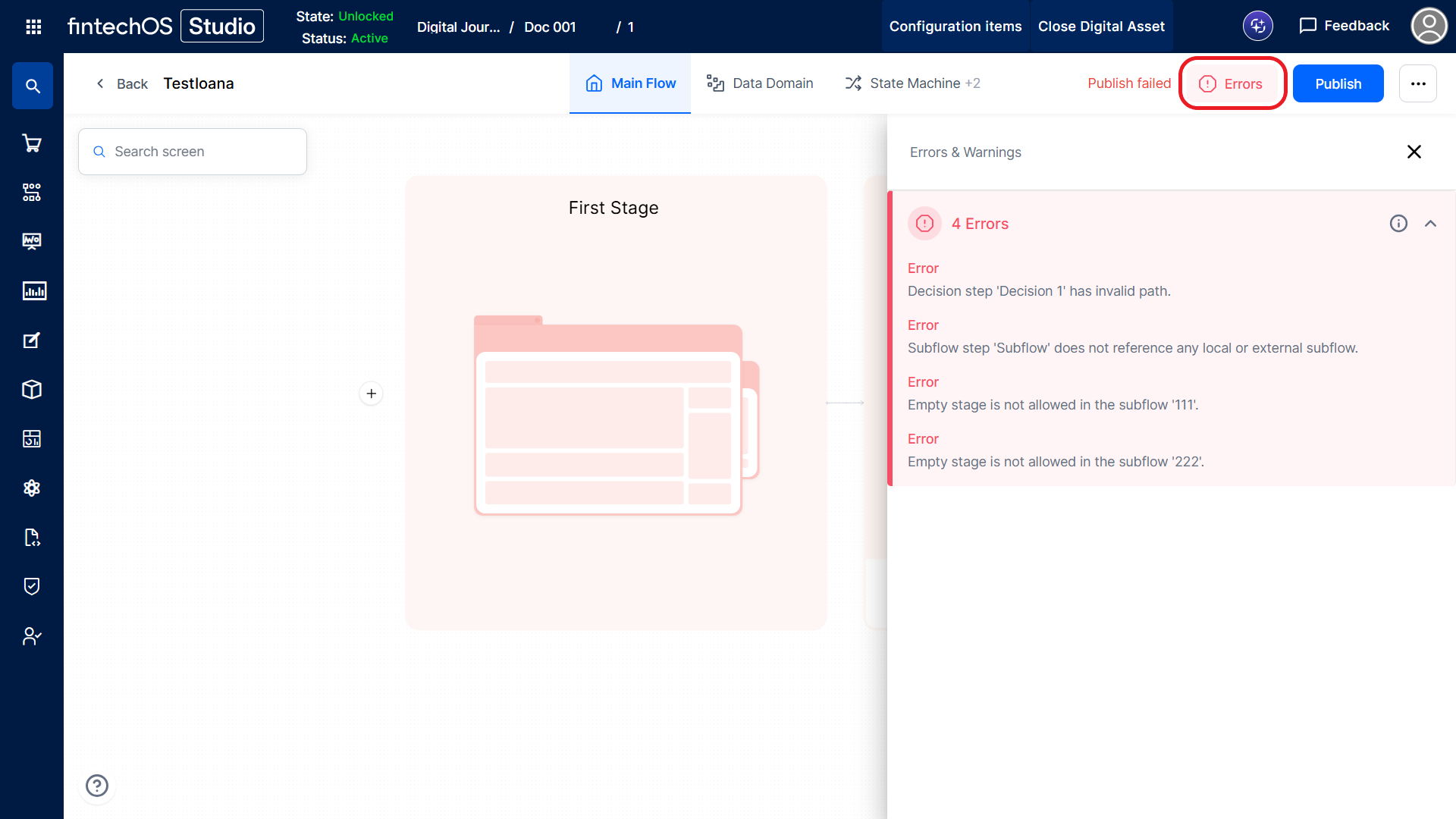
If you make additional changes to the workflow, you need to click the Publish button again to update the workflow assets.
Published screens become read-only in the Main Flow. Any further modifications to these screens must be made in the Workflow UI Designer.
Workflow Preview
Once the workflow is published, the Publish button is replaced with a Preview button. This feature allows you to visualize the workflow and navigate through its screens to evaluate flow behavior and user experience.