Workflow UI Designer
The Workflow UI Designer allows you to refine the UI implementation of a Screen after it has been published. It allows you to build responsive user interfaces for your screens by dragging and dropping containers, attributes, relations, and other UI elements, and by configuring their layout, styling, and behavior.
To open the UI designer for a screen:
- Publish the workflow (see Workflow Publishing).IMPORTANT!
Once you publish the workflow, you can no longer edit the screen from the Main Flow. From this point forward, you can only edit the screen from the UI designer. - Open the screen's <> menu.
- Select Open UI Designer.
The initial layout of the screen is generated automatically based on the settings you configured in the main flow.
Adding UI elements to the user interface
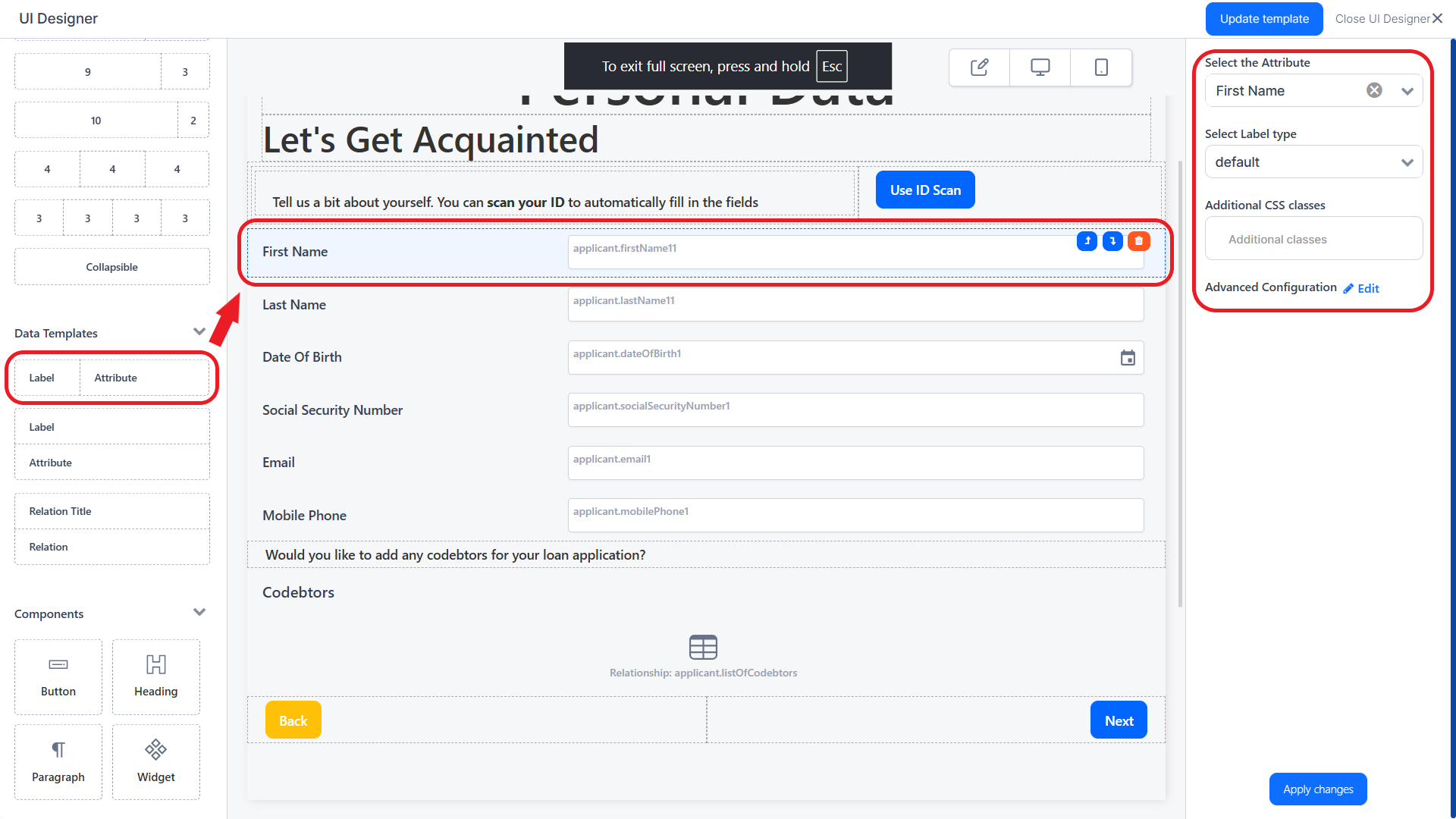
The UI Designer has two side panels. The left panel lists the available UI elements. The right panel controls the settings of the element currently selected in the editor's working area. To add an element to the user interface, drag it from the left panel to the editor's working area in the desired position, then edit its properties from the right panel.
Moving and deleting UI elements
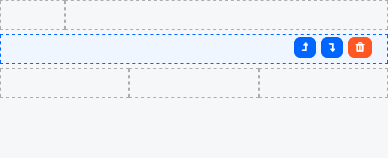
To move an UI element in the user interface, drag it in the editor or click the up or down arrow buttons visible on mouse hover to position it before the previous element or after the next element. To delete a UI element, click the delete trashcan button visible on mouse hover.