Business Service Components
Configured and managed in Studio, business service components help with a better organization of server automation code in medium and large projects. These components allow developers to continue using workflows and workflow libraries.
A server side component has 3 JavaScript modules or code files:
-
Data Service: used for defining functions, inserting or updating data, calling data, run database queries or execute database tasks.
-
Business Logic: this layer contains the core logic of the code and supports SDK methods for importing libraries, uploading files, calling reports, changing business status, and more.
-
Routes: used to import modules from other server side components by referencing the module name.
FintechOS v24.2 comes with the possibility to switch to Jint v3, from Jint v2. Before doing this, take into consideration the following mandatory changes. Enable Jint v3 from the sys-workflowengine-type system parameter.
Using SDK Methods in Modules
When using SDK methods in business service components, it is recommended to follow the segregation from below:
 SDK Segregation
Create Business Service Components
Business Service Components can be created and managed in Studio or the Code Editor:
-
In Studio, go to the main menu and access Advanced > Business Service Components. A list of all available components opens.
-
Click Insert to create a new business service component. The Add Business Service Component page opens.
-
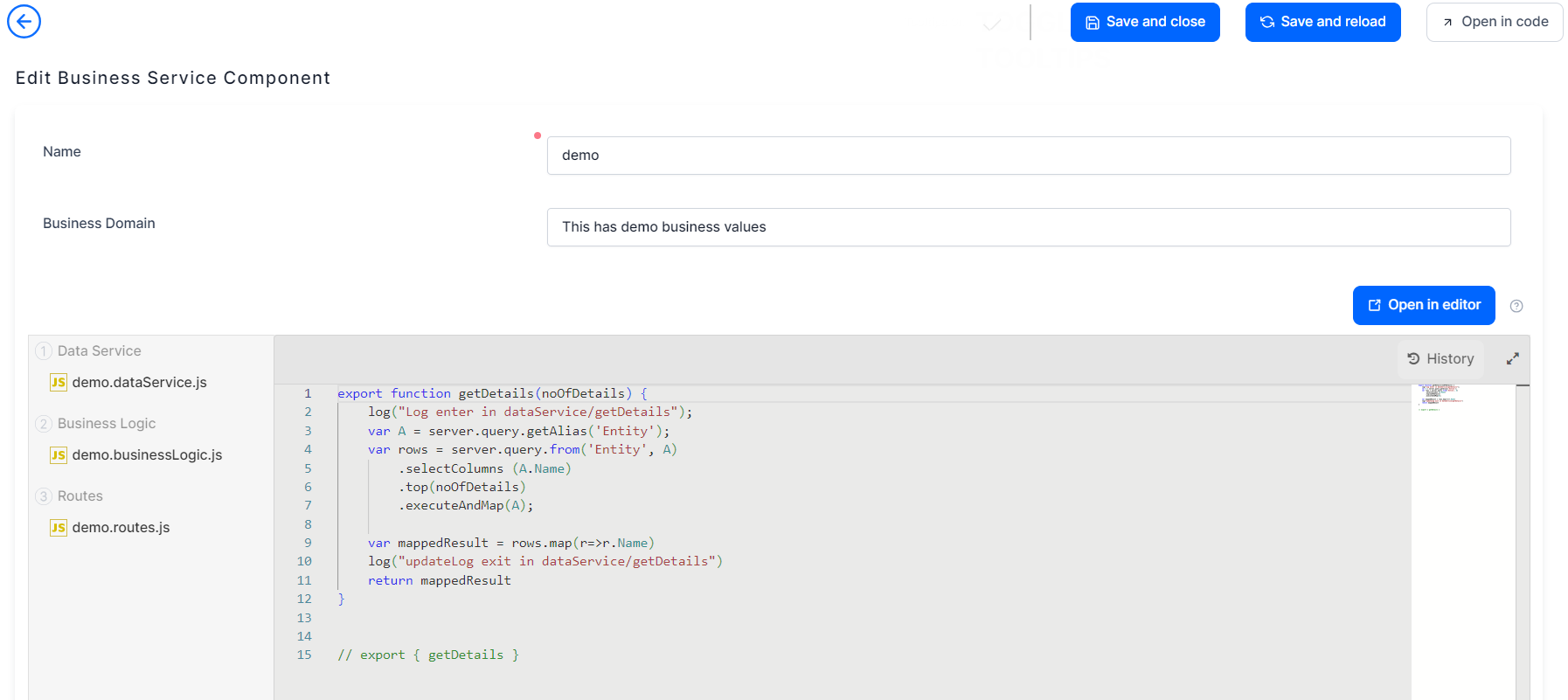
Add a name for the new component and a business domain.
-
Add your code in the Data Service, Business Logic, and Routes sections.
-
Click Save and close when done.
You can use IntelliSense when writing code in business service components.
Existing business service component can be managed in the Code Editor by clicking the Open in code button, or in Studio, by clicking Check Out to start editing and Release to allow other users to edit.
You can import modules from other server side components by referencing the module name, for example "demo.businessLogic.js".
Example
In this example, we import a module from a business service component into a server script.
-
Create a digital asset of type Resources and set it to context.
-
Create a business service component, we are going to name it "test". In the Routes section add the following code:
Copyexport function bsc_log(){
var e = 1;
var f =2;
log('Test 1');
} -
Save and close the business service component.
-
Create a server script that imports the business service component and uses the Routes section. Make sure you write the name of the routes component correctly.
Copylog('BD_script_01');
(async () => {{
const routes = await import('test.routes.js');
routes.bsc_log();
setMessage(routes);
}})();
Debug Components
To debug the business service components make sure the following prerequisites are met:
-
your user has the Debugger role
-
sys-workflowengine-enable-debugging system parameter is set to 1
-
system parameter sys-workflowengine-type is set to V8
-
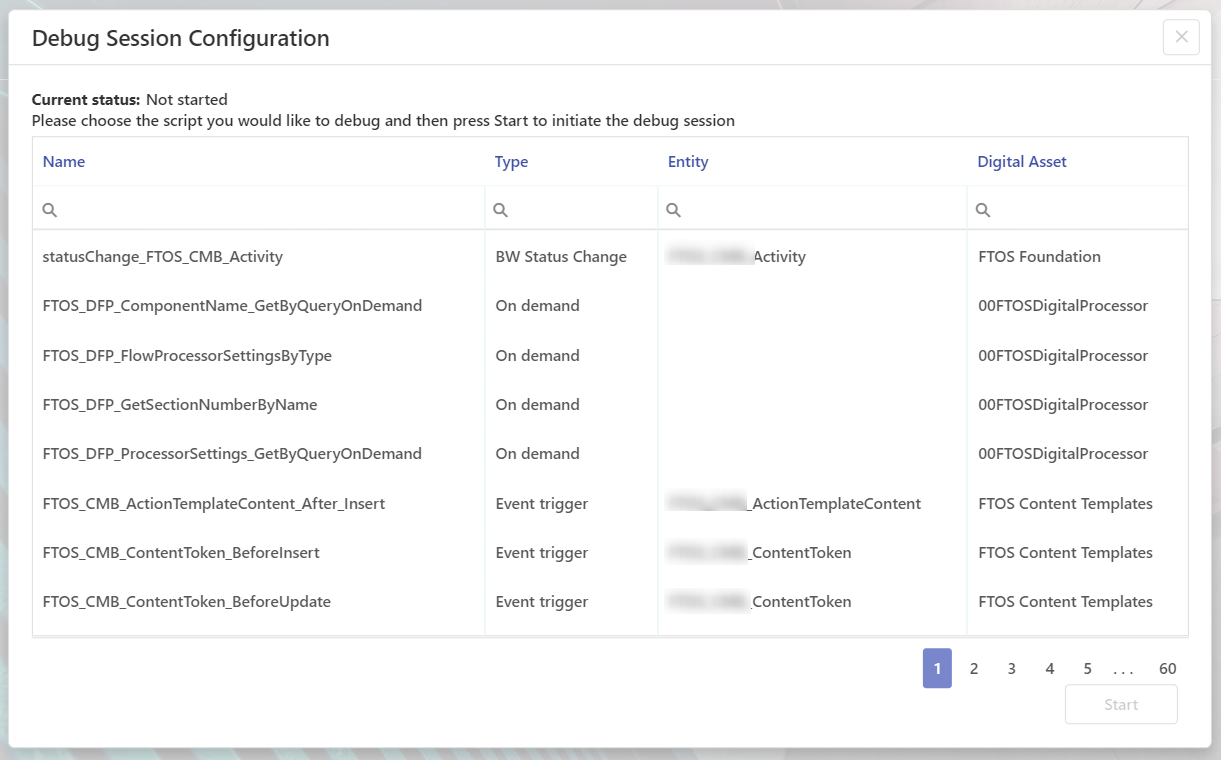
Login to the Portal on your environment and click the play button. The list of scripts open.
-
Choose the script you want to debug and click Start to initiate the debug session.
-
Call out the endpoint of the script from console and click Get debug URL.
-
Paste the URL in a separate page of the browser. You should see his script on the left side of the page.
Generate Endpoints
You can generate endpoints for business service components that have export functions in the routes component. An endpoint is generated for each export function in the routes component. This is done by accessing the Endpoints tab, after opening a business service component. This is available starting with v24.3.2.
It's important to know that if you generate an endpoint from an export function, and then make changes to that function, you must delete the initial endpoint and generate it again to apply said changes.
-
Open a business service component with an export function in the routes section.
-
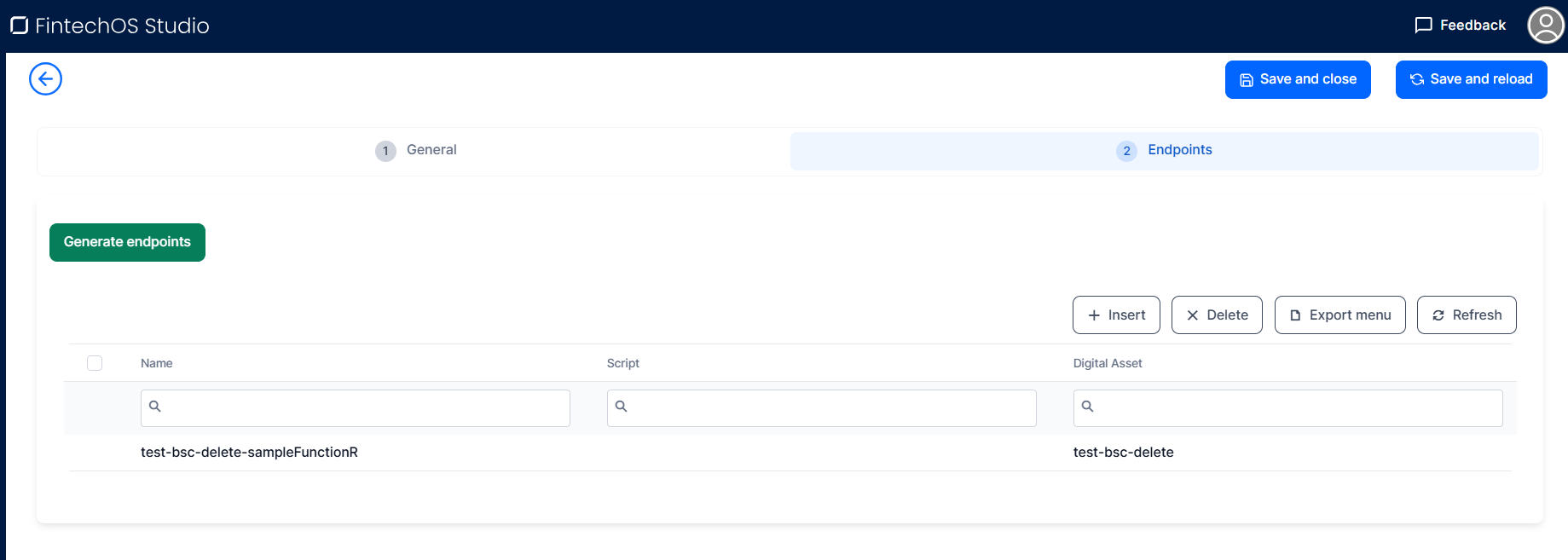
Click the Endpoints tab and click Generate Endpoints. The endpoint is generated and displayed in the list.
-
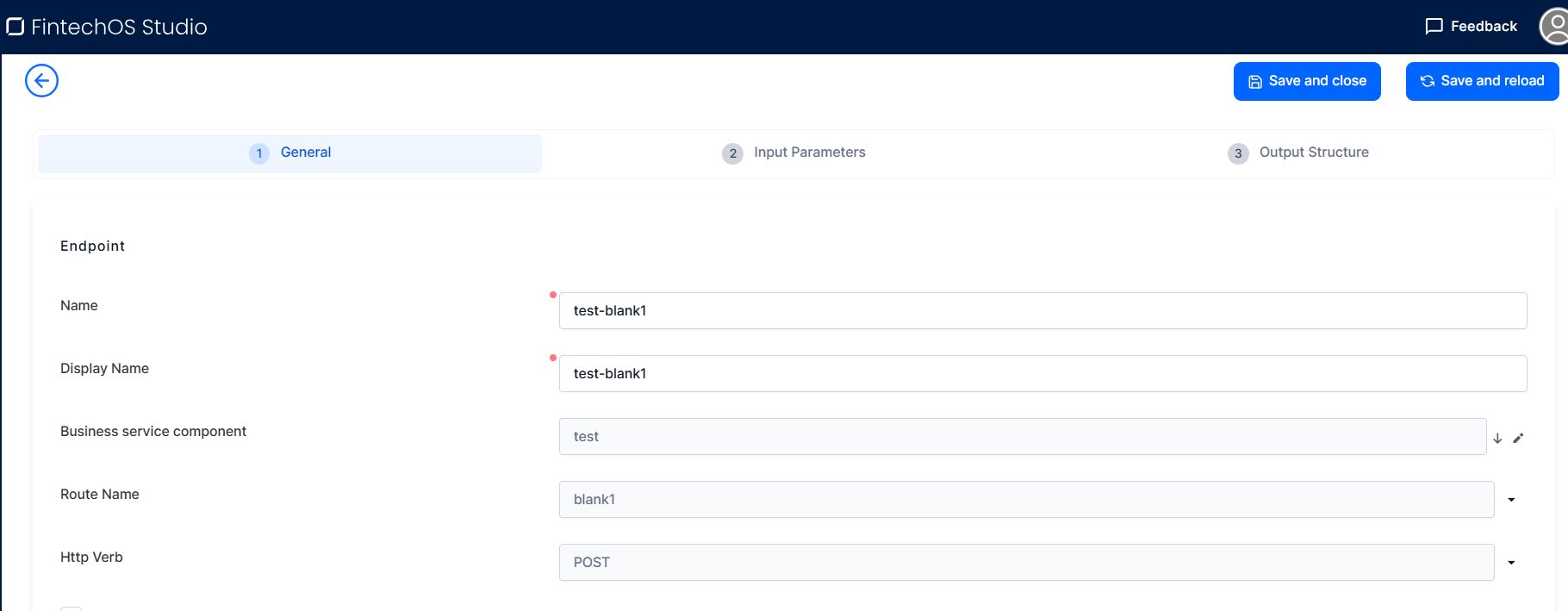
Double click the endpoint to open a form for editing. Fill in the following fields:
-
Business service component: the name of the component which generated the endpoint.
-
Route name: the name of the route which generated the endpoint.
-
Http verb: select the request method to indicate the purpose of the request and what is expected if the request is successful. Pick from: delete, get, patch, post, put.
-
-
Click the Input Parameters tab and Output Structure to complete editing your endpoint. The steps here are the same as the ones described in the Endpoints page.
Import or Export Components
Business service components can be exported from the environment where they were created and imported to another one in the same way that other configuration items are added to digital assets which are then bundled together in digital solutions and exported as digital solution packages.