Policy Admin Formulas
Product formulas, configured within the Product Factory, enable the processing of key product origination inputs, such as income, age, assets, or risk class, to calculate relevant outputs, including credit scores, interest rates, discounts, or other derived values.
Product formulas are created using Business Formulas, which enable complex, product-specific calculations through a clear, sentence-based interface. When designing a product, you can reuse existing formulas or define new ones to meet specific business requirements. To create a product formula, you enter the formula expression and specify the source of each referenced attribute, such as an input field, a data set, or another formula.
Business formulas are defined using the Formula Editor, where you create the mathematical logic and calculations. Each formula consists of a formula body and a calculation call that returns the computed result. The editor provides IntelliSense support to assist with selecting definitions and viewing contextual information, including available properties and attributes.
Within Product Admin Configuration, multiple pricing or underwriting formulas can be assigned to a single product to support mid-term adjustments (MTAs) and renewals. During processing, the system automatically selects the appropriate formula, collects the required data, and passes the calculated result into the pricing or underwriting workflow.
The following formulas and calculations are used within the Policy Administration solution:
 Calculate MTA Premium Amounts
Calculate Premium Amounts According to the Pro-rata Type
The Pro-rata Type parameter defines how premium amounts are calculated proportionally over time. It applies to premium calculations during Mid-Term Adjustments (MTAs).
The parameter supports two pro-rata calculation methods:
-
Daily pro-rata (1/365): premiums are calculated based on the number of days relative to an annual period of 365 days;
-
Monthly pro-rata (1/12): premiums are calculated based on months relative to a 12-month annual period. Any partially started month is treated as a full month.
Parameter location: FintechOS Portal > Main Menu > Contract Management > Contract Management Settings > Insurance Settings > Insurance System Parameters > Module: Policy Admin > Category: Policy.
Parameter name: Pro-rata type
Parameter code: PRT
Parameter type and value: Option set = either Daily or Monthly
Only one prorata method (daily or monthly) can be selected and is applied consistently to premium adjustments.
MTA Premium Calculation Logic
The following definitions and calculations are used to compute premium adjustments during an MTA:
-
Policy Validity : the number of pro-rata periods between the policy start date and end date: Days for daily pro-rata and Months for monthly pro-rata (any partial month counts as a full month).
Based on the pro-rata type, this returns either a number in days (for 1/365) or a number in months (for 1/12). For the 1/12 pro-rata, any started monthly period is considered a full month (e.g. for a policy validity of 2 months and 5 days, the policy validity used in this premium calculation is 3 months);
-
Uninsured Period : the number of pro-rata periods between the MTA effective date and the policy end date.
Based on the pro-rata type, this returns either a number in days (for 1/365) or a number in months (for 1/12). For the 1/12 prorata, any started monthly period is considered a full month (e.g. for a MTA validity of 1 months and 2 days, the uninsured period used in this premium calculation is 2 months);
-
New Premium Amount for the Validity Period : New Annual Premium Amount / Pro-rata of the policy * policy validity;
Pro-rata of the policy is 12 or 365 depending on the PRT parameter.
-
Before MTA Premium Amount : the total premium amount of the policy version on which the newly created MTA applied, including all previous MTAs.
-
Before MTA Premium Amount for the Validity Period : Premium Amount for the Validity Period of the policy version on which the MTA was created;
-
Premium Amount Difference for the Validity Period : New Premium Amount for the Validity Period - Before MTA Premium Amount for the Validity Period;
-
Premium Amount Difference : premium Amount Difference for the Validity Period pro-rated to the uninsured period = premium Amount Difference for the Validity Period / policy Validity * uninsured Period;
-
New Final Premium Amount : the premium for the new policy version created by the MTA = Before MTA Premium Amount for the Validity Period + premium Amount Difference.
Example calculations
Let's take the following scenario:
-
Pro-rata type = Monthly (12)
-
Policy validity = 8 months
-
Initial Policy premium = 800
-
Premium Amount for Validity Period = 800
After 3 months passed an MTA is issued, resulting an uninsured period of 5 months. The MTA gets a formula response for an annual premium of 2400.
This translates into a New Premium Amount for the Validity Period = 2400/12*8= 1600 (New Annual Premium is 2400, pro-rata is 12, and validity period is 8).
The Before MTA Premium Amount for the Validity Period is Premium Amount Validity Period because there are no changes (MTAs) until now = 800.
Premium Amount Difference for the Validity Period: New Premium Amount for the Validity Period - Before MTA Premium Amount for the Validity Period. This results to 1600 - 800 = 800.
Premium Amount Difference: Premium Amount Difference for the Validity Period / Validity * Uninsured Period. This results to 800 / 8 * 5 = 500.
New Final Premium Amount: Before MTA Premium Amount (the Premium Amount of the policy version on which the MTA was created) + Premium Amount Difference. This amounts to 800 + 500 = 1300.
2 more months pass and a new MTA is issued, resulting in an uninsured period of 3 months.
The Before MTA Premium Amount = 1300.
The Before MTA Premium Amount for the Validity Period is New Premium Amount for the Validity Period from previous policy version = 1600.
The MTA gets a formula response for a premium of 3600. This translates into a New Premium Amount for the Validity Period = 3600/12*8= 2400.
Premium Amount Difference for the Validity Period = 2400 - 1600 = 800.
Premium Amount Difference = 800 / 8* 3 = 300.
New Final Premium Amount = 1300 + 300 = 1600.
Calculate the Duration and Installments of Master Policies
For master policies, the system calculates both the validity duration and the number of installments based on the policy dates and payment frequency.
In the Master Policy entity, the noOfValidityMonths attribute represents the number of calendar months between the begin date and the end date of the Master Policy. It is calculated as per below:
No of validity months = Master Policy Begin Date - Master Policy End Date
The number of installments of the Master Policy (noOfInstallments attribute, numeric type) is calculated based on the attributes: number of validity months (calculated above) and payment frequency of the Master Policy.
| Payment Frequency | Validity (v) >-12 months | 6 ≤ Validity (v) <12 months | Validity (v) < 6 months |
|---|---|---|---|
| Annually | roundup(v / 12, 0) | N/A | N/A |
| Semi-annually | roundup(v / 6, 0) | roundup(v / 6, 0) | N/A |
| Quarterly | roundup(v / 3, 0) | roundup(v / 3, 0) | roundup(v / 3, 0) |
| Monthly | v | v | v |
Where:
-
v = The number of validity months (noOfValidityMonths);
-
roundup(x, 0) = Rounds the result up to the nearest whole number;
-
N/A = This payment frequency is not supported for the given validity period.
This logic ensures that installment schedules are aligned with both the master policy duration and the selected payment frequency, while preventing unsupported combinations.
Configure Formula Mappings for Insurance Products
Insurance formulas are used to calculate premiums, apply underwriting rules, or derive other product-related values for quotes and policies. Once a formula is included in a product definition, it must be supplied with input data at the customer journey level. The calculated result is then consumed within the journey and can be passed into the policy context as an applicable rate or decision.
Policy Administration consumes the insurance formulas defined at product level. To use a formula in the context of a policy, you must configure a formula mapping, which specifies which data model attributes are provided as input to the formula during policy processing.
To configure a product's formula mappings against attributes from the data model:
-
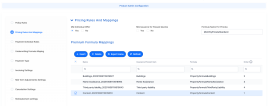
In FintechOS Studio, navigate to the Products > Settings > Product Admin Configuration . Open the product and click the tab Pricing Rules And Mappings.
-
In the section Product Formulas Mappings, double click the desired formula to be mapped.
-
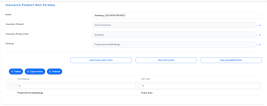
On the Insurance Product Item Formula form for the selected formula, map the formula against attributes from the data models of Quote Admin, Policy Admin, or Quote&Bind, by clicking the respective buttons.
-
If there is no mapping defined yet, then read more about formula mappings here.
-
Click the Save and Close button.

