Add Co-Applicant
After the details regarding the main borrower were added, you are prompted to add the details for the co-borrower. Select the secondary applicant and click Continue.

In this step, you have to give information about the identity of the co-borrower. Fill in the following fields:

|
Field |
Data Type |
Mandatory |
Description |
|---|---|---|---|
| Title | Option set | Mandatory |
Choose between:
|
|
First Name |
Text | Mandatory | Insert your first name. |
|
Last Name |
Text | Mandatory | Insert your surname. |
|
Date of birth |
Date | Mandatory |
the user should select the date using a calendar. The calendar must offer the age range considering that the user cant be younger then 18 years at the moment of application. Max age should be no more then 150 yo. |
|
Gender |
Option set |
Mandatory |
Choose between:
|
|
Marital Status |
Option set |
Mandatory |
Choose between:
|
|
Total nr of dependants |
Option set |
Mandatory |
Choose between:
This information is important for the scoring and financial analysis. |
|
Nationality |
Lookup |
Mandatory |
Select your nationality. This information is important for the financial calculations. There is a knock-out rule that says you must be British to advance in the DIP for Mortgage process. |
|
Country of residence |
Lookup |
Mandatory |
Select your country. You must choose United Kingdom. If you are not a UK resident, a toast message is displayed and you cannot continue the flow: We can only process mortgage applications for UK residents. Please visit us in one of our branches or by video call to talk about your options. |
Click Continue.
Address Details
In this step, insert your addresses where you have lived in the last five years. It is used to check the credit history.
It contains the message: Please provide us your addresses for the past 5 years only. We'll use this information to check your credit history but it won't affect your credit score.
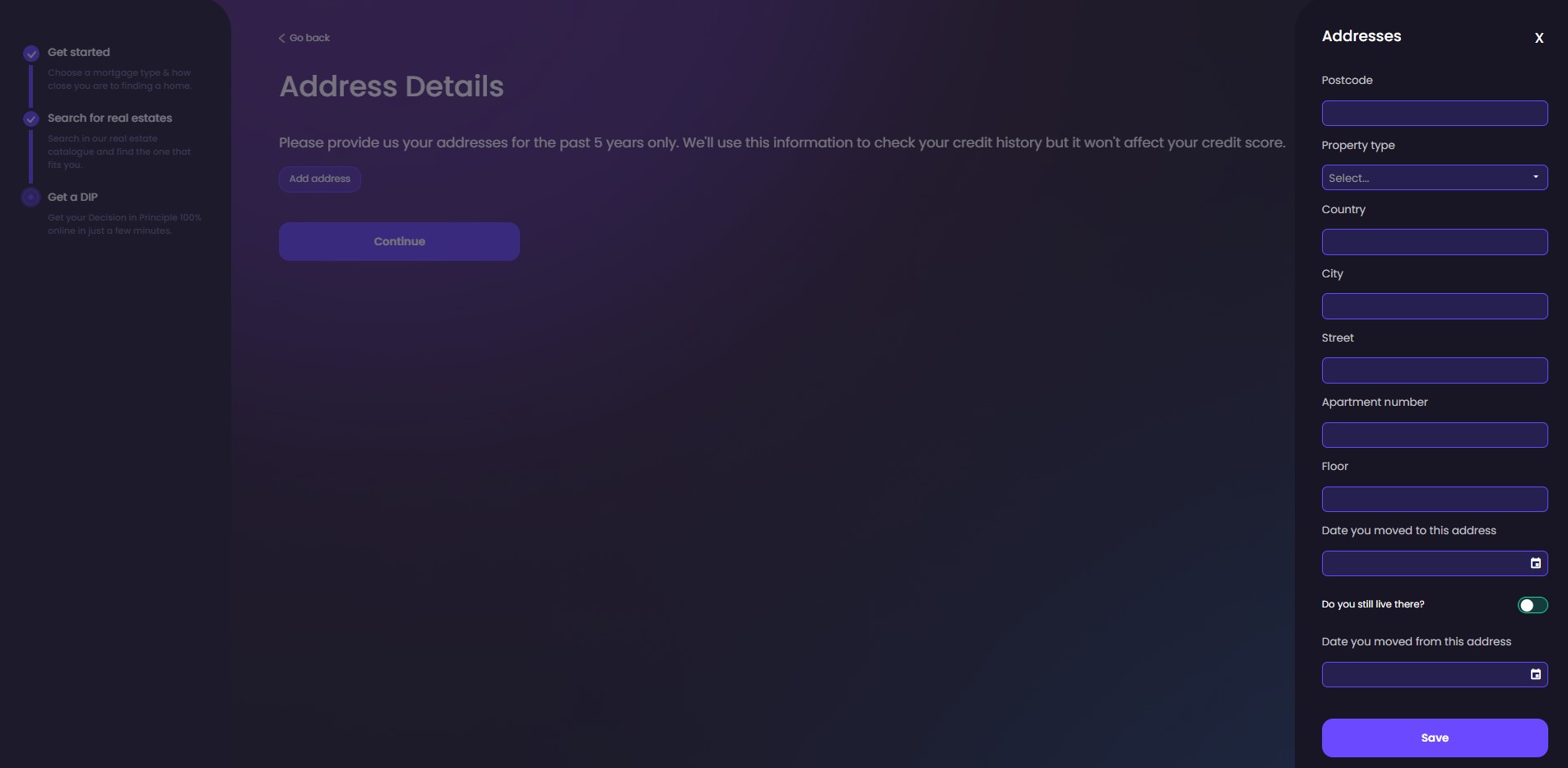

You need at least one address to continue the process.
Click Add address to begin:
| Field | Data Type | Mandatory | Description |
|---|---|---|---|
| Postcode | Text | Mandatory |
Using the connector Ideal Postcodes, the address is collected. By using a connector, the solution incorporates an endpoint that calls the API to bring data from an external source. Such an external source can be the Ideal Postcodes Connector. This connector queries the Ideal Postcodes database to find information. However, the solution can accommodate any other third-party software, this is one such software integration developed by FintechOS. |
| Property type | Option set | Mandatory |
Choose between:
|
| City | Lookup | Mandatory | Insert the name of your city. |
| Street | Text | Mandatory | Insert the name of your street. |
| Nr | Number | Mandatory | Insert the number of the street. |
| Ap number | Number | Mandatory | Insert the number. This field is available only if you chose flat as property type. |
| Date you moved in | Date | Mandatory | Select a date that is not in the future. |
| Do you still live here? | Bool | Mandatory |
If this is true, then the field below is not displayed. |
| Date you moved out | Date | Mandatory | Choose a date after the move in date. |
Click Save to add this address to the list.
For each address, you have two options:
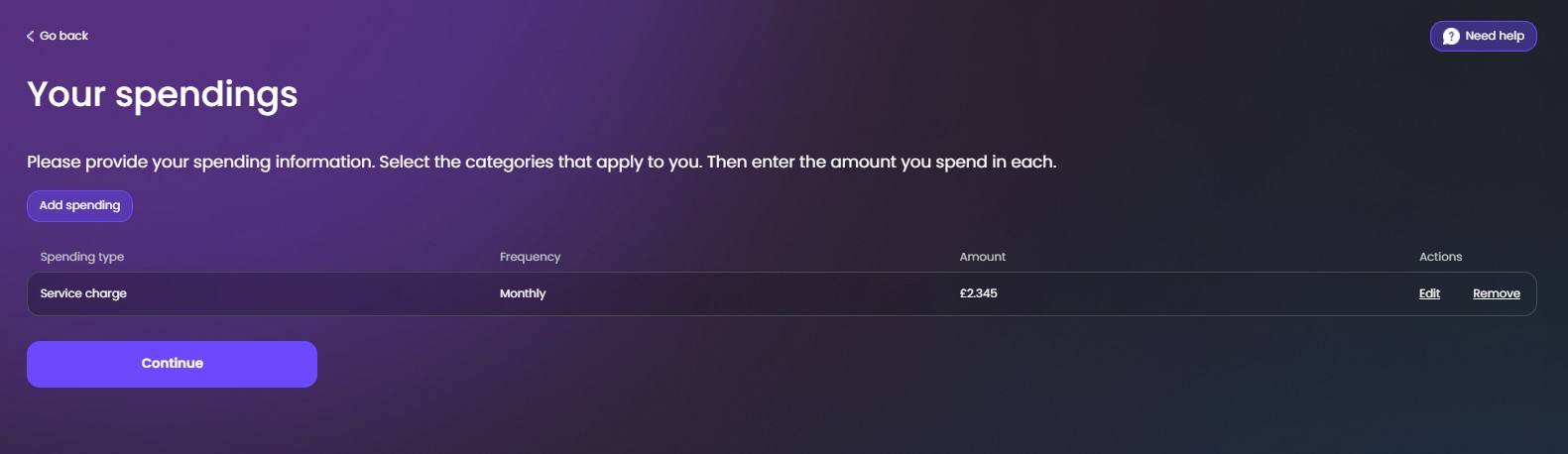
- edit (modify the address)
- remove (delete an address). This is executed using the script Server Automation Scripts and Libraries.
Click Continue once you have added all the addresses.
If you click Continue without an address inserted, the system informs you: Please provide your addresses for the past 5 years.
If you insert one or more addresses, but the oldest address doesn't cover the minimum five-year span, the system informs you: Please make sure you cover all the places you lived in the past 5 years.
If you inserted one or more addresses, but you didn't select a current address for any of them, the system informs you: Please review the addresses inputted and make sure you mark the one you are currently living in.
Income Details
Insert information about your income to determine your eligibility. The data is then taken to the Configuring the Business Formulas where it is used to determine if you qualify for the loan.
|
Field |
Data Type |
Mandatory |
Description |
|---|---|---|---|
| Employment | Option set | Mandatory |
Choose between:
Depending on what you select here, different fields are displayed to match the selection. |
|
For the option employed:
|
|||
|
Employer name |
Mandatory |
Choose between:
|
|
|
Job Title |
Text | Mandatory | Insert the name. |
|
Time employed at this job |
|
Mandatory |
Choose between:
|
|
Yearly income before tax |
Number |
Mandatory |
Insert the amount. |
|
Do you have any other incomes? |
Bool |
|
If true, a button will be made available (grayed out by default) named Add income. If you want to add additional income, a slider from the right side will appear with the following incomes in 2 categories. |
|
For the option self-employed:
|
|||
|
Your business role |
Text |
Mandatory |
Insert the role you have. |
|
Name of business |
Text |
Mandatory |
Insert the name of the company/NGO. |
|
Time employed at this job |
Option set |
Mandatory |
Insert the number or years/months. |
| Net profit in most recent complete tax year | Text | Mandatory | Insert the profit after tax deduction for the last year. |
| Net profit in previous complete tax year | Text | Mandatory | Insert the profit after tax deduction for the previous year. |
| Do you have any other incomes? |
|
Mandatory | Toggle the button if you do receive money from other sources. Then, click Add income to open the side panel on the left with the following fields. |
|
Income type |
Option set |
N/A |
Choose between:
Choose between:
|
|
Value |
Number |
N/A |
Insert the income. |
|
Frequency |
Option set |
N/A |
Choose between:
|


You can edit each income.
Click Continue.
Your Spendings
This screen collects the expenses you have to determine if you qualify for a loan.
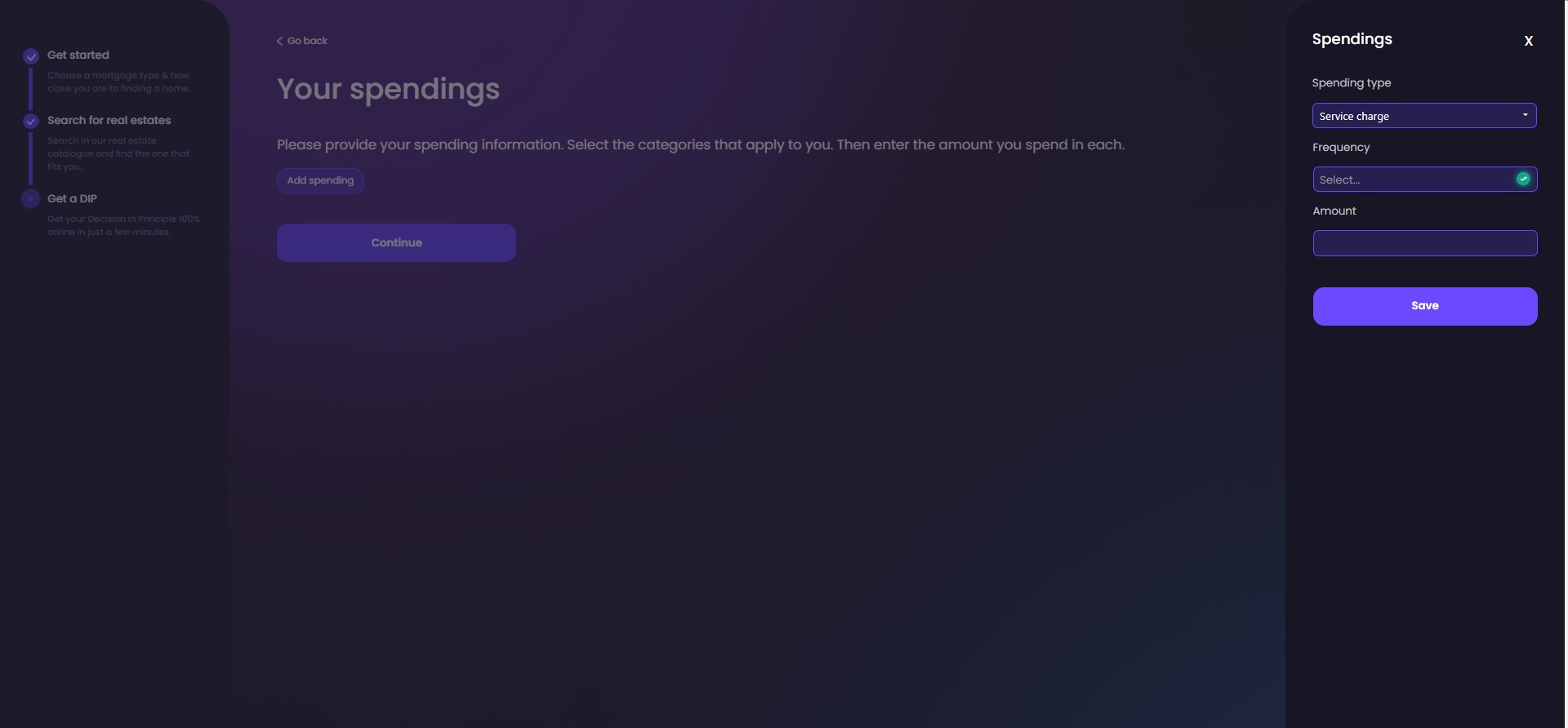
Click Add spendings to open a side panel with the fields:
| Field | Data Type | Mandatory | Description |
|---|---|---|---|
| Spending Type | Option set | Mandatory |
Choose between:
|
| Frequency | Option set | Mandatory |
This field is displayed only for
Choose between:
|
| Amount | Text | Mandatory | Insert the value in pounds. |
Click Save.
For each expense, you have two options:
- edit (modify the expense)
- remove (delete an expense).
Click Continue once you have added all the expenses.