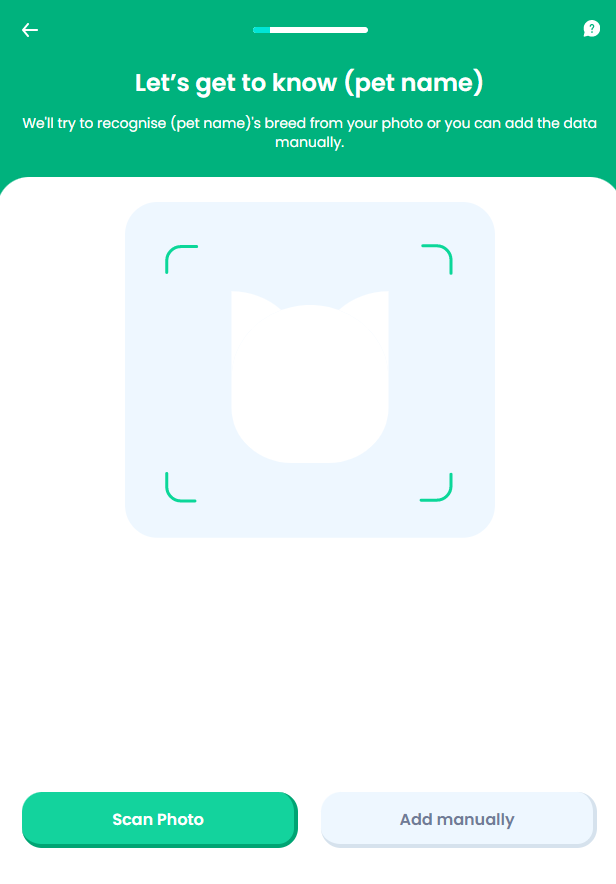
Pet Scan
This screen allows the user to choose a preferred method of input for entering the pet details required for a valid quotation. The pet owner can choose between image scan or manually adding the pet details. Taking a photo of the pet is emphasized on the screen by color choice (happy path green), since the most recent photo of the pet is more fitting for getting the right insurance quotation. For some insurers seeking to prevent fraud, taking a live photo is also a minimal validation of the fact that the pet which is going to be covered is alive and healthy. For this step, the values inserted by the user are stored in the Pet entity.
From here:
-
When the user taps Scan photo, the Pet Scan Processor screen is displayed.
-
If the user taps Add manually, the Manual Pet Details screen is displayed.
On-Screen Assets
The following user interface components are included with the Pet Scan screen:
| UI Components | Description |
|---|---|
| Progress Bar | The progress bar gives the user a visual answer to the "How much till I get insurance for my pet?" question. |
| Back Button | The back button helps the user to re-take previous steps in the flow. |
| Help Button | The help button allows the user to find support for completing the flow. |
| Heading Title | The following heading title is displayed in the header section: Let’s get to know (pet name) |
| Supporting text | The following supporting text is displayed under the heading title: We'll try to recognise (pet name)'s breed from your photo or you can add the data manually. |
| Scan shape | Screen area for scanning. Helps user focus on the functionality. |
| Action Buttons | Scan Photo - This button is used to launch the camera sub-flow. Add manually - This button is used to launch the manual pet details sub-flow. |
For details about the default UI style components used for creating the journey, consult the UI Style Components list on the Customer Journey page.
Below is an example of the Pet Scan screen: