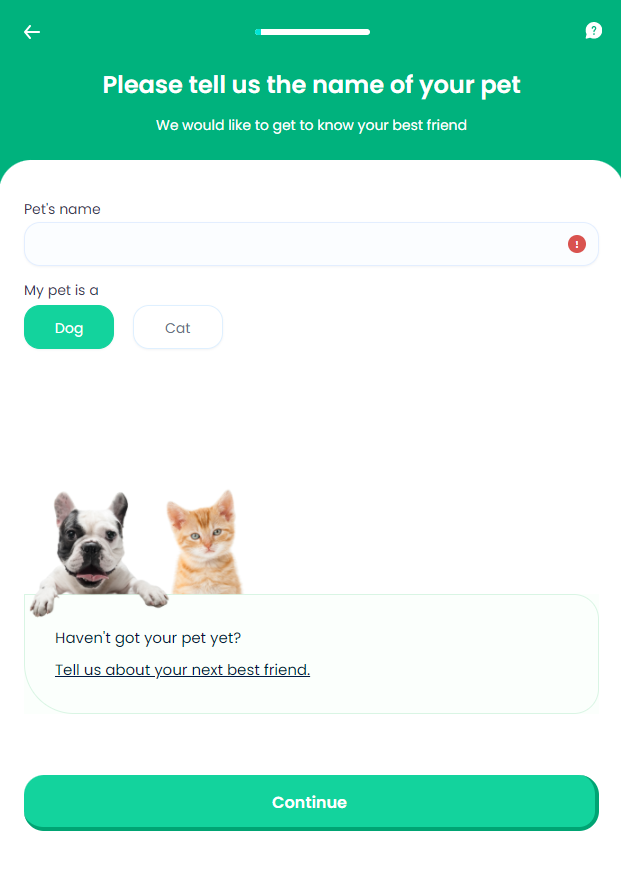
Pet Name
There are cases when customers own more than one pet and they might seek to cover each one of them. For these cases, without being limited to them, this particular screen allows the pet owner to insert the pet name in order to get a quotation for the chosen pet. This is also the place where the pet owner indicates the pet type - dog or cat. Besides that, the role of this step is to also sort out whether the customer is seeking insurance for an existing pet or for a pet that is going to be purchased. For this step, the values inserted by the user are stored in the Pet entity.
From here:
-
When the user presses Continue, the application saves the pet name. Next, it displays the Pet Scan screen.
-
If the user taps the Tell us about your next best friend text area, the Next Best Friend screen is displayed.
 On-Screen Assets
The following user interface components are included with the Pet Name screen:
| UI Components | Description |
|---|---|
| Progress Bar | The progress bar gives the user a visual answer to the "How much till I get insurance for my pet?" question. |
| Back Button | The back button helps the user to re-take previous steps in the flow. |
| Help Button | The help button allows the user to find support for completing the flow. |
| Heading Title | The following heading title is displayed in the header section: Please tell us the name of your pet |
| Supporting Text | The following supporting text is displayed under the heading title: We would like to get to know your best friend |
| Pet Name Input Form | Under the label Pet's name, this input form allows the user to introduce the pet name. |
| Pet Type Buttons | Under the label My pet is a, the Dog and Cat buttons allows the user to indicate the pet type. |
| Text | The following text is displayed in the bottom section: "Haven’t got your pet yet? Tell us about your next best friend." |
| Action Button | Continue - This button is used to display the next flow step. |
| Image | Happy Pets - From the public domain, released under the Creative Commons (CC0) license. |
For details about the default UI style components used for creating the journey, consult the UI Style Components list on the Customer Journey page.
Below is an example of the Pet Name screen: