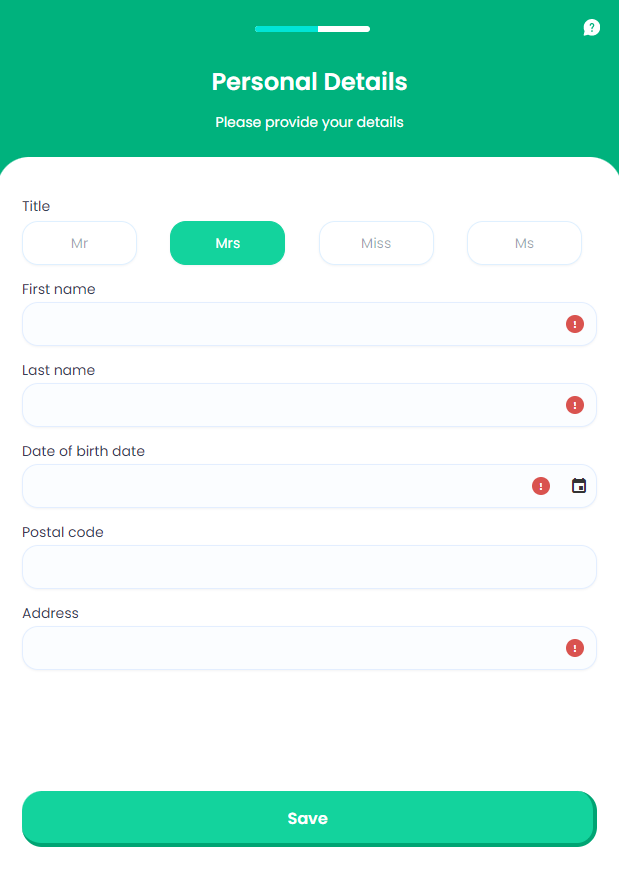
Owner's Personal Details
This screen displays a series of input fields that collect details about the pet owner. The fields are pre-filled only if the user chose to take the ID Scan step, previously. The customer can add missing information and also edit any incorrect information. Personal details are stored by the Pet Insurance solution and further used during the journey in order to help the customer complete the purchase (payment processing), and personalize insurance documentation. For this step, the values inserted by the user are stored in the Retail Applicant Data entity.
From here: When the user clicks Save, the Payment Details page is displayed.
On-Screen Assets
The following user interface components are included with the Owner's Personal Details screen:
| UI Components | Description |
|---|---|
| Progress Bar | The progress bar gives the user a visual answer to the "How much till I get insurance for my pet?" question. |
| Back Button | The back button helps the user to re-take previous steps in the flow. |
| Help Button | The help button allows the user to find support for completing the flow. |
| Heading Title | The following heading title is displayed in the header section: Personal Details |
| Supporting text | The following supporting text is displayed under the heading title: Please provide your details. |
| Title Option Set Buttons | Under the label Title, this option set captures the value (title) indicated by the user. The option set values are: Mr, Mrs, Miss, and Ms. |
| First Name Input Form | Under the label First name, this input form captures the value (first name) inserted by the user, or retrieved from the ID scanning. |
| Last Name Input Form | Under the label Last name, this input form captures the value (last name) inserted by the user, or retrieved from the ID scanning. |
| Birthday Date Picker | Under the label Date of birth date, this input form captures the value (birth date) selected by the user with the date selector, or retrieved from the ID scanning. |
| Post Code Input Form | Under the label Post code, this input form captures the value (post code) inserted by the user. |
| Address Input Form | Under the label Address, this input form captures the value (address) inserted by the user, or retrieved from the ID scanning. |
| Action Button | Save - This button is used to save the details and display the next flow step. |
For details about the default UI style components used for creating the journey, consult the UI Style Components list on the Customer Journey page.
Below is an example of the Owner's Personal Details screen: