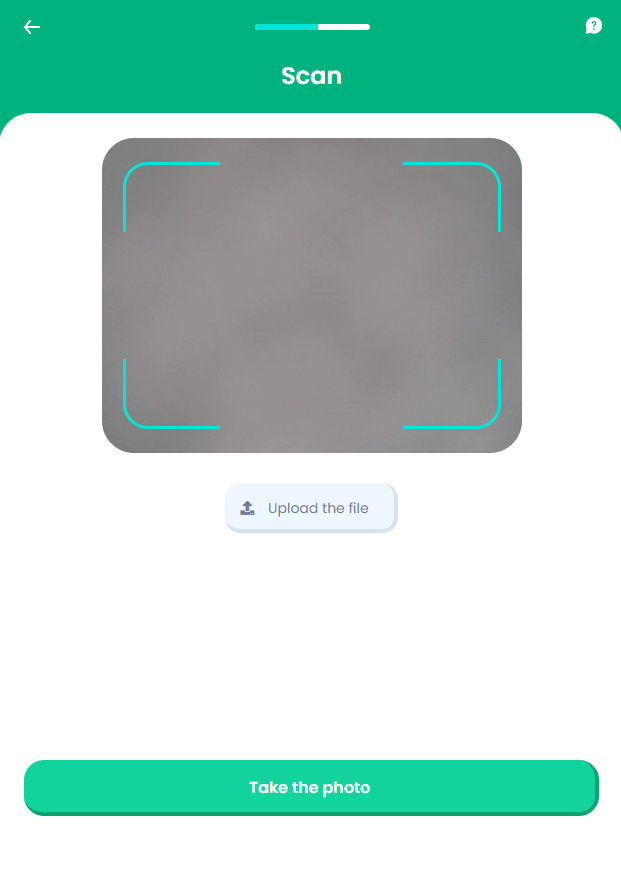
ID Scan
This screen allows the customer to provide a picture of their ID, by either taking a photo or by adding one. Taking a photo of the ID is emphasized on the screen by color choice (happy path green), since it reduces the effort needed to enter the details in the system (and to complete the journey) , and also makes it easier for the system to validate the identity of the potential customer, for the insurer.
From here:
-
Provided the ID image meets the minimum quality standard, the Owner's Personal Details page is displayed.
-
If the resulting ID image does not meet the minimum quality standard, the Owner's Personal Details page is displayed.
On-Screen Assets
The following user interface components are included with the ID Scan screen:
| UI Components | Description |
|---|---|
| Progress Bar | The progress bar gives the user a visual answer to the "How much till I get insurance for my pet?" question. |
| Back Button | The back button helps the user to re-take previous steps in the flow. |
| Help Button | The help button allows the user to find support for completing the flow. |
| Heading Title | The following heading title is displayed in the header section: Scan |
| Shape | Empty screen area, for camera feedback. |
| Action buttons | Upload the file - This button is used to launch the ID image uploading sub-flow. Take the photo - This button is used to launch the ID scanning sub-flow. Process the file - This button is used to validate the ID. |
For details about the default UI style components used for creating the journey, consult the UI Style Components list on the Customer Journey page.
Below is an example of the ID Scan screen: