Direct Debit
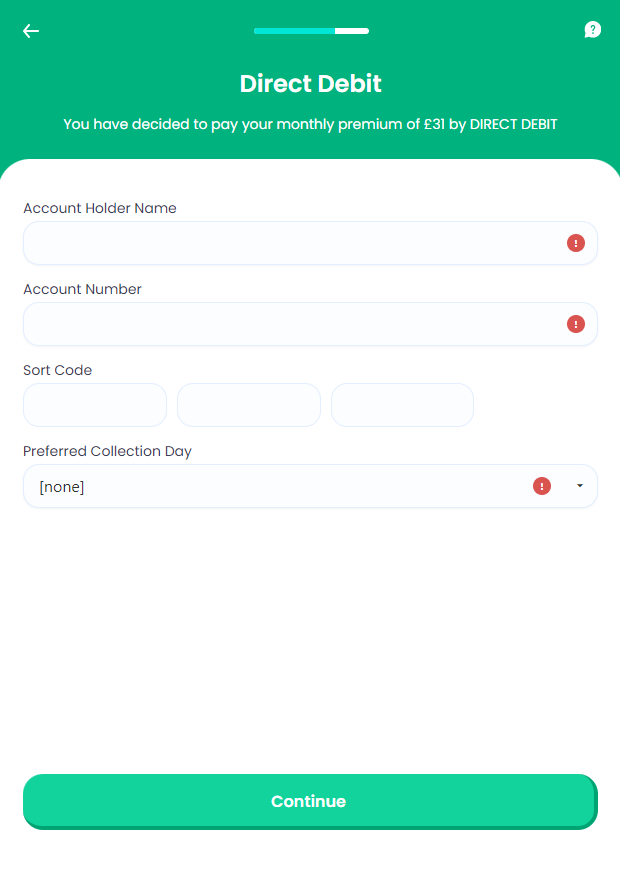
When the direct debit payment type is chosen by the user, this screen is displayed in order to allow the pet owner to provide the bank details for the future direct debit payments. For this step, the values inserted by the user are stored in the Direct Debit entity - this is a transient data entity present in the journey for simulation purposes, namely it is a placeholder for the integration with the Billing and Collection solution.
Once the policy holder agreed to pay the premiums by direct debit, a direct debit activation procedure must be followed, by the insurer, in order to notify the bank about the payment arrangement and to send the necessary instructions, regularly, so that the bank transfers the premium amount into insurer's account. For the Pet Insurance solution, the management of direct debit operations is handled through the integration with the Billing and Collection module. However, the Pet Insurance solution can be also customized to send the payment details to another third-party billing application.
From here: When the user presses Continue, the Congratulations screen is displayed.
On-Screen Assets
The following user interface components are included with the Direct Debit screen:
| UI Components | Description |
|---|---|
| Progress Bar | The progress bar gives the user a visual answer to the "How much till I get insurance for my pet?" question. |
| Back Button | The back button helps the user to re-take previous steps in the flow. |
| Help Button | The help button allows the user to find support for completing the flow. |
| Heading Title | The following heading title is displayed in the header section: Direct Debit |
| Supporting Text | The following supporting text is displayed under the heading title: You have decided to pay your (selected frequency) premium of (calculated premium amount) by DIRECT DEBIT |
| Account Holder Name Input Form | Under the label Account Holder Name, this input form captures the value (account holder name) inserted by the user. |
| Account Number Input Form | Under the label Account Number, this input form captures the value (account number) inserted by the user. |
| Sort Code Input Forms | Under the label Sort Code, these paired input forms capture the value (bank sort code) inserted by the user. |
| Collection Day Dropdown | Under the label Preferred Collection Day, this input form captures the value (preferred collection day) indicated by the user. |
| Action Button | Continue - This button is used to display the next flow step. |
For details about the default UI style components used for creating the journey, consult the UI Style Components list on the Customer Journey page.
Below is an example of the Direct Debit screen: