Congratulations
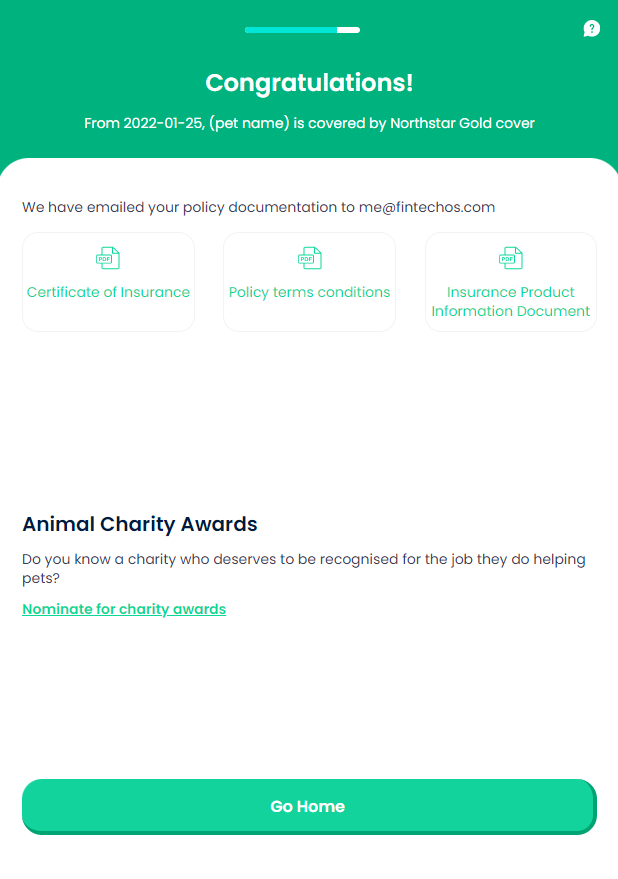
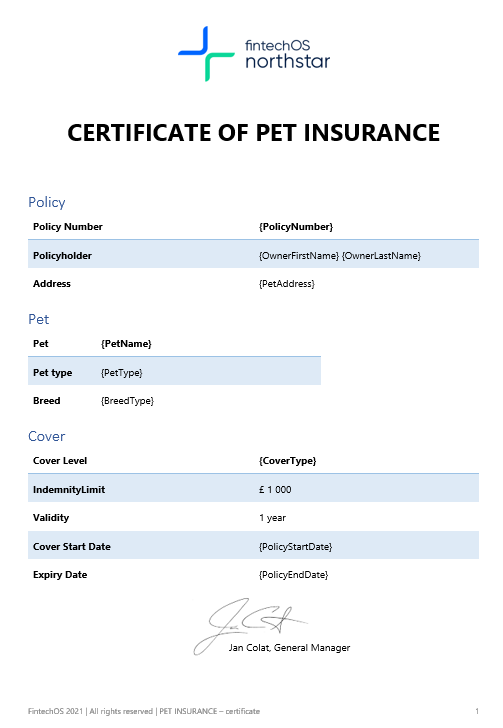
This screen allows the user to download the insurance Documents for their pet, and to nominate an animal charity, if they want. For ore details about the generated documents, check the Certificate of Insurance, Policy terms and conditions, and Insurance policy document links. For this step, the values inserted by the user are stored in the Pet Quote entity.
From here:
-
Scenario 1 - When the user presses Go home, the journey ends.
-
Scenario 2 - If the user presses Nominate for charity awards, the Charity Nomination screen is displayed.
On-Screen Assets
The following user interface components are included with the Congratulations screen:
| UI Components | Description |
|---|---|
| Progress Bar | The progress bar gives the user a visual answer to the "How much till I get insurance for my pet?" question. |
| Back Button | The back button helps the user to re-take previous steps in the flow. |
| Help Button | The help button allows the user to find support for completing the flow. |
| Heading Title | The following heading title is displayed in the header section: Congratulations! |
| Supporting Text | The following supporting text is displayed under the heading title: From (date picked), (pet name) is covered by Northstar (module name) cover |
| Supporting Text | The following supporting text is displayed in the header section: We have emailed your policy documentation to (email address provided by the user) |
| Insurance Document Download Icons | These icons allow the user to see the type of insurance documents that were generated for the current quote, in PDF file format - namely, Certificate of Insurance, Policy terms and conditions, and Insurance policy. |
| Insurance Document Download Links | By pressing any of the provided links, the user can download and consult the insurance documents generated for the current quote. See also the row above. |
| Second Heading Title | The following second heading title is displayed in the bottom section: Animal Charity Awards |
| Supporting Text | The following supporting text is displayed under the second heading: Do you know a charity who deserves to be recognised for the job they do helping pets? |
| Nomination Link | By pressing the Nominate for charity awards link, the user launches the nomination sub-flow. |
| Action Button | Go home - This button ends the journey. |
For details about the default UI style components used for creating the journey, consult the UI Style Components list on the Customer Journey page.
Below is an example of the Congratulations screen: