Charity Nomination
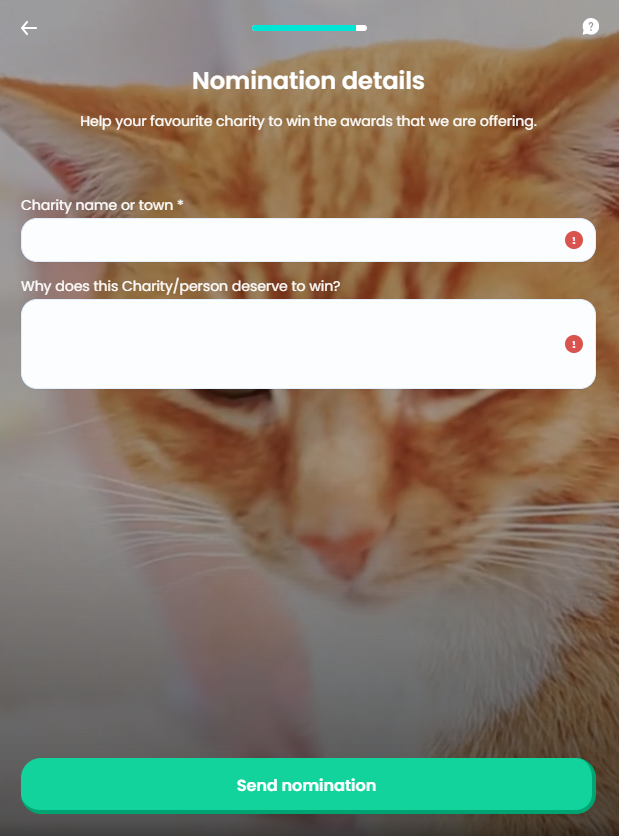
This screen allows the user to enroll their preferred animal charity for the insurer's awards. The aim of this screen is to make place for best practices in the insurance industry, since charity award nominations are arguably improving customer engagement and have a positive effect on the insurer's Net Promoter Score (NPS). For this step, the values inserted by the user are stored in the Pet Quote entity.
From here: When the user presses Send nomination, the Good Luck screen is displayed.
On-Screen Assets
The following user interface components are included with the Charity Nomination screen:
| UI Components | Description |
|---|---|
| Progress Bar | The progress bar gives the user a visual answer to the "How much till I get insurance for my pet?" question. |
| Back Button | The back button helps the user to re-take previous steps in the flow. |
| Help Button | The help button allows the user to find support for completing the flow. |
| Heading Title | The following heading title is displayed in the header section: Nomination details |
| Supporting Text | The following supporting text is displayed under the heading title: Help your favourite charity to win the awards that we are offering. |
| Charity Name Input Form | Under the Charity name or town* label, this input form allows the user to insert a name for the charity, and also the name of the town of their favorite charity. |
| Win Reason Input Form | Under the Why does this Charity/person deserve to win? label, this input form allows the user to insert a max. 1000 characters long text that details the reason for their nomination. |
| Action Button | Send nomination - This button is used to display the next flow step. |
| Video | Happy pets (background video) - From the public domain, released under the Creative Commons (CC0) license. |
For details about the default UI style components used for creating the journey, consult the UI Style Components list on the Customer Journey page.
Below is an example of the Charity Nomination screen: