Breed Character
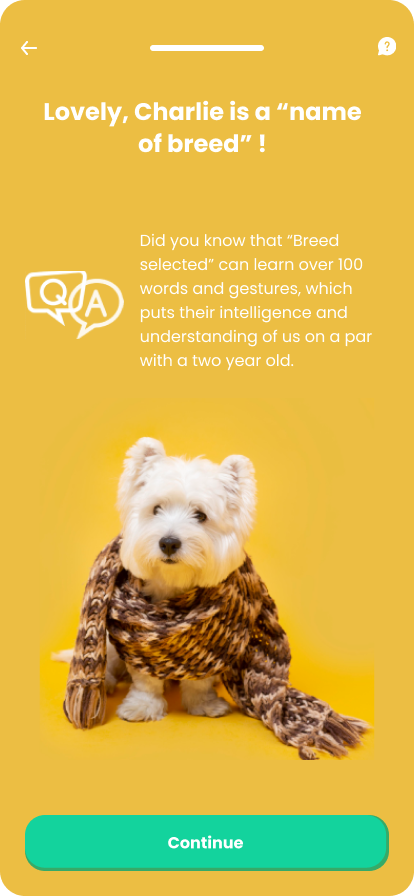
This screen displays a humorous fact that relates to all pet breeds. The role of this step is to further validate the specific pet breed indicated by the user. It also allows the pet owner the opportunity to feel valued and understood by the insurer.
This screen is used alternatively during the journey, as follows:
Scenario 1 - for users who are pet owners and previously indicated a breed, it encourages them to progress towards picking the right insurance cover for the pet breed proper.
Scenario 2 - for users who are prospective pet owners and enlisted for a quote reminder, the screen marks the end of the journey.
From here:
-
When the user taps Continue, the More Pet Details screen is displayed (scenario 1).
-
When the user presses Go home, the journey ends (scenario 2).
On-Screen Assets
The following user interface components are included with the Breed Character screen:
| UI Components | Description |
|---|---|
| Progress Bar | The progress bar gives the user a visual answer to the "How much till I get insurance for my pet?" question. |
| Back Button | The back button helps the user to re-take previous steps in the flow. |
| Help Button | The help button allows the user to find support for completing the flow. |
| Scenario 1 Heading Title | The following heading title is displayed in the header section: Lovely, (pet name) is a (breed name) |
| Scenario 2 Heading Title | The following heading title is displayed in the header section: Lovely, (name of breed OR mixed breed) are such good pets |
| Text | The following text is displayed in the middle section: "Did you know that (breed selected) can learn over 100 words and gestures, which puts their intelligence and understanding of us on a par with a two year old." |
| Scenario 1 Action Button | Continue - This button is used to display the next flow step. |
| Scenario 2 Action Button | Go home - This button is used to end the journey. |
| Image | Happy Pet 2 - From the public domain, released under the Creative Commons (CC0) license. |
| Icon | Q&A - From the public domain, released under the Creative Commons (CC0) license. |
For details about the default UI style components used for creating the journey, consult the UI Style Components list on the Customer Journey page.
Below is an example of the Breed Character screen, for scenario 1: