Initializing a Non-SEPA SWIFT Payment
- Open the page Make a Payment. The title is dynamic, depending on the amount value, and it changes to display the payment schema type. In this case, the title becomes SWIFT Payment.
- Fill in the following fields:
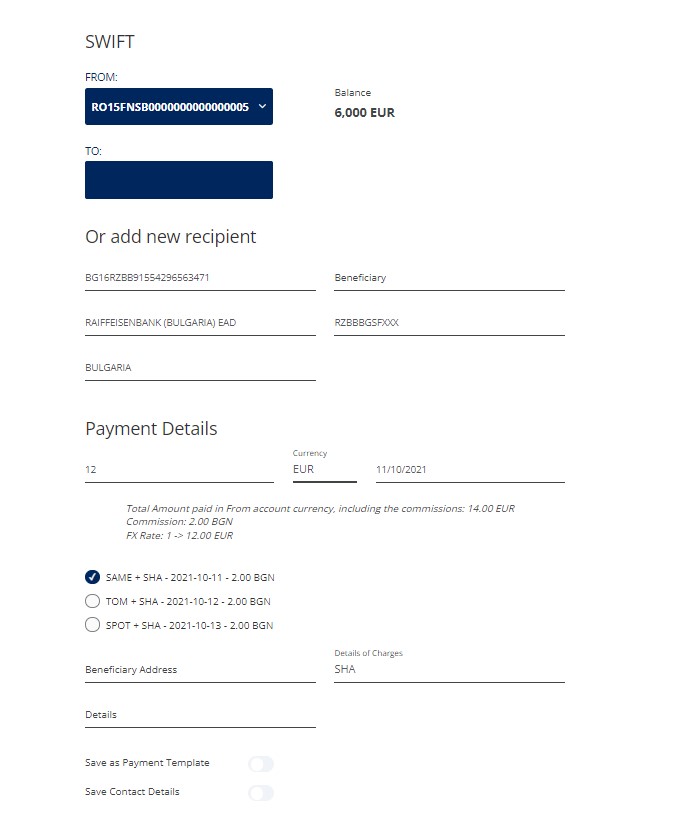
Fields Type Required Description FROM Lookup Mandatory Select the current account from where to send the amount by clicking on the drop-down arrow.
HINT
The accounts displayed are the accounts for which the user has at least the right for Account Balance & DetailsThis field is automatically pre-filled with the account number only when the payment was initiated from the Account details page.
Available Balance Numeric N/A This field is displayed once the FROM account has been chosen. It displays the amount of funds available for the specifically chosen bank account. TO Lookup Mandatory You can:
- search and select a saved Payment Template
or
- search and select a saved Beneficiary.
Or add new recipient Beneficiary Text Mandatory Insert the name of the receiver. Account Text Mandatory Insert the destination bank account.
In the case of an IBAN:
- Depending on the structure of the IBAN, the types of payments are displayed.
- The system validates the format of the IBAN, if the system recognizes the IBAN, it automatically fills in the Beneficiary field and the Beneficiary Bank. After the values are displayed, they become read-only.
There is a default maximum length available for the account, 34 characters.
In the case of an account number, there is no validation done on the format of the number.
When the account number is inserted, the type of payment is determined and the title of the page changes to display the name of the type of payment schema.
Beneficiary Bank Text N/A After the IBAN is inserted, the system displays in this field the name of the bank. If not, insert the name of the bank. Beneficiary Bank’s Country Text N/A It is the country where the beneficiary's bank is located. By inserting the IBAN previously, this field is automatically populated with the country. If not, insert the country.
BIC  A BIC (Bank Identifier Code) is the SWIFT Address assigned to a bank in order to send automated payments quickly and accurately to the banks concerned. It uniquely identifies the name and country, (and sometimes the branch) of the bank involved. or SWIFT The Swift Code (also known as SWIFT-BIC, BIC code or SWIFT ID) is needed every time you want to make an international money transfer.
Text Mandatory Insert the code BIC or SWIFT. The maximum length is 11. By inserting the account number or IBAN, it is automatically populated with the code. Beneficiary Address Text Mandatory only for Non-SEPA SWIFT payment Fill in the address of the customer. Amount Numeric Mandatory Insert the amount of funds you wish to send to the person/company. Currency Lookup Mandatory The currency of the amount being transferred.
NOTE
When the payments are done from a local currency account to an account of a different currency, the system displays a message: The IBAN inserted requires payment in a currency different then BGN. Please select currency from the drop-down.Execution Date Date Time Mandatory Schedule the payment by selecting a date. From the calendar only the first date available is the current day, followed by the day after and so on up until 90 days Total amount paid in FROM account currency including commissions Numeric N/A It is read-only. It is displayed in the currency of the account from where the sum is sent.
If the selected payment currency is different than the currency of the FROM account, then the total amount is calculated with the exchange rates in place at the moment of payment and displayed in the currency of the FROM account.
Commissions Numeric N/A It is read-only. It is the value of the commissions charged by the bank. FX Rate Numeric N/A It is read-only. It is the value of the exchange rate. Settlement Date Date Mandatory It is the date when the amount arrives in the account of the beneficiary.
Choose between:
- SAME Same day transfer + yyyy-mm-dd- Fee
- TOM The transaction is sent to the beneficiary on the working day after the user has instructed the trade. + yyyy-mm-dd- Fee
- SPOT This is usually the default payment type within foreign exchange. It means your payment is settled and sent to your recipient 2 days after the trade is instructed. + yyyy-mm-dd- Fee.
IMPORTANT!
The SAME option becomes un-available if the cut-off hour is passed.Details of Charges Option set Mandatory Choose between:
- SHA The user pays the bank's outgoing transfer charge. The beneficiary bank receives the payment minus the correspondent (intermediary) bank charges.
- OUR The user pays all transfer charges.
- BEN The user does not pay any charge. The beneficiary bank receives the payment minus all transfer charges. Available for SWIFT payments only..
Details Text Mandatory Insert a description for the payment such as an invoice number. The maximum length is 70. Attachment File Mandatory Insert a file. It is displayed only for the beneficiary bank outside EU and EEA and with an amount higher than 30.000 BGN.
Save as Payment Template Boolean N/A By ticking this field, the payment is saved and two new fields are displayed: Payment Template Name and Visible?. Payment Template Name Text Mandatory only if the field Save as Payment Template was ticked. Insert the name of the payment template. Visible?
Boolean
N/A
This checkbox marks for the template to be visible to the other users from the business unit. This field has the value true by default. Un-tick it to hide the template.
Save Contact Details Boolean N/A By ticking this field, the beneficiary is saved and two new fields are displayed Beneficiary Template Name and Visible?. Beneficiary Template Name Text Mandatory only if the field Save Contact Details was ticked. Insert the name of the beneficiary template. Visible?
Boolean
N/A
This checkbox marks for the template to be visible to the other users from the business unit. This field has the value true by default. Un-tick it to hide the template.
The payment has the status Draft.
- search and select a saved Payment Template
- Click Review Payment. By clicking that button, if applicable, the payment template and the beneficiary template are saved. The page Review Payment Detail is displayed. It contains the read-only data: Payment amount, Total amount paid including commissions, Execution date, Beneficiary account, Beneficiary bank name, Account, Currency, Payment reason, Payment type, Beneficiary name, Payer account. To proceed, click Confirm. To cancel, click Back.NOTE
If the user who initiated the payment has authorization rights as well, they are able to sign through Strong Customer Authentication. -
To sign the payment, an email was sent with a code. To verify the identity of the user, the code must be inserted in the Online and Mobile Banking page. The email address is taken from the database. To verify, click Accept.
A pop-up window is displayed with the message: Please insert the code received in order to authorize the payment of value and currency for a to account the account number. To sign the payment, an email was sent with a code. To verify the identity of the user, the code must be inserted in the Online and Mobile Banking page. The email address is taken from the database. There are six boxes where to insert each letter of the OTP. To verify the OTP inserted, click Authorize.
If the code was not sent, click Re-send code.
If you have trouble seeing the code, click Call me.
If the code inserted was wrong, then the user is directed to the page Wrong authorization code with the following message: You have 4 remaining retries. If you want to try again, click Send. If you want to try again later, select Try again and you will be directed to the Homepage. The payment will remain initiated, and you will be able to sign it for the Order List.
Click Send to reinitiate the signature process.
Click the Try later button to save the payment and re-initiate it from the List of Orders and Multiple Authorizations of a Payment.
-
On the confirmation page, the message Your payment has been registered successfully. is displayed. If it is the case to be a joint signature, there is the message The payment has been posted in the Order List for the joint authorized Approver to sign. Click Home to return to the Homepage. The payment Id is in the status
Authorized.