Installation
Follow the guidelines below to import and configure the Billing and Collection module.
1 Prerequisites
Platform version compatibility: FintechOS Core DPA Platform v21.2 and above.
Dependencies: Standard Syspack v21.1.6002 or higher.
Insurance Apps Dependencies: Core Insurance Master v2.0
Upgrade from: N/A.
2 Import Packages
Digital assets location: FintechOS Release Hub
Digital assets description:
-
First install - Billing and Collection v2.0 - Data package for managing payments.
-
Second install - Billing and Collection Import v2.0 - Data import configuration package for roles and insurance parameters. See below.
Install in this exact order!
3 Installation
The following is the standard procedure for how to import a digital asset:
1. Go to Innovation Studio and log in with Developer credentials.
2. Navigate to the DevOps menu entry. From the dropdown, click on Deployment Package to open the Deployment Package List page. On the top right-hand side corner, click the Import deployment package icon. The local File explorer window opens.
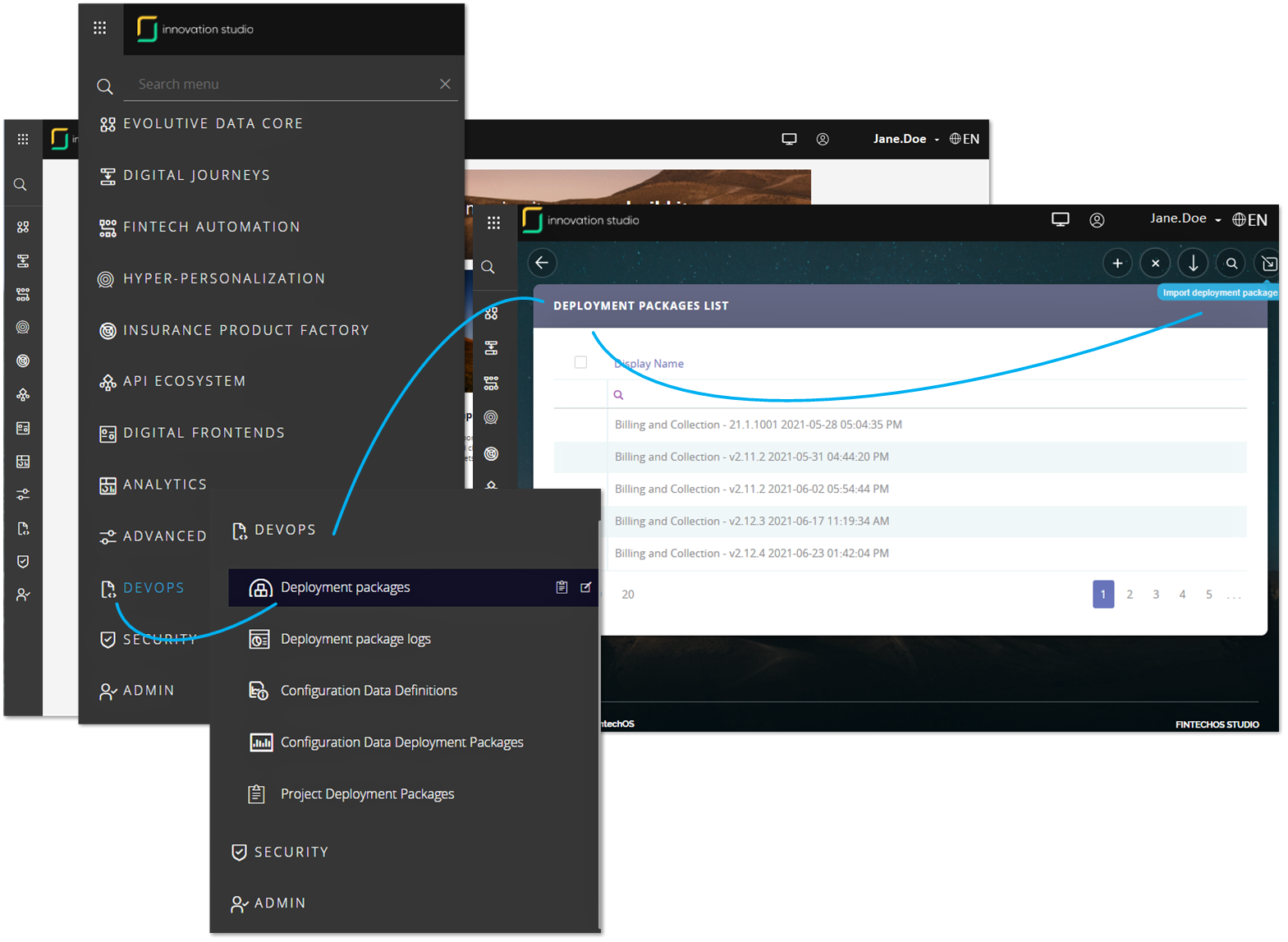
3. Select from the local drive the file to be imported. If the case, pay attention to the order of importing the chosen package, as stated in the Import Packages section and the Prerequisites section.
4. A new form is launched where the xml summary is displayed and the user indicates the project. Use the deployment package embedded project (display xml OPIS within brackets - project name, apps included) or use a project existing on that environment and select it from a drop-down list, or create a new project.
5. Confirm the project selection and project name and click Import to start the job. The system checks the deployment package metadata and if no errors occur, the metadata is successfully added into the database.
After the import is finished, you can see the success message and you can access the Deployment Package Log window which allows you to see into the details of your import project. The Deployment Package Log displays all the entities, attributes, configurations, flows and items used by your Billing and Collection solution.
If the are any errors, the system displays a toast message with the reason why the package could not be imported. To see the warnings, consult the log of the selected deployment package. For more information, see Viewing Deployment Package Logs.
On import, the system checks the package hash to see if the package content has been altered. If so, the import may still proceed with a warning (which is logged in Deployment Package Import Log), or it may be denied and the package will not be imported (an error is logged that the package content was altered).
The following messages may be displayed by the system on import:
| Field | Status |
|---|---|
| A newer application is already installed | Error |
| Application will be upgraded | Warning |
| New | Passed |
| You cannot upgrade an obsolete application | Error |
| Existing platform version is lower than minimum platform version required | Error |
 Billing and Collection Import Package v2.0
-
Digital asset location:FintechOS Release Hub
-
Digital asset description: Data import configuration package for roles and insurance parameters.
-
Platform version compatibility: Core DPA Platform 21.2.
-
Dependencies: Standard SysPack v21.1.6002 or higher
-
Insurance Apps Dependencies: Billing and Collection v2.0.0
-
Upgrade from: N/A
-
Install instructions: follow the standard procedure on how to import a digital asset, listed above.
-
After installment configurations: approve all Insurance Parameters as described in the next section.
4 After Installment Configurations
Enable System Parameter in Innovation Studio
Proceed to enable the BillingUsed insurance parameter as described below:
1. Go to Innovation Studio and log in with Developer or Release Manager credentials.
2. Set your context to Core Insurance Master Digital Asset:
Navigate to the DevOps menu entry. From the dropdown, click on Deployment Package to open the Deployment Package List page. From the list, select the Core Insurance Master Digital Asset and double click to open the Digital Asset Form. Inside the form, go to the General tab and click Set as context digital asset. This way, you allow the Core Insurance Master to manage the policy flows stored by the Billing and Collection module. For more details, go to Setting Context for Digital Assets page.
3. Find the BillingUsed System Parameter:
From the main menu, navigate to the Admin menu entry. From the dropdown, click on System Parameters to open the System Parameters List.
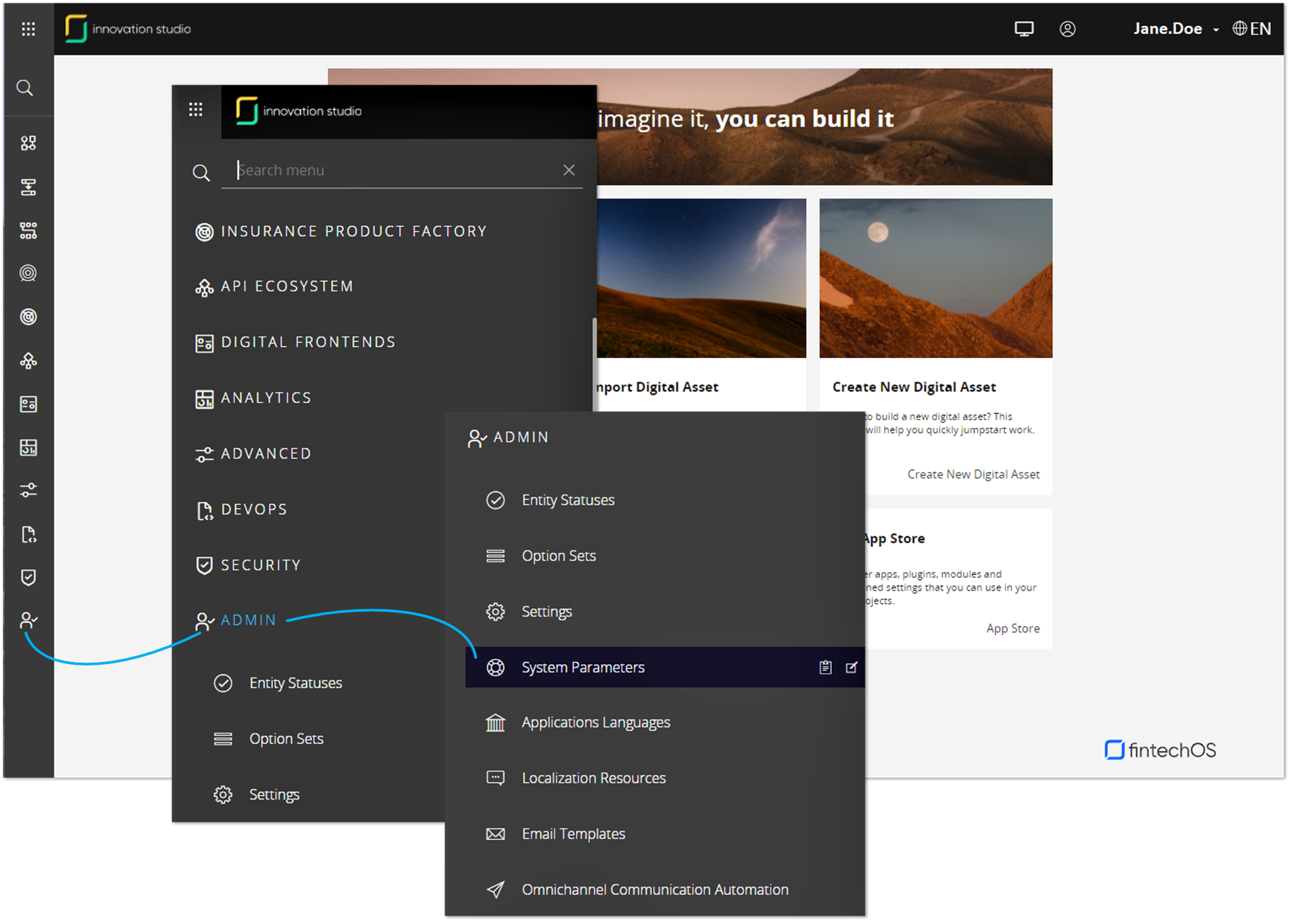
4. Inside the System Parameters List, locate the BillingUsed parameter and double click the record to open it for edit.
4. Inside the Edit System Parameter form, set the value to 1, then click Save and close, at the top right corner of your screen, to enable the use of Billing and Collection module.
Approve Insurance Parameters on Portal
1. Go to your FintechOS Portal and log in with Developer or Release Manager credentials.
2. Open the main menu, at the left side of the screen. Inside the main dropdown, locate Settings and click to open the sub-menu.
3. Inside Settings, click Insurance Parameters to open the Insurance Parameters List .
4. Inside the Insurance Parameters List , select a parameter and double click to open the Parameter record for editing.
5. Once opened, from top left corner of your screen, change parameter status from Draft to Approved.
6. Repeat this procedure for all your Insurance Parameters in Draft status.
Add or modify path keys
Add or modify the keys: baseUrlApi, clientApi, userApi, passwordApi and core-setting-portal-profile from Portal webConfig → appSettings / azure keys
Portal
URL of the FintechOS environment where the Change Payment Type API is exposed.
<add key=baseUrlApi value=URL />
<add key=clientApi value=yourClient />
<add key=userApi value=yourUserName />
<add key=passwordApi value=youUserPass />
Job server serviceSetting.config
Path the uploadEBS folder of the Portal:
<add key=UploadFolder value=yourPath:\Sites\UploadEBS/>
<add key=AttachmentPath value=yourPath:\Sites\UploadEBS/>
<add key=FileUploadWhiteList value=.pdf,.doc,.docx,.els,.jpg,.jpeg,.xlsx,.dll,.ppt,.pptx,.txt,.png,.ttf,.xml />
<add key=baseUrlApi value=URL />
<add key=clientApi value=yourClient />
<add key=userApi value=yourUserName />
<add key=passwordApi value=youUserPass />
For a job server installed on Azure, the UploadFolder and AttachmentPath keys are not needed. Instead, use the standard configuration steps to allow the job server access to the blob storage.