Use the Communication Processor
The available channel providers for email are:
- FTOSEmailGateway
- GatewayEmail
- GatewayEmailOTP.
The available list in the FintechOS Studio for SMS is:
- GatewaySMS
- GatewaySMSOTP
- FTOSApiSMS.
Email provider configurations
1 Add Communication Channel
- In Studio, from the main menu, click Admin > Omnichannel Communication Automation > Communication Channels. The Communication Channels List is displayed. Click Insert to create a new one.
- Provide a Code and Name for the communication channel.
- From the Default Action Type field, select Email.
- From the Bus Communication Channel field, select Email. For Bus Communication Channel, see details View Channel Configurations.
- From the Bus Communication Provider field, select FTOSEmailProvider. For details, see Configure Channel Providers.
- From the Extended Properties Entity, select from the list the entity. Through certain channels, it allows sending some properties with the JSON format, using this channel as API.
- At the top-right corner of the page, click Save and close to save the communication channel.
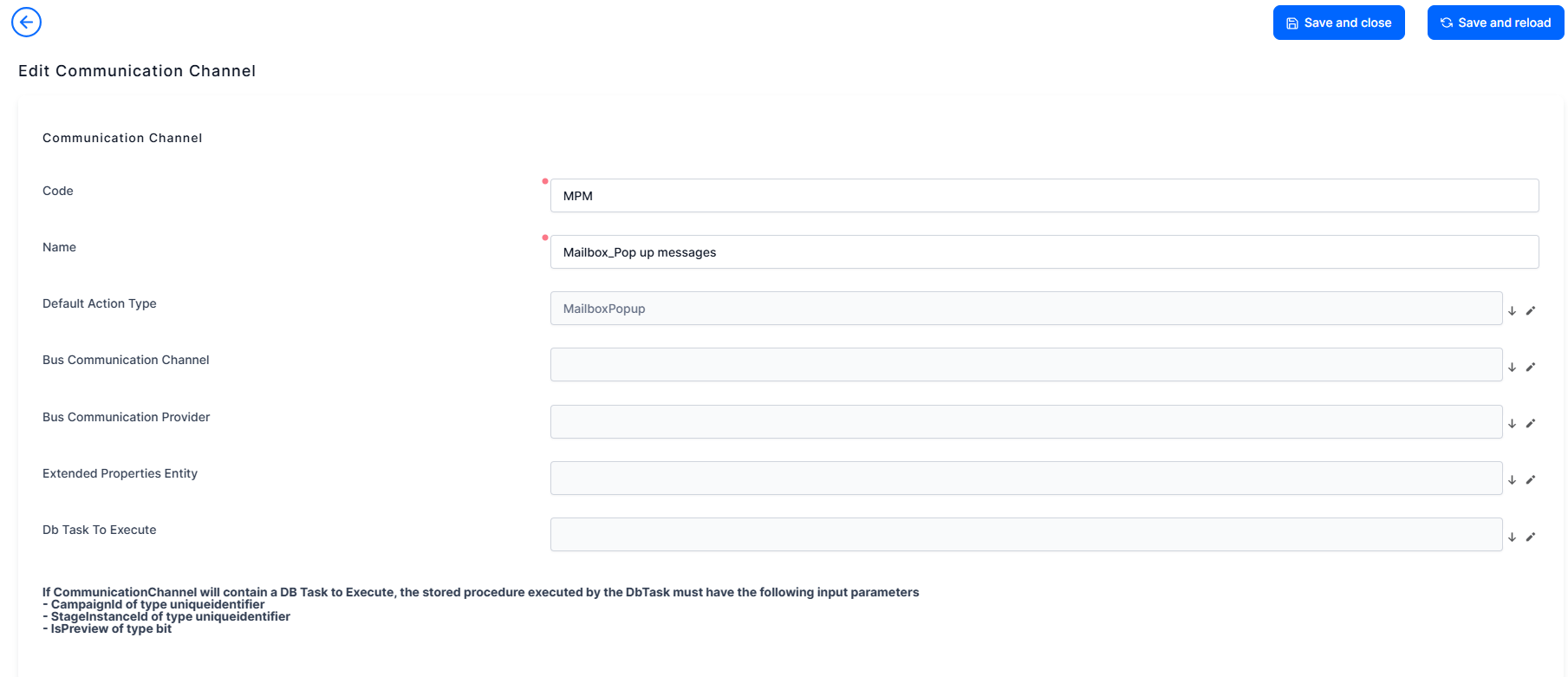
You can now add messages to the Message queue and send them using the Omnichannel Communication Automation processor.
2 Add message
You can add messages to the FintechOS email server gateway to be processed within the specified time interval.
- Go to the Message Queues List page (#/entity/FTOS_DPA_MessageQueue/list).
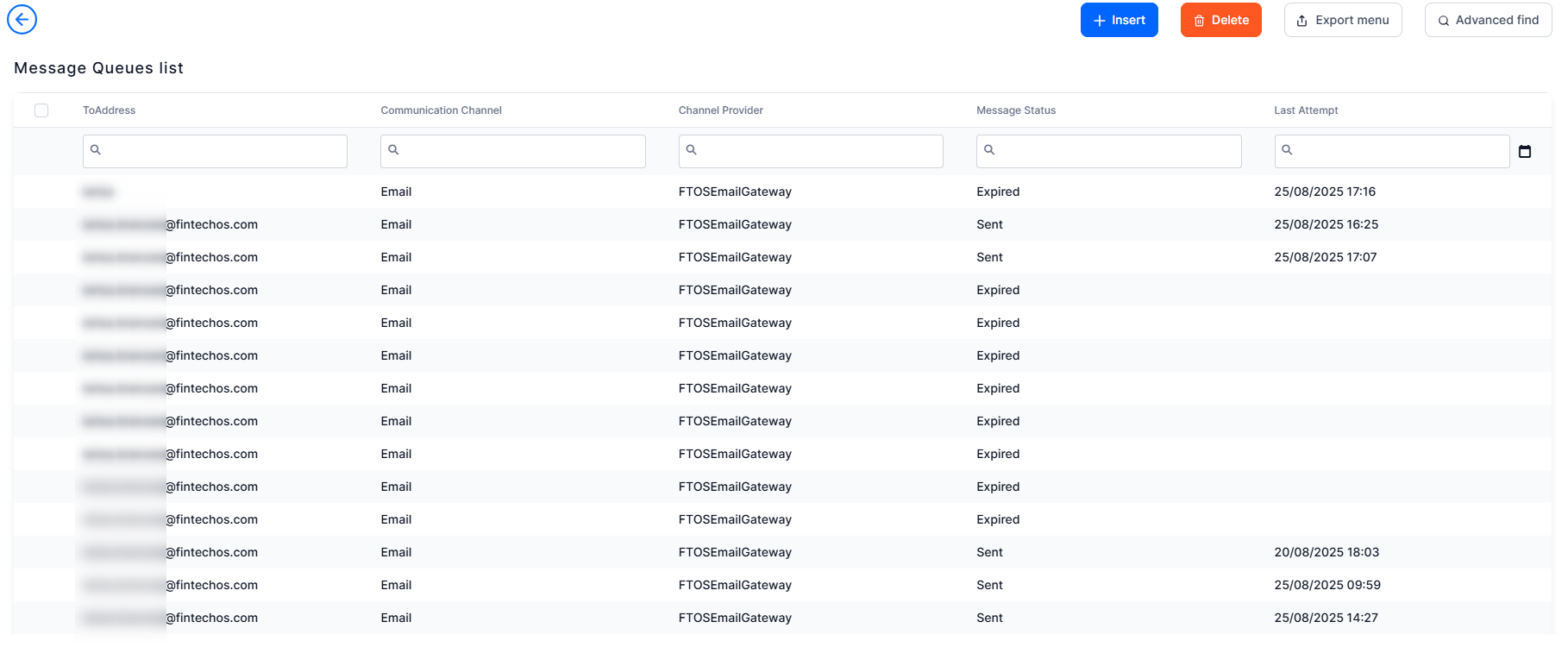
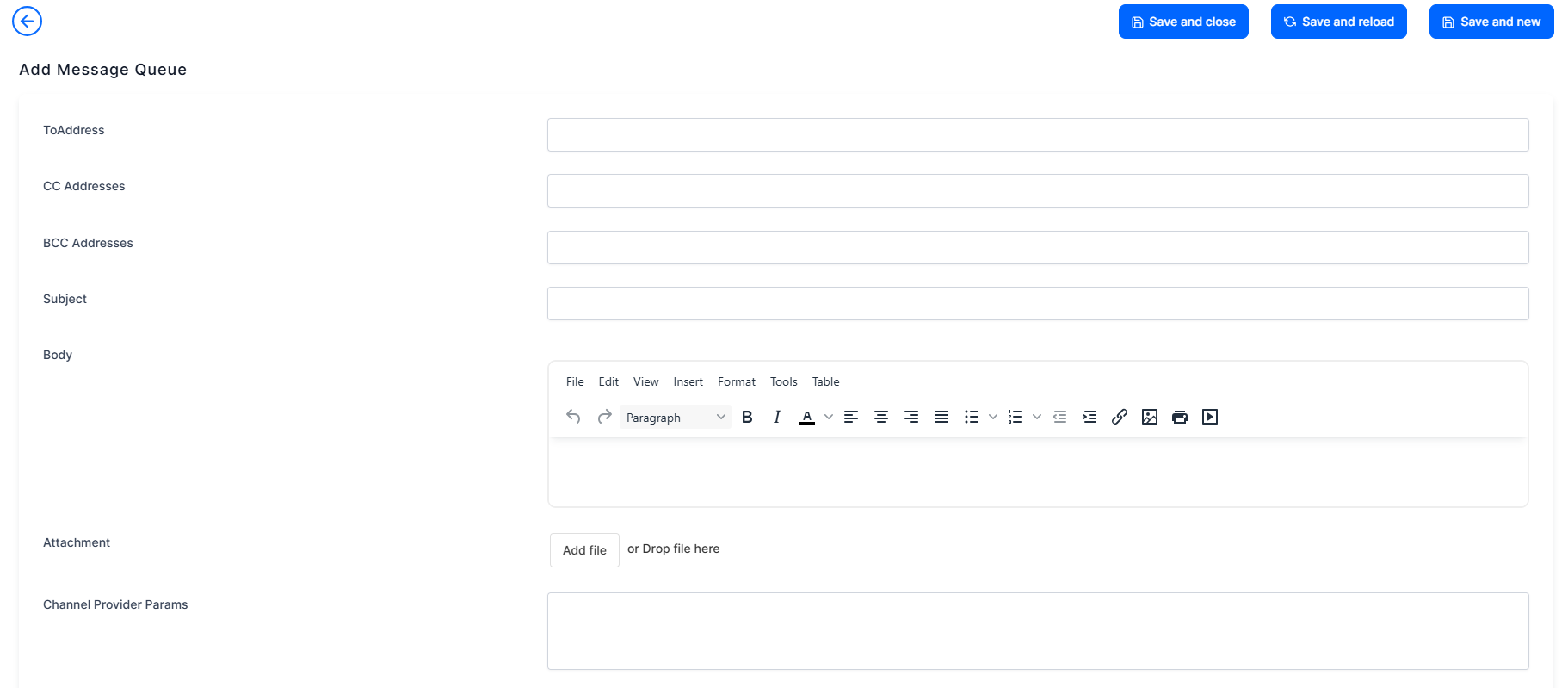
- At the top-right corner of the page, click Insert to add a new message queue. The Add Message Queue form is displayed.
- Provide the ToAddress, the email address where the email should be sent.
- Provide the CC Addresses, one or more carbon copy email addresses separated by semicolons.
- Provide the BCC Addresses, one or more email addresses separated by semicolons.
- Fill in the email Subject and Body.
- Optionally, add an attachment to the email. Leave the Channel Provider Params field empty, as it is not used.
- From the Communication Channel field, select Email.
- From the Channel Provider field, select GatewayEmail.
- Set the interval (date and time) when you want the message to be sent.
- Select the Start Date, End Date, Interval Min (Time UTC) and Interval Max (Time UTC) (for example: 00:00:00, 23:00:00).
- Set the priority and the Retry Max Attempt, which is the maximum number of times the server tries sending the message if the message status is 'Error'. Set the Pool Time Retry (Time UTC), which is the time interval the server waits until it attempts to send the message that has previously failed (message status is 'Error'). The format is HH:MM:SS (hours:minutes:seconds).
- From the Message Status drop-down, select New.
- From the Channel Provider Status field, select 200.
- Set the Retry Attempt, Last Attempt, and External Id.
- At the top-right corner of the page, click the Save and close icon to save the message queue.
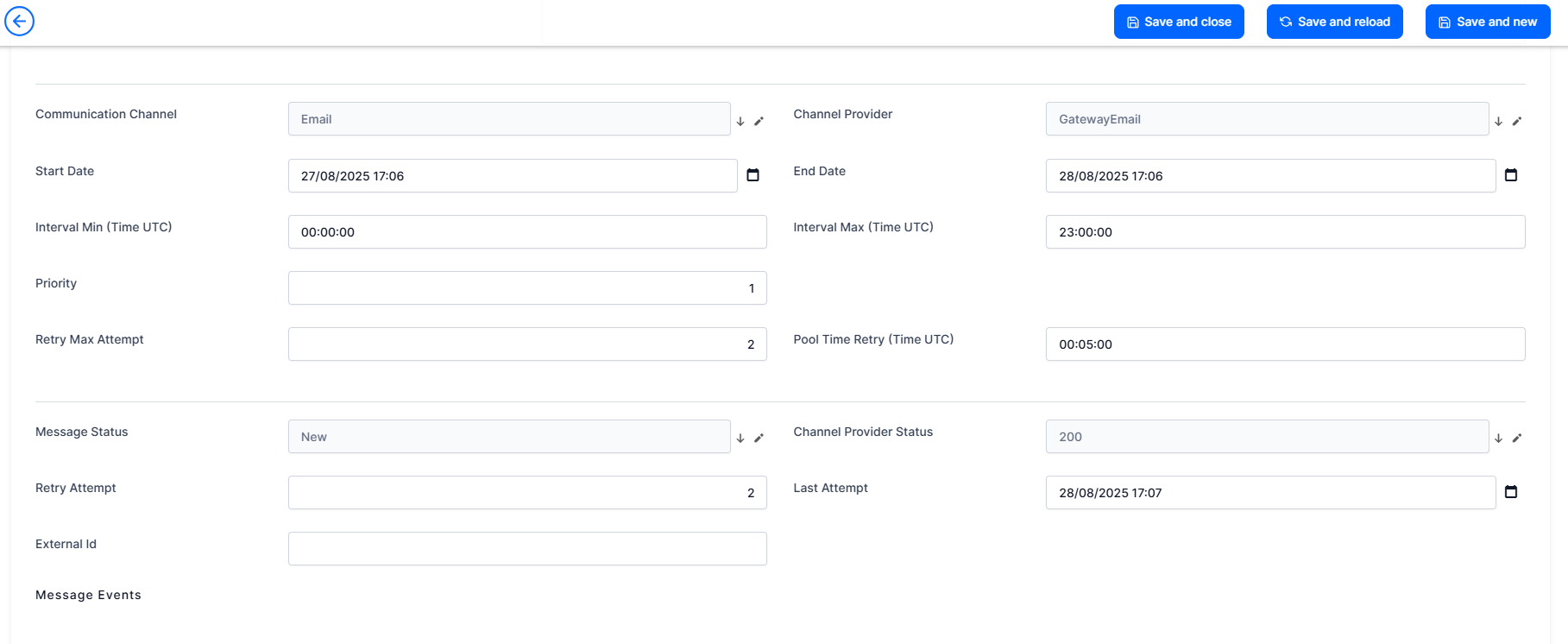
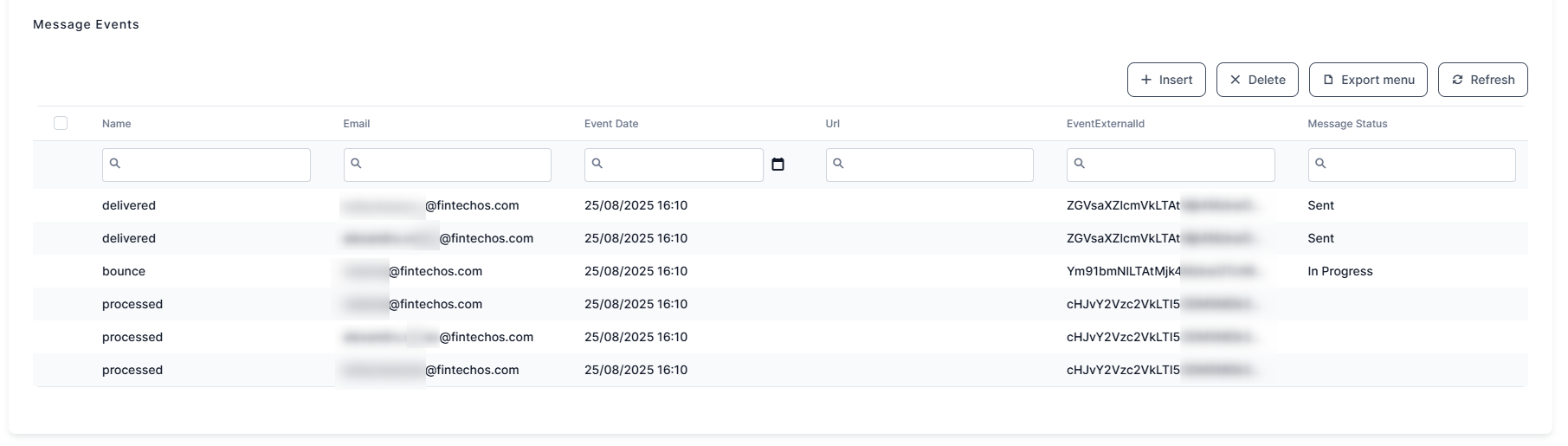
When the message is sent (for example, when running omnichannel campaigns), if you have configured the Omnichannel Communication Automation processor to track open emails and URL clicks, the Message Events section (Edit Message Queue Page), lists all open and click events, together with the event date and message status. For URL click events, it also displays the URL which has been clicked.
SMS provider configurations
Add Communication Channel
- From the main menu, click Admin > Omnichannel Communication Automation > Communication Channels. The Communication Channels List is displayed.
- Provide a Name for the communication channel.
- From the Default Action Type and Bus Communication Channel fields, select SMS.
- From the Bus Communication Provider field, select FTOSApiSMS.
- At the top-right corner of the page, click the Save and close icon to save the communication channel.
You can now add messages to the Message queue and send them using the Omnichannel Communication Automation processor.
For details on how to implement a new provider for sending SMS through FTOS service, see Configure the FTOSApiSMS provider.
For details regarding the SMS-based Two-Factor Authentication, see SMS-based Two-Factor Authentication.