Message Queue and JobServer OCB Integration
DCI VonageSMS supports a new route specifically designed for MessageQueue > JobServer OCB > DCI Vonage SMS integration.
Follow the steps below to integrate DCI Vonage SMS to function with MessageQueue & JobServer OCB:
-
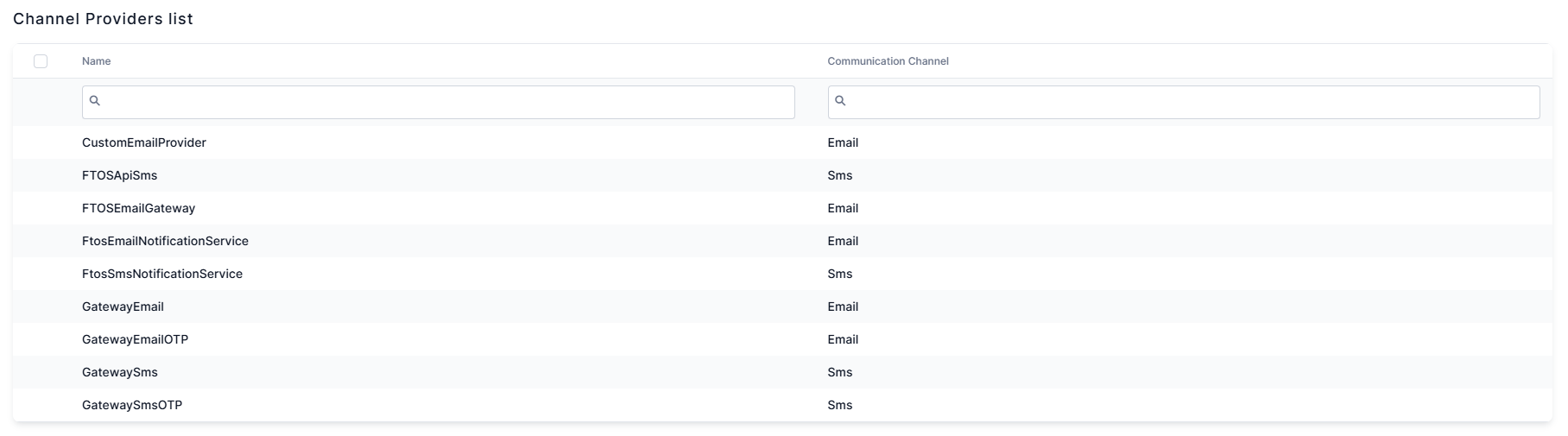
In Studio, from the main menu, click Admin > Omnichannel Communication Automation > Channel Providers. If FTOSApiSms does not exist, you can create it.
-
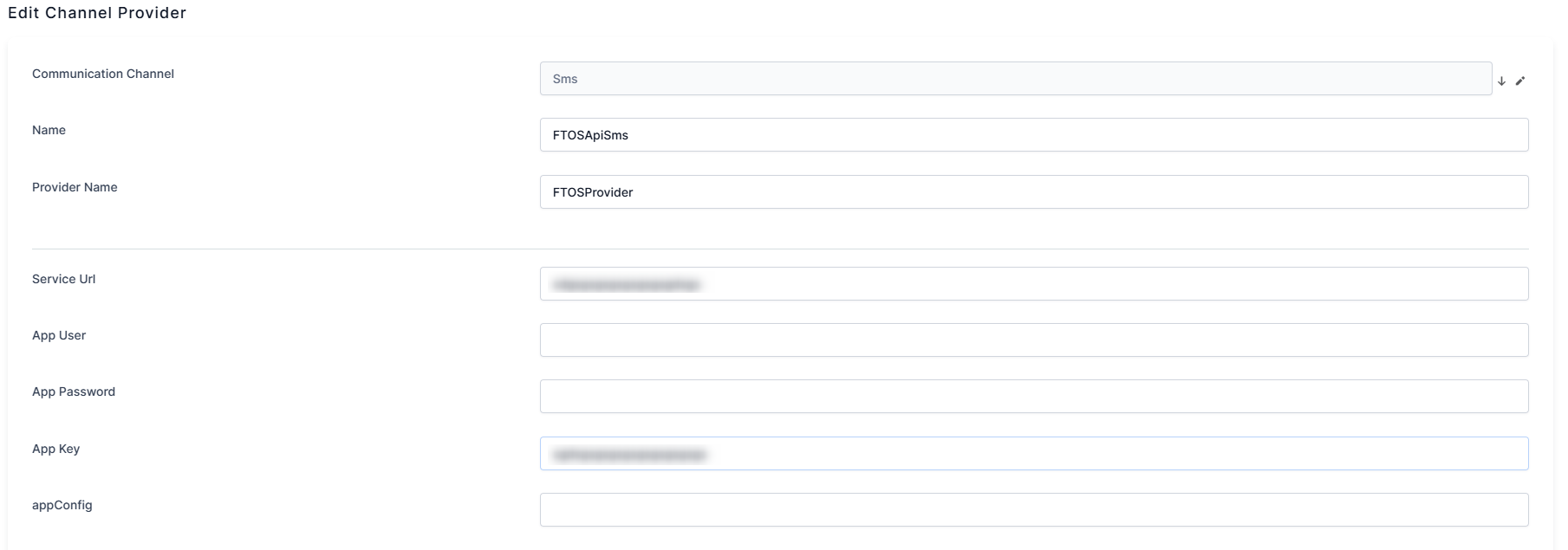
Configure FTOSApiSms in the Channel Provider:
-
Set Communication Channel to SMS
-
Set Name (if not already created)
-
ProviderName = FTOSProvider
-
Set the Service URL according to the environment type from the top of the page
-
Set the subscription key, provided to you by CloudOps via ticket
-
Configure fromAddress: Make sure you don’t set something that has @ in it. Depending in which countries you will be sending your SMS, some carriers may block / reject / hard bounce messages that have an email address in the fromAddress field

-
Configure Bulk Number: Must be set to a value (represents the amount of bulk items that can be sent at once; i.e. a value of 50 will let the job server take 50 records at once and send them instead of 1 by 1)
-
Set Days Before Expire: The maximum number of times the server tries sending the message if the message status is 'Error'.
- Set the Interval Min (Time UTC) and Interval Max (Time UTC) (for example: 00:00:00, 23:00:00).
- Set the priority and the Retry Max Attempt, which is the maximum number of times the server tries sending the message if the message status is 'Error'. Set the Pool Time Retry (Time UTC), which is the time interval the server waits until it attempts to send the message that has previously failed (message status is 'Error'). The format is HH:MM:SS (hours:minutes:seconds).
- Set the Open Setting, which tracks the open email events and the Click Setting, which tracks the clicked links within the email body events.
-
Scroll down to the final section, Channel Provider Statuses, and add all channel provider statuses shown in this picture and assign proper Message Status IDs to each Status:
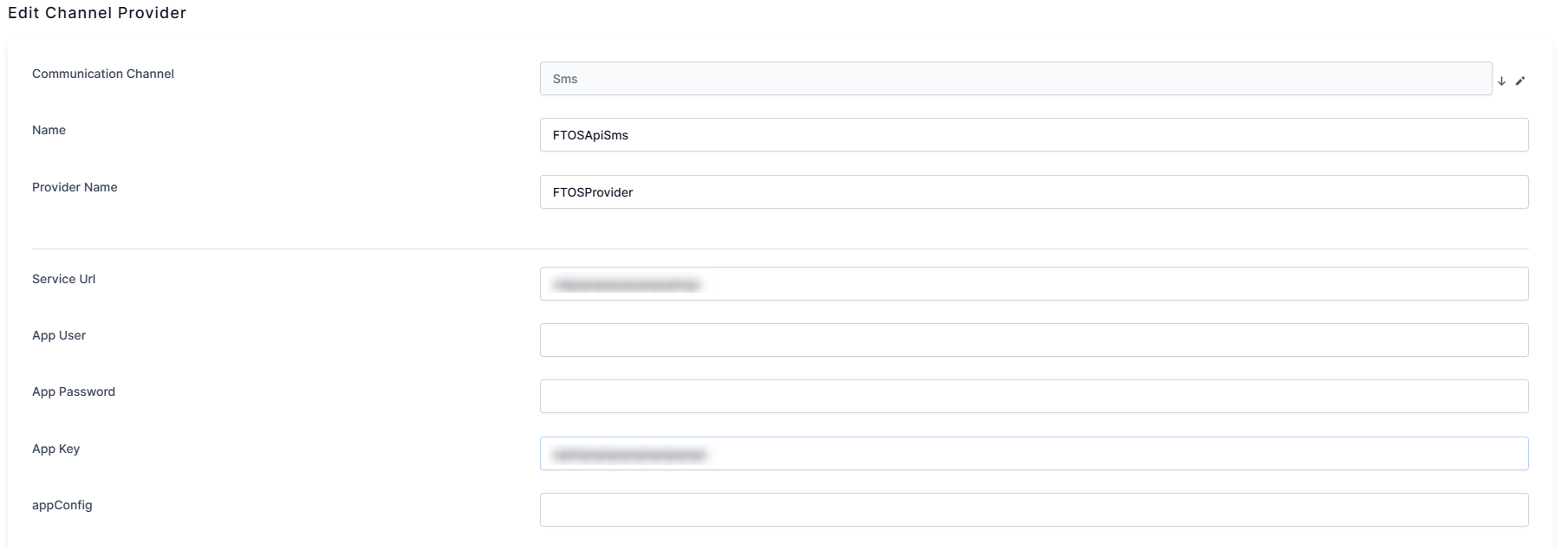
In Progress: 200, 202, bounce
Sent: delivered
Error: 400, 401, 403, 404, 405, 413, 415, 429, 500, 503, dropped
-
-
Go to Azure Portal → your FTOS Resource Group → JobServer OCB app service → app service editor → and edit:
-
services.config. Inside <serviceList></serviceList> add the following sections:
Copy<!-- FTOSSmsProvider -->
<service>
<name>FTOS.OCB.SendMessagesServiceFTOSSMS</name>
<type>class</type>
<method></method>
<class>FTOS.MessageBus.ScheduledServices.SendMessagesService</class>
<assembly>FTOS.MessageBus.ScheduledServices</assembly>-->
<execParams>provider=ftosProvider;providerSetting=FTOSApiSms</execParams>
<!--<sendNotification>true</sendNotification>-->
</service>
<service>
<name>FTOS.OCB.UpdateExpiredMessageServiceFTOSSMS</name>
<type>class</type>
<method></method>
<class>FTOS.MessageBus.ScheduledServices.UpdateExpiredMessageService</class>
<assembly>FTOS.MessageBus.ScheduledServices</assembly>-->
<execParams>provider=ftosProvider;providerSetting=FTOSApiSms</execParams>
<!--<sendNotification>true</sendNotification>-->
</service> -
schedule.config. in triggers section, update the trigger to include the newly defined services
-
-
Request via Ticket to CloudOps to add webhook configuration to your DCI configuration.
-
Send message via Message Queue by following the steps detailed in the Use the Communication Processor page of this guide.