Customers
A customer is an individual or a legal entity who has an account with a bank. Opening an account is the crucial element in establishing the bank-customer relationship. You must create a record for each of your financial institution's customers in Loan Management. The customer records are stored in the Account entity.
Perform complex customer management operations using the Customer 360 solutions, as described here.
You can also manage customers and their relevant information from Loan Management.
 Creating Customers Using the Customer 360 Menus
You can manage customers via the Single Customer View dedicated menus: SME Clients, Banking Retail Clients and Key Contact Person.
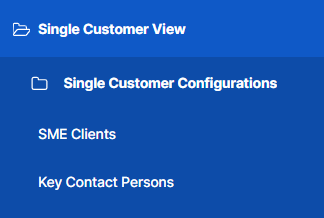
Create new customer records for customers following the steps described in the Adding Companies page.
After creating a record for a customer, proceed to filling in their details as described in the Managing Detailed Company Information page.
A customer has to be in the
Prospect or Customer status to be selected when creating contracts.Alternatively, follow these steps to manage customers in Loan Management:
-
In FintechOS Portal, click the main menu > Contract Management > Lending > Customers.
-
On the Customer Core page, you can add new customer records or search, edit, and delete existing ones.

Creating Customers
Follow these steps to create new customer records:
-
Click Insert on the Customers page to open the Overview page, the first in the customer creation process.
-
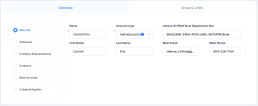
Fill in the following fields:
-
Name - Enter the name of the customer.
-
Account Type - Select the customer type from the possible options:
Legal person,Individual personorSelf-employed individual. - First Name - Enter the first name of the customer, if this is not a legal person.
-
Last Name - Enter the last name of the customer, if this is not a legal person.
-
Unique ID (PIN/Fiscal Registration No) - Enter the customer's unique ID:
-
For an
Individual customerenter their personal identification number (PIN). -
For a
Legal personor aSelf employed individualcustomer enter their fiscal registration number.
-
- Main Email - Enter the email address of the customer.
-
Main Phone - Enter the phone number of the customer.
-
-
In the Addresses tab, add the following:
-
Country - Select the country of the customer. This can affect
Country Exposurelimits for customers part of groups. -
In the Addresses section, click Insert and add details such as street name, number, building number, and so on. You can add multiple addresses for one customer.
-

-
Click the Save and Reload button.
-
The Company Representatives section lists the customer’s legal representatives, such as administrators, affiliates, owners, or other key contact persons. You can add new representatives, view the existing ones by clicking the desired record from the list, delete records from the list and export the list. Click the Insert button and add the following:
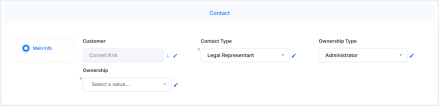
- Contact - Select an existing customer from the database as your new customer's representative.
-
Contact Type - Select the contact type from the drop-down list.
-
Account Relation Type - Select the representative's type of relation with the customer from the drop-down list of possible values.
-
In the Contracts section, add the following:
- Direct Debit Settlement Account - Select this checkbox if the direct debit settlement for repayment notifications should be turned on for this customer, regardless of the settings at the contracts level.
You can choose whether this setting should impact all the customer's existing contracts or not with the aid of a Loan Managementsystem parameter. Role - Select as many roles as you wish for this customer to be able to have within contracts. The values are displayed from the
Contract Roleoption set.NOTE Roles can affect the limits that can be set up for a customer. If a customer has a role, then they can have role-based limits that are configured with a limit type associated to the same role. For example, if the customer is declared as Merchant, they can have a limit based on a limit type with the associated Merchant role.
- Direct Debit Settlement Account - Select this checkbox if the direct debit settlement for repayment notifications should be turned on for this customer, regardless of the settings at the contracts level.
-
In the Bank Accounts section, click Insert to add a bank account associated with the customer.
-
The Collateral Register section displays the customer’s registered collaterals, showing details such as name, business status, owner, available value, currency, last and next evaluation dates. In this section, you can add new collateral register records, view the existing ones by clicking the desired record from the list, delete records from the list and export the list. Click the Insert button within the Collateral Register section to display the Add Collateral Register page, with the
Customerfield automatically completed with the current customer's name. Follow the steps described in the Registering Collaterals page of this guide. -
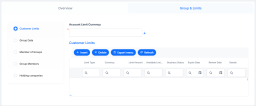
Access the Group & Limits tab to manage the limits set for the customer. If the customer is a group, then all the limits applicable for the group members are listed here, as well as details about the group members. To learn more about how limits and groups work, see the Limits page.
 NOTE
NOTE
You can add both legal entity and individual customers to groups. This can be helpful if you need to monitor group exposure for a household or a company and its shareholders together.
When theLimitMandatoryForIndividualssystem parameter is set toTrue, Loan Management performs limit validations for a group containing individual customers the same way as for groups composed solely of legal persons.Set Customer Limits
Set the customer's limits in the Customer Limits section. If the customer is a group, then all the limits applicable for the group, coming from group members, are listed here.
Set the:
-
Account Limit Currency - Select the currency of the customer limit.
To add a new limit record to the customer, follow these steps:
-
Click the Insert button within the Limits section to display the Customer Limit page, with the customer, the group and the currency automatically completed with the current customer's values.
-
Follow the steps described in the Creating Limits page of this guide.
Configure Group Data
You can specify whether a customer represents a group of companies in the Group Info section.
-
Fill in the following information within this section:
-
Is Group - Select the checkbox if the customer represents a group.
-
-
To add a new member or group member to the customer, follow these steps:
-
Click the Insert button within the Members/Group Members section to display the Add Member/ Add Group Member page, with the master and the group automatically completed with the current customer's values.
-
Follow the instructions from the Groups page of this guide, selecting a customer to add as a member, and entering an ownership percentage.
-
-
Click the Save and Reload button.
Member of Groups
The Member of Groups section shows groups in which the customer is a member. You can export this list.
Manage Group Members Section
Manage the members/ group members' details in the Group Members section. Here you can add new member records, view the existing ones by clicking the desired record from the list, and export the list.
To add group members to the customer, follow these steps:
-
Click the Insert button within the Group Members section to display the Add Member/ Add Group Member page, with the master and the group automatically completed with the current customer's values.
-
Follow the instructions from the Groups page of this guide, selecting a customer to add as a member, and entering an ownership percentage.
Holding companies
The Holding companies section shows a list of companies where the customer is a member. You can export this list.
-


Change the customer's status
Prospect or Customer to select that customer when you create contracts, as pictured here: