Namirial
Capability: eSIGN
Market: CEE
Business Capabilities
The Namirial connector provides electronic signature functionality that identifies the signer and verifies document integrity. Namirial is also a CA as it emits its own certificates (it does not rely on a third party CA), thus shortening the time needed for a user to sign via disposable certificates. Qualified electronic signatures comply with the eIDAS Regulation and meet the following criteria:
- The signature is uniquely linked to and identifies the signer.
- It is created under the signer's sole control.
- It detects any subsequent changes to the signed data.
- It is created by a qualified signature creation device.
- It is based on a qualified certificate.
Signature creation devices are either physically owned (smartcards, SIM cards) or remote (managed by qualified providers). Qualified certificates and cryptographic keys are provided by nationally accredited providers.
Every captured signature applies a digital signature, creating a sealed, tamper-evident PDF.
Key Features
- Remote e-signing: Signers complete the signing process from any location without physical tokens.
- Image signature: Supports Click-to-Sign, Type-to-Sign, and Draw-to-Sign modes.
- Real-time identification: Verifies signer identity at the moment of signing.
- Disposable certificates: Issues short-lived certificates valid for 60 minutes.
- Base64 encoding: Returns the signed file in Base64-encoded format.
- Audit trail: Generates a detailed audit trail for each signing event.
- Status tracking: Tracks the status of each signature request.
- Envelope log download: Downloads the full envelope log for record-keeping.
Applications
- Customer onboarding
- Account opening
- Loan applications
- Compliance processes
- Claims handling
General Terminology:
- “envelope” - a digital folder containing all the documents, signers and the order of signing and types of signatures applied. everything required for a complete end-to-end signing session
- “wokstep” or “step” - a step in the signing session related to a recipient (signer)
- “cryptographic signature” - the actual signature, which is applied digitally to a document
- “signature tag” - a text tag that needs to be put inside the document, indicating the visual place where the signature will be shown (for visualization purposes. it carries no legal value)
- “signature stamp” - the actual rectangle of the visual signature that will replace the “signatureTag” in the document, after the “cryptographic signature” is applied.
Environments
-
UAT: https://dci-uat.ondisplayftos.com - linked by default with Namirial Demo SaaS (demo.esignanywhere.net)
-
PROD: https://dci.fintechos.com - linked by default with Namirial Production SaaS (saas.esignanywhere.net)
Supported Signatures
There are several types of signatures supported:
0. NoSign - used if you want to have a workstep only with annotations. The annotations will be added at runtime in the step mentioned in the request.
1. Qualified Electronic Signature (QES) - used usually for clients with a short term certificate
2. Click2Sign - used usually for clients, sign only with a click on the document
3. Automatic Signature - for agents with a long-lived certificate or bank seals (these signatures are applied automatically in Namirial cloud)
4. OTP - used usually for clients, sign using a SMS code
5. RemoteSign - used for customers that sign using an existing Namirial account (user and pin) and a code via SMS.
Exposed Endpoints:
Get Workstep URL (POST)
https://<env>/dcs/eSignProvider/sign/GetWorkstepUrl
This method creates the Namirial envelope and returns the envelopeId and also the URL for the first workstep.
 Request
{
  "Authentication": {
    "Token": "mx5qd3saz3c...." // the token from Namirial account
  },
  "SignedDocumentName": "signedContract", // the document names as it will appear in Namirial UI
  "WorkstepConfigs": [ // can be configured here multiple worksteps with the same order or sequential
  {
    "Order": 1, // the order of the signatures from the whole request
    "SignatureTag": "#esaw#", // the tag from the file where you want to place the signature field
    "SignatureType": 1, // type of signature, 1 for QES
    "SignatureCoordinates": [{
      "FileName": "testR_fa303a83-6f33-49d5-b747-f4bcd2aed258_09dfefbd-296d-4247-aa1b-b4811a557632.pdf",
      "PageNumber": 1,
      "X": 225.23,
      "Y": 225.23
    }],
    "SignatureTypeTemplate": "{\"DisplayExtraInformation\":\"true\",\"DisplayPhoneNumber\":\"true\", \"FontName\": \"Calibri\", \"FontSizeInPt\":\"40\"}", //optional
    "Recipient": {  //The recipient of this step's signing process
      "LanguageCode": "RO",
      "DocumentType": "CI",
      "Email": "email@fintechos.com",
      "PhoneMobile": "+4076....",
      "FirstName": "ION",
      "LastName": "POPESCU",
      "DocumentIssuedBy": "SPCLEP Bucuresti",
      "SocialSecurityNumber": "1900101223344", //pin
      "DocumentExpiryDate": "2028-07-17",
      "DocumentIssuedOn": "2018-07-18",
      "DocumentNumber": "IF111111",
      "OverrideHolderMismatch": true,
      "CountryResidence": "RO"
    },
    "ClientActionUrl": "https://www.google.ro", // the URL where the user will be redirected after signing
    "SmsConfiguration": { // the configuration for the sms message
      "LanguageCode": "ro", //the language of the recipient, be carefull if the recipient has a user in Namirial, the language code should be the same with the default language set on the user from Namirial
      "Text": "Prin acest cod iti exprimi acordul pentru semnarea documentului prin intermediul certificarii digitale, codul tranzactiei: {tId}" // it must contain the tokens {tId} and {Token}
    },
    "ClickMsg": "Click here", // the message from the signature field
    "ClearSignatureString": true, //specifies if signature tag will be cleared after a signature is applied. Implies changing the initial file which can cause issues with a document that has already been signed before our signing flow began
    "SignatureProperties": {
      "Width": 120.0,
      "Height": 200.0
    },
    "SubTaskList": [
    {
      "Id": "ann1",
      "DisplayName": "Anotare display",
      "AdditionalInfo": "Anotare ann",
      "TextConfig": {
        "DocRefNumber": 1, // the document from the files property where you will add the annotation
          "PageNumber": 1, // the page on which the annotation will be added
          "TextAlign": "Left",
          "PositionX": "100",
        "PositionY": "100",
        "DefaultText": "##ClientTime##",
        "FontId": "MyCustomFont",
        "CustomFont": {
          "Id": "MyCustomFont",
          "TextColor": {
            "R": 35.0,
            "G": 25.0,
            "B": 15.0
          },
          "Name": "Calibri",
          "Size": 8.5,
          "IsBold": false,
          "IsItalic": false
        }
      }
    }],
    "OTP_SMS_PhoneNumber": "+4076......", // the phone number for sending the otp signature
    "OTP_SMS_ShowNoInSIgnature": false, // show the phone number in signature for the otp signature
    "AddSignatureEmbeddedTimestamp": false, // use the timestamp on the signature
    "AddDocumentTimestamp": false, // use the timestamp on the document
    "DisplaySignatureDate": false // show signature date
  },
  {
    "Order": "2",
    "SignatureTag": "#esaw2#",
    "signatureType": 3, //Automatic Signature
  }],
  "DaysUntilExpire": 3, //the number of day while the envelope can be signed, the default value if this property is not set is 7 days, starting with the date and time of when the request was made.
  "ExpirationDate": {  //overrides DaysUntilExpire. sets an absolute expiration date of the envelope. ex days: 1, time: "00:00" means will expire tomorrow at 00:00. days: 0, time "23:00" means will expire today at 23:00
    "Days": 2,
    "Time": "23:00"
  },
  "Files": [
  {
    "Name": "document_012345.pdf",
    "Base64Content": "012345..." // base64 pdf file
  }
],
"WebhookUrl": "{FTOSHook}/012345?recordId=012345&envelopeId=012345&action=envelopeFinished", // webhook for final event (envelope completed)
"WebhookStatusUrl": "{FTOSHook}/012345?recordId=012345&envelopeId=012345&action=envelopeFinished", // intermediate events (optional)
"WebhookWorkstepEvents": { // in-depth webhooks; use only with specific guidance
  "Url": "{FTOSHook}/012345?recordId=012345&envelopeId=012345&action=envelopeFinished",
  "BlackList": [],
  "WhiteList": []
}{
"EnvelopeId": "012345-012345-012345-012345",
"Worksteps": [
{
"Urls": "https://demo.xyzmo.com/workstepredirector/sign?identifier=012345",
"Order": "1",
"TagName": "#esaw1#"
},
{
"Urls": "https://demo.xyzmo.com/workstepredirector/sign?identifier=012345",
"Order": "1",
"TagName": "#esawo#"
}],
"IsSuccess": true,
"ErrorMessage": null
}
Get Envelope (POST):
https://<env>/dcs/eSignProvider/sign/GetEnvelope
Request
{
  "Authentication": {
    "Token": "ab0cd1efghi...." // the token from Namirial account
  },
  "EnvelopeId": "0a0abcd0-0000-0abc-abcd-00aa0a00a000"
}{
"EnvelopeId": "0a0abcd0-0000-0abc-abcd-00aa0a00a000",
"Name": "document.pdf",
"EnvelopeStatus": "Completed",
"Activities": [
{
"Id": "0a0aa0a0-0aa0-0abc-a00a-00000000a0aa",
"Status": "Completed",
"StatusReason": null,
"FinishedDate": "2023-10-16T11:36:45+00:00",
"OpenedDate": "2023-10-16T11:36:39+00:00",
"Action": {
"SendCopy": null,
"SignAutomatic": null,
"Sign": {
"ContactInformation": {
"Email": "email@fintechos.com",
"GivenName": "Popescu",
"Surname": "Ionel",
"PhoneNumber": "",
"LanguageCode": "EN"
},
"LongLivedDisposableCertificateWarnings": null,
"SigningGroup": 1
},
"View": null,
"SignAsP7M": null
}
},
{
"Id": "0a00aa0a-a0a0-0aa0-aa0a-0a0a0a0a0a0a",
"Status": "Completed",
"StatusReason": null,
"FinishedDate": "2023-10-16T11:42:07+00:00",
"OpenedDate": "2023-10-16T11:41:57+00:00",
"Action": {
"SendCopy": null,
"SignAutomatic": null,
"Sign": {
"ContactInformation": {
"Email": "email@fintechos.com",
"GivenName": "Japca",
"Surname": "Catrina",
"PhoneNumber": null,
"LanguageCode": "EN"
},
"LongLivedDisposableCertificateWarnings": null,
"SigningGroup": 2
},
"View": null,
"SignAsP7M": null
}
},
{
"Id": "000a0000-00aa-0aaa-00a0-aaa0000aaa00",
"Status": "Completed",
"StatusReason": null,
"FinishedDate": "2023-10-16T11:42:11+00:00",
"OpenedDate": null,
"Action": {
"SendCopy": {
"ContactInformation": {
"Email": "email@fintechos.com",
"GivenName": "Barabeu",
"Surname": "Teleghidon",
"PhoneNumber": "",
"LanguageCode": "EN"
},
"CopyingGroup": 3
},
"SignAutomatic": null,
"Sign": null,
"View": null,
"SignAsP7M": null
}
},
{
"Id": "0a0000a0-00aa-0aaa-a000-0a000aa00aa0",
"Status": "Completed",
"StatusReason": null,
"FinishedDate": "2023-10-16T11:42:11+00:00",
"OpenedDate": null,
"Action": {
"SendCopy": {
"ContactInformation": {
"Email": "email@fintechos.com",
"GivenName": "Gigi",
"Surname": "Portiera",
"PhoneNumber": null,
"LanguageCode": "EN"
},
"CopyingGroup": 4
},
"SignAutomatic": null,
"Sign": null,
"View": null,
"SignAsP7M": null
}
}],
"IsSuccess": true,
"ErrorMessage": null,
"ExternalErrorMessage": null,
"ExternalErrorCode": null
}
Cancel Envelope (POST):
https://<env>/dcs/eSignProvider/sign/CancelEnvelope
Request
{
  "Authentication": {
    "Token": "ab0cd1efghi...." // the token from Namirial account
  },
  "EnvelopeId": "0a0abcd0-0000-0abc-abcd-00aa0a00a000"
}{
"IsSuccess": true,
"ErrorMessage": "string",
"ExternalErrorMessage": "string",
"ExternalErrorCode": "string"
}
Delete Envelope (POST):
https://<env>/dcs/eSignProvider/sign/DeleteEnvelope
Request
{
  "Authentication": {
    "Token": "ab0cd1efghi...." // the token from Namirial account
  },
  "EnvelopeId": "0a0abcd0-0000-0abc-abcd-00aa0a00a000"
}{
"IsSuccess": true,
"ErrorMessage": "string",
"ExternalErrorMessage": "string",
"ExternalErrorCode": "string"
}Unlock Envelope (POST):
https://<env>/dcs/eSignProvider/sign/UnlockEnvelope
Request
{
  "Authentication": {
    "Token": "ab0cd1efghi...." // the token from Namirial account
  },
  "EnvelopeId": "0a0abcd0-0000-0abc-abcd-00aa0a00a000"
}{
"IsSuccess": true,
"ErrorMessage": "string",
"ExternalErrorMessage": "string",
"ExternalErrorCode": "string"
}
Download Signed Document (POST):
https://<env>/dcs/eSignProvider/sign/downloadSignedDocument
This method not only downloads the signed document, but it returns the status of the envelope, also the status for each work step.
Request
{
    "Authentication":{
        "Token": "ab0cd1efghi...." // the token from Namirial account
    },
    "EnvelopeList": [ "0a0abcd0-0000-0abc-abcd-00aa0a00a000"],
    "DownloadLog": true // flag to return LogFiles in response
}{
"Envelopes": [
{
"EnvelopeId": "0a0abcd0-0000-0abc-abcd-00aa0a00a000",
"Name": "aaaaaaaa.aaa",
"EnvelopeStatus": "Completed",
"Activities": [
{
"Id": "0a0aa0a0-0aa0-0abc-a00a-00000000a0aa",
"Status": "Completed",
"StatusReason": null,
"FinishedDate": "2023-10-16T11:36:45+00:00",
"OpenedDate": "2023-10-16T11:36:39+00:00",
"Action": {
"SendCopy": null,
"SignAutomatic": null,
"Sign": {
"ContactInformation": {
"Email": "email@fintechos.com",
"GivenName": "Popescu",
"Surname": "Ionel",
"PhoneNumber": "",
"LanguageCode": "EN"
},
"LongLivedDisposableCertificateWarnings": null,
"SigningGroup": 1
},
"View": null,
"SignAsP7M": null
}
},
{
"Id": "0a00aa0a-a0a0-0aa0-aa0a-0a0a0a0a0a0a",
"Status": "Completed",
"StatusReason": null,
"FinishedDate": "2023-10-16T11:42:07+00:00",
"OpenedDate": "2023-10-16T11:41:57+00:00",
"Action": {
"SendCopy": null,
"SignAutomatic": null,
"Sign": {
"ContactInformation": {
"Email": "email@fintechos.com",
"GivenName": "Japca",
"Surname": "Catrina",
"PhoneNumber": null,
"LanguageCode": "EN"
},
"LongLivedDisposableCertificateWarnings": null,
"SigningGroup": 2
},
"View": null,
"SignAsP7M": null
}
},
{
How To’s
Signature Tag vs Signature Location
In order to sign the file using a tag, you can put the tag inside the document (ex: #myTag#), then add it in the SignatureTag into the request.
The Service will put the Signature Stamp during signing, to where the tag is. You can write the tag on the document using white font (invisible in theory) or you can put it in black font, and use ClearSignatureString: true in the request, to remove the tag (keep in mind, if the document has already been through another past envelope and signed previously, altering the document will invalidate the previous signatures)
Another alternative to sign the file is to add a signature field using file coordinates, simply add SignatureCoordinates into the request. Any of these properties (SignatureTag, SignatureCoordinates) can be missing from the request file, but at least one of them needs to be present in order for the request to succeed.
In order to correctly identify where we are adding the signature via coordinates, the SignatureCoordinates object contains:
- FileName: this needs to be the same as the Name property of the file in the Files array of the given request
- PageNumber: the number of the page on which we wish to add the signature in the chosen file
- X and Y: coordinates of where to put the signature. The 0,0 coordinate of the file is in the bottom left corner.
"SignatureCoordinates": [{
  "FileName": "testR_fa303a83-6f33-49d5-b747-f4bcd2aed258_09dfefbd-296d-4247-aa1b-b4811a557632.pdf",
  "PageNumber": 1,
  "X": 225.23,
  "Y": 225.23
}]
Hiding documents for steps
Scenario Overview
An envelope contains three documents (1, 2, and 3), ordered according to their declaration in the GetWorkstepUrl payload. The signing process is structured as follows:
- Step 1 (Applicant): Required to sign Document 1 and Document 3.
- Step 2 (Co-Applicant): Required to sign Document 2 and Document 3.
- Step 3 (Bank): Automatically signs all three documents.
GDPR & Document Visibility
To comply with GDPR constraints and ensure the Applicant and Co-Applicant cannot view each other's personal data, you can use the DocumentOptions instruction. By applying this to Step 1 and Step 2, you can hide specific documents from the signer. Any document marked as hidden in a step will be completely invisible to the person required to sign at that stage.
Example
{
  ...
  "WorkstepConfigs": [
    {
      "Order": 1 //Applicant sign step
      ...
      "DocumentOptions": [
        {
          "DocumentReference": "2",
          "IsHidden": true
        }
      ],
      ...
    },
    {
      "Order": 2 // Co-Applicant sign step
      ...
      "DocumentOptions": [
        {
          "DocumentReference": "1",
          "IsHidden": true
        }
      ],
      ...
    },
    {
      "Order": 3 // Bank automatic sign step
      ...
    }
    ]
  ...
  "Files": [
    {
      "Name": "Applicant_contract.pdf", // file 1
      "Base64Content": "JVBERi0x..." //base64 pdf file
    },
    {
      "Name": "CoApplicant_contract.pdf", // file 2
      "Base64Content": "JVBERi0x..." //base64 pdf file
    },
    {
      "Name": "BankAgreement_contract.pdf", // file 3
      "Base64Content": "JVBERi0x..." //base64 pdf file
    }
  ]
}
Namirial Processor (eSign Processor) and Namirial Demo Journey (eSign test)
These packages are installed in the platform via the EcoSysPack package deployment pipeline.
The eSign Processor contains entities, automation scripts and automation script libraries to facilitate the creation and management of a signing session by preparing the payload, redirecting the user to the Namirial Cloud to sign and downloading the signed documents of an envelope when the associated “complete” webhook event is received.
This is done using ProcessorSettings that are stored in Menu/Workflows/Digital Flow Processing. Multiple Examples of eSign Processor Settings are deployed with the eSign Test package, along with a demo journey that you can study, clone and modify to your own needs.
Find the instructions on the eSign Settings page.
Here are the supported fields for Mappings inside the eSign Processor Settings:
|
Key |
Settings |
|---|---|
| DownloadFilesMapping | The list of the files that will be downloaded. |
| FileAttributeName | Where will the file be downloaded to, the name of the attribute. |
| FileName | The name that will the downloaded file will have after download. |
Example
Here is an example of an eSign Processor Settings for 2 steps, 1 user QES and Q automatic signature
{
    "CustomUI": "",
    "EntityName": "FTOS_Test_ESign",
    "FileAttributeNameList": [
        {
            "fileAttributeName": "contract",
            "fileToBeSignedName": "esign.pdf"
        }
    ],
    "MaxRetry": 3,
    "daysUntilExpire": 1,
    "ClearSignatureString": true,
    "signedDocumentName": "contract",
    "WebhookUrl": "{FTOSHook}/abcd?recordId=default&test=sign_url&envelopeId=##EnvelopeId##&recipientEmail=##RecipientEmail##&recipientOrder=##RecipientOrder##&action=##Action##&source=##Source##&description=##Description##",
    "SignatureSteps": [
        {
            "order": "1",
            "signatureTag": "#esawo#",
            "signatureTypeTemplate": "",
            "signatureType": "QualifiedElectronicSign",
            "signatureCoordinates": [],
            "SignatureData": [
                {
                    "OverrideHolderMismatch": true,
                    "SourceEntityName": "FTOS_Test_ESign_ApplicantData",
                    "SourceLookupDestinationName": "applicantData",
                    "DefaultFields": {
                        "languageCode": "EN",
                        "documentType": "CI"
                    },
                    "MappedFields": {
                        "languageCode": "",
                        "documentType": "",
                        "email": "email",
                        "phoneMobile": "mobilePhone",
                        "firstName": "firstName",
                        "lastName": "lastName",
                        "documentIssuedBy": "IdIssueInstitution",
                        "socialSecurityNumber": "PIN",
                        "documentExpiryDate": "IdExpirationDate",
                        "documentIssuedOn": "IdIssueDate",
                        "documentNumber": "IdentityCardNumber"
                    },
                    "OptionSets": "",
                    "LookupEntities": ""
                },
                {
                    "SourceEntityName": "FTOS_Test_ESign_ApplicantAddress",
                    "SourceLookupDestinationName": "applicantAddress",
                    "DefaultFields": {
                        "countryResidence": "RO"
                    },
                    "MappedFields": {
                        "countryResidence": ""
                    },
                    "OptionSets": "",
                    "LookupEntities": ""
                }
            ],
            "SmsConfiguration": {
                "LanguageCode":"ro",
                "Text":"Prin acest cod iti exprimi acordul pentru semnarea documentului prin intermediul certificarii digitale,codul tranzactiei: {tId}"
            },
            "clickMsg": "Click here to sign"
        },
        {
            "order": "2",
            "signatureTag": "#esaw#",
            "signatureTypeTemplate": "",
            "signatureType": "AutomaticSign",
            "ESignKey": "a00a0a0a-aaaa-0000-a0a0-00a0a00aa0aa",
            "automaticProfile": {
                "attributeKey": "userId"
            }
        }
    ],
    "maskNextStepURLSuccess": {
        "entity": "FTOS_Test_ESign",
        "form": "FTOS_Test_ESign_NoSP",
        "section": "Success"
    },
    "maskNextStepURLFail": {
        "entity": "FTOS_Test_ESign",
        "form": "FTOS_Test_ESign_NoSP",
        "section": "Fail"
    },
    "businessStatusSuccess": "Contract Signed",
    "businessStatusFail": "Contract Rejected",
    "redirecttoNamirialLink": true
}
To add the Namirial processor in a step with a simple contract, add the following code inside the afterGenerate.js:
var dfpHelper = ebs.importClientScript('FTOS.ECOS.Utils');

//call ESign component custom form
var componentName = "FTOS_DFP_ESign"; //name of the component
var recordId = ebs.getCurrentEntityId(); // or formData.id
var fileExists = true; //"document" argument = source entity file attribute.It only contains the true value considering that the document already exists
var p = {};
p.flowSettingsName = formData.model.FlowSettings;
p.processorSettingsType = 'ESign';
ebs.callActionByName("FTOS_DFP_FlowProcessorSettingsByType", p, function(e) {
    var processorSettingsName = e.UIResult.Data.ProcessorSettingsName; //configuration of the component
    dfpHelper.loadComponent(componentName, processorSettingsName, recordId, fileExists);
});
Use Digital Documents/Reports as a customer contract for signing
Establish automated signing capabilities by mapping profile keys to the Digital Documents Processor to facilitate programmatic document execution.
Configure Automatic Signature Profiles
ESign Configuration for Automatic Signature Profile
The automatic signature has a key value that must be set, this key value is the form the Namirial Account that has activated the automatic signature option.
This key value is inserted in the table: FTOS_DFP_ESignKey
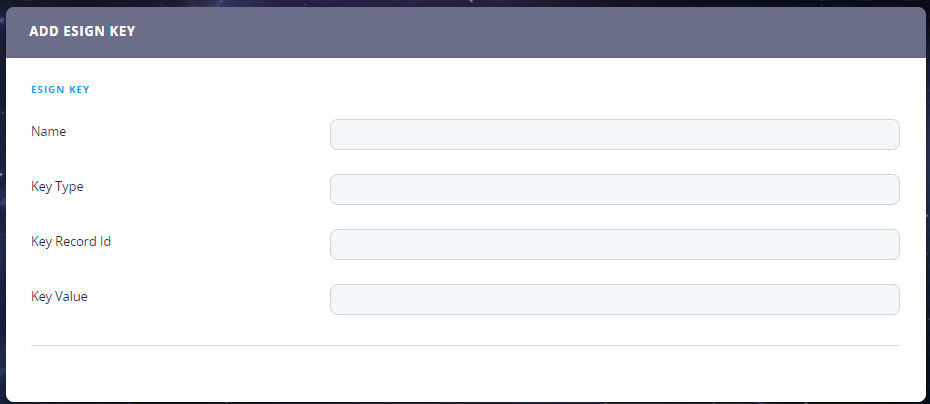
Name and Key Type are not relevant for the flow to work, but will help you organize your records.
The most important attribute is Key Value and is the value described above.
The key is provided by Namirial when you configure the Automatic Remote Signature Profiles. More than one profiles can be set, depending on the needs.
Auto Profile Case 2
If there is more than one automatic profile set in Namirial then we will fill in all fields Name, Key Record Id and Key Value for that profile. The Key type is for you to fill in to know from where that Key Record Id is from. (e.g. In the Key Type you can fill in systemuser if the Key Record Id is the id of the user).
In The Processor Setting, field the configuration will look like this:
"signatureType":"AutomaticSign",
         "automaticProfile":{
            "attributeKey":"userId"
         }
For example:
If you have more users from FintechOS with the right to sign automatically, then the configuration is like this:
userId will be the name of the attribute from your entity that stores the userid from FintechOS.
In FTOS_DFP_ESignKey, the Key record id will be the id of the userid form the systemuser table.
Auto Profile Case 3
You can set other tables (e.g. CustomProfileTable) for your profiles, apart from systemuser. This means that the Key record id will be the id from the record form that table, and yourAttribute_From_EntityName will be the name of the attribute from your entity that stores the Record ID from the table created. (In the Key Type you can fill in CustomProfileTable)
Example:
"signatureType":"AutomaticSign",
         "automaticProfile":{
            "attributeKey":"yourAttribute_From_EntityName"
         }
yourAttribute_From_EntityName= CustomProfileTableId (the lookup from your entity to the CustomProfileTable for example or just an attribute that stores that RecordId). This way the system will know witch Automatic Profile to use to sign.
Obtain service access
Ticket in FreshService requesting a Namirial account/subscription key
make sure you have the right application dependencies installed and configured.
In order to configure the processors to make the requests correctly to the Namirial connector, you must add in FTOS Vault (Portal / B2C - depending where the server side script will be executed at runtime during the journey) the following keys:
Copy"FTOSServicesESignEndpoint": "get-the-url-from-portal"
"FTOSServicesESignAppId": "the subscription key"
"DDMESawToken" value="ApiToken from namirial account"