Structured Mortgage
A structured mortgage is a mortgage loan that is divided into multiple tranches or components, each with different terms, interest rates, or repayment schedules, allowing the borrower to tailor the loan to their financial needs. It often combines fixed-rate and variable-rate portions within a single mortgage facility. This structure provides flexibility in managing interest rate risk and cash flow over the life of the loan.
Main Info
This section determines the amount, term, down payment Down payment is an initial up-front partial payment for the purchase of items/services, such as a car or a house., disbursement Payment or distribution of funds from an insurance company to a policyholder, beneficiary, or a third party, in accordance with the terms and conditions specified in the insurance policy., codebtors Individual who assumes joint responsibility for repaying a loan alongside the primary borrower. If the primary borrower defaults on the loan, the codebtor becomes liable for the remaining debt., refinancing Taking out a new loan to replace an existing loan, usually to obtain more favorable loan terms, such as a lower interest rate, extended repayment period, or different monthly payment amounts., and restructuring Modifying the original terms and conditions of the loan to provide a more affordable repayment plan, typically when a borrower is facing financial difficulties or is struggling to meet their loan obligations.
Can provide relief in the form of lower interest rates, extended repayment periods, deferred payments, changes in payment frequency, debt consolidation, waiving of penalties or fees, partial write-offs, etc. characteristics of the loan.
Down payment is an initial up-front partial payment for the purchase of items/services, such as a car or a house., disbursement Payment or distribution of funds from an insurance company to a policyholder, beneficiary, or a third party, in accordance with the terms and conditions specified in the insurance policy., codebtors Individual who assumes joint responsibility for repaying a loan alongside the primary borrower. If the primary borrower defaults on the loan, the codebtor becomes liable for the remaining debt., refinancing Taking out a new loan to replace an existing loan, usually to obtain more favorable loan terms, such as a lower interest rate, extended repayment period, or different monthly payment amounts., and restructuring Modifying the original terms and conditions of the loan to provide a more affordable repayment plan, typically when a borrower is facing financial difficulties or is struggling to meet their loan obligations.
Can provide relief in the form of lower interest rates, extended repayment periods, deferred payments, changes in payment frequency, debt consolidation, waiving of penalties or fees, partial write-offs, etc. characteristics of the loan.
| Parameter | Description | Default |
|---|---|---|
| Loan amount and loan term |
E.g.: Loan amount from 1,000 to 10,000 Euro with a term of 1 to 5 years. |
|
| Down Payment |
|
|
| Disbursement |
|
|
| Codebtors |
E.g.: Allows up to 2 codebtors. |
Allows unlimited codebtors. |
| Refinancing |
|
Allows refinancing. |
| Restructuring |
|
Allows restructuring. |
Interest
The interest sets up the amount of money (which is distinct from the principal repayments) that the borrower pays as a cost for borrowing money when repaying the loan. You can set up both regular and penalty interests Additional interest charged when a borrower fails to make timely payments on a loan (misses a payment deadline or makes a payment that is less than the agreed-upon amount)., with interest rates The interest rate is the amount a lender charges a borrower and is a percentage of the principal (i.e., the amount loaned). that are fixed, variable or based on a formula.
| Parameter | Description |
|---|---|
| Interest |
Click + Add interest to set up an interest for the loan based on the desired interest rate(s).
E.g.: Interest is fixed at 5% for the first 6 installments and then variable indexed to EURIBOR 3M with a margin of 1% until end. NOTE
If you define multiple interests, the user will have the option to select one of them during the application. |
| Penalty |
Click + Add penalty to set up a penalty interest for the loan and the reference value it is applied to (principal, interest, front end fee, etc.).
E.g.: Penalty is 1.5% from Loan Interest. NOTE
|
Fees
- Click +Add fee.
- Select a predefined type of fee from the list, or click Create new to define a new fee type (you can also rename an existing fee by clicking the fee name). The type of fee determines parameters such as the conditions under which the fee is applied, how often the fee is charged, whether the fee is refundable or not, etc. For more information, see Fee Types.
- Enter the amount of the fee:
- value - a fixed value in the specified currency.
- percentage - a specified percentage of the remaining value, financed value, paid value, unused amount, used amount, overdraft limit amount, amount, etc.
- based on formula - Allows you to set fees based on Product Formulas.
- If the fee type has a recurring periodicity (e.g., monthly, annual, weekly), you can configure different amounts for specific installment ranges. For example, you may define a fixed amount for the first three installments, a variable amount for the next six installments, and a formula-based amount for the remaining installments.
E.g.: Down Payment Fee is based on formula Down Payment * 0.002 for the first 3 installments and then based on formula Down Payment * 0.001 for 3 installments and then value 0 € until end.
Fee types with the periodicity set to Once are automatically configured to be charged a single time.
You can set up multiple fees that will be charged independently, based on their Fee Types. E.g.:
- Front-end Fee is 25 € one time.
- Repayment Fee is 4% over remaining value one time.
This will always charge the borrower a $25 fee on loan application. If, during the loan, the borrower decides to repay the loan in advance, a 4% fee is charged over the loan's remaining value.
Insurance
Insurance is required for borrowers that meet certain risk criteria, in order to cover the potential losses if they default on the loan.
To set up an insurance for your product:
- Click +Add insurance.
- Select the Bancassurance Classes (e.g.: Credit Insurance, Life Insurance, Home Insurance or Other Insurance).
- Select the periodicity for the insurance premium, e.g.: 30 Days, Once, Monthly, Weekly, Trimestrial, or Annual.
- Select the amount to insure:
- value - A fixed amount in the specified currency.
- percentage - A specified percentage of either the remaining value, financed value, payed value, unused amount, used amount, overdraft limit amount, or amount.
- based on formula - Allows you to set the insurance amount based on Product Formulas.
- Select when the insurance should be issued based on the value of a specified Lexicon Term.
You can set up multiple insurances that will be issued independently, depending on whether they meet the issuance condition. E.g.:
- Life insurance paid monthly of 100% over remaining value when Age is over 60 Years Old.
- Other Insurance paid once of 50% over financed value when In BlackList is In BlackList.
This will issue a monthly insurance over the remaining loan value if the applicant is older than 60.
If the applicant is marked as In BlackList, which is a boolean lexicon term, an insurance of 50% over the financed value is issued when extending the loan.
Remember to go to the Provided Documents section and add a document template to be signed by the customer for each insurance you've configured.
Repayment
The Repayment section determines the periodicity and repayment schedule for the loan's installments Regular payment that a borrower is required to make to the lender to repay a loan over time., and how the repayments are impacted by holiday shifts Adjustment of installment due dates that coincide with public holidays by moving the due date to the last working day prior or first working day after the holiday. and grace periods A specified period of time during which a borrower is not required to make regular loan payments without incurring late fees or penalties. Typically granted immediately after the loan disbursement or before the start of the regular repayment schedule..
| Parameter | Description |
|---|---|
| Repayment |
Sets up the periodicity and schedule type of the repayment.
E.g.: Repayment is performed on monthly in equal installments with schedule Equal Installment Monthly 365_TLU. NOTE
When generating a repayment schedule, the default calculation precision for determining the remaining balance of each installment is set to 10 decimal places (rounded to 2 decimals in the final payment schedule). You can customize this precision between 2 and 28 decimal places by configuring the PricingRoundingDecimals key within the kv/<environment name>/mkexp-pfai/app-settings directory in the Configuration Manager.NOTE
You can add multiple repayment schedules that the applicant can choose from by clicking +Add repayment repeatedly. |
| Holiday Shift |
Determines what happens if an installment's due date overlaps a public holiday.
|
| Grace Period |
Determines what expenses are exempted during the grace period and how long the grace period is.
E.g.: Grace period interest 2 installments. |
Facility Structure
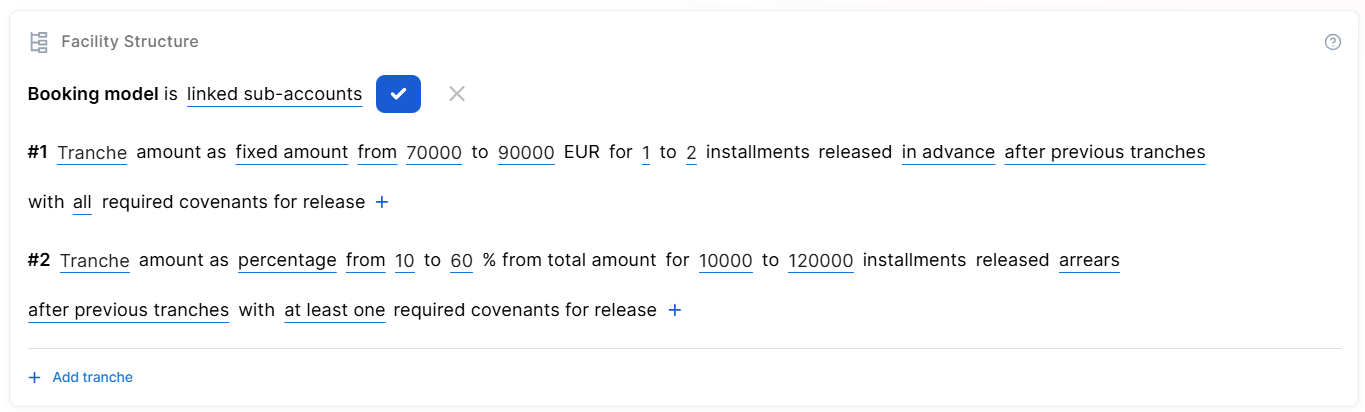
The Facility Structure section defines how the loan facility is organized, including the number of tranches, their relationship (single account or linked sub-accounts), and the individual terms governing each tranche.
-
The booking model defines how the loan and its tranches are recorded in the core banking system, specifying whether they are booked as a single account or as linked sub-accounts under the parent facility:
-
single account: A single loan account that represents the entire tranched loan facility as one unified record. All tranches are managed under this one account, with the overall loan balance, disbursements, and repayments tracked centrally, even though the loan may be split into tranches with different terms (e.g., fixed vs. variable rate, different maturities).
-
linked sub-accounts: Separate accounts created for each individual tranche within the tranched loan, all linked back to the parent loan account. Each sub-account carries its own interest rate, repayment schedule, balance, and maturity date, while remaining formally associated with the master facility.
-
-
Click Add tranche and set the amount as:
-
percentage from ... up to: The tranche amount is calculated as a share of the total facility value (e.g., 30%–50% of the approved loan), adjusting automatically if the facility amount changes.
-
fixed amount from ... up to: The tranche amount is set as an absolute monetary value within a defined range (e.g., €50,000–€100,000), independent of the total facility size.
-
-
Specify the number of installments for which the interest only part is applied.
-
Set whether the installments are released:
-
in advance: Installments are due at the beginning of each payment period, meaning the borrower pays before the period to which the payment applies.
-
arrears: Installments are due at the end of each payment period, meaning the borrower pays after the period in which the interest has accrued.
-
-
Set the number of covenants required for release:
-
all: Every defined covenant must be satisfied before the tranche installment can be released, ensuring full compliance with all conditions.
-
at least one: Only one of the defined covenants needs to be met for the tranche installment to be released, offering more flexibility in triggering disbursement.
-
The maximum number of tranches is configurable, from 1 to 10 (per stage). A typical drawdown plan contains 4 to 8 tranches.
Discounts
In the Discounts section, you can define discounts on any of the already configured interest items, commission items, or on all pricing elements.
There are three ways to create discounts:
- Follow the sentence-based interface to configure a condition based on a dictionary attribute (e.g., Age >18), for which you define a discount. Note that you can also create new attributes, extending your dictionary (+Add discount > Create New).
- Add a Dataset based on one, two, or more attributes for a pricing item. You can add more data sets, one for each pricing item. For more details on how to create Data Sets, see Product Data Sets.
- Add a formula to define discounts with more advanced conditions based on mathematical expressions, data sets, and other inputs. You can add more formulas, one for each pricing item. For more details on how to create formulas in Product Designer, see Product Formulas.
A discount does NOT override the previous value of a pricing item, but is applied to it, decreasing the pricing item's final value. For example:
- A discount of 10% applied to an existing 10€ commission results in a new value of 9€ for the commission.
- A discount of 2€ applied to an existing 10€ commission results in a new value of 8€ for the commission.
Collateral
You can determine the collateral An asset or property that the borrower pledges to the lender as security for the repayment of a loan, giving the lender the right to take ownership of the pledged asset in the event of default. cover used to secure a loan as a percentage of the loaned value. For example, a collateral cover of 25% indicates that the applicant must provide collateral in the amount of at least 25% of the loan amount.
- Add the desired loan percentage in the Collateral cover field. Select the allows partial release option if you wish to allow the partial release A partial release of collateral means that if the borrower has met specific requirements or paid off a portion of the loan, the lender may release a part of the collateral while still holding the remaining part as security. of collateral once certain conditions are met.
Once the collateral cover is set, the +Add guarantee button is enabled. - To configure the guarantees Specific asset used to secure a loan as part of the collateral coverage. that are part of the collateral, click +Add guarante. Select one of the available guarantees, and add the maximum accepted coverage as a percentage.
- Add multiple guarantees, as needed.
Underwriting
The Underwriting Module lets users define and manage underwriting rules that assess product eligibility and risk. Rules are built from lexicon terms — inputs, datasets, and formulas — and each rule is used in underwriting, eligibility (knock-out) checks, or both. They also help determine whether or not a manual approval process is required (available only for rules based on Product Data Sets).
Categories
Categories let you organize your underwriting rules into named groups so you can manage and evaluate them more easily. The default categories are:
-
KYC/KYB (Identity & Verification) — identity verification via official documents / trusted data sources (ID/passport, address, biometric or digital identity), including customer due diligence and screening.
-
Financial Crime (AML & Fraud) — fraud / financial-crime risk assessment: sanctions and PEP screening, AML risk scoring, and suspicious-pattern detection across profiles, funding sources, and transactions.
15 further predefined categories are available when you click Add Category: Credit Risk, Financial Profile, Affordability & Capacity, Employment & Stability, Collateral & Guarantees, Product-Specific Constraints, Legal & Compliance, Behavioral Risk, Risk Profile, Insured Object Risk, Medical / Health Risk, Geographical Risk, Coverage & Policy Constraints, Claims History, Distribution / Channel Rules.
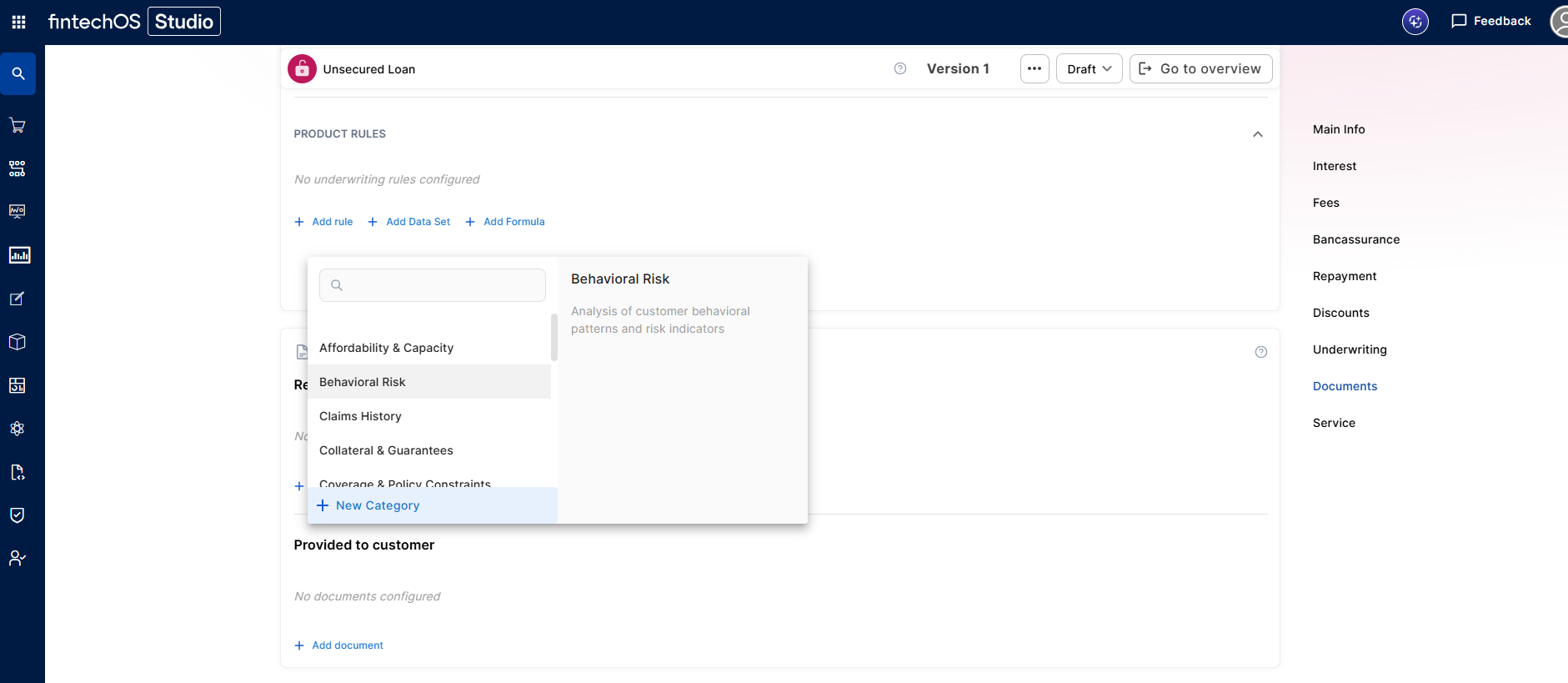
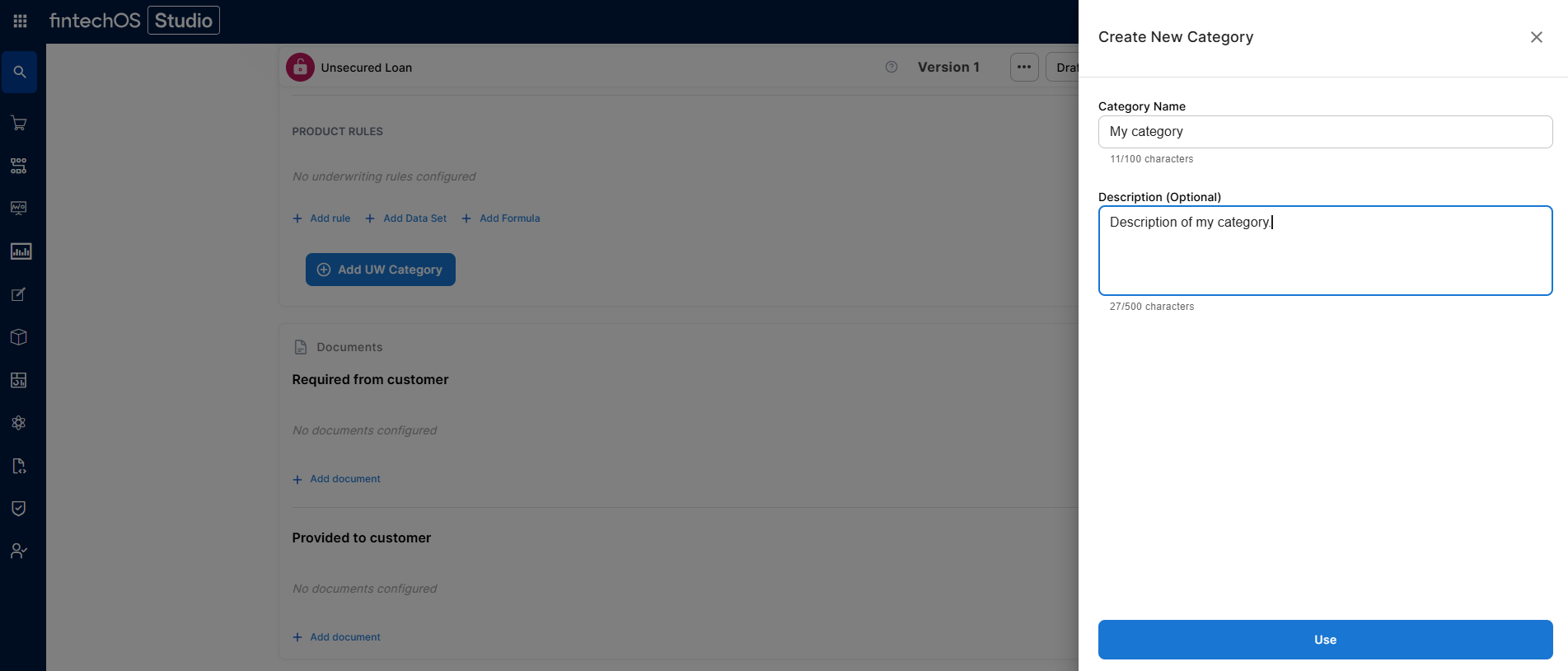
You can also create custom categories, which let you group underwriting rules under a label that matches your specific business logic — for example, if none of the 15 predefined categories fit a set of rules unique to your product or market. Click New Category, and fill in the Category Name and Description.
Product Rules
Product rules are the default, uncategorized group — any underwriting rule that hasn't been assigned to a specific category lives under Product Rules, and you can move a rule back there at any time to un-categorize it.
Derogation Rules
A derogation rule lets you send a rejected underwriting rule to manual review instead of automatically rejecting the application. This adds a third possible outcome — Derogation — alongside Approved and Rejected.
Configuration:
-
While editing a rule, click referred by to attach a derogation
-
Choose the derogation type: Add rule, Add Data Set, or Add Formula
-
The derogation appears as an indented child statement under its parent rule
-
The parent rule cannot be saved until the derogation is fully configured.
Constraints:
-
Each rule can have only one derogation
-
Data Set rules cannot have a derogation
-
A derogation has no category, alias, or code
-
Derogations cannot be nested — a derogation cannot have its own derogation
-
A lexicon term used as a main rule can also be reused inside a derogation
Create Rules
Regardless of category, to create a rule, click the + sign next to the desired insured object or coverage and select one of the following options:
- Add Rule - Follow the sentence-based interface to configure a condition based on a Lexicon Term (e.g. Credit Rating is Good or Excellent).HINT
In the attributes' pop-up window, you can click +New Attribute to quickly add a new lexicon term or Product Settings to edit the current lexicon term. - Add Formula - Use Product Formulas that return a boolean result ("True" for approval and "False" for rejection);
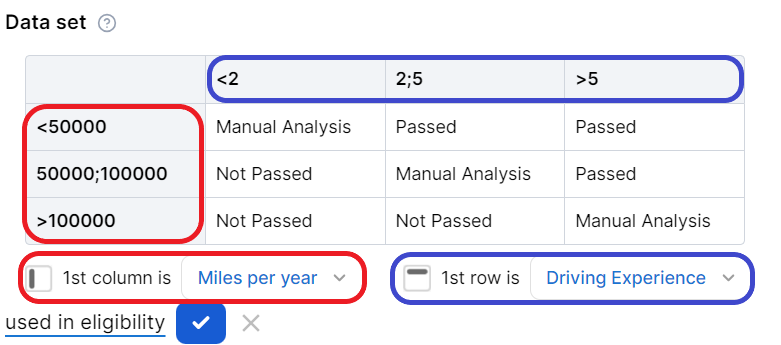
- Add Data Set - Use Product Data Sets for the evaluation. This is mandatory if the rule can return an outcome where the application must go through a manual approval process. The data set can return only the Approved, Derrogation, or Rejected results (or an equivalent terminology defined in the Underwriting Data Set Values, e.g. Passed, Manual Analysis, or Not Passed).
For each rule, you can optionally set an alias — a display name that replaces the underlying lexicon term in the UI — or a code — a unique identifier for referencing the rule in integrations, reports, or external systems.
For each rule, you can select the used in eligibility option to mark it as a knock-out rule, which automatically disqualifies the applicant if its condition is not met. Otherwise, the rule is submitted to the final approval review.
For the manual approval result, you need to configure the journey to direct the application to a back-office manual approval process. If you are using Multi-Dimensional Data Sets based on cascading data sets, the manual approval outcome must be defined in the top-level data set.
Documents
Specify the document types required from the applicants (and/or others involved in the origination process, e.g. codebtors Individual who assumes joint responsibility for repaying a loan alongside the primary borrower. If the primary borrower defaults on the loan, the codebtor becomes liable for the remaining debt.), as well as the document types provided to the applicants.
| Parameter | Description |
|---|---|
| Required from customer |
Documents that the applicant must provide in order to verify identity, income, product eligibility, etc. To add a required document:
E.g.: Income statement mandatory for debtor and mandatory for co-debtor. |
| Provided to customer |
Documents that must be provided to the applicant typically in order to obtain an agreement and/or signature. To add a provided document:
E.g.: Terms and conditions is static requires accord and requires signature. |
Service
The Service section is used to define the configuration structure and characteristics of your banking product. The following options are available:
- Commission on unused amount: The number of months after which the system starts calculating commissions for any unused amount.
- Disbursement allowed: The number of months for disbursing funds to the borrower.
- Minimum principal for early repayment: Minimal principal allowed for early repayment.
Once you’ve configured all the fields, change the status from Draft to Approved to save your Mortgage product. For details on versions, see Product Life Cycle and Replication.
Below you can check a real-life example of how a Mortgage product is built in Product Designer.
Mortgage Use Case
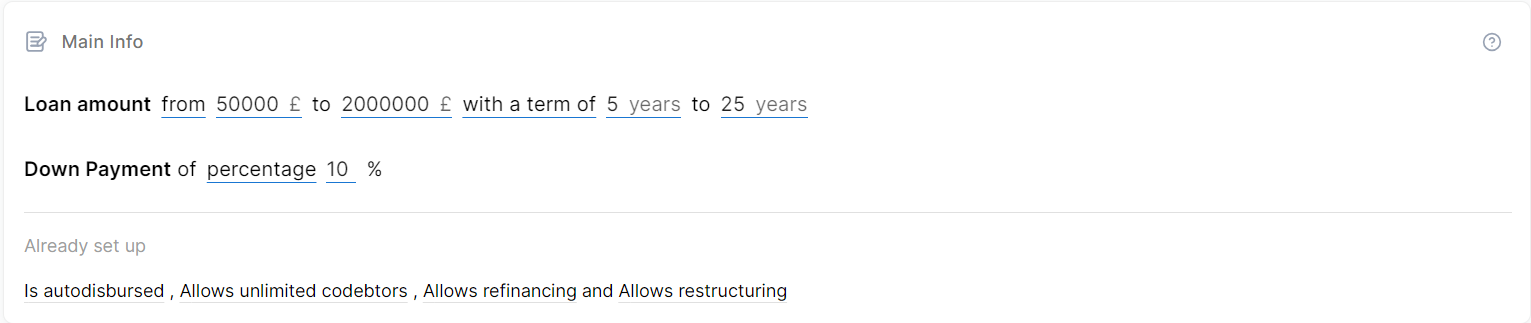
1. For our use case, in the Main Info section, we've set the loan amount for 50,000 to 2,000,000 GBP, with a term of 5 to 25 years, and a down payment of 10%. Also, auto-disbursement, unlimited co-debtors, refinancing, and restructuring are allowed. The product's availability period was set from 06/01/2023 to 12/31/2024.
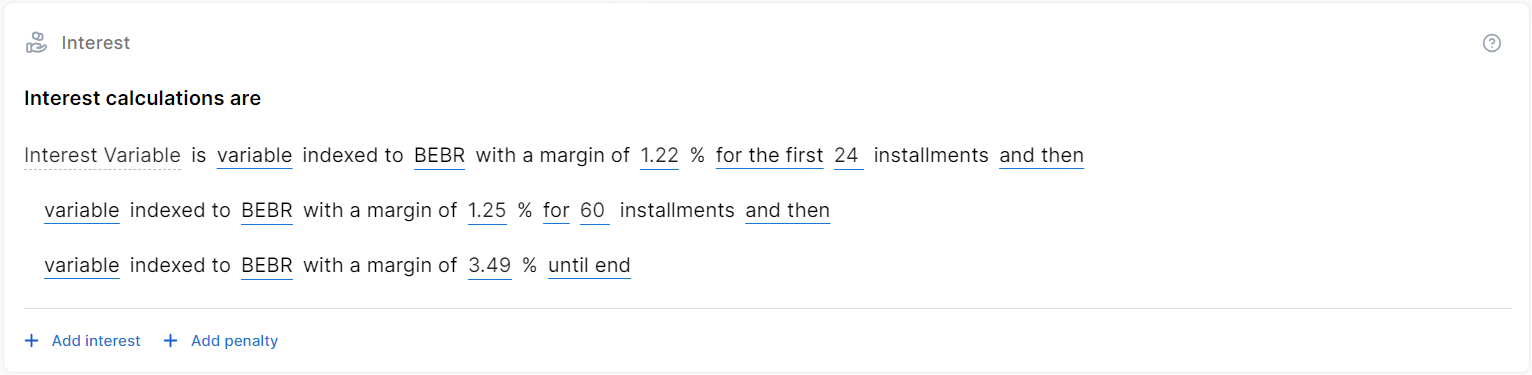
2. The Interest calculations are based on variable rates, as follows:
The Interest Variable is a variable type indexed to BEBR (Bank of England Base Rate) with a margin of 1.22% for the first 24 installments, then:
-
Variable indexed to BEBR with a margin of 1.25% for 60 installments, and
-
Variable indexed to BEBR with a margin of 3.49% until end.
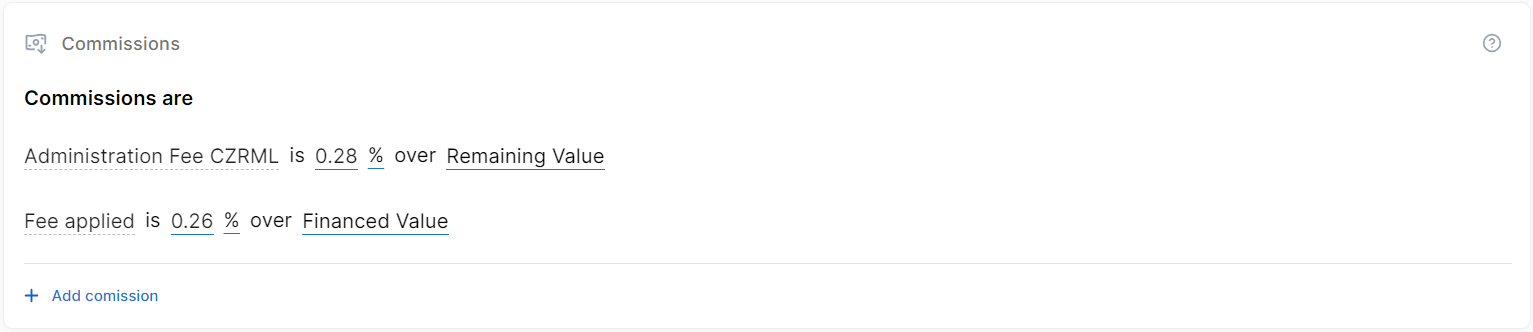
3. We've set two Commissions for the mortgage loan: an Administration Fee of 0.28% over the Remaining Value, and a Fee applied of 0.26% over the Financed Value.
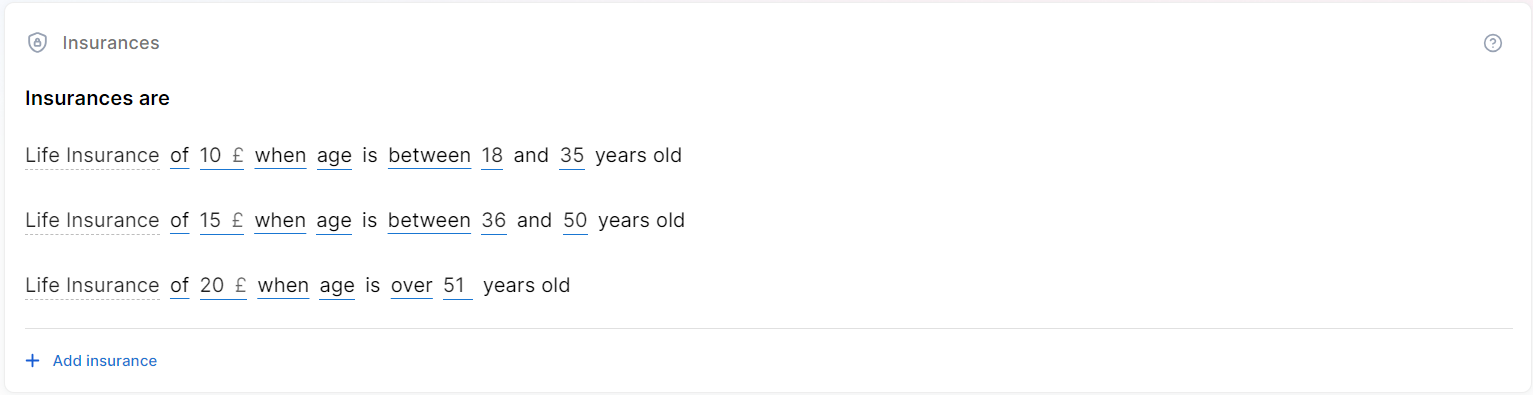
4. For Insurances we've configured 3 Life Insurance policies based on the Age attribute, as follows:
-
10 GBP when age is between 18 and 35 years old.
-
10 GBP when age is between 18 and 35 years old.
-
20 GBP when age is over 51 years old.
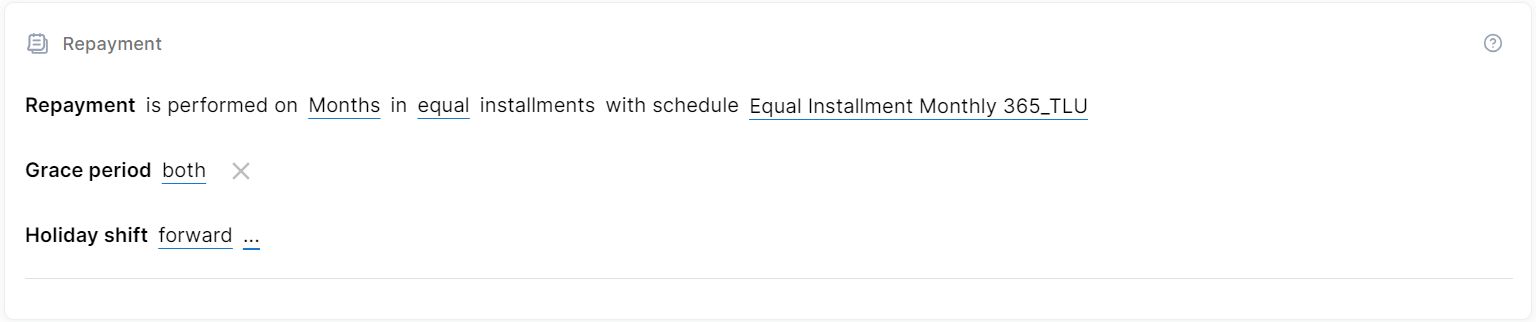
5. The Repayment fee is performed on Months in equal installments, with the Equal Installment Monthly 365_TLU schedule. The grace period applies to both the loan principal and the interest, with a holiday shift set to Forward.
6. In the Facility Structure section, set the booking model as single account. Then set the following:
7. The only discount in the Discounts section is configured for Current Account on Interest, with a Interest Variable of 0.5%.

8. In the Collaterals section, we have a Collateral cover of 95% and a Residential Real Estate maximum accepted coverage of 95%.

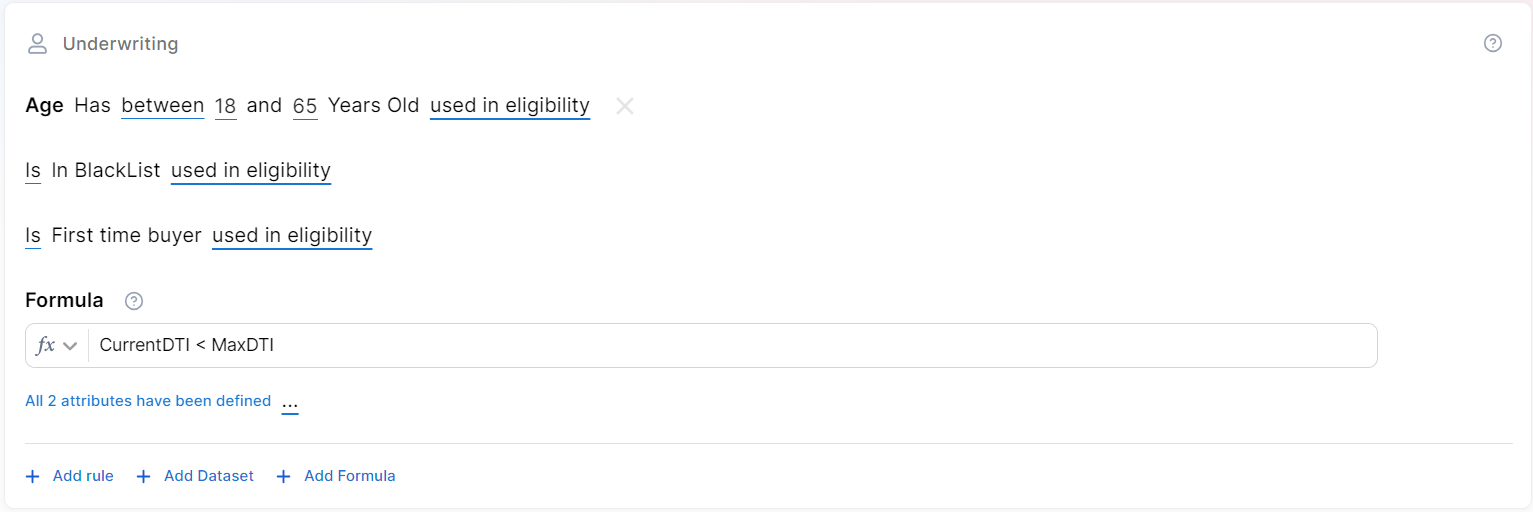
9. The Underwriting section is configured as follows:
-
Rule 1: Age is between 18 and 65 years old
-
Rule 2: Is in BlackList
-
Rule 3: Is First time buyer
Formula: CurrentDTI < MaxDTI, where CurrentDTI = (ExistingInstallmentsAmount + LoanInstallmentAmount) / Income
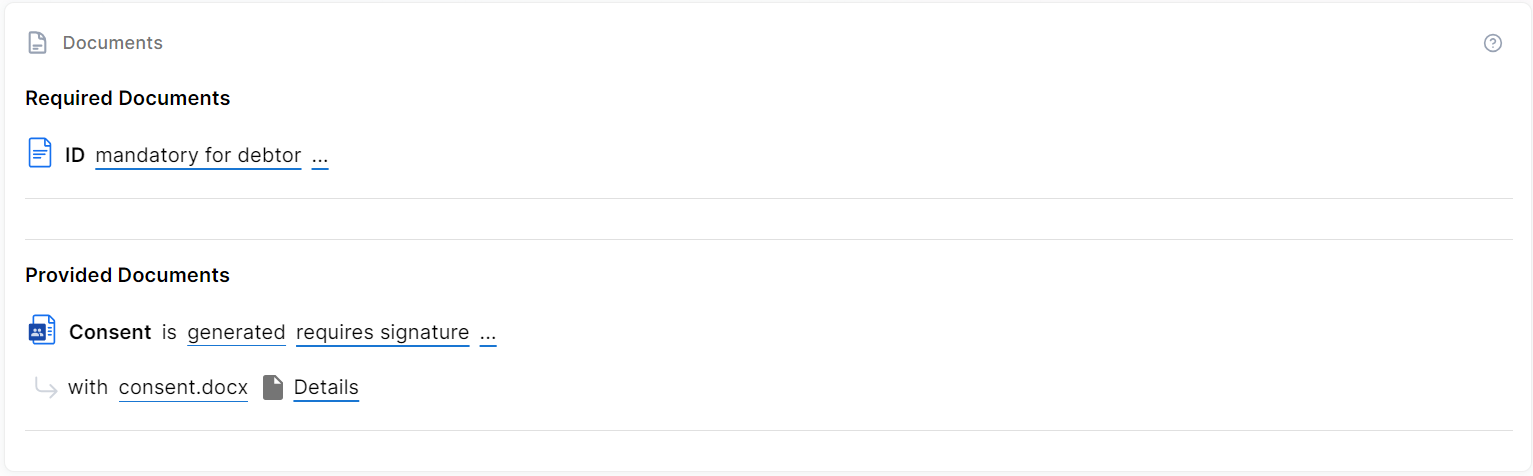
10. Lastly, for Documents, we have the ID that is mandatory for debtor and co-debtor in the Required Documents section, and a generated Consent file that requires signature and accord in the Provided Documents section.