Product Data Sets
Product data sets allow you to define evaluations or custom attributes for your Product Formulas based on mappings to Lexicon Term attribute values. In Product Factory, you can copy and paste your data sets from Excel to the product UI or create your own data set from scratch.
One-Dimensional Data Sets
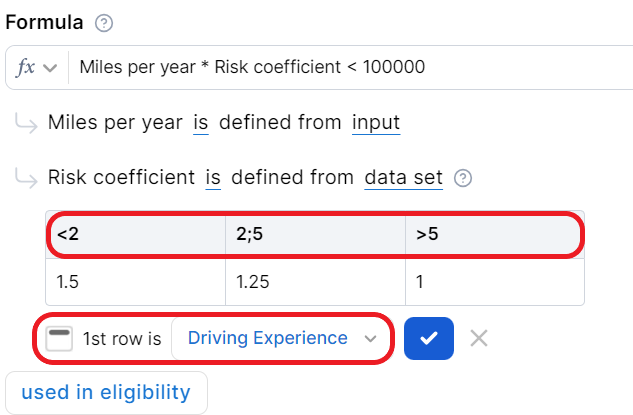
You may need, for instance, to define a risk coefficient attribute for a Motor Insurance underwriting formula. The risk coefficient is based on the driver's experience. You can map the specific values of the driving experience lexicon term (e.g.: under 2 years, 2 to 5 years, and over 5 years) to the values of a custom attribute representing the risk coefficient (e.g.: 1.5, 1.25, and 1 respectively).
Two-Dimensional Data Sets
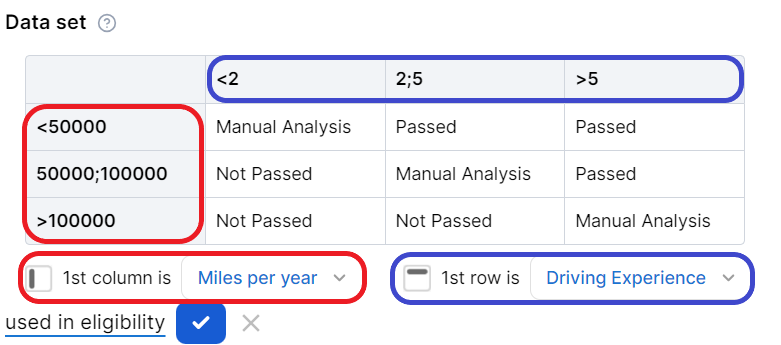
You can also create two-dimensional data sets that map pairs of input values from two different lexicon terms to an output value found at the intersection of the two inputs. For instance, based on the driver's experience combined with the number of miles driven per year, you may decide if a motor insurance application is accepted, rejected, or deferred for manual analysis.
Multi-Dimensional Data Sets
If you need to create multi-dimensional mappings, you have two options:
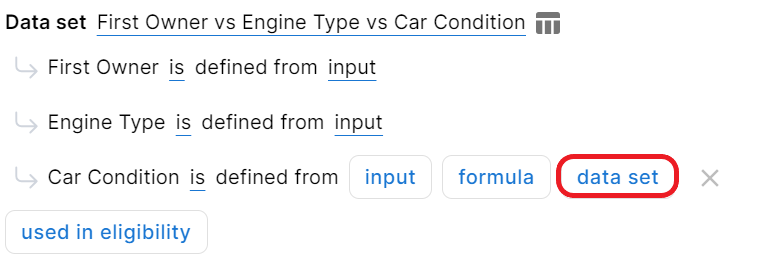
- You can cascade two-dimensional data sets by providing a data set as a source for another data set's attribute. This way, you combine composite attributes to expand the total number of dimensions that go into the mapping.
- You can paste Excel grids with multiple header rows or header columns that match your source attributes into the data set field. The grid can include merged cells, so that the data is easy to read.
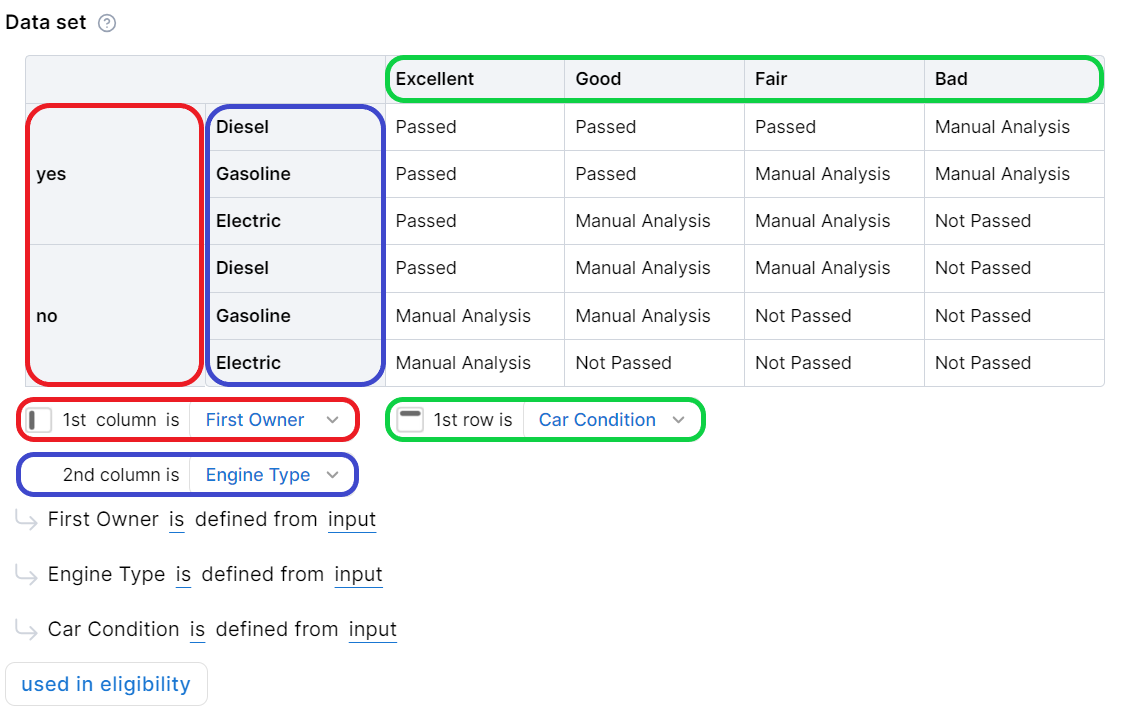
You can also mix the two methods, e.g. multi-dimensional data sets with source attributes based on other multi-dimensional data sets, etc.
Fill In a Product Data Set
There are two ways to fill in a product data set: you either add the data manually or copy and paste a table from Excel or Word.
Create Data Set
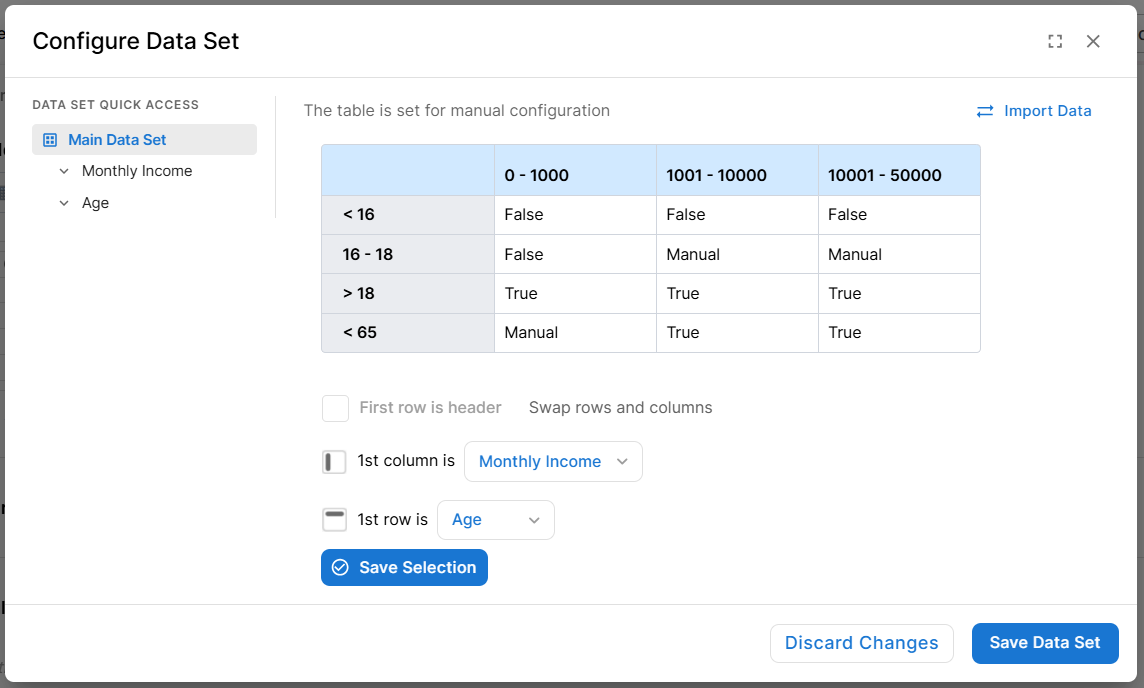
You can create and edit data sets directly in Product Factory without relying on external tools like Excel. Let's define eligibility for a customer applying for an Unsecured Loan:
-
In the Underwriting section, click Add Data Set.
-
Click Configure Data Set > Manual Configuration. Here you can create your data set, add rows and column, assign columns and rows.
-
When done, click Save Selection to return to continue creating the product.
-
Visual indicator shows whether a dataset was "Created in UI" vs. "Imported (Excel / Copy-Paste)"
-
Structural editing (Add Row / Add Column) is only available for UI-created datasets — not for imported ones
-
When re-pasting data over an existing imported dataset, a paste area is used.
From Excel
Populate a data set by copying and pasting a table from Excel or Word.
Follow these formatting rules for data sets:
1. Don't include column or row names in the Excel source, only the values. You select the attributes that represent the header rows/columns in the Product Designer drop-downs.
2. For two-dimensional or multi-dimensional data sets, the cell(s) at the top left corner of the grid must be empty. They are used to determine the header rows/columns for the source attributes.
3. Use the <, >, <=, >=, or ; relational operators to define numeric intervals. The intervals are considered closed, so don’t use brackets when defining them.
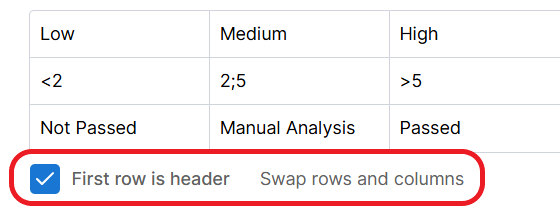
You can instruct Product Factory to disregard the first row of a data set by ticking the First row is header checkbox. You can also click the Swap rows and columns link to better arrange the data on screen for easier viewing.
The dimensions used in data sets can be numeric, numeric intervals, or text, depending on the data type of the lexicon term. The data set output values can be numeric, text, or boolean.