Personal Deposits
Deposits are bank accounts in which customers can deposit and withdraw money. In the title field, enter a name for the product. Optionally, you can click the ellipsis button (...) to also provide a description and/or an availability period. Below, fill in the following product configurations.
Main Info
This section determines the deposit's currency, amount, and term. It also allows you to select options for withdrawal, auto-renew Automatically renew a deposit for the same tenure at the prevailing interest rate when it matures, without any action required from the account holder., and top-ups.
| Parameter | Description |
|---|---|
| Deposit amount and term |
E.g.: Deposit amount up to 100000 $ with a term of 1 to 5 years. |
| Withdrawal |
|
| Auto-renew |
|
| Top-ups |
|
Interest
Interest on a savings or current account is the amount of money a bank or financial institution pays a depositor for storing their money with the bank. The financial institution pays the depositor a percentage of their account balance, and makes regular interest payments across the statement A bank statement summarizes all the account's monthly transactions and is typically sent by the bank to the account holder every month. cycle.
Click + Add saving interest or + Add sight interest to set up a long term or overnight interest rate respectively
- fixed - Sets an interest rate that is a fixed percentage of the statement's amount.
- for the first / and then - Applies different interest rates over defined periods of time, in months.
- until end - Applies the interest rate until account closure.
- based on formula - Allows you to set savings interest rates based on Product Formulas.
- credited - Occurrence of interest being credited to the customer (Daily, Maturity, Monthly, Quarterly, Yearly).
- capitalized - Determines if the interest is calculated and credited to the main account, based on the total amount accumulated at each statement.
E.g.: Savings Interest is fixed at 0.42% for the first 6 months and then fixed at 0.45% until end, credited Monthly, capitalized.
Fees
- Click +Add fee.
- Select a predefined type of fee from the list, or click Create new to define a new fee type (you can also rename an existing fee by clicking the fee name). The type of fee determines parameters such as the conditions under which the fee is applied, how often the fee is charged, whether the fee is refundable or not, etc. For more information, see Fee Types.
- Enter the amount of the fee:
- value - a fixed value in the specified currency.
- percentage - a specified percentage of the remaining value, financed value, paid value, unused amount, used amount, overdraft limit amount, amount, etc.
- based on formula - Allows you to set fees based on Product Formulas.
- If the fee type has a recurring periodicity (e.g., monthly, annual, weekly), you can configure different amounts for specific installment ranges. For example, you may define a fixed amount for the first three installments, a variable amount for the next six installments, and a formula-based amount for the remaining installments.
E.g.: Down Payment Fee is based on formula Down Payment * 0.002 for the first 3 installments and then based on formula Down Payment * 0.001 for 3 installments and then value 0 € until end.
Fee types with the periodicity set to Once are automatically configured to be charged a single time.
You can set up multiple fees that will be charged independently, based on their Fee Types. E.g.:
- Front-end Fee is 25 € one time.
- Repayment Fee is 4% over remaining value one time.
This will always charge the borrower a $25 fee on loan application. If, during the loan, the borrower decides to repay the loan in advance, a 4% fee is charged over the loan's remaining value.
Payment
The Payment section determines the capitalization for the deposit's interest, and how the payments are impacted by holiday shifts Adjustment of installment due dates that coincide with public holidays by moving the due date to the last working day prior or first working day after the holiday. .
| Parameter | Description |
|---|---|
| Payment |
Sets up the payment capitalization options.
|
| Holiday Shift | Determines what happens if a payment date overlaps a public holiday.
E.g.: Holiday shift forward following calendar for United States of America and United Kingdom defer due date. |
Bonuses
In the Bonuses section, you can define bonuses to any of the already configured interest items, increasing the total payment value.
There are three ways to create bonuses:
- Follow the sentence-based interface to configure a bonus based on a dictionary attribute (e.g., Age >18), for which you define the bonus. Note that you can also create new attributes, extending your dictionary (+Add discount > New Attribute).
- Add a Dataset based on one, two, or more attributes for an interest item. You can add more data sets, one for each pricing item. For more details on how to create Data Sets, see Product Data Sets.
- Add a formula to define bonuses with more advanced conditions based on mathematical expressions, data sets, and other inputs. You can add more formulas, one for each interest item. For more details on how to create formulas in Product Designer, see Product Formulas.
Discounts
In the Discounts section, you can define discounts on any of the already configured interest items, commission items, or on all pricing elements.
There are three ways to create discounts:
- Follow the sentence-based interface to configure a condition based on a dictionary attribute (e.g., Age >18), for which you define a discount. Note that you can also create new attributes, extending your dictionary (+Add discount > Create New).
- Add a Dataset based on one, two, or more attributes for a pricing item. You can add more data sets, one for each pricing item. For more details on how to create Data Sets, see Product Data Sets.
- Add a formula to define discounts with more advanced conditions based on mathematical expressions, data sets, and other inputs. You can add more formulas, one for each pricing item. For more details on how to create formulas in Product Designer, see Product Formulas.
A discount does NOT override the previous value of a pricing item, but is applied to it, decreasing the pricing item's final value. For example:
- A discount of 10% applied to an existing 10€ commission results in a new value of 9€ for the commission.
- A discount of 2€ applied to an existing 10€ commission results in a new value of 8€ for the commission.
Underwriting
The Underwriting Module lets users define and manage underwriting rules that assess product eligibility and risk. Rules are built from lexicon terms — inputs, datasets, and formulas — and each rule is used in underwriting, eligibility (knock-out) checks, or both. They also help determine whether or not a manual approval process is required (available only for rules based on Product Data Sets).
Categories
Categories let you organize your underwriting rules into named groups so you can manage and evaluate them more easily. The default categories are:
-
KYC/KYB (Identity & Verification) — identity verification via official documents / trusted data sources (ID/passport, address, biometric or digital identity), including customer due diligence and screening.
-
Financial Crime (AML & Fraud) — fraud / financial-crime risk assessment: sanctions and PEP screening, AML risk scoring, and suspicious-pattern detection across profiles, funding sources, and transactions.
15 further predefined categories are available when you click Add Category: Credit Risk, Financial Profile, Affordability & Capacity, Employment & Stability, Collateral & Guarantees, Product-Specific Constraints, Legal & Compliance, Behavioral Risk, Risk Profile, Insured Object Risk, Medical / Health Risk, Geographical Risk, Coverage & Policy Constraints, Claims History, Distribution / Channel Rules.
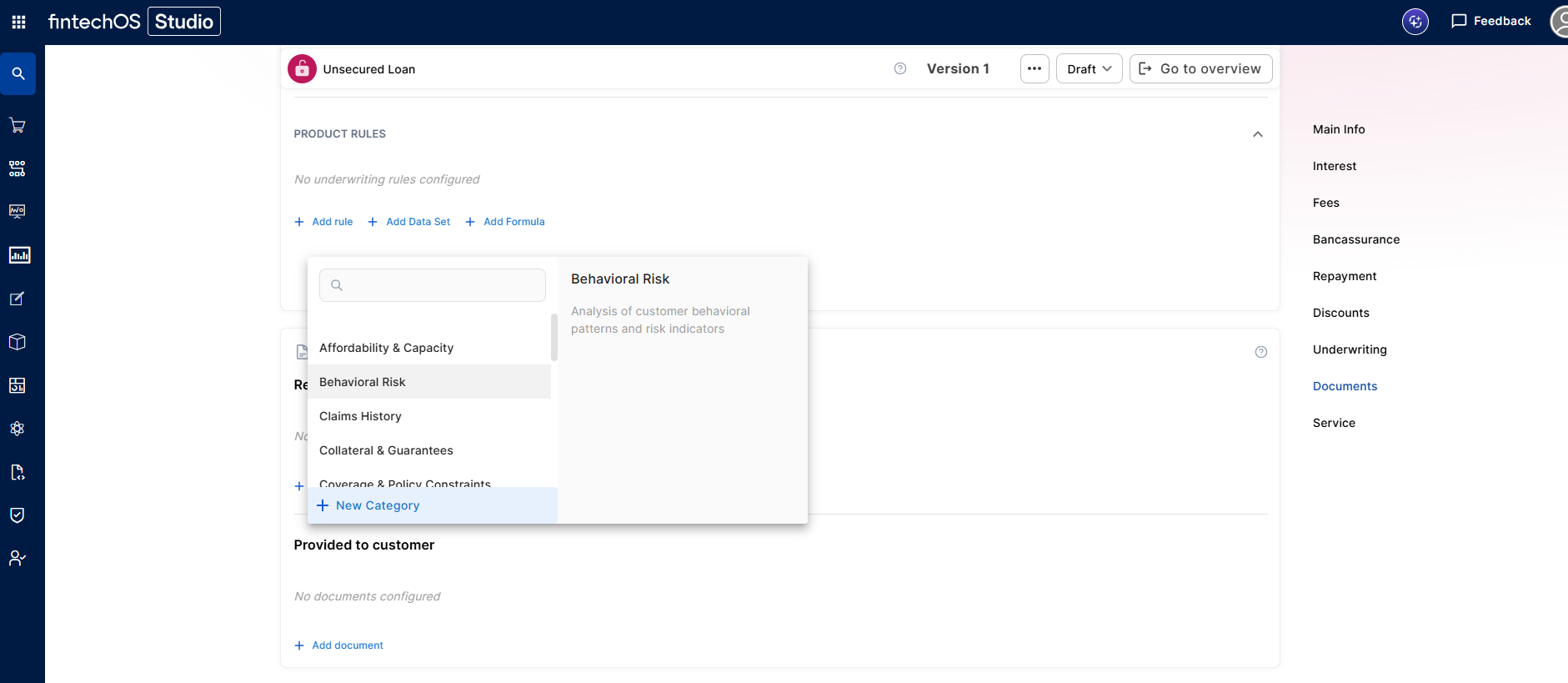
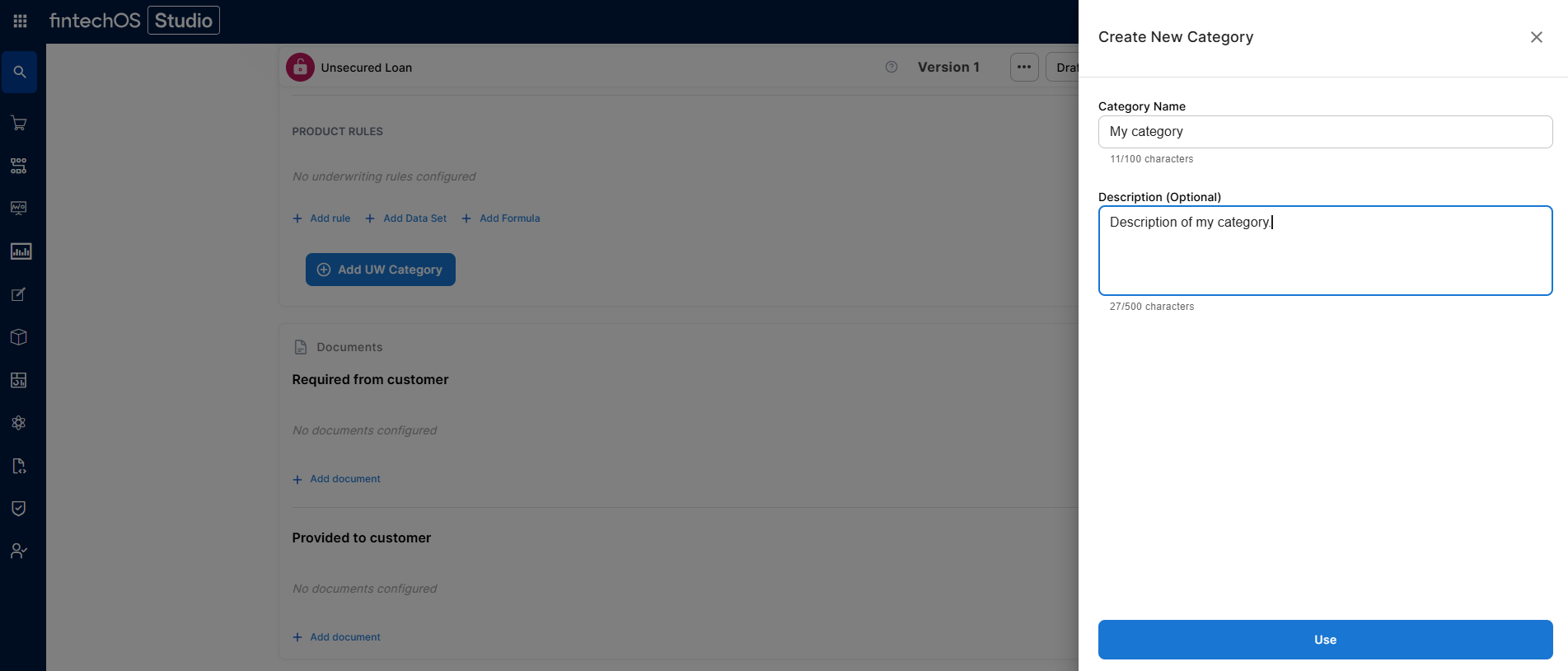
You can also create custom categories, which let you group underwriting rules under a label that matches your specific business logic — for example, if none of the 15 predefined categories fit a set of rules unique to your product or market. Click New Category, and fill in the Category Name and Description.
Product Rules
Product rules are the default, uncategorized group — any underwriting rule that hasn't been assigned to a specific category lives under Product Rules, and you can move a rule back there at any time to un-categorize it.
Derogation Rules
A derogation rule lets you send a rejected underwriting rule to manual review instead of automatically rejecting the application. This adds a third possible outcome — Derogation — alongside Approved and Rejected.
Configuration:
-
While editing a rule, click referred by to attach a derogation
-
Choose the derogation type: Add rule, Add Data Set, or Add Formula
-
The derogation appears as an indented child statement under its parent rule
-
The parent rule cannot be saved until the derogation is fully configured.
Constraints:
-
Each rule can have only one derogation
-
Data Set rules cannot have a derogation
-
A derogation has no category, alias, or code
-
Derogations cannot be nested — a derogation cannot have its own derogation
-
A lexicon term used as a main rule can also be reused inside a derogation
Create Rules
Regardless of category, to create a rule, click the + sign next to the desired insured object or coverage and select one of the following options:
- Add Rule - Follow the sentence-based interface to configure a condition based on a Lexicon Term (e.g. Credit Rating is Good or Excellent).HINT
In the attributes' pop-up window, you can click +New Attribute to quickly add a new lexicon term or Product Settings to edit the current lexicon term. - Add Formula - Use Product Formulas that return a boolean result ("True" for approval and "False" for rejection);
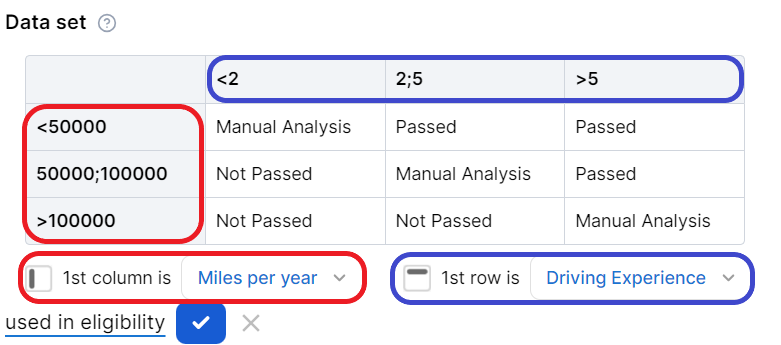
- Add Data Set - Use Product Data Sets for the evaluation. This is mandatory if the rule can return an outcome where the application must go through a manual approval process. The data set can return only the Approved, Derrogation, or Rejected results (or an equivalent terminology defined in the Underwriting Data Set Values, e.g. Passed, Manual Analysis, or Not Passed).
For each rule, you can optionally set an alias — a display name that replaces the underlying lexicon term in the UI — or a code — a unique identifier for referencing the rule in integrations, reports, or external systems.
For each rule, you can select the used in eligibility option to mark it as a knock-out rule, which automatically disqualifies the applicant if its condition is not met. Otherwise, the rule is submitted to the final approval review.
For the manual approval result, you need to configure the journey to direct the application to a back-office manual approval process. If you are using Multi-Dimensional Data Sets based on cascading data sets, the manual approval outcome must be defined in the top-level data set.
Documents
Specify the document types required from the applicants (and/or others involved in the origination process, e.g. codebtors Individual who assumes joint responsibility for repaying a loan alongside the primary borrower. If the primary borrower defaults on the loan, the codebtor becomes liable for the remaining debt.), as well as the document types provided to the applicants.
| Parameter | Description |
|---|---|
| Required from customer |
Documents that the applicant must provide in order to verify identity, income, product eligibility, etc. To add a required document:
E.g.: Income statement mandatory for debtor and mandatory for co-debtor. |
| Provided to customer |
Documents that must be provided to the applicant typically in order to obtain an agreement and/or signature. To add a provided document:
E.g.: Terms and conditions is static requires accord and requires signature. |
Once you’ve configured all the fields, change the status from Draft to Approved to save your Personal Deposits product. For details on versions, see Product Life Cycle and Replication.