Add attributes to the UI
- In the Workflow UI Designer's left panel, from the Data Templates section, select a vertical or horizontal attribute template and drag it to the working area in the desired position. For more information, see Adding UI elements to the user interface.
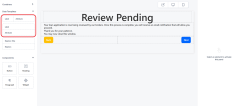
- While the attribute field is selected, fill in its properties in the right panel.
Property Description Select the Attribute Select the name of the attribute that you want to display.
Select Label Type - default - The attribute's display name is used as a field label.
- custom - Manually enter the text for the field label. You can also manually add translations for each platform language, by clicking the toggle translation button placed in the Enter the desired text field. In this case, you also need to choose a name for the resource key that will save this text in the Localization Resources page.
- none - No label is displayed and no label space reserved in the user interface when rendering the attribute field.
Additional CSS classes Add the names of the classes you wish to attach to the attribute's HTML element (e.g.: a styling class defined in one of the Style Sheets applied to the workflow).
NOTE
You must press Space or Enter after typing a class name to confirm it.Advanced Configuration Click Edit to access the Advanced Configuration field options available for the attribute type. - Click Apply changes to save the attribute properties.
- Click Update template to save the screen.
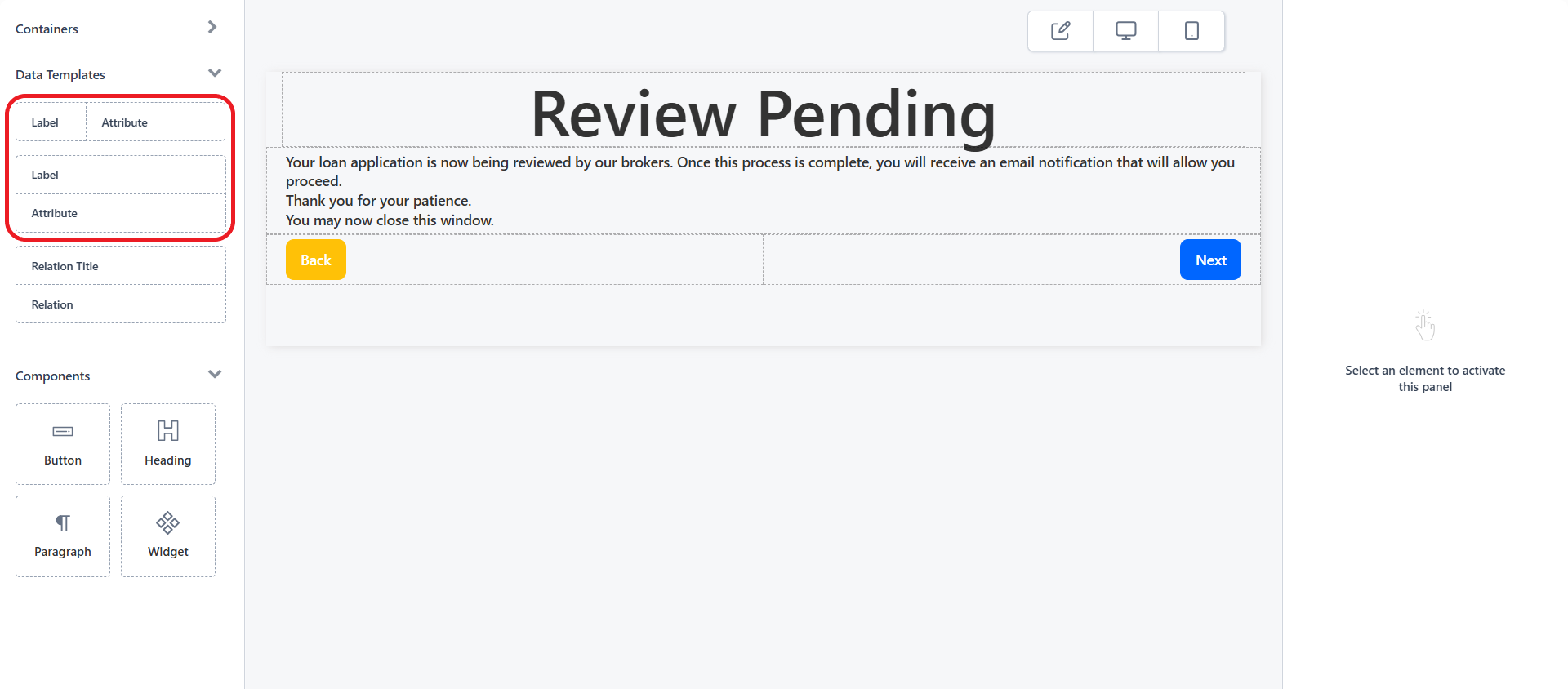
To modify an attribute field, select it in the main area and edit its properties from the right panel.
To move an attribute in the user interface or to delete it, see Moving and deleting UI elements.
Advanced Configuration
Some attribute fields have an Advanced Configuration property which allows you to customize their appearance. The available field options depend on the attribute type:
Advanced Configuration for Boolean Attributes
- Field is Radio Group - Displays the control as a pair of radio buttons. Default: No.
- Advanced Control
- Default - Standard checkbox control.
- Ftos Switch - Toggle switch with the following options:
- Label - Text label for the switch.
- Extra - Optional text displayed between the label and the switch. The text is highlighted when the switch attribute value is set to True and grayed out when set to False
- On Text - Text displayed on the switch when the attribute value is True.
- Off Text - Text displayed on the switch when the attribute value is False.
- Ftos Button Switch Boolean - A pair of radio buttons with the following options:
- Use Radios - Displays a radio button selector inside each button.
- Label - Text label for the attribute field.
- True Label - Text displayed on the switch when the attribute value is True.
- False Label - Text displayed on the switch when the attribute value is False.
Advanced Configuration for Numeric Attributes
- Field Options
- Placeholder - Displays a temporary grayed out text in the input field when empty. Allows you to provide a hint or example of the expected input format or type of data (e.g. 0.00).
- Align text - Aligns the numeric value either to the left of the right of the field.
- Currency - Allows you to include a currency symbol next to the numeric value.
- Currency position - Places the currency symbol either to the left or the right of the numeric value.
- Advanced Control
- Default - Standard numeric control.
- Ftos Slider - Text box bound to a slider with the following options:
- Label - Text label for the control. Includes a Translations button that allows you to provide translations for each platform language.
- Icon - HTML markup for additional visual elements such as formatted text or images. E.g.:
<i class="fa fa-percent" aria-hidden="true"></i> - Min - Minimum slider value (leftmost position).
- Max - Maximum slider value (rightmost position).
- Step - Value increment/decrement between slider positions.
- Currency Code - Allows you to display a currency symbol label based on the ISO 4217 standard next to the numeric value.
- Input Width - CSS-compatible width specification for the control.
- Ftos Decorated Numeric - Text box with customizations for additional visuals and adjustable width:
- Icon - HTML markup for additional visual elements such as formatted text or images. E.g.:
<i class="fa fa-percent" aria-hidden="true"></i> - Input Width - CSS-compatible width specification for the control.
- Icon - HTML markup for additional visual elements such as formatted text or images. E.g.:
- Ftos Quantity Buttons - Spin box with increment/decrement buttons (+/-):
- Label - Text label for the control. Has a Translations button that allows you to provide translations for each platform language.
- Step - Value change per click on the +/- buttons.
- Input Width - CSS-compatible width specification for the control.
Advanced Configuration for List Attributes
- Field Options
- Remove None Option - Removes the empty field selector which leaves the attribute value unpopulated.
- Order Option Set Items
- By Order Index - Sorts option set items based on the order index set up in the option set.
- Alphabetical - Sorts option set items alphabetically by display name. Sorting is applied after localization, ensuring correct order in any language.
- Placeholder - Displays a temporary grayed out text in the selection field when empty. Allows you to provide a hint or example (e.g. Pick a value form the drop-down list.).
- Advanced Control
- Default - Standard drop down box control.
- Ftos Button List - Radio buttons with the following options:
- Use Radios - Displays a radio button selector inside each button.
- Label - Text label for the control. Includes a Translations button that allows you to provide translations for each platform language.
- Items Extra Label - Additional label for each option displayed after the "Display Name" of the option.
Advanced Configuration for Text Attributes
For text attributes, the following field options are available:
- Error message - Sets an error message for the attribute field when it fails validation.
- Mask - Specifies the input format using a masking pattern that defines the expected structure and character positions based on the DevExtreme dxTextBox mask specification.
- Mask Rules - Maps mask characters to allowed input values using rule definitions based on the DevExtreme dxTextBox maskRules specification.
- Placeholder - Displays a temporary grayed out text in the input field when empty. Allows you to provide a hint or example of the expected input format or type of data (e.g. Enter your name here.).
- Align text - Allows you to align the text inside the text box either to the Left of to the Right.
- UI template - Allows you to select a placeholder for either email addresses or phone numbers.
- Email Placeholder -
- Type - Automatically set to email when selecting the Email Placeholder. Cannot be changed.
- Autocomplete - Enables or disables the use of the browser's autocomplete feature.
- Placeholder - Displays a grayed out value for exemplification purposes when the field is empty.
- Phone Placeholder -
- Type - Automatically set to tel when selecting the Phone Placeholder. Cannot be changed.
- Autocomplete - Enables or disables the use of the browser's autocomplete feature.
- Placeholder - Displays a grayed out value for exemplification purposes when the field is empty.
- Default Country - Default phone number format based on the ISO 3166-1 aplha-2 country codes.
- Only Countries - Restricts available phone number formats to the specified ISO 3166-1 aplha-2 country codes. When empty, all supported formats are available.
- Country Order - Phone number formats based on the ISO 3166-1 aplha-2 country codes displayed at the top of the list in the specified order.
- Exclude Countries - Excludes specific country formats based on ISO 3166-1 aplha-2 country codes.
- Validation Number Type - Specifies the allowed phone number types. Available options are: "FIXED_LINE", "MOBILE", and "FIXED_LINE_OR_MOBILE".
- Email Placeholder -
Advanced Configuration for Date Attributes
- Field Options
- Open Calendar on Click
- Yes - Clicking the input field opens a date picker (a calendar interface) that allows the user to select the date.
- No - When clicking the input field, the user has to type the date manually. The date picker is still available via the calendar icon located to the right of the input field.
- Placeholder - Displays a temporary grayed out text in the input field when empty. Allows you to provide a hint or example of the expected input format or type of data (e.g. DD/MM/YYYY).
- Use Mask Behavior - Allows the user to enter a date or time using keyboard navigation:
- Left/Right arrow keys select segments (day/month/year/hour/minute, etc.).
- Up/Down arrow keys increment or decrement the selected segment.
- Direct typing overrides the currently selected segment.
- The mask auto-advances (e.g., entering two digits in the day segment moves the cursor to the month).
- Invalid inputs are blocked or corrected automatically (e.g.: typing 19 in a month field replaces it with 09).
- Delete or Backspace resets the current segment and moves to the next or previous one.
- Home or End selects the first or last segment, respectively.
- Validation Message Mode
- Auto - Displays the red exclamation mark if the input is invalid. The corresponding error message expands only if the user clicks the icon.
- Always - Automatically expands the error message when the input is invalid (e.g., “Value must be a date or time” or “Value is out of range”).
- Open Calendar on Click
- Minimum Value - The earliest date allowed. Prior dates are disabled in the date picker and trigger an error if entered using the keyboard.
- Reference Date - A static (exact date) or dynamic (now, first date of the current month, or last date of the current month) date that you can use as is or as a starting point for defining the minimum value.
- Select Exact Date - If you picked an exact date for the reference date, specify the date.
- Plus or Minus - Adds or substracts a time interval from the reference date.
- Interval Unit - Select if the interval you wish to add or substract from the reference date is measured in days, months, or years.
- Interval Value - Enter the number of days, months, or years you wish to add or substract from the reference date.
- Maximum Value - The latest date allowed. Later dates are disabled in the date picker and trigger an error if entered using the keyboard.
- Reference Date - A static (exact date) or dynamic (now, first date of the current month, or last date of the current month) date that you can use as is or as a starting point for defining the maximum value.
- Select Exact Date - If you picked an exact date for the reference date, specify the date.
- Plus or Minus - Adds or substracts a time interval from the reference date.
- Interval Unit - Select if the interval you wish to add or substract from the reference date is measured in days, months, or years.
- Interval Value - Enter the number of days, months, or years you wish to add or substract from the reference date.
Advanced Configuration for File Attributes
- Open - When clicking the file, users will preview it.
- Open and Download - When clicking the file, users will choose between opening and downloading it.
- Download - When clicking the file, users will download it.
The supported file formats for preview (open) are: .jpg, .jpeg, .pdf.