Customer Workflows and Back-Office Workflows
The Workflow Designer is a visual tool that allows business users to create, modify, and deploy workflows (customer flows and back-office flows) without requiring technical expertise:
- Customer Workflows are external, customer-facing experiences that guide users through a structured sequence of steps and decision points to complete a specific process. Examples include digital onboarding, loan origination, quote-and-bind, and similar journeys.
- Back-Office Workflows are internal workflows that support servicing, compliance, and other operational activities performed by agents, brokers, call-center operators, and internal staff. Examples include account updates, claims processing, disbursements, contract changes, and regulatory compliance processes.
Compared to customer workflows, back-office workflows have the following restrictions:
- Workflow Settings do not include configurations for Products, Type, and Channel.
- Custom Business Services are not supported.
The Workflow Designer provides a graphical user interface for defining all workflow configurations, including steps, decision logic, user interface behavior, data models, service calls, orchestration rules, integrations, and functional specifications.
Create a Workflow
- In FintechOS Studio, go to Main Menu > Workflows > Customer Workflows or Back-Office Workflows.Customer Workflows or Back-Office Workflows
- Click Insert.
- A pop-up window appears which prompts you to configure the Workflow Settings, then provides an empty canvas where you can manually design your workflow.
Workflow Settings
To configure workflow settings, click the ellipsis button (...) in the top right corner of the Workflow Designer and select Edit Workflow Settings.
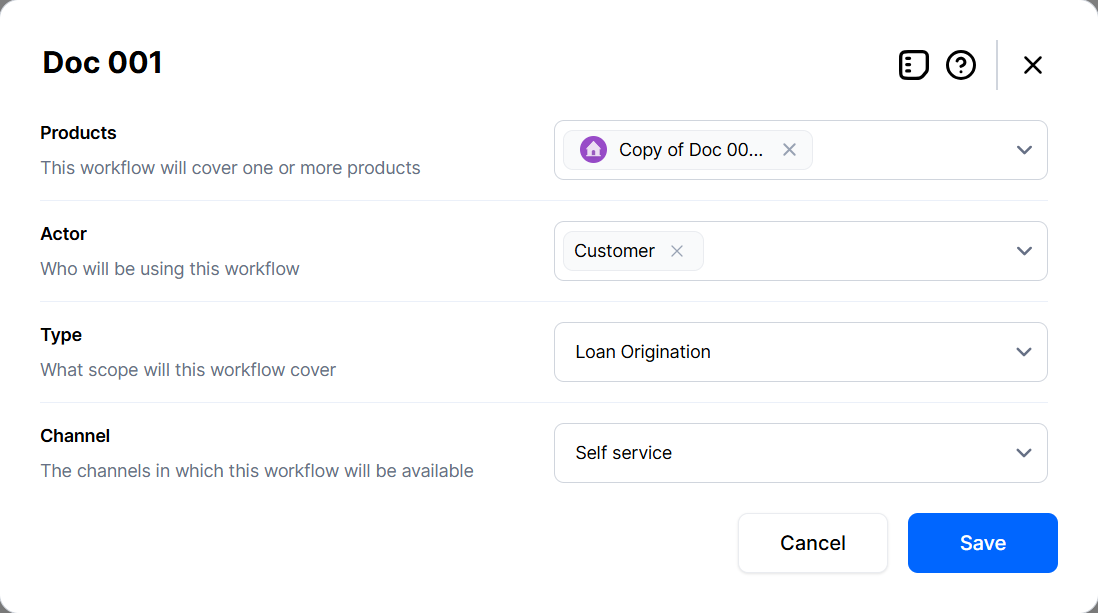
Depending on the type of workflow, the settings screen may include configuration such as the associated products, actors, workflow type, and the channels. These selections define the workflow context and enable relevant options during the design process.