Login Screen Themes
The FintechOS platform offers a variety of tools to personalize the appearance and functionality of your digital solutions. You can design and customize B2C Portals to present your solutions to customers, or refer to this guide for detailed customization options. Additionally, you can modify the login screen themes for both your Studio and Portal.
Edit the Theme
-
Go to an environment with v24.4 and create a digital solution package, as explained on the Digital Solutions Packages page.
-
Include the UI theme associated with the Portal Profile in the package. Export the package.
-
Open the package locally and edit the themes, as explained on the themes documentation page.
-
Import the edited package in Studio, as explained on the Digital Solutions Packages page.
If you're using the SysPackageDeployer to upload the package, make sure to configure the settings added for IDP themes in the .config file as explained on the Importing and Exporting Packages page.
Update and Upgrade
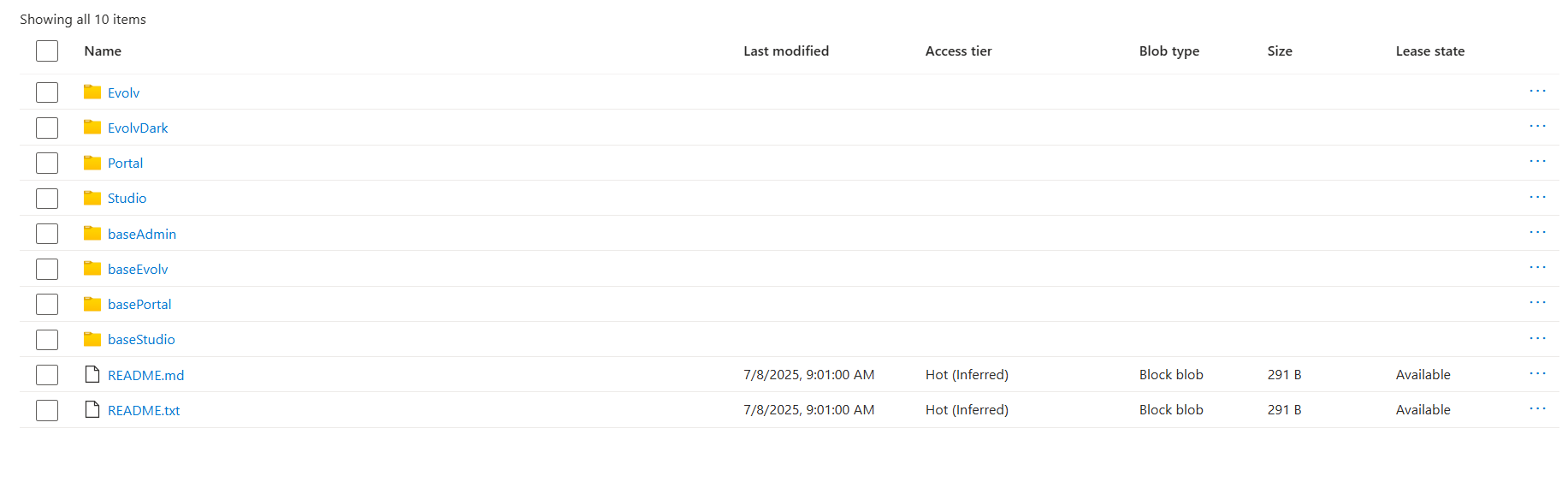
At clean install, the themes are automatically applied to the environment. If you've customized the Studio and Portal themes in versions prior to v24.3, you should considering several changes when updating or upgrading. One of the change is that the themes are now hosted in the container named container-keycloack-themes in Azure, and not the idpthemes container as in previous versions.
-
When you're updating from a minor version to another, for example from v24.3 to v24.4, the IDP themes should automatically be updated with the latest changes.
-
When upgrading from one major version to another, for example from v22.x to v24.4, the theme files are overwritten with the v24.x ones. If you have custom themes on v22.x, it is mandatory to manually adjust them for the upgrade.
Be aware that a number of files have changes in the 24.3 version, for example, in the baseStudio/login/login.ftl file, the "loginAccountTitle" parameter was removed. So you should be aware of this at upgrade. Another changed file is index.ftl, the productNameFull was removed.
Starting with 24.4, the Evolv and EvolvDark themes are available. Before update or upgrade, take into consideration the following:
-
At upgrade or update to 24.4, the Evolv, EvolvDark and baseEvolv folders are automatically deployed
-
You can use one theme, Evolv or EvolvDark, for both Studio and Portal
-
The Studio and Portal folders, which contain the themes for previous Platform versions, are still there, in the container, but they get overwritten at upgrade or update
If you've made changes to the custom theme, i.e. to folders Studio and/or Portal, before updating or upgrading to 24.4, make sure to backup your files, as the two folders, Studio and Portal will be overwritten.
In the likely scenario that you need to make custom changes to login themes, as a best practice, make sure to create a duplicate of default themes and work on those, so that your custom changes don't get overwritten at environment upgrade or update.
Environment variables have changed, you must check that you have the correct ones put in place:
-
the
KC_PROXY=edgeenvironment variable from Keycloak 22 was switched toKC_PROXY_HEADERS=xforwarded -
the
KEYCLOAK_ADMINandKEYCLOAK_ADMIN_PASSWORDenvironment variables were switched toKC_BOOTSTRAP_ADMIN_USERNAMEandKC_BOOTSTRAP_ADMIN_PASSWORD, respectively
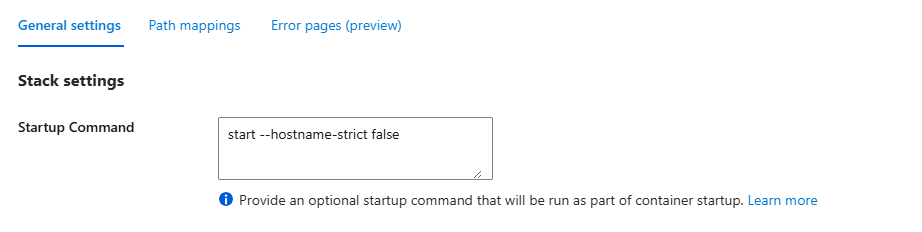
If you want to start your new Keycloak in prodiuction mode and encounter the hostname strict error, please update the configuration start command of your Azure App Service the like the one below:
start --hostname-strict false