Product Formulas
Product formulas process relevant product origination inputs (such as income, age, assets, risk class, etc.) to calculate desired outputs (such as credit scores, interests, discounts, etc.).
Product formulas are linked to their parent products, enabling: automatic association with the correct product during formula import into the target environment, synchronized state management between formulas and their parent products, and automatic deletion of formulas when the associated product or product version is removed.
Basic Product Formulas
Product formulas allow you to create product-centric computations using a simple sentence-based user interface.
To write a product formula
- Enter the formula expression.
- Enter a formula name.
- Specify the source of each attribute you used in the formula expression expression (either an input, data set, or another formula):
- input - This is a Lexicon Term value provided in the product origination journey at run-time. The input value must be set up in the journey through user input, service integration, or data query.
There is an extensive dictionary of predefined lexicon terms available for each product template that you can choose from (Loan amount, Base Rate, Total Floor Area, etc). Alternatively, you can create new ones or reuse existing lexicon terms in the context of new product templates straight from the formula editor. - data set - At their most basic level, Product Data Sets map product origination inputs to secondary values (e.g.: map a driver's experience input to a risk coefficient output). More advanced data sets can use formulas or other data sets as inputs, creating multi-step path from the product origination journey inputs to the data set output.
- formula - Just like data sets, you can use another formula as a source for a formula attribute.
- input - This is a Lexicon Term value provided in the product origination journey at run-time. The input value must be set up in the journey through user input, service integration, or data query.
Both formulas and data sets are used to derive secondary values from inputs.
- Formulas are useful when you can express this relationship through a mathematical computation, e.g.:
risk coefficient = engine displacement * 0.002. - Data sets are useful when you need to define the relationship explicitly, e.g.:
risk coefficient = (3 if engine displacement <= 1500) or (4.5 if engine displacement > 1500).
Follow these formatting rules for formulas:
1. Attribute names cannot have spaces;
2. Use simple mathematical operations (+, -, *, /, <, <=, >, >=).
 Interest Formula Example
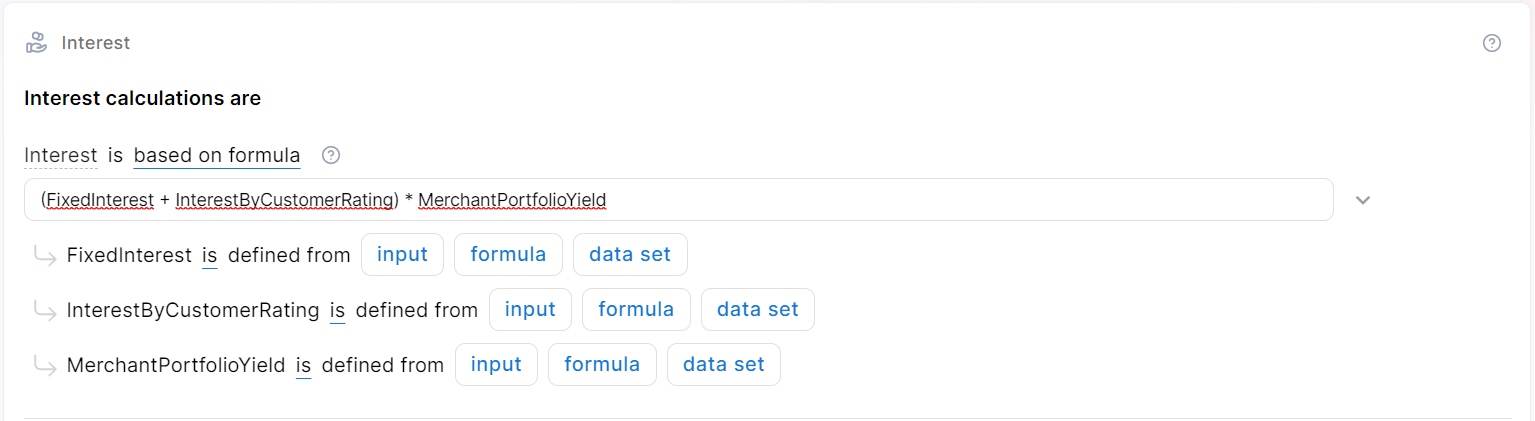
Interest = (FixedInterest + InterestByCustomerRating) * MerchantPortfolioYield
All three formula arguments are defined as data set types.
The customer's rating adds to a fixed interest rate to determine your product’s interest rate. It also considers the historical yield your financial institution had with a certain type of merchant who sold the product to customers.
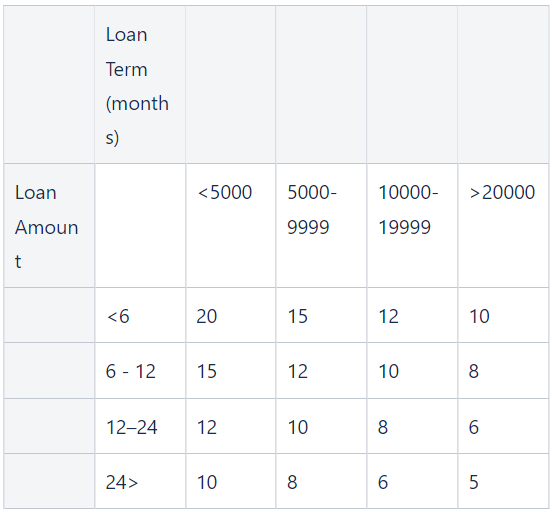
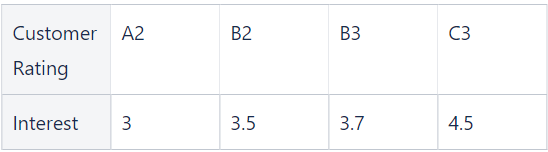
Sample data for the FixedInterest, InterestByCustomerRating, and MerchantPortfolioYield data sets are provided below:
FixedInterest data set:
InterestByCustomerRating data set:
MerchantPortfolioYield data set:
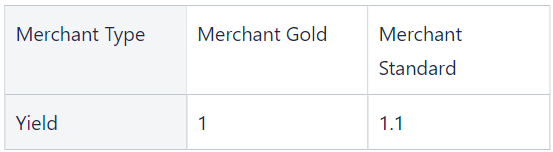
Assume your customer has a B2 credit rating and needs a $10,000 loan for three years (36 months). Considering that the merchant type is gold, the system will calculate the interest by extracting values from the data sets and entering them into the formula using these variables. This is the result: (6 * 3.5) * 1 = 21
Discount Formula Example
Credit Amount * (1 - (Income Level Factor * Loan-to-Value))
You calculate the discount based on two factors:
Income Level Factor: This factor represents the borrower's income level since you want a higher income level factor to indicate a stronger income profile.
Loan-to-Value Ratio Factor: This factor represents the loan amount's ratio to the collateral's appraised value. A lower loan-to-value ratio factor indicates a lower risk for the lender.
Sample data for the Income Level Factor data set is provided below:
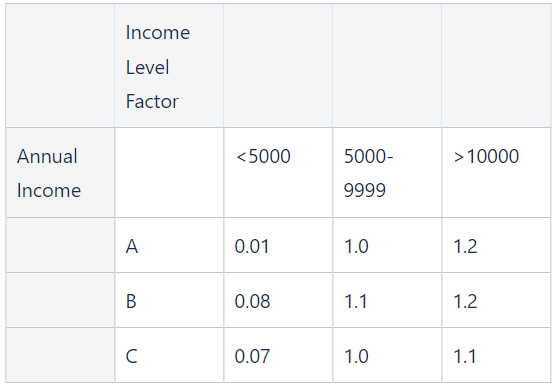
Assume a B income level factor customer with a $7,000 annual income applies for a mortgage to buy a $300,000 home. They have saved $60,000 for a down payment and require a $240,000 loan.
First, the Loan-to-Value Ratio Factor would be calculated as follows:
Loan-to-Value Ratio Factor = Credit Amount / Property Value
Loan-to-Value Ratio Factor = $240,000 / $300,000
Loan-to-Value Ratio Factor = 0.8
Then, you must extract the value for your customer from the data set and replace the arguments in your formula. This is the result:
240000 * (1- (1.2 * 0.8) = 9600
The final amount the customer needs to pay is the initial amount, minus the calculated discount. In this example, if the loan amount was $300,000 and the discount was $9,600, the customer would need to repay $290,400.
Pricing Formula Example
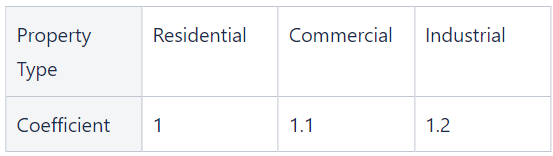
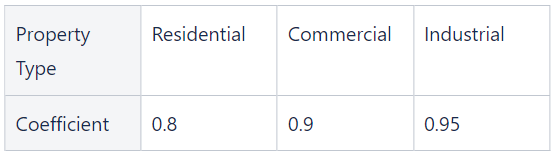
You want to calculate the premium for a property insurance policy. The premium amount is determined based on the Building sum insured, Building flexa coefficient, Building NatCat coefficient, and Payment frequency coefficient. These coefficients are obtained from data sets that account for various factors, such as property characteristics, location, and payment preferences.
Let's walk through an example to demonstrate how the next formula works:
InsuredAmount * 0,00048 * Building Flexa coefficient * Building Natcat coefficient * Payment Frequency Coefficient
Sample data for the needed data sets is provided below:
Building Flexa coefficient data set:
Building NatCat coefficient data set:
Payment frequency data set:
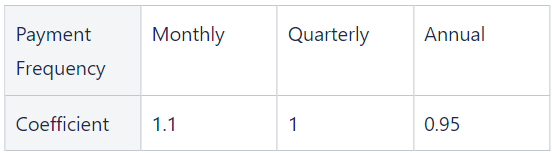
We are insuring a building situated in an industrial area and the premium will be paid in one installment (annual). Assume these details for the specific insurance policy; the coefficients will have the values below:
Building sum insured: $200,000
Building flexa coefficient: 1.2
Building NatCat coefficient: 0.9
Payment frequency coefficient: 0.95
You will use these variables to compute the pricing by inserting them into the formula. This is the result:
200,000 * 0.00048 * 1.2 * 0.9 * 0.95 = 98.496
Based on this scenario, you will charge a premium of $98.496 for the specified property insurance policy. The formula incorporates the relevant coefficients from the data sets to price the insurance coverage.
Underwriting Formula Examples (Banking and Insurance)
Banking
CurrentDTI < MaxDTI
Let’s assume you want to use the Debt-to-Income (DTI) ratio as one of the criteria for assessing a new loan’s eligibility. The DTI ratio measures the borrowers' ability to manage additional debt based on their current financial obligations and income.
The current DTI initial formula argument will be based on another formula, which is the following:
CurrentDTI = (ExistingInstallmentsAmount + LoanInstallmentAmount) / Income
Let's consider the following details for a customer loan application:
-
Existing monthly installments (such as credit card payments, car loans, etc.): $500
-
Loan installment for the new loan: $200
-
Customer monthly income: $2,000
This is the current DTI formula result: (500 + 200) / 2000 = 0.35
Consider the data set for the MaxDTI formula argument provided below, resulting in a value of 0.4 based on the customer's income.
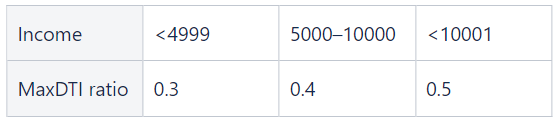
Next, the formula will evaluate the initial underwriting rule by replacing the formula arguments with values. This is the result: 0.35 < 0.4.
Since your customer’s current DTI of 0.35 is less than the maximum DTI ratio of 0.4, the customer meets the eligibility criteria for your product.
Insurance
As part of the underwriting process, you must assess an insurance application to determine eligibility.
You consider the risk factor allocated to the applicant based on their insurance history, the requested coverage level, the length of the policy's term, and the premium rate.
The risk factor and premium rate are data set formula arguments, whereas the coverage amount and premium rate are defined as input type.
Let's walk through an example to demonstrate how the next formula works:
(RiskFactor * CoverageAmount) / (PolicyDuration * PremiumRate) > 1.5
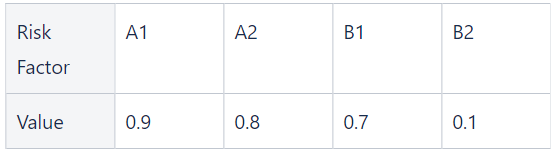
Below is sample data for the risk factor and premium rate data sets:
Risk Factor data set:
Premium rate data set:
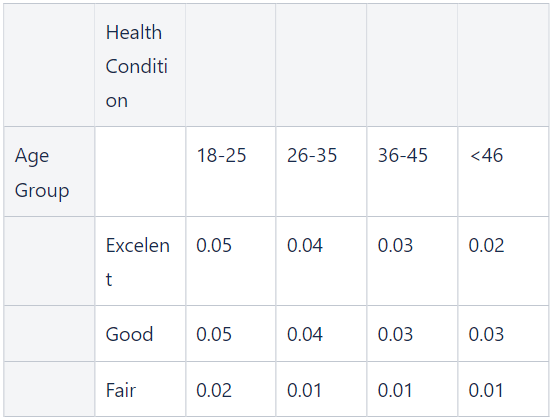
Assume your A2 risk factor customer wants coverage of $100,000 for the duration of one year. This is the result:
(0.8 * $100,000) / (1 * 0.03) > 1.5
19.2 > 1.5
Based on this result, you can offer the insurance policy with the desired coverage while meeting your guidelines.
Advanced Product Formulas
For complex calculations, you can use the Formula Editor to define product formulas that go beyond the basic expressions available in product templates. This allows you to take advantage of the advanced Business Formulas capabilities, such as multi-step logic, built-in functions, recursion, and formula testing across various scenarios.
Convert a Basic Product Formula into an Advanced Product Formula
You can use a basic product formula as a starting point for an advanced product formula. This will automatically convert your formula expression to the advanced format and create the corresponding input parameters and data sets.
Once you edit a formula in the advanced interface, its original expression is no longer visible or editable within the product template.
To convert and open a basic formula in the advanced editor:
- In the product template, locate the desired formula field.
- Click the fx drop-down button on the left side of the formula field.
- Select the name of the formula. This will replace the formula expression with the formula name in the formula field.
- Click the Edit button at the right side of the formula field.
This opens the formula in the Formula Editor where you can further edit it. You can access and further customize the Formula Inputs and Data Sets from the FintechOS Studio Business Formulas submenu.
Create an Advanced Product Formula from Scratch
To create an advanced product formula:
- In the product template, locate the desired formula field.
- Click the fx drop-down button on the left side of the formula field.
- Click + Create Formula.
- Select New Formula.
- Enter a name for the formula.
- Click Create Formula.
This opens the formula in the Formula Editor where you can further edit it. Use the Formula Inputs and Data Sets to define the arguments required by your formula.
Reuse a Product Formula Within the Same Product
A product formula can be reused across multiple components of the same product. For example, two different insurance coverages may share the same pricing calculation logic.
Editing a reused formula affects all its instances across the product.
To reuse a formula from the same product:
- In the product template, locate the desired formula field.
- Click the fx drop-down button on the left side of the formula field.
- Select an existing formula from the drop-down menu. This list includes all formulas defined in the current product.
Clone a Product Formula
If you wish to use one of the existing Business Formulas in your products, you can clone it. This creates a new, independent copy of the selected formula, allowing you to build formula templates that you can customize for various products.
The cloned business formula must be in the Active status.
To clone a business formula:
- In the product template, locate the desired formula field.
- Click the fx drop-down button on the left side of the formula field.
- Click + Create Formula.
- Select Clone Existing.
- Enter a new Formula Name.
- Use the Select Formula to Clone field to choose your source formula. This list includes formulas from both the current and other products.
- Click Clone Formula.
This opens the formula in the Formula Editor where you can further edit it. Use the Formula Inputs and Data Sets to configure the arguments used by your formula.