Formula Editor
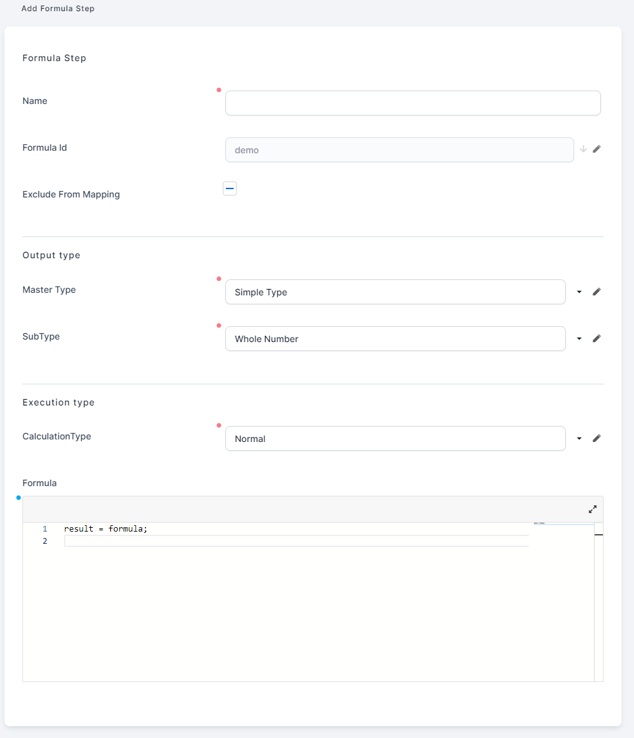
The formula editor is where you write the formula's actual mathematical expressions and computations. You can find the formula editor at the bottom of the “Add/Edit formula step” form.
For example, based on the data a client inserts as their KYC, the formula editor applies a calculation to return data such as the net income of a loan applicant or the age limit for a contract or the insurance premium for a policy. You can also test your formula before activating it. For more information about running tests, see Define Formula Expressions.
Syntax
In the editor, insert your formula expression based on a mathematical syntax comprised of the formula body and a call for calculation (the returned result). IntelliSense is available for quick selection of definitions and to provide additional information (such as properties and attributes) about the selected item.
When writing a formula, make sure the calculations match the step you are on, because the result may be used as input in the subsequent steps.
Use the following syntax in the formula editor to define a formula output:
result = <formula expression>;You can include multi-line C# code in the formula expression, as long as you assign a result value:
var a = 1;
var b = 2;
result = a + b;
The usual operator precedence for operations such as addition “+”, substraction “-“, multiplication “*” and division “/” is enforced and you can further control this by using parantheses () or by splitting your computation in multiple steps.
Formulas can be of the following types:
- constant: f = sum(1,n)
- linear: f(x) = 2*x+1 , where x = 1,100
- 2-dimensional: f(x,y) = x*y+30;
- n-dimensional etc.
- recursive: f(x) = f(x-1)+20.
Formula Arguments
Primary formula arguments are defined in the formula input (see Formula Inputs). For example, if you defined an argument called days in the formula input, you can create a formula step called years to convert the number of days into years with the following expression:
result = days / 365;You can also use previous steps' outputs as arguments for subsequent step inputs. For example, after the above step, you can create a step that calculates an interest by multiplying the principal and rate input parameters with the years result from the previous step:
result = principal * rate * yearsDynamic Collections Definitions
For collection outputs that use an Iteration calculation type, you must provide a generic formula that defines the value of a collection item in relation to the iteration counter specified in the Number of Iterations field (for details, see Add steps to a formula).
result[i] = <formula expression>;For example, if based on a collection of item prices called Values (either an input argument or an output from a prior step), you wish to generate a collection of objects that pair together item numbers with their corresponding prices, you can use the following step formula:
result[i] = new {Name = "Item" + i, Price = Values[i]};To make sure that the number of items matches the number of prices, set the number of iterations to
Values.Recursive formula definitions are also supported. For example, to generate a collection with the first x numbers in the Fibonacci sequence, use a whole number input argument called x for the number of iterations (make sure x is greater than or equal to 2) and use the following formula expression:
result[0] = 1;
result[1] = 1;
result[i] = result[i-1] + result[i-2];
IntelliSense Support
Pressing Ctrl+Space will launch the IntelliSense that can help you learn more about the formula you are editing, keep track of parameters you’re typing, add calls to functions and various information with only a few keystrokes.
Already pre-defined Steps also appear in IntelliSense since they can be called in any subsequent step.
Built-in Functions
You can include the following built-in functions in your formula expressions:
For Simple types
 IIF
IIF
Returns one of two values, depending on whether the Boolean Condition evaluates to true or false. Output can either be a number or a string. String based output cannot currently be used together with collection based functions like SELECT.
Syntax
/**
* @param booleanCondition - condition that has to return true/false
* @param trueValue - the value that is returned if booleanCondition is evaluated as true
* @param falseValue - the value that is returned if booleanCondition is evaluated as false
* @returns - return trueValue or falseValue
*/
IIF(booleanCondition, trueValue, falseValue): boolean
Example
//Example Formula Test
/*
Input:
    simpleCollection = [100, 200, 300, 400]

Output:
    result = 250
*/

//Exemple Formula Step
/* simpleCollection can be:
1. An argument of type Collection of Whole Number or Decimal
2. The result of a Previuos Step
3. Created in Formula Step like :
    var simpleCollection = new EBS.Core.Formulas.DecimalVector(100, 200, 300, 400);
    OR
    var simpleCollection = new decimal[] {100, 200, 300, 400};
*/

//Example Result
//result = IIF(COUNT(simpleCollection) > 0, "trueResult", "falseResult");

result = IIF(COUNT(simpleCollection) > 0, SUM(simpleCollection)/COUNT(simpleCollection) , 0);Returns the average of the numbers received as parameters.
Syntax
/**
* @param {number} number1 - required, the first number for which you want the average
* @param {number} number2, ... - optional, additional numbers for which you want the average
* @returns {number} - the average of the numbers
*/
AVERAGE(number1, [number2], ...): number
Example
//Example Formula Test
/*
Input:

Output:
    result = 250
*/

//Example Formula Step
result = AVERAGE(100, 200, 300, 400);Returns the absolute value of a number.
Syntax
/**
* @param {number} number - the number of which you want the absolute value
* @returns {number} - the absolute value
*/
ABS(number): number
Example
//Example Formula Test
/*
Input:
    num = -100
Output:
    result = 100
*/

//Example Formula Step
result = ABS(num);Raises a number to a power.
Syntax
/**
* @param {number} number - the base number
* @param {number} exponent - the exponent to which the base number is raised
* @returns {number} -
*/
POWER(number, exponent): number
Example
//Example Formula Test
/*
Input:
    num = 10
    exp = 2
Output:
    result = 100
*/

//Example Formula Step
result = POWER(num, exp);Returns true if the integer number is odd, otherwise false.
Syntax
/**
* @param {number} number - the number the needs to be verified
* @returns {boolean} -
*/
ODD(number): boolean
Example
//Example Formula Test
/*
Input:
    num = 3
Output:
    result = true
*/

/*
Input:
    num = 2
Output:
    result = false
*/

//Example Formula Step
result = ODD(num);Returns true if the integer number is even, otherwise false.
Syntax
/**
* @param {number} number - the number the needs to be verified
* @returns {boolean} -
*/
EVEN(number): boolean
Example
//Example Formula Test
/*
Input:
    num = 3
Output:
    result = false
*/

/*
Input:
    num = 2
Output:
    result = true
*/

//Example Formula Step
result = EVEN(num);Calculates the integral part of a specified decimal number.
Syntax
/**
* @param {number} number - the number the needs to be truncated
* @returns {number} -  the integral part of the number
*/
TRUNC(number): number
Example
//Example Formula Test
/*
Input:
    num = 17.53M
Output:
    result = 17
*/

//Example Formula Step
result = TRUNC(num);Rounds a decimal value to a specified number of fractional digits.
Syntax
/**
* @param {number} num - the number the needs to be rounded
* @param {number} precision - optional,  number of decimal places in the return value. The default value is 0
* @returns {number} -  The number nearest to num that contains a number of fractional digits equal to precision.
*/
ROUND(num, [precision]): number
Example
//Example Formula Test
/*
Input:
    num = -17.51M
Output:
    result = -18
*/

/*
Input:
    num = 17.51M
    precision = 1
Output:
    result = 17.5
*/

//Example Formula Step
result = ROUND(num, precision);Returns the smallest integral value that is greater than or equal to the specified decimal number.
Syntax
/**
* @param {number} num - the number the needs to be rounded up
* @returns {number} -  the smallest integral value that is greater than or equal to the specified decimal number.
*/
ROUNDUP(num): number
Example
//Example Formula Test
/*
Input:
    num = -17.51M
Output:
    result = -17
*/

/*
Input:
    num = 17.51M
Output:
    result = 18
*/

//Example Formula Step
result = ROUNDUP(num);Returns the largest integer less than or equal to the specified decimal number.
Syntax
/**
* @param {number} num - the number the needs to be rounded down
* @returns {number} -  the largest integer less than or equal to the specified decimal number.
*/
ROUNDDOWN(num): number
Example
//Example Formula Test
/*
Input:
    num = -17.51M
Output:
    result = -18
*/

/*
Input:
    num = 17.51M
Output:
    result = 17
*/

//Example Formula Step
result = ROUNDDOWN(num);Returns the largest integer less than or equal to the specified decimal number.
Syntax
/**
* @param {number} num - the number
* @returns {number} -  the largest integer less than or equal to the specified decimal number.
*/
FLOOR(num): number
Example
//Example Formula Test
/*
Input:
    num = -17.51M
Output:
    result = -18
*/

/*
Input:
    num = 17.51M
Output:
    result = 17
*/

//Example Formula Step
result = FLOOR(num);
For Collection Types
SELECTApplies a function to each element of the collection and returns a new collection with the results of the function invocation.
//Example Formula Test
/*
Input:
    productCollection = [
        {"name":"Product1", "priceWithVAT": 100 },
        {"name":"Product2", "priceWithVAT": 200 }]

Output:
    result = [100, 200]
*/

//Example Formula Step
/* productCollection can be:
1. An argument of type Collection of Object
2. The result of a Previuos Step
3. Created in Formula Step like :
    var prod1 = new {name = "Product1" , priceWithVAT = 100};
    var prod2 = new {Name = "Product2" , priceWithVAT = 200};
    var productCollection = new EBS.Core.Formulas.ObjectVector<dynamic>(prod1, prod2);
*/
result = FROM(productCollection).SELECT(x=>x.priceWithVAT);

//Example Formula Test
/*
Input:
    simpleCollection = [100, 200, 300, 400]

Output:
    result = [200, 400, 600, 800]
*/

//Example Formula Step
/* simpleCollection can be:
1. An argument of type Collection of Whole Number or Decimal
2. The result of a Previuos Step
3. Created in Formula Step like :
    var simpleCollection = new EBS.Core.Formulas.DecimalVector(100, 200, 300, 400);
    OR
    var simpleCollection = new decimal[] {100, 200, 300, 400};
*/
result = FROM(simpleCollection).SELECT(x=>x * 2);Applies a function to each element of the collection and returns a new collection with the filtered elements that respect the condition.
//Example Formula Test
/*
Input:
    productCollection = [
        {"name":"Product1", "priceWithVAT": 100 },
        {"name":"Product2", "priceWithVAT": 200 }]

Output:
    result = [200]
*/

//Example Formula Step
/* productCollection can be:
1. An argument of type Collection of Object
2. The result of a Previuos Step
3. Created in Formula Step like :
    var prod1 = new {name = "Product1" , priceWithVAT = 100};
    var prod2 = new {Name = "Product2" , priceWithVAT = 200};
    var productCollection = new EBS.Core.Formulas.ObjectVector<dynamic>(prod1, prod2);
*/
result = FROM(productCollection).WHERE(x=>x.priceWithVAT>150).SELECT(x=>x.priceWithVAT);Returns first element of the collection or the default value (0 for numeric elements). It goes well when used with WHERE and you are sure only one record is returned.
//Example Formula Test
/*
Input:
    productCollection = [
        {"name":"Product1", "priceWithVAT": 100 },
        {"name":"Product2", "priceWithVAT": 200 }]

Output:
    result = 200
*/

//Example Formula Step
/* productCollection can be:
1. An argument of type Collection of Object
2. The result of a Previuos Step
3. Created in Formula Step like :
    var prod1 = new {name = "Product1" , priceWithVAT = 100};
    var prod2 = new {name = "Product2" , priceWithVAT = 200};
    var productCollection = new EBS.Core.Formulas.ObjectVector<dynamic>(prod1, prod2);
*/
result = FROM(productCollection).WHERE(x=>x.priceWithVAT>150).SELECT(x=>x.priceWithVAT).FIRSTORDEFAULT();Can only be used with agregate function SUM.
Returns a new collection grouped by a property of the object.
//Example Formula Test
/*
Input:
    productCollection = [
        {category: "Cat1", name:"Product1", priceWithVAT: 100, quantity: 1 },
        {category: "Cat2", name:"Product2", priceWithVAT: 200, quantity: 2 },
        {category: "Cat1", name:"Product3", priceWithVAT: 300, quantity: 3 }]

Output:
    result = [
      {
        "category": "Cat1",
        "priceWithVAT": 400.0
      },
      {
        "category": "Cat2",
        "priceWithVAT": 200.0
      }
    ]
*/

//Example Formula Step
/* productCollection can be:
1. An argument of type Collection of Object
2. The result of a Previuos Step
3. Created in Formula Step like :
    var prod1 = new {category: "Cat1", name = "Product1" , priceWithVAT = 100, quantity: 1};
    var prod2 = new {category: "Cat2", name = "Product2" , priceWithVAT = 200, quantity: 2};
    var prod3 = new {category: "Cat1", name = "Product3" , priceWithVAT = 300, quantity: 3};
    var productCollection = new EBS.Core.Formulas.ObjectVector<dynamic>(prod1, prod2, prod3);
*/
result = FROM(productCollection).GROUPBY("category").SUM("priceWithVAT");Returns a new collection with a new property added to all elements in the collection. Also, for each element it assigns a value for the new added property.
//Example Formula Test
/*
Input:
    productCollection = [
        {category: "Cat1", name:"Product1", priceWithVAT: 100, quantity: 1 },
        {category: "Cat2", name:"Product2", priceWithVAT: 200, quantity: 2 },
        {category: "Cat1", name:"Product3", priceWithVAT: 300, quantity: 3 }]

Output:
    result = [
      {
        "category": "Cat1",
        "name": "Product1",
        "priceWithVAT": 100.0,
        "quantity": 1.0,
        "totalPriceWithVAT": 100.0
      },
      {
        "category": "Cat2",
        "name": "Product2",
        "priceWithVAT": 200.0,
        "quantity": 2.0,
        "totalPriceWithVAT": 400.0
      },
      {
        "category": "Cat1",
        "name": "Product3",
        "priceWithVAT": 300.0,
        "quantity": 3.0,
        "totalPriceWithVAT": 900.0
      }
    ]
*/

//Example Formula Step
/* productCollection can be:
1. An argument of type Collection of Object
2. The result of a Previuos Step
3. Created in Formula Step like :
    var prod1 = new {category: "Cat1", name = "Product1" , priceWithVAT = 100, quantity: 1};
    var prod2 = new {category: "Cat2", name = "Product2" , priceWithVAT = 200, quantity: 2};
    var prod3 = new {category: "Cat1", name = "Product3" , priceWithVAT = 300, quantity: 3};
    var productCollection = new EBS.Core.Formulas.ObjectVector<dynamic>(prod1, prod2, prod3);
*/
result = FROM(productCollection).EXTENDELEMENTS("totalPriceWithVAT", x=>x.priceWithVAT * x.quantity);
To add multiple properties to a collection, use the EXTENDELEMENTS function repeatedly:
var newColl = FROM(CollArg).EXTENDELEMENTS("elem1", x=>x.Price*2);
result = FROM(newColl).EXTENDELEMENTS("elem2", x=>x.Price*10);Count is a property of collections, it returns the number of elements from the collection.
//Example Formula Test
/*
Input:
    productCollection = [
        {"name":"Product1", "priceWithVAT": 100 },
        {"name":"Product2", "priceWithVAT": 200 }]

Output:
    result = 2
*/

//Example Formula Step
/* productCollection can be:
1. An argument of type Collection of Object
2. The result of a Previuos Step
3. Created in Formula Step like :
    var prod1 = new {name = "Product1" , priceWithVAT = 100};
    var prod2 = new {name = "Product2" , priceWithVAT = 200};
    var productCollection = new EBS.Core.Formulas.ObjectVector<dynamic>(prod1, prod2);
*/
result = FROM(productCollection).WHERE(x=>x.priceWithVAT>=100).Count;Returns the sum of a property from the array of objects.
//Example Formula Test
/*
Input:
    productCollection = [
        {category: "Cat1", name:"Product1", priceWithVAT: 100, quantity: 1 },
        {category: "Cat2", name:"Product2", priceWithVAT: 200, quantity: 2 },
        {category: "Cat1", name:"Product3", priceWithVAT: 300, quantity: 3 }]

Output:
    result = 600
*/

//Example Formula Step
/* productCollection can be:
1. An argument of type Collection of Object
2. The result of a Previuos Step
3. Created in Formula Step like :
    var prod1 = new {category: "Cat1", name = "Product1" , priceWithVAT = 100, quantity: 1};
    var prod2 = new {category: "Cat2", name = "Product2" , priceWithVAT = 200, quantity: 2};
    var prod3 = new {category: "Cat1", name = "Product3" , priceWithVAT = 300, quantity: 3};
    var productCollection = new EBS.Core.Formulas.ObjectVector<dynamic>(prod1, prod2, prod3);
*/
result = FROM(productCollection).SUM("priceWithVAT");Return the items from the collection with the min/max value for a property of the object.
Examples:
//Example Formula Test
/*
Input:
    productCollection = [
        {"name":"Product1", "priceWithVAT": 100 },
        {"name":"Product2", "priceWithVAT": 200 },
        {"name":"Product3", "priceWithVAT": 100 }]

Output:
    result = [{"name":"Product2", "priceWithVAT": 200}]
*/

//Example Formula Step
/* productCollection can be:
1. An argument of type Collection of Object
2. The result of a Previuos Step
3. Created in Formula Step like :
    var prod1 = new {name = "Product1" , priceWithVAT = 100};
    var prod2 = new {name = "Product2" , priceWithVAT = 200};

*/
result = FROM(productCollection).MAX(x=>x.priceWithVAT);//Example Formula Test
/*
Input:
productCollection = [
{"name":"Product1", "priceWithVAT": 100 },
{"name":"Product2", "priceWithVAT": 200 },
{"name":"Product3", "priceWithVAT": 100 }]
Output:
result = [{"name":"Product1", "priceWithVAT": 100 },
{"name":"Product3", "priceWithVAT": 100 }]
*/
//Example Formula Step
/* productCollection can be:
1. An argument of type Collection of Object
2. The result of a Previuos Step
3. Created in Formula Step like :
var prod1 = new {name = "Product1" , priceWithVAT = 100};
var prod2 = new {name = "Product2" , priceWithVAT = 200};
*/
result = FROM(productCollection).MIN(x=>x.priceWithVAT);For Simple Collections Types
RANGE with SKIP and/or TAKEGenerates a sequence of numbers within a specified range.
Syntax
/**
* @param {number[]} simpleCollection - simple collection of decimals
* @param rangeOperators - range operators of type SKIP and TAKE
* @returns {number[]} -  the sequence of numbers within a specified range.
*/
RANGE(simpleCollection, rangeOperators...): number[]
Example
//Example Formula Test
/*
Input:
    simpleCollection = [100, 200, 300, 400]

Output:
    result = [100, 200]
*/

//Example Formula Step
/* simpleCollection can be:
1. An argument of type Collection of Whole Number or Decimal
2. The result of a Previuos Step
3. Created in Formula Step like :
    var simpleCollection = new EBS.Core.Formulas.DecimalVector(100, 200, 300, 400);
    OR
    var simpleCollection = new decimal[] {100, 200, 300, 400};
*/
result = RANGE(simpleCollection, TAKE(2));

//Example Formula Test
/*
Input:
    simpleCollection = [100, 200, 300, 400]

Output:
    result = [200, 300]
*/

//Example Formula Step
result = RANGE(simpleCollection, SKIP(1), TAKE(2));

//Example Formula Test
/*
Input:
    simpleCollection = [100, 200, 300, 400]

Output:
    result = [200, 300, 400]
*/

//Example Formula Step
result = RANGE(simpleCollection, SKIP(1));Returns the min/max from the collection.
Syntax
/**
* @param simpleCollection - simple collection of decimals
* @returns {number} -
*/
MIN(simpleCollection): number
MAX(simpleCollection): number
Example
//Example Formula Test
/*
Input:
    simpleCollection = [200, 300, 400]

Output:
    result = 100
*/

//Example Formula Step
/* simpleCollection can be:
1. An argument of type Collection of Whole Number or Decimal
2. The result of a Previuos Step
3. Created in Formula Step like :
    var simpleCollection = new EBS.Core.Formulas.DecimalVector(100, 200, 300, 400);
    OR
    var simpleCollection = new decimal[] {100, 200, 300, 400};
*/
result = MIN(simpleCollection);

//Example Formula Test
/*
Input:
     simpleCollection = [100, 200, 300, 400]

Output:
    result = 400
*/

//Example Formula Step
result = MAX(simpleCollection); Returns the average of the collection of numbers received as parameter.
Syntax
/**
* @param {number[]} simpleCollection - simple collection of decimals

* @returns {number} - the average of the numbers
*/
AVERAGE(simpleCollection): number
Example
//Example Formula Test
/*
Input:
    simpleCollection = [100, 200, 300, 400]

Output:
    result = 250
*/

//Example Formula Step
/* simpleCollection can be:
1. An argument of type Collection of Whole Number or Decimal
2. The result of a Previuos Step
3. Created in Formula Step like :
    var simpleCollection = new EBS.Core.Formulas.DecimalVector(100, 200, 300, 400);
    OR
    var simpleCollection = new decimal[] {100, 200, 300, 400};
*/
result = AVERAGE(simpleCollection);Returns the sum/count of the elements from the collection.
Syntax
/**
* @param {number[]} simpleCollection - simple collection of decimals
* @returns {number} -
*/
SUM(simpleCollection): number
COUNT(simpleCollection): number
Example
//Example Formula Test
/*
Input:
    simpleCollection = [100, 200, 300, 400]

Output:
    result = 1000
*/

//Example Formula Step
result = SUM(simpleCollection);

//Example Formula Test
/*
Input:
    simpleCollection = [100, 200, 300, 400]

Output:
    result = 4
*/

//Example Formula Step
/* simpleCollection can be:
1. An argument of type Collection of Whole Number or Decimal
2. The result of a Previuos Step
3. Created in Formula Step like :
    var simpleCollection = new EBS.Core.Formulas.DecimalVector(100, 200, 300, 400);
    OR
    var simpleCollection = new decimal[] {100, 200, 300, 400};
*/
result = COUNT(simpleCollection);Returns the sum/count of the elements from the collection that respect the condition.
Syntax
/**
* @param {number[]} simpleCollection - simple collection of decimals
* @param  filter - the condition for filtering
* @returns {number} -
*/
SUMIF(simpleCollection, filter): number
COUNTIF(simpleCollection, filter): number
Example
The 'it' from the filter is just a convention for naming an item of the collection.
//Example Formula Test
/*
Input:
    simpleCollection = [100, 200, 300, 400]

Output:
    result = 700
*/

//Example Formula Step
/* simpleCollection can be:
1. An argument of type Collection of Whole Number or Decimal
2. The result of a Previuos Step
3. Created in Formula Step like :
    var simpleCollection = new EBS.Core.Formulas.DecimalVector(100, 200, 300, 400);
    OR
    var simpleCollection = new decimal[] {100, 200, 300, 400};
*/
result = SUMIF(simpleCollection, it > 250);

//Example Formula Test
/*
Input:
    simpleCollection = [100, 200, 300, 400]

Output:
    result = 2
*/

//Example Formula Step
result = COUNTIF(simpleCollection, it > 250);
Formula Built-in Excel Functions
RATEReturns the interest rate per period of an annuity. RATE is calculated by iteration and can have zero or more solutions.
Syntax
/**
* @param {number} nPer - Required. The total number of payment periods in an annuity.
* @param {number}  pmt - Required. The payment made each period and cannot change over the life of the annuity.
* @param {number}  pv - Required. The present value — the total amount that a series of future payments is worth now.
* @param {number}  fv - Optional. The future value, or a cash balance you want to attain after the last payment is made. Default value 0.
* @param {number}  dueDate - Optional. 0 or omitted - At the end of the period / 1 - At the beginning of the period
* @param {number}  guess - Optional. Your guess for what the rate will be. Default is 10%
* @returns {number} -  Returns the interest rate per period of an annuity
*/
RATE(nPer, pmt, pv, fv, dueDate, guess)): number
Example
//Example Formula Test
/*
Input:
    years: 4,
    monthlyPayment: -200,
    loanAmount: 8000

Output:
    result = 0.00770147248821008M

*/

//Example Formula Step
result = RATE(years * 12, monthlyPayment, loanAmount);Calculates the payment for a loan based on constant payments and a constant interest rate.
Syntax
/**
* @param {number} rate - Required. The interest rate for the loan.
* @param {number}  nPer - Required. The total number of payments for the loan.
* @param {number}  pv - Required. The present value — the total amount that a series of future payments is worth now.
* @param {number}  fv - Optional. The future value, or a cash balance you want to attain after the last payment is made. Default value 0.
* @param {number}  dueDate - Optional. 0 or omitted - At the end of the period / 1 - At the beginning of the period
* @returns {number} -  Returns the payment for a loan based on constant payments and a constant interest rate.
*/
PMT(rate, nPer, pv, fv, dueDate)): number
Example
//Example Formula Test
/*
Input:
    anualRate: 0.08,
    monthsPayments: 10,
    loanAmount: 10000

Output:
    result = -1037.03208935916

*/

//Example Formula Step
result = PMT(anualRate/12, monthsPayments, loanAmount);Returns the number of periods for an investment based on periodic, constant payments and a constant interest rate.
Syntax
/**
* @param {number} rate - Required. The interest rate for the loan.
* @param {number}  pmt - Required. The payment made each period and cannot change over the life of the annuity.
* @param {number}  pv - Required. The present value — the total amount that a series of future payments is worth now.
* @param {number}  fv - Optional. The future value, or a cash balance you want to attain after the last payment is made. Default value 0.
* @param {number}  dueDate - Optional. 0 or omitted - At the end of the period / 1 - At the beginning of the period
* @returns {number} -  Returns the number of periods for an investment based on periodic, constant payments and a constant interest rate.
*/
NPER(rate, pmt, pv, fv, dueDate)): number
Example
//Example Formula Test
/*
Input:
    annulInterestRate: 0.12,
    monthlyPayment: -100,
    presentValue: -1000,
    futureValue: 10000

Output:
    result = 59.6738657

*/

//Example Formula Step
result = NPER(annulInterestRate/12, monthlyPayment, presentValue, futureValue, 1);Calculates the net present value of an investment by using a discount rate and a series of future payments (negative values) and income (positive values).
Syntax
/**
* @param {number} rate - Required. The interest rate per period.
* @param {number}  values - Required. The cash flow values. It must contain at least one negative value (a payment) and one positive value (a receipt).
* @returns {number} - Calculates the net present value of an investment by using a discount rate and a series of future payments (negative values) and income (positive values).
*/
NPV(rate, values): number
Example
//Example Formula Test
/*
Input:
    annulDiscountRate: 0.1,
    cashFlowValues: [-10000, 3000, 4200, 6800]

Output:
    result = 1,188.44

*/

//Example Formula Step
result = NPV(annulDiscountRate, cashFlowValues);
Formula Built-in DateTime Functions
GETDATEPARTReturns the datePart of the date. The datePart refers to DAY, MONTH Or YEAR. Use DATEPART.DAY/MONTH/YEAR to specify the desired format.
Syntax
/**
* @param dateTimeArgument {Date} - the date argument
* @param datePart - refers to DAY, MONTH Or YEAR
* @returns {number} - the datePart of the date
*/
GETDATEPART(dateTimeArgument, datePart): number
Example
//Example Formula Test
/*
Input:
    dateTimeArgument = "2021-05-01T00:00:00.000Z";
    datePart =  DATEPART.DAY;

Output:
    result = 1;
*/

//Example Formula Step
result = GETDATEPART(dateTimeArgument, datePart);Returns the date without the time component.
Syntax
/**
* @param dateTimeArgument {Date} - the date argument
* @returns {Date} - the date without the time component
*/
GETDATE(dateTimeArgument): Date
Example
//Example Formula Test
/*
Input:
     dateTimeArgument = "2021-05-01T10:05:00.000Z";
Output:
    result = "2021-05-01T00:00:00Z";
*/

//Example Formula Step
result = GETDATE(dateTimeArgument);Returns the day of the month.
Syntax
/**
* @param dateTimeArgument {Date} - the date argument
* @returns {number} - the day of the month
*/
GETDAY(dateTimeArgument): number
Example
//Example Formula Test
/*
Input:
     dateTimeArgument = "2021-05-15T00:00:00.000Z";
Output:
     result = 15;
*/

//Example Formula Step
result = GETDAY(dateTimeArgument);Returns the month component of the date.
Syntax
/**
* @param dateTimeArgument {Date} - the date argument
* @returns {number} - the month component of the date
*/
GETMONTH(dateTimeArgument): number
Example
//Example Formula Test
/*
Input:
     dateTimeArgument = "2021-05-15T00:00:00.000Z";
Output:
     result = 5;
*/

//Example Formula Step
result = GETMONTH(dateTimeArgument);Returns the year component of the date.
Syntax
/**
* @param dateTimeArgument {Date} - the date argument
* @returns {number} - the day of the month
*/
GETYEAR(dateTimeArgument): number
Example
//Example Formula Test
/*
Input:
     dateTimeArgument = "2021-05-15T00:00:00.000Z";
Output:
    result = 2021;
*/

//Example Formula Step
result = GETYEAR(dateTimeArgument);Returns a new date that adds the specified number of datePart. The datePart refers to DAY, MONTH or YEAR. Use DATEPART.DAY/MONTH/YEAR to specify the desired format.
Syntax
/**
* @param dateTimeArgument {Date} - the date argument
* @param value {number} - the value to be added to the given date
* @param datePart - refers to DAY, MONTH Or YEAR
* @returns {Date} -  a new date that adds the specified number of datePart
*/
ADDDATEPART(dateTimeArgument, value, datePart): Date
Example
//Example Formula Test
/*
Input:
    dateTimeArgument = "2021-05-15T00:00:00.000Z";
    value = 5;
    datePart =  DATEPART.MONTH;
Output:
    result = "2021-10-15T00:00:00.00Z";
*/

//Example Formula Step
result = ADDDATEPART(dateTimeArgument, 5, DATEPART.MONTH);Returns a new date that adds the specified number of days.
Syntax
/**
* @param dateTimeArgument {Date} - the date argument
* @param value {number} - the value to be added to the given date
* @returns {Date} -  a new date that adds the specified number of days
*/
ADDDAYS(dateTimeArgument, value): Date
Example
//Example Formula Test
/*
Input:
    dateTimeArgument = "2021-05-15T00:00:00.000Z";
     value = 15;
Output:
    result = "2021-05-30T00:00:00.000Z";
*/

//Example Formula Step
result = ADDDAYS(dateTimeArgument, value);
ADDMONTHSReturns a new date that adds the specified number of months.
Syntax
/**
* @param dateTimeArgument {Date} - the date argument
* @param value {number} - the value to be added to the given date
* @returns {Date} -  a new date that adds the specified number of months
*/
ADDMONTHS(dateTimeArgument, value): Date
Example
//Example Formula Test
/*
Input:
    dateTimeArgument = "2021-05-15T00:00:00.000Z";
     value = 2;
Output:
    result = "2021-07-15T00:00:00.000Z";
*/

//Example Formula Step
result = ADDMONTHS(dateTimeArgument, value);Returns a new date that adds the specified number of years.
Syntax
/**
* @param dateTimeArgument {Date} - the date argument
* @param value {number} - the value to be added to the given date
* @returns {Date} -  a new date that adds the specified number of years
*/
ADDYEARS(dateTimeArgument, value): Date
Example
//Example Formula Test
/*
Input:
    dateTimeArgument = "2021-05-15T00:00:00.000Z";
     value = 5;
Output:
    result = "2026-05-15T00:00:00.000Z";
*/

//Example Formula Step
result = ADDYEARS(dateTimeArgument, value);Returns '-1' if date1 is earlier than date2, '0' if date1 is the same as date2, and it returns '1' if date1 is later than date2.
Syntax
/**
* @param dateTimeArgument1 {Date} - the first date argument
* @param dateTimeArgument2 {Date} - the second date argument
* @returns {number} -  '-1' if dateTimeArgument1 is earlier than dateTimeArgument2, '0' if dateTimeArgument1 is the same as dateTimeArgument2 and it returns '1' if dateTimeArgument1 is later than dateTimeArgument2
*/
DATECOMPARE(dateTimeArgument1, dateTimeArgument2): number
Example
//Example Formula Test
/*
Input:
    dateTimeArgument1 = "2021-05-15T00:00:00.000Z";
    dateTimeArgument2 = "2021-06-15T00:00:00.000Z";
Output:
    result = -1;
*/

//Example Formula Step
result = DATECOMPARE(dateTimeArgument1, dateTimeArgument2);Returns the difference between two dates. The difference is expressed in the specified datePart. The datePart refers to DAY, MONTH or YEAR. Use DATEPART.DAY/MONTH/YEAR to specify the desired format.
Syntax
/**
* @param dateTimeArgument1 {Date} - the first date argument
* @param dateTimeArgument2 {Date} - the second date argument
* @param datePart - refers to DAY, MONTH Or YEAR
* @returns {number} -  the difference between dateTimeArgument1 and dateTimeArgument2 expressed in the specified datePart
*/
DATEDIFF(dateTimeArgument1, dateTimeArgument2, datePart): number
Example
//Example Formula Test
/*
Input:
    dateTimeArgument1 = "2021-05-25T00:00:00.000Z";
    dateTimeArgument2 = "2021-05-05T00:00:00.000Z";
    datePart =  DATEPART.DAY;
Output:
    result = 20;
*/

//Example Formula Step
result = DATEDIFF(dateTimeArgument1, dateTimeArgument2, datePart);Returns the difference of days between two dates.
Syntax
/**
* @param dateTimeArgument1 {Date} - the first date argument
* @param dateTimeArgument2 {Date} - the second date argument
* @returns {number} - the difference of days between two dates
*/
DIFFDAYS(dateTimeArgument1, dateTimeArgument2): number
Example
//Example Formula Test
/*
Input:
    dateTimeArgument1 = "2021-05-01T00:00:00.000Z";
    dateTimeArgument2 = "2021-05-11T00:00:00.000Z";
Output:
    result = -10;
*/

//Example Formula Step
result = DIFFDAYS(dateTimeArgument1, dateTimeArgument2);Returns the difference of months between two dates.
Syntax
/**
* @param dateTimeArgument1 {Date} - the first date argument
* @param dateTimeArgument2 {Date} - the second date argument
* @returns {number} - the difference of months between two dates
*/
DIFFMONTHS(dateTimeArgument1, dateTimeArgument2): number
Example
//Example Formula Test
/*
Input:
    dateTimeArgument1 = "2021-08-01T00:00:00.000Z";
    dateTimeArgument2 = "2021-07-11T00:00:00.000Z";
Output:
    result = 1;
*/

//Example Formula Step
result = DIFFMONTHS(dateTimeArgument1, dateTimeArgument2);Returns the difference of months between two dates.
Syntax
/**
* @param dateTimeArgument1 {Date} - the first date argument
* @param dateTimeArgument2 {Date} - the second date argument
* @returns {number} - the difference of months between two dates
*/
DIFFMONTHSEXACT(dateTimeArgument1, dateTimeArgument2): number
Example
//Example Formula Test
/*
Input:
    dateTimeArgument1 = "2021-08-01T00:00:00.000Z";
    dateTimeArgument2 = "2021-07-11T00:00:00.000Z";
Output:
    result = 0;
*/

//Example Formula Step
result = DIFFMONTHSEXACT(dateTimeArgument1, dateTimeArgument2);Returns the difference of years between two dates.
Syntax
/**
* @param dateTimeArgument1 {Date} - the first date argument
* @param dateTimeArgument2 {Date} - the second date argument
* @returns {number} - the difference of years between two dates
*/
DIFFYEARS(dateTimeArgument1, dateTimeArgument2): number
Example
//Example Formula Test
/*
Input:
    dateTimeArgument1 = "2022-08-01T00:00:00.000Z";
    dateTimeArgument2 = "2021-11-11T00:00:00.000Z";
Output:
    result = 1;
*/

//Example Formula Step
result = DIFFYEARS(dateTimeArgument1, dateTimeArgument2);Returns the difference of years between two dates.
Syntax
/**
* @param dateTimeArgument1 {Date} - the first date argument
* @param dateTimeArgument2 {Date} - the second date argument
* @returns {number} - the difference of years between two dates
*/
DIFFYEARSEXACT(dateTimeArgument1, dateTimeArgument2): number
Example
//Example Formula Test
/*
Input:
    dateTimeArgument1 = "2022-08-01T00:00:00.000Z";
    dateTimeArgument2 = "2021-11-11T00:00:00.000Z";
Output:
    result = 0;
*/

//Example Formula Step
result = DIFFYEARSEXACT(dateTimeArgument1, dateTimeArgument2);Return the first day of month.
Syntax
/**
* @param dateTimeArgument {Date} - the date argument
* @returns {Date} - the first day of month
*/
FIRSTDAYOFMONTH(dateTimeArgument): Date
Example
//Example Formula Test
/*
Input:
    dateTimeArgument = "2022-08-21T00:00:00.000Z";
Output:
    result = "2022-08-01T00:00:00";
*/

//Example Formula Step
result = FIRSTDAYOFMONTH(dateTimeArgument);Return the last day of month.
Syntax
/**
* @param dateTimeArgument {Date} - the date argument
* @returns {Date} - the last day of month
*/
LASTDAYOFMONNTH(dateTimeArgument): Date
Example
//Example Formula Test
/*
Input:
    dateTimeArgument = "2022-08-21T00:00:00.000Z";
Output:
    result = "2022-08-31T00:00:00";
*/

//Example Formula Step
result = LASTDAYOFMONNTH(dateTimeArgument);
Data Set Calls
To extract value mappings from data sets (see Data Sets for details), use the following syntax:
DataSet("<data set name>", ("<discriminant 1 name>", <discriminant 1 value>), ("<discriminant 2 name>", <discriminant 2 value>) ... )If all the discriminants are given as a parameter, the result will be a value. However, if one of the discriminants is not sent as a parameter, the result will be an array.
ExampleIn the example below, we return a risk coefficient from a data set called RiskPrice with two discriminants (structure_type and risk_type). We retrieve the value corresponding to the structure and risk stored in the myStructure and myRisk input parameters.
The sub-types that are text are written using quotation marks.
result = DataSet("RiskPrice", ("structure_type", myStructure), ("risk_type", myRisk));