Use predefined UI templates
The UI Designer comes with several preset UI templates for frequent use cases such as product information pages, contact forms, customer registration, identity validation, or landing pages, that you can use as a starting point in laying out the UI.
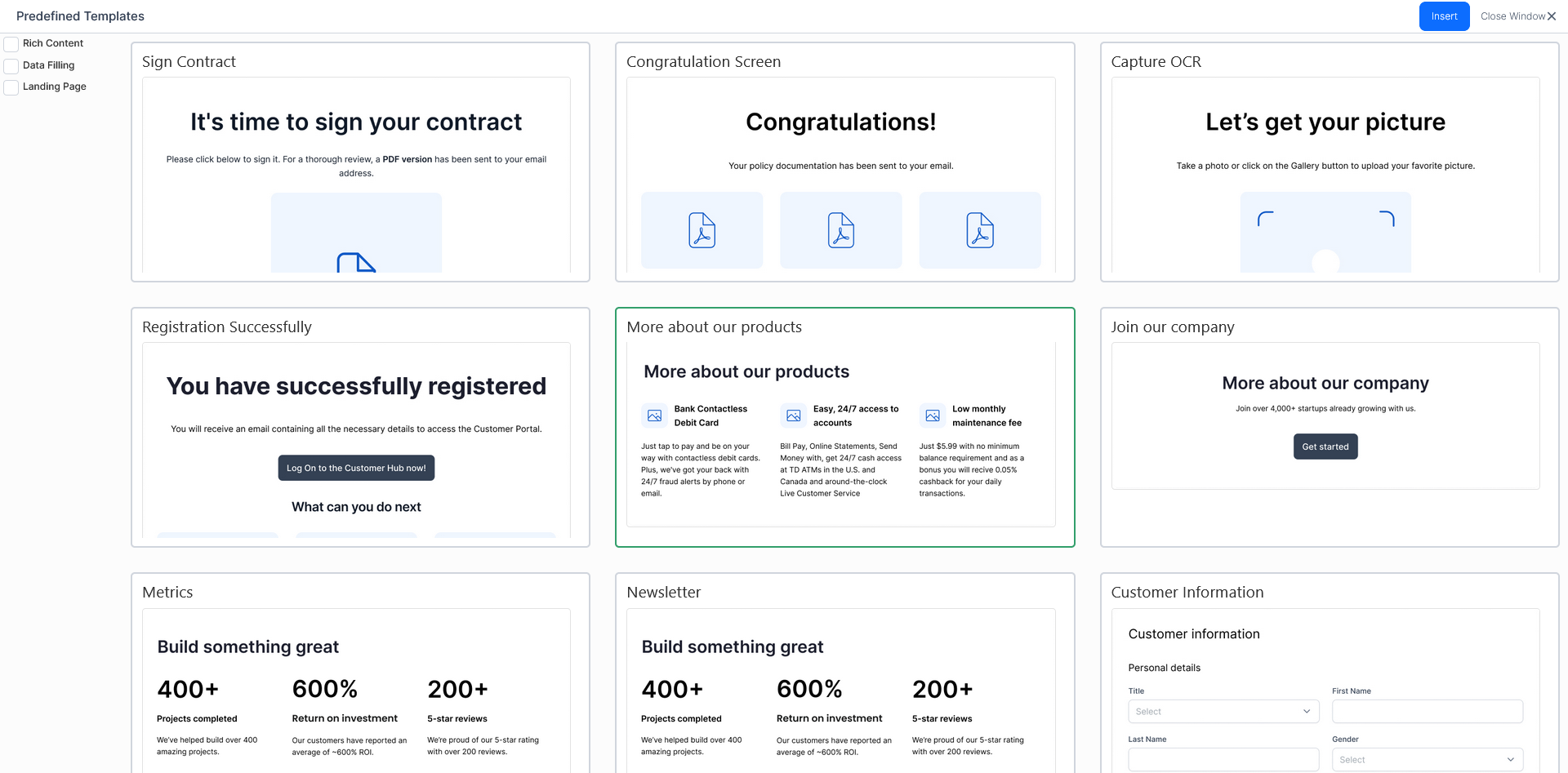
To add a predefined template to the user interface:
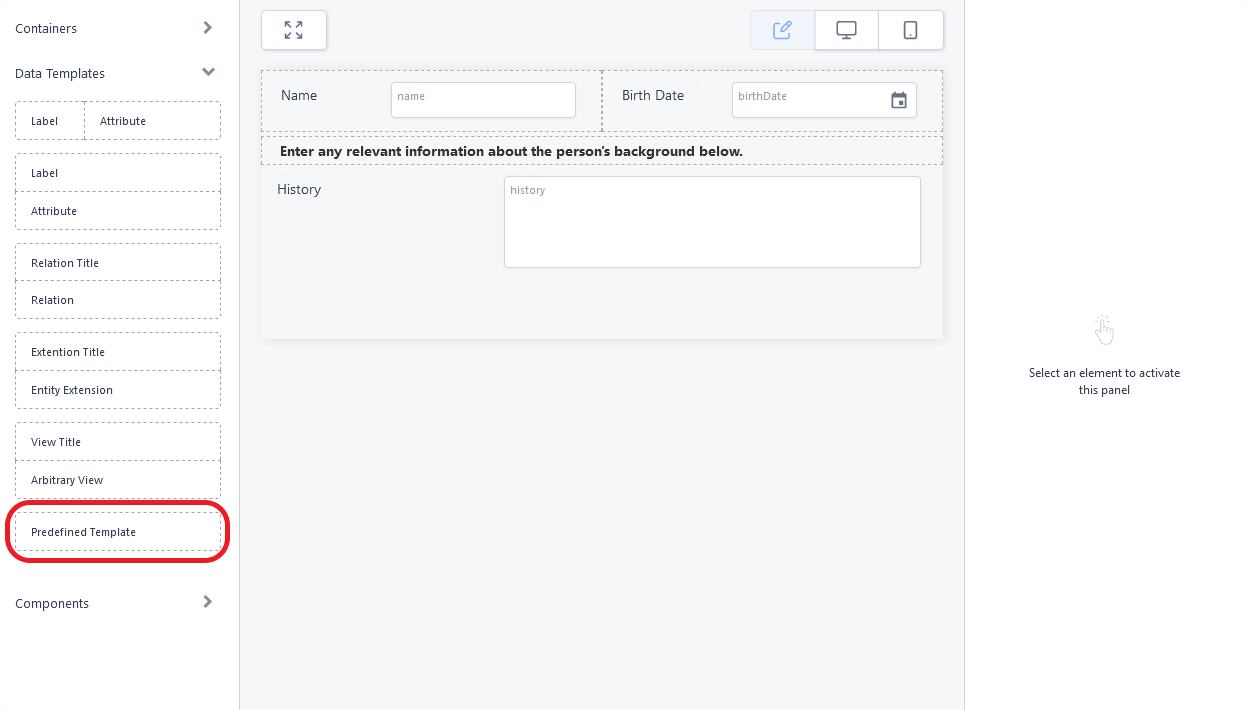
- In the UI Designer's left panel, from the Data Templates section, select the Predefined Templates element and drag it to the working area in the desired position. For more information, see Adding UI elements to the user interface.
- Select the desired template from the previewer and click Insert. You can use the checkboxes on the left to filter the available templates.
- Customize the inserted UI elements according to your requirements. To modify a UI element, select it in the main area and edit its properties from the right panel.
- Click Save and reload to save the form.
HINT
You can import multiple templates in the same UI, then mix elements between them (see Moving and deleting UI elements).
You can import multiple templates in the same UI, then mix elements between them (see Moving and deleting UI elements).