Create a Connector
Connectors are simple, data point connections to external Saas providers, that are used to enrich internal customer data to help in onboarding and risk decision scenarios. API Connectors gather data from a collection of REST APIs with the purpose of merging them into a cloud-based data storage system. This process gives the possibility of filtering and transforming data into a proper format or structure for the purposes of querying and analysis.
Follow the below steps when building a new ecosystem connector.
Prerequisites
In order to build a new connector, you need to the following:
- A code editor such as Visual Studio Code or IntelliJ IDEA.
- Latest versions of Java Development Kit, Git, and Apache Maven installed.
- Submit a request to FintechOS ITSupport to obtain access to FintechOS-ManagedServices Azure Devops Artifactory (service-pipes - Azure Artifacts) and the GitHub template.
Use the GitHub Template
Ecosystem connectors cannot run independently and must be included in a Service Pipes project. Use the instructions from the Service Pipes template to set up and configure your Service Pipes Applications projects.
Create the Project Structure
To define the project structure, you need to:
- Create a repository in Git and name it ecosystem-project.
- Clone the created repository locally.
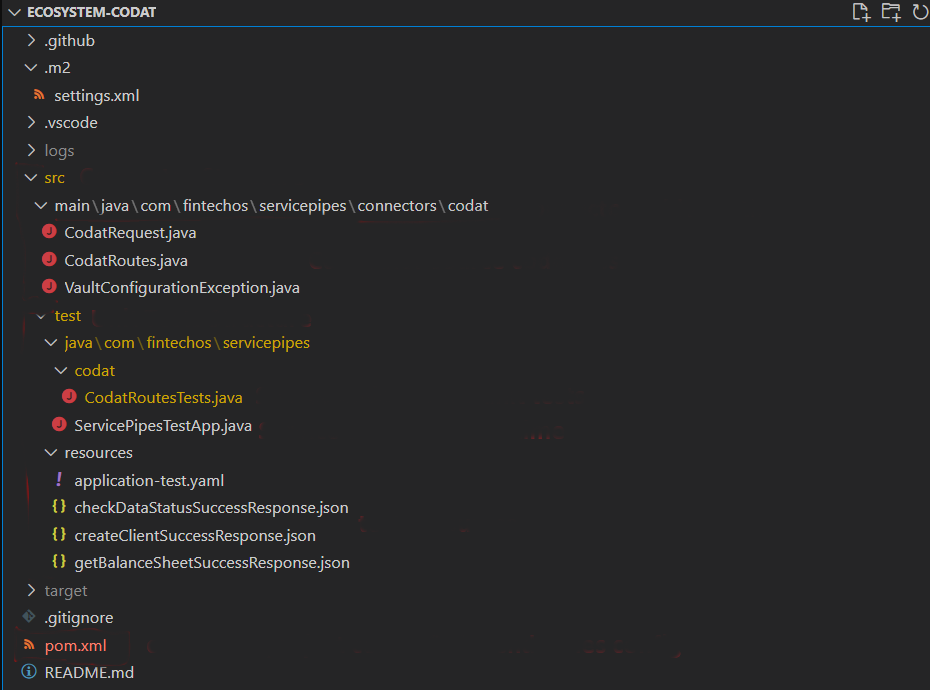
- Build the project structure as per the below image:
Project Configurations and Settings
Project Object Model (POM) File
The pom.xml file contains project and dependencies configurations and has the following structure:
<?xml version="1.0" encoding="UTF-8"?>
<project xmlns="http://maven.apache.org/POM/4.0.0" xmlns:xsi="http://www.w3.org/2001/XMLSchema-instance"
xsi:schemaLocation="http://maven.apache.org/POM/4.0.0 https://maven.apache.org/xsd/maven-4.0.0.xsd">
<modelVersion>4.0.0</modelVersion>
<parent>
<groupId>com.fintechos.servicepipes</groupId>
<artifactId>service-pipes-dependencies</artifactId>
<version>1.0.0</version>
</parent>
<groupId>com.fintechos.servicepipes.connectors</groupId>
<artifactId>service-pipes-codat</artifactId>
<version>1.0.0-SNAPSHOT</version>
<name>Codat connector</name>
<properties>
<service.pipes.version>1.1.0</service.pipes.version>
</properties>
<scm>
<tag>HEAD</tag>
</scm>
<dependencies>
<dependency>
<groupId>com.fintechos.servicepipes</groupId>
<artifactId>service-pipes-core</artifactId>
<version>${service.pipes.version}</version>
<scope>provided</scope>
</dependency>
<!--Test-->
<dependency>
<groupId>org.springframework.boot</groupId>
<artifactId>spring-boot-starter-test</artifactId>
<scope>test</scope>
</dependency>
<dependency>
<groupId>org.apache.camel</groupId>
<artifactId>camel-test-spring-junit5</artifactId>
<scope>test</scope>
</dependency>
</dependencies>
<repositories>
<repository>
<id>service-pipes</id>
<name>FintechOS-ManagedServices</name>
<url>https://pkgs.dev.azure.com/FintechOS-ManagedServices/_packaging/service-pipes/maven/v1</url>
<releases>
<enabled>true</enabled>
</releases>
<snapshots>
<enabled>true</enabled>
</snapshots>
</repository>
</repositories>
</project> Parent
Gets the service pipes dependencies from Azure Artifactory and the specified version on build.
    <parent>
        <groupId>com.fintechos.servicepipes</groupId>
        <artifactId>service-pipes-dependencies</artifactId>
        <version>1.0.0</version>
</parent>Sets the information for the connector project that you're currently working on.
    <groupId>com.fintechos.servicepipes.connectors</groupId>
    <artifactId>service-pipes-codat</artifactId>
    <version>1.0.0-SNAPSHOT</version>
<name>Codat connector</name>| Parameter | Description |
|---|---|
| name | Project name. |
| groupId | Specifies where the artifact resides in the Artifactory. |
| artifactId | Artifact name. |
| version | The version the project. You can increment it manually or via GITHub when creating a release. |
PropertiesHere you can define property variables to be used inside pom.xml.
    <properties>
        <service.pipes.version>1.1.0</service.pipes.version>
</properties>The main dependency is: service-pipes-core. The version is used from the <properties> tag.
    <dependencies>
        <dependency>
            <groupId>com.fintechos.servicepipes</groupId>
            <artifactId>service-pipes-core</artifactId>
            <version>${service.pipes.version}</version>
            <scope>provided</scope>
        </dependency>
        <!--Test-->
        <dependency>
            <groupId>org.springframework.boot</groupId>
            <artifactId>spring-boot-starter-test</artifactId>
            <scope>test</scope>
        </dependency>
        <dependency>
            <groupId>org.apache.camel</groupId>
            <artifactId>camel-test-spring-junit5</artifactId>
            <scope>test</scope>
        </dependency>
</dependencies>Where the custom dependency artifacts are located. The repository id and name get tied with the information present in the Maven settings.xml file as pulling packages are needed for building the application.
    <repositories>
        <repository>
            <id>service-pipes</id>
            <name>FintechOS-ManagedServices</name>
            <url>https://pkgs.dev.azure.com/FintechOS-ManagedServices/_packaging/service-pipes/maven/v1</url>
            <releases>
                <enabled>true</enabled>
            </releases>
            <snapshots>
                <enabled>true</enabled>
            </snapshots>
        </repository>
    </repositories>
Maven setting.xml File
There are two Maven settings.xml files:
- A global file that resides in the Maven installation folder that serves some configurations,
- A local file that can take or overwrite the configurations from the global file when necessary. In this case, the local file has priority.
<settings xmlns="http://maven.apache.org/SETTINGS/1.0.0"
          xmlns:xsi="http://www.w3.org/2001/XMLSchema-instance"
          xsi:schemaLocation="http://maven.apache.org/SETTINGS/1.0.0
                              https://maven.apache.org/xsd/settings-1.0.0.xsd">
    <profiles>
        <profile>
            <activation>
                <activeByDefault>true</activeByDefault>
            </activation>
            <id>service-pipes</id>
            <repositories>
                <repository>
                    <id>service-pipes</id>
                    <url>https://pkgs.dev.azure.com/FintechOS-ManagedServices/_packaging/service-pipes/maven/v1</url>
                    <releases>
                        <enabled>true</enabled>
                    </releases>
                    <snapshots>
                        <enabled>true</enabled>
                    </snapshots>
                </repository>
            </repositories>
        </profile>
        <profile>
            <id>sonar</id>
            <activation>
                <activeByDefault>true</activeByDefault>
            </activation>
            <properties>
                <sonar.host.url>
                    ${env.SONARQUBE_URL}
                </sonar.host.url>
            </properties>
        </profile>
    </profiles>
    <servers>
        <server>
            <id>service-pipes</id>
<!--            <username>${env.MAVEN_USERNAME}</username>
            <password>${env.MAVEN_CENTRAL_TOKEN}</password>-->
            <username>FintechOS-ManagedServices</username>
            <password>glndomqjwnjx2emjasegmfrizukiqooe2zl4jhhsbcgttolr2awa</password>
        </server>
        <server>
            <id>github</id>
            <username>${env.GITHUB_ACTOR}</username>
            <password>${env.GITHUB_TOKEN}</password>
        </server>
    </servers>
    <pluginGroups>
        <pluginGroup>org.sonarsource.scanner.maven</pluginGroup>
    </pluginGroups>
</settings>
Build a Connector
To build the connector, execute in cmd.exe one of the following commands:
mvn package / mvn clean package: build / rebuild command.
You can also use this command with the clean parameters to also clean the project before the build.mvn install / mvn clean install: build and publish in your local repository, located in the Maven installation folder.
If you have other applications that are dependent on the connector, the command uses the local version of the build package, instead of pulling it from the Azure DevOps repository.
Unit test are executed by default as they initialize the service pipes application container to start for every single test. To avoid spending too much time running unnecessary tests, execute the following command to run only certain unit tests:
-
mvn clean install -DskipTests=true
The connector cannot run independently and needs to be integrated in a Service Pipes project.
Debug a Connector
To debug a connector, make sure you first enable debugging in the Service Pipes App.
Follow the below steps to add the debug configuration on your connector project in in Visual Studio Code:
- Navigate to Run > Add Configuration.
- Replace the
launch.jsoncontents with the following JSON code:Copy{
// Use IntelliSense to learn about possible attributes.
// Hover to view descriptions of existing attributes.
// For more information, visit: https://go.microsoft.com/fwlink/?linkid=830387
"version": "0.2.0",
"configurations": [
{
"type": "java",
"name": "Debug (Attach)",
"projectName": "MyApplication",
"request": "attach",
"hostName": "localhost",
"port": 5005
}
]
}NOTE
Port 5005 is the same as the configuration section in the Service Pipes Apppom.xml. - Run the Service Pipes App on your local machine and attach to it the Connector Project Debugger.