Create the Destination Data Model
In order to replicate data from external data sources in FintechOS using Data Pipes, you need to create a data model that matches the data you extract from the external system. To do that, make sure that you know how the external data is structured.
The data replicated using Data Pipes is historical data (read-only data) and you cannot transform it. Use replicated data for analysis and reporting.
The only attributes that can be updated in a replica entity are the entityStatusID and businessUnitId system attributes.
To create a data model replica of the external data model, follow these steps:
1 Create the destination entity which will store the replicated data
To create a data model which stores data replicated from an external system, in FintechOS, create an entity following the Create Entities procedure. Make sure to select External Data Source in the Entity Type field. This entity is the destination for your data replication.
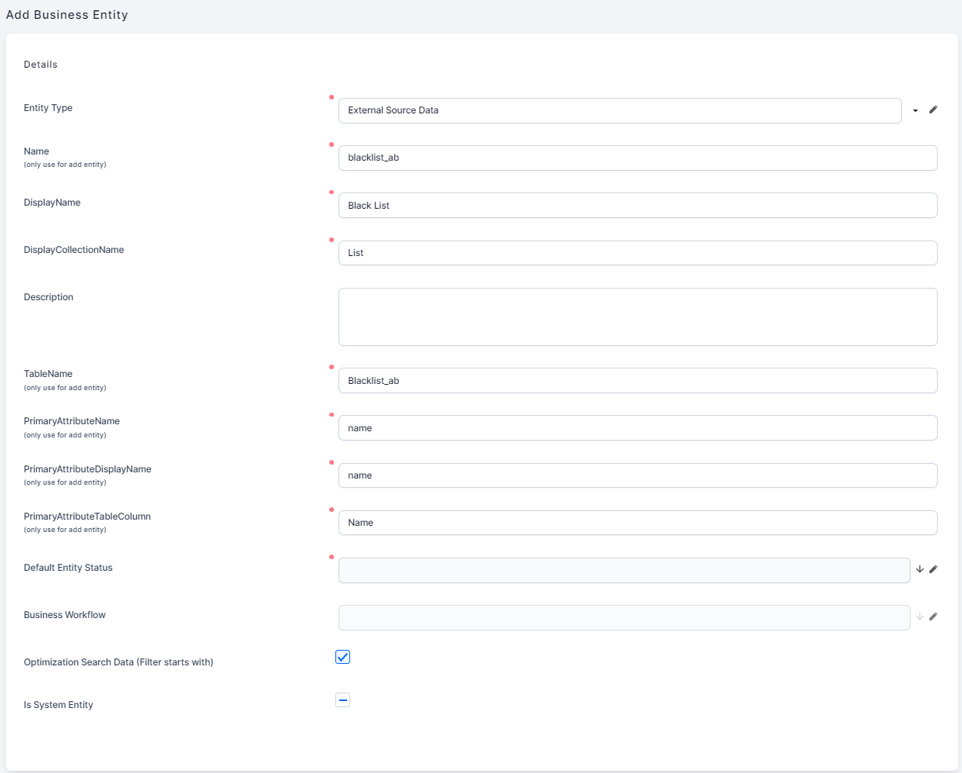
2 Add attributes to the destination entity
Follow the Adding Attributes procedure to add all the necessary attributes matching the external data model to the destination entity (add an attribute for each column in the table you extract from the source data system).
Make sure that the attribute data types match the data types of the source table columns.
Replicating the source primary keys
If you want the data replication through Data Pipes to be differential, your replication has to include the primary keys from the source system. The destination attributes which host the source primary keys must have the Is External ID checkbox selected.
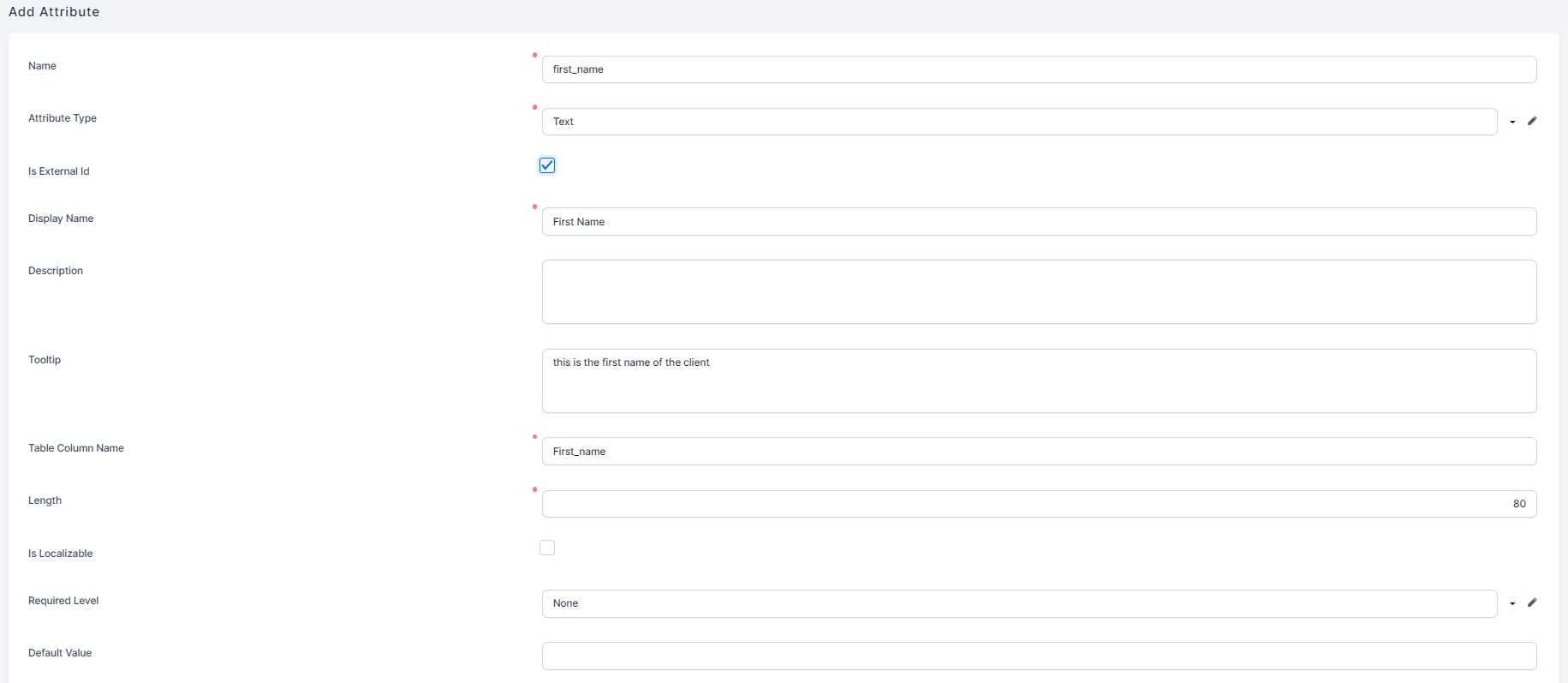
If multiple attributes have the checkbox ticked, they form a composite external ID.
You can change the attribute(s) which form the external ID (tick/ untick the Is External ID checkbox on attributes) only before replicating external data. Once you run a replication job you can no longer change the external IDs.
Correlated lookup attributes
You can automatically populate specific lookup attributes based on the incoming data when a replication job is run. For instance, if you collect credit reference information from the Credit Bureau about credit applicants and you also provide a fee discount for credits granted to your own employees, when collecting credit reference about an applicant that is registered as an employee, you can automatically populate the internal employee discount in the replicated record.
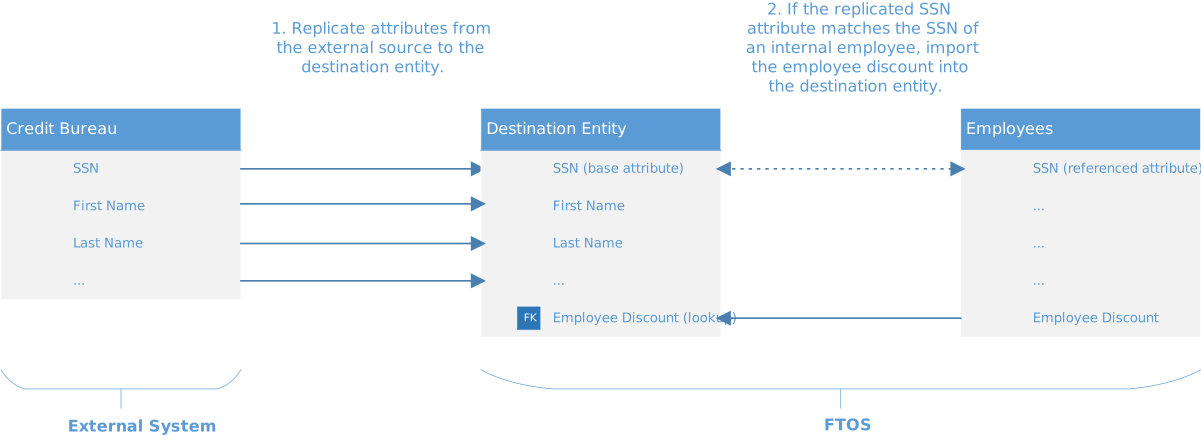
To create a correlated lookup attribute:
- On the entity which stores replicated data, go to the Data Model and create the lookup attribute you want to correlate with an attribute from another FintechOS entity.
- Click Save and Reload.
- Scroll down to the Lookup Correlation Attributes section and click Insert . The Add Lookup Correlation Attribute page appears.
- In the Base Attribute field, select the matching attribute on the destination entity (current entity).
- In the Referenced Attribute field, select the matching attribute on the entity referenced by the lookup attribute.
- Click Save and close to save the correlation attribute. The record is displayed in the Lookup Correlation Attributes section.
After the data replication is complete (that is, a replication job is run), based on the defined correlations, the system tries to automatically populate the replicated entity's lookup attribute(s) based on the correlations you defined.
 Example
In this example:
- CNP and Country are attributes replicated on the Account_External entity from an external data source. The Country attribute is a lookup to the FintechOS Account entity.
- In FintechOS, the Account entity has two attributes UniqueID (PIN as Display Name) and accountCountryId (Country as Display Name ).
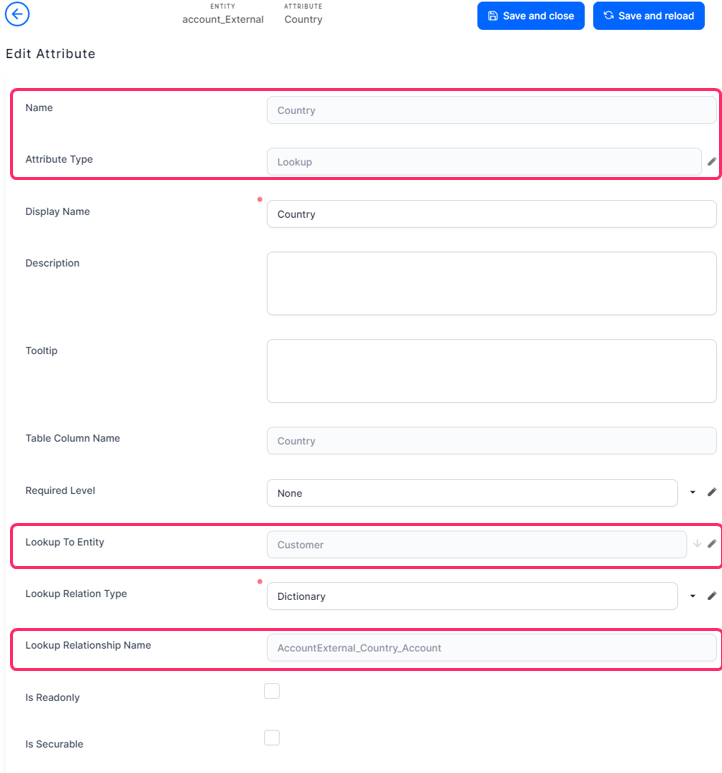
To correlate Account replicated data with FintechOS Account data by CNP and Country, we create two lookup correlations as follows:
- CNP with UniqueID
- Country with accountCountryId


After the data replication is complete, the system tries to automatically populate the Account ID field lookup to Account by CNP and Country.
Optionset attributes
If the attribute on the entity storing external data is of type optionset, after the replication is complete, the system tries to join the replicated value with the value of the optionset existing in FintechOS on the related entity.