Automation Scripts
Innovation Studio allows you to manage complex automation and validation tasks, triggering the execution of scripts on business status transition.
Automation scripts are executed synchronously, which means that the execution happens in a single series. Subsequent operations cannot be performed until the current operations is finished.
Key points of synchronous automation scripts:
- They are created by using an automation script entity record.
- The event-triggered automation scripts can execute before (pre-operation), after (post-operation), or after the transaction is completed.
- Whether configured to run on-demand or event triggered by specific operations (read, update, insert, delete), the script runs immediately.
- Log errors only when logging is enabled.
- Execute in the current transaction.
Reusable blocks of code can be included in automation script libraries and associated later to scripts.
In Innovation Studio, you can create and use two types of automation scripts, as follows:
- Event triggered automation scripts
- On-demand automation scripts
Event Triggered Automation Scripts
These automation scripts are automatically triggered when an event of read, update, insert, or delete occurs in the user interface:
|
Event |
Description |
|---|---|
| Read | Triggers when information from the target entity is read, including by other automation scripts or getByQuerymethods. You should be careful not to alter other functionality related to the entity. |
| Update | Triggers when the target entity is updated. If an automation script updates another entity, and that entity has another automation script on update, both scripts will be triggered. If any automation script in the execution chain throws an exception, the entire transaction is roll-backed. That means that every operation is enlisted to the master Ebs Core transaction. The "After Transaction" stage executes a script only after the transaction completes. It should be used only in rare cases, if you make a get/post call to another web-service which tries to update/alter data of the same record. In every automation script code you have a context variable that holds data about the current scope. IMPORTANT! If you write an update script in which you update the same record, it will trigger a recursion. Although the EBS has been build to prevent such situations, the transaction will be rolled back after several iterations. There is also a Prevent Recursivity feature that you can enable for such situations. |
| Insert | Triggers when a new record is added to the target entity. |
| Delete | Triggers when a record of the target entity is deleted. Can be used in conjunction with:
|
Event-triggered automation scripts are bound to a ‘before’, ‘after’ or ‘after transaction’ stage execution, while on-demand automation scripts have no such dependencies and can be executed whenever the case.
A list of predefined methods and functions with corresponding code-snippets are available within a dedicated development library (automation script library), covering most common use cases and technical applicability scenarios.
On-demand automation scripts
While event-triggered automation scripts are context-based and linked to a specific entity within the open data model, on-demand automation scripts are context independent and available for being called from any object or context.
On-demand automation scripts can be triggered manually if they are attached to an action. For usability purposes, you can organize actions performed on an entity into action groups.
To use an on-demand automation script, follow these steps:
Setting the execution order of automation scripts
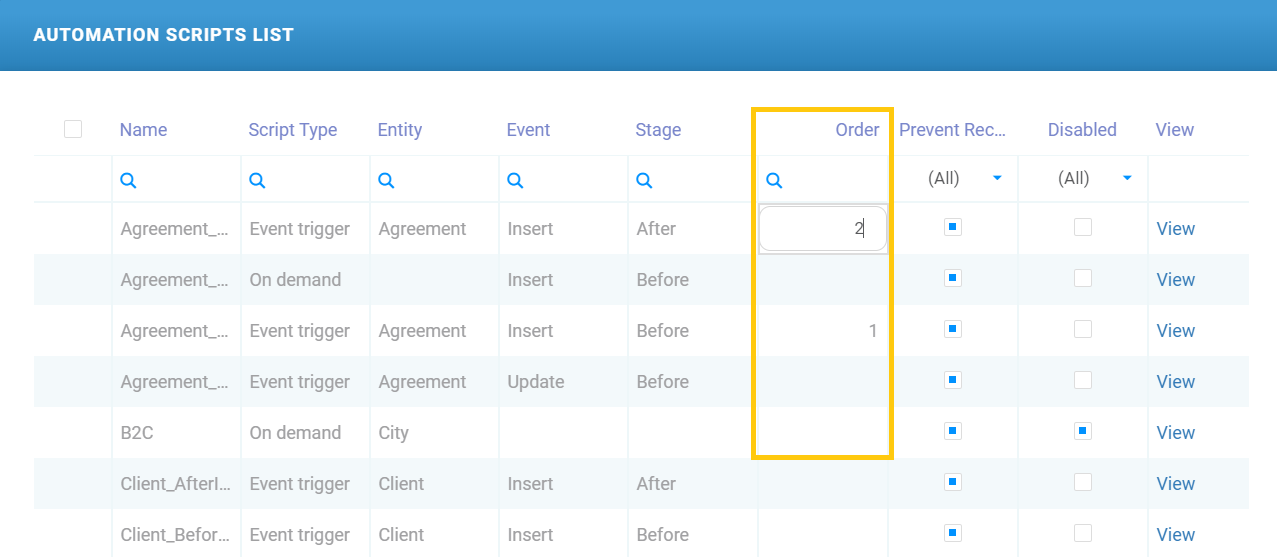
You can set the execution order for similar automation scripts (entity / event type / stage) from the Server Automation Scripts List page (Advanced > Server Automation Scripts) by setting the execution order in the Order column.