Manage Master Quotes
The Quote Admin solution enables you to securely store and efficiently manage a virtually unlimited number of digital master quotes. In FintechOS Portal, you can view the list of all master quotes stored in your environment.
View the Generated Master Quote
Follow the steps below to access the Master Insurance Quotes list:
-
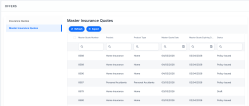
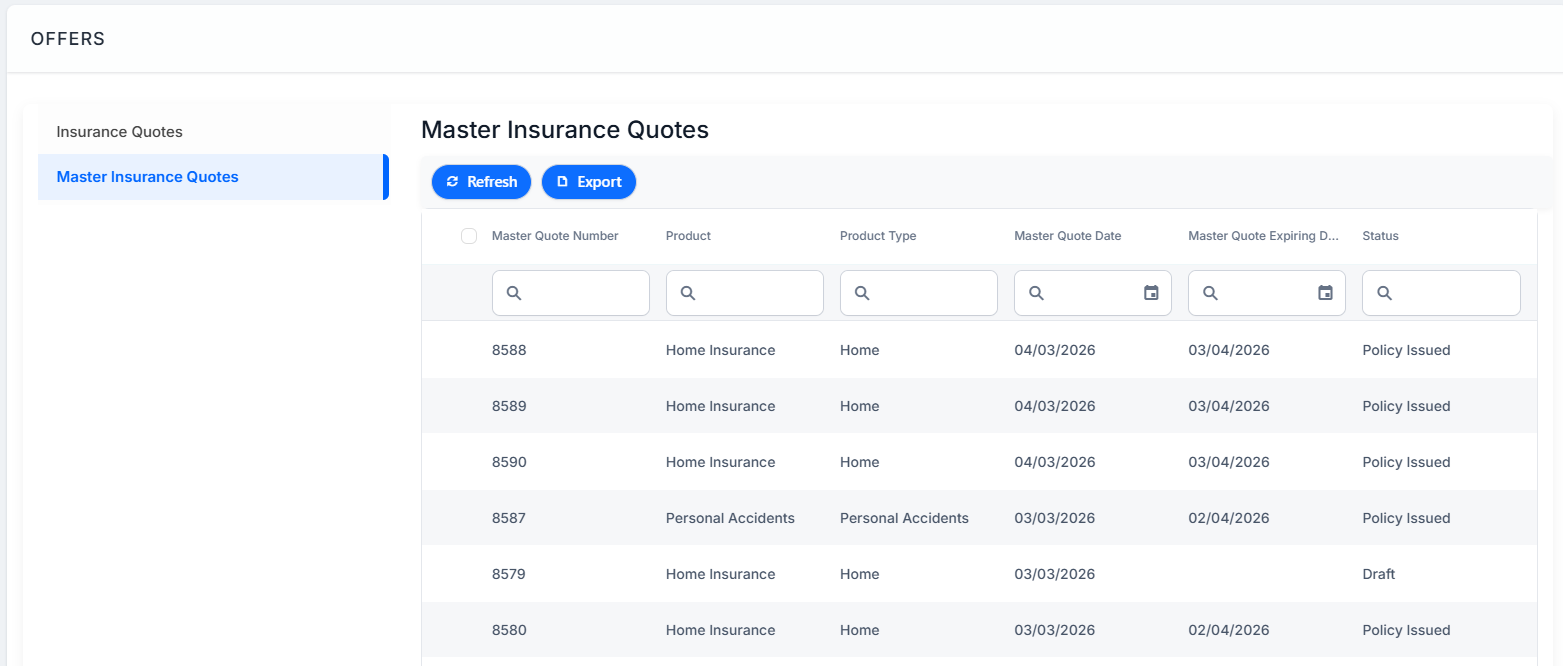
Go to Main Menu > Offer Management > Offers > Master Insurance Quotes.
-
Double-click one of the records and view a master quote form. The first tab, Main Info, displays the following sections read-only details, provided in the Master Quote Generation API:
-
Master Quote Number: The unique identifier of the master quote record;
-
Master Quote Date: The date when the master quote takes effect;
-
Master Quote Expiring Date: The expiration date of the master quote. When the current date is greater than the expiring date, the master quote transitions to the Expired status;
-
Product Type: The insured product type;
-
Product: The insured product;
-
Master Quote Type: The type of the master quote.
-
Master Policy Validity: The numeric value of the master policy validity;
-
Master Policy Validity Type: The master policy validity type: months, days etc;
-
Renewal: The renewal type for the contract;
-
Master Policy Start Date: The date when the master policy takes effect;
-
Master Policy End Date: The date when the master policy effect ends;
-
External Number: The external reference of the quote;
-
Mentions: Mentions regarding the master quote;
-
-
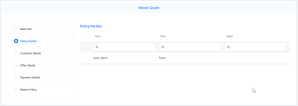
The Policy Parties tab includes all the parties involved in the contract for the master quote.
-
The Customer Needs tab contains the DNT questions and the answers provided by the customer.
-
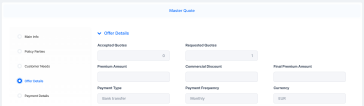
The Offer Details tab has the following:
-
Offer Details
-
Accepted quotes: The number of quotes that the customer has accepted in the offer;
-
Requested quotes: The number of quotes that were requested;
-
Premium Amount: The premium amount for the quotes;
-
Commercial Discount: The commercial discount for the quote;
-
Final Premium Amount: The final premium amount of the offer;
-
Payment Type: The payment type to be used by the customer;
-
Payment Frequency: The frequency of the installment payments;
-
Currency: The currency in which the premium amount is expressed.
-
-
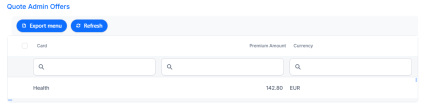
Quote Admin Offers: displays the offers part of the quote.
-
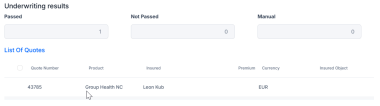
Underwriting Results: displays the status of the underwriting evaluation, and the list of quotes.
-
-
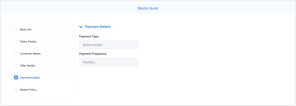
The Payment Details tab shows payment type and payment details:
-
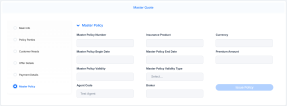
The Master Policy section has the following:
-
Master Policy Number: Number of the master policy;
-
Insurance Product: The product associated with the quote;
-
Currency: The currency in which the premium amount is expressed;
-
Master Policy Begin Date: The date when the master policy takes effect;
-
Master Policy End Date: The date when the master policy effect ends;
-
Premium Amount: The premium amount for the quote;
-
Master Policy Validity: The numeric value of the master policy validity;
-
Master Policy Validity Type: The master policy validity type: months, days etc;
-
Agent Code: The agent who facilitated the quote;
-
Broker: The broker who facilitated the quote.
-


Accept the Offer and Issue the Master Policy
When the offers associated with a master quotation are approved and policies are issued for them, a master policy is simultaneously generated, encompassing the issued policies within it. To generate the master policy, you firstly need to issue a policy for one of the quote offers. Follow the steps below to issue the master policy related to the master quote:
-
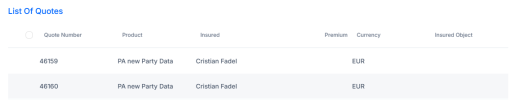
Go to the Offer Details tab of a master quote in Offers Submitted status, and inspect the List Of Quotes.
-
Double-click a quote offer record to display its details. Got to the Quote Admin Offers tab to accept the offer and issue the policy for it. To do so, follow the steps described in the Manage Quotes page.
-
Go to the master quote record. It is now in the Policy Issued status, and two new tabs are available: Payment Details and Master Policy Details.
-
Go to the Payment Details tab to inspect the payment, invoice and mandate details.
-
Go to the Master Policy Details tab to inspect the base details of the generated master policy.
-
Go to Main Menu > Contract Management > Policies > Master Policies, and open the record of the newly issued policy, to inspect it.
