Policy Cancellation
This functionality streamlines the termination of the insurance policies by ensuring cancellation requests, coming from insured or insurer, are reviewed against policy terms and processed accurately. Once approved, any applicable payments are issued directly to the insured or an authorized third party. By automating these routine scenarios, the module enhances operational efficiency and reduces the risk of errors.
The system ensures that the same policy cannot be present in two cancellation flows at the same time. However, a policy can be accessed sequentially by different users within a single cancellation flow. For instance, while one user handles the cancellation process, a higher-level user (e.g., a supervisor) may be required to approve the Returned Premium payment.
Conditions for Policy Cancellation
A policy is terminated and is not considered active if:
-
The first installment wasn’t paid. If so, after the prescribing period, the policy becomes Withdraw;
-
The customer wants to terminate the policy before 14 days from issuance. If so, the policy becomes Withdraw on Client Request;
-
The policy reached Maturity;
-
The customer didn’t pay the installment. If so, after the grace period, the policy becomes Lapsed;
-
The customer wants to terminate the policy even the payments are up to date. If so, the policy becomes Cancelled;
-
The customer’s risk class was changed into unacceptable risk. If so, all the customer’s active polices are terminated with Decline by Screening status;
-
The insurer reserves the freedom to decline the policy for any Other reason.
The above conditions currently shape the policy termination flows but Service Insurance is a highly customizable solution and you are able to change it according to your needs. For doing so, read the Policy Configurations page.
The system supports backdated cancellations for policies and master policies. Cancellations can be registered back to the original start date or renewal start date, with the requested end date determining refund calculations, even when alterations exist between the requested cancellation date and today. Once approved, backdated cancellations cannot be revoked, ensuring compliance and preventing user errors. The process generates: a cancelled policy version, updates premiums, and creates negative installments to reflect refunds, which are fully traceable in the premium reimbursement view.
Once approved, a backdated cancellation can’t be revoked. Only future dated cancellations can be revoked, before the cancellation takes effect on the policy. The process is proposed, pending approval, and only then approved, in order to exclude user errors.
 Manage Policy Cancellation Requests
In order to process a policy cancellation request, you must access the Policy Cancellation List that displays all the available Policy Cancellation requests.
- In the main menu, navigate to Contract Management > Policies > Cancellations. The Cancellations list is displayed.
- In the list:
- Add a new Policy Cancellation record, by clicking Insert.
- Delete a Policy Cancellation record from the grid by selecting it and clicking Delete.

Alternatively, you can initiate the cancellation flow explained above from the policy form. Click the Cancel Policy button on the policy.

Main Info
After clicking Cancel Policy, the Cancellation Request form opens. At this point, the cancellation is in Draft status. Follow the steps below:

-
Choose a Reason Type. This triggers the calculation for the Requested Cancel Date and the Final Cancel Date fields as per the table below. The Requested Cancel Date is the final end date used further on for calculating the refund.
Reason Type Requested End Date Final End Date Cancelled This reason type is the only one that accepts backdating cancellations. In this case, the Requested End Date is overwritten. This is also the case for renewed policies.
It is automatically filled in with the Cancellation Notification Date + 21 days to go.
If the Requested End Date meets the rule explained above, the Final End Date is filled with the Policy Begin Date.
In case of backdated cancellations, the Final End Date is overwritten. This is also the case for renewed policies.
Cancelled by Client Manually add any date. If Notification Date -Policy (Issued) Date <= 15 then this field will be automatically filled in with the Policy Begin Date with the possibility to be adjusted.
Otherwise this will be automatically filled in with the Notification Date + 21 days to go.
Closed by Claim It is pre-filled with Notification Date + 21 days from the present on. It is filled with the value from the Requested End Date but with the possibility to edit. Decline by screening In this case, it can be manually filled in with any date. It can be filled with the value from Requested End Date but with the possibility to edit. Insured Death In this case, the Requested End Date is set to any day before or including the day of the request for cancellation, same as Property sold. The Final End Date is filled with the value from Requested End Date but with the possibility to edit, same as Property sold. Pet passed away The Requested End Date is set to any day before or including the day of the request for cancellation, same as Property sold. The Final End Date is filled with the value from Requested End Date, but with the possibility to edit, same as Property sold. Property sold
The Requested End Date is set to any day before or including the day of the request for cancellation.
The Final End Date is filled with the value from Requested End Date but with the possibility to edit.
Withdrawal In this case, it is automatically filled in with the Policy Begin Date. In this case, it is automatically filled in with the Policy Begin Date. -
Fill in the Cancellation Notification Date field, which is the date that the system is going to use as the effective date for the policy version in status Cancelled.
-
The Has Claims toggle is not editable and it shows whether claims were registered or not for this policy.
-
From the Resolution Reason drop down, choose an appropriate option from: Product reasons, Other reasons, Company Reason, Withdraw.
-
Add a comment explaining the reason why this policy is undergoing changes.
-
Click the next section, Policy Details.
Policy Details
This section shows details about the policy to be canceled, such as Policy No, Policy Start Date, End Date, Payment Frequency, and so on. Some of the fields become editable after you register the cancellation and it transitions from status Draft to In Progress.

| Field | Description |
|---|---|
| Policy No | Policy number. |
| Policy Start Date | The day when the policy becomes in force. |
| Policy End Date | The day when the policy is no longer be available, according to the contract. |
| Issued Date | The day when the policy was issued. |
| Payment Frequency | The frequency of the payment, which can be monthly, quarterly, |
| Installments No | The number of installments. |
| Contractor | The person who contracted the insurance policy. |
| Insured | The individual covered by an insurance policy. |
| Currency | The currency used for payment. |
| Premium Amount | The money paid to an insurer for coverage, the cost of the insurance. |
| Paid Amount | The total amount of the payments made by the customer on a contract. |
| Paid Currency | The currency in which the amount has been paid. |
Premium Return
The Premium Return section has details regarding the chosen policy, the fields are automatically filled. The returned premium is the amount refunded to the client when a policy ends early, calculated as the paid premium minus the earned premium, meaning the client gets back the portion of their payment that corresponds to the period they were not covered.

| Field | Description |
|---|---|
| Canceled Premium | The portion of an insurance premium that is refunded or reversed when a policy is canceled. |
| Canceled Premium Currency | The currency for the canceled premium. |
| Uninsured period | The period when the insured has no active insurance coverage. |
| Earned Premium | The part of the premium that corresponds to time already covered. |
| Earned Premium Currency | The currency for the earned premium. |
| Uninsured period type | Period type can be monthly, quarterly. |
| Interval Until Due Date | Shows the time interval until the payment due date. |
| Interval Type | The payment frequency of installments. |
| Returned Premium Currency | The currency of the returned premium. |
| Returned Premium Amount | The sum of premium amounts of all the included policies. |
| Resolution Reason | Choose from Product reasons, Other reasons, Company Reason, Withdraw. The drop-down becomes available when the cancellation is in In Progress status, after you click Register. |
| Comments | Section showing notes about the premium. This field becomes editable when the cancelation is in In Progress status, after you click Register. |
| Compensation Amount | The amount the insurer pays to cover losses, costs, or contractual obligations caused by ending the policy early. This field becomes editable when the cancellation is in In Progress status, after you click Register. |
| Final Refund Amount | The portion of the payment after deducting the portion of the premium for the period they were covered, the compensation amount. This field becomes editable when the cancellation is in In Progress status, after you click Register. |
Payment Details
If after calculations, the system finds that the client is entitled to a refund for the unused portion of the premium, this section becomes editable. In this situation, client receives a refund of the premium for the period not covered, which is the period between the backdated cancellation date and today for backdated cancellation, and the period after the future cancellation date for future-dated cancellation. If the returned premium is higher than 0, then a Premium Reimbursements request is created in Draft status if the data for the beneficiary is incomplete, or Approve if the data was fully filled in during the cancellation request. These fields become editable when the cancellation is in In Progress status, after you click Register.
Fill in the fields based on the type of payment:
Bank Transfer
-
Payment Beneficiary: choose from Policy Beneficiary, Insured, Policy Holder, or Other Person. For the first three options, the data is automatically filled in. For the last option, you need to add:
-
Payment Beneficiary First Name;
-
Payment Beneficiary Last Name;
-
Payment Beneficiary PIN;
-
-
Bank: pick the bank from the list.
-
IBAN Account: type in the IBAN account.
Direct Debit UK
For Direct Debit UK or SEPA, if the policy is paid with direct debit, then a valid mandate is in the system. Direct Debit cancellation behavior varies based on cancellation date timing relative to invoice due date and payment status, determining whether premium reimbursement is required.
Tick the checkbox Use current mandate to prefill the fields. Otherwise, fill the fields for Direct Debit UK:
-
Payment Beneficiary: choose between Contractant and Other person;
-
Account Holder: prepopulated with the First Name of the contractant;
-
Account Number;
-
Bank Sort Code.
Direct Debit SEPA
For Direct Debit UK or SEPA, if the policy is paid with direct debit, then a valid mandate is in the system. Tick the checkbox Use current mandate to prefill the fields. Otherwise, fill the fields for Direct Debit SEPA:
-
Payment Beneficiary: choose between Contractant and Other person;
-
Payer first name: prepopulated with the First Name of the contractant;
-
Payer last name: prepopulated with the Last Name of the contractant;
-
Payer PIN/UTR: prepopulated with the PIN of the payment beneficiary;
-
IBAN;
-
Bank branch;
-
Amount type;
-
Amount;
-
Begin date;
-
End date.
Recurring Card Payment
A recurring card payment is an automatic, scheduled charge to a policyholder’s debit or credit card to keep their coverage active. This option is available only if the policy payment type is set as recurring card payment.
If selected, the system creates an outgoing payment for the reimbursement and generates a refundCardPayment Payment HUB event using the saved card token so the refund is sent via the recurring card provider, then updates the outgoing payment to Closed when the provider’s async confirmation is received.
Click Propose Change Request for it to go for approval. Click Cancel to cancel the whole process.
Request Approval
Approving the request for policy cancellation requires the intervention of a Policy Admin Manager who holds the necessary security rights to approve or reject such cases.
| Field | Description |
|---|---|
| Proposal Date | The date when the cancellation request was scheduled for approval. It is completed with the current date. |
| Approval Date | The date when the request was approved. It is completed with the date the cancellation application is approved. |
| User | It is automatically completed with the name of the Policy Admin Manager who is logged in at the approval moment. |
| Comments | It can be filled with relevant information regarding the approval process or the cancellation flow. |
| Resolution Reason | The Policy Admin Manager must offer information on why the cancellation application was not approved. |

-
Click Propose Change Request to move the cancellation status from In Progress to Pending Approval. At this point, the user with Policy Admin Manager security role fills in the Approval Date, Resolution Reason, and Comments section and clicks one the following:
-
Decline: the status changes from Pending Approval to Declined. The process reaches the end without the possibility of starting again.
-
Approve:
-
If the Returned Premium Amount is equal to 0 then the process ends and the status changes from Pending Approval to Registered.
-
If the Returned Premium Amount is not equal to 0 then the process continues with the Premium Reimbursement Request explained on the Premium Reimbursements page of this guide. In addition, the status changes from Pending Approval to Registered.
-
-
-
Or click Cancel to revert the changes, and transition the cancellation request from the In Progress status to Draft. Now, you can restart the cancellation flow or click Revoke to cancel the cancellation.
Use Cases
Cancel a Policy with an Accepted MTA
You can cancel a policy when it is subjected to the MTA process, and the MTA is in Processed status. The condition is that the MTA's Requested Effective Date is lesser than the cancellation Final Cancel Date.
In the example below, a policy has an MTA in the Processed status.
-
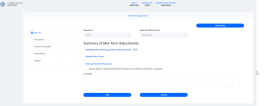
Open the policy's MTA record and check its Requested Effective Date. In this case, it is February 19th, 2026.
-
Click Cancel, and the MTA is successfully canceled.
-
The status of the policy is now Pending, and when it reaches to the Final Cancel Date, it transitions to the Canceled status.

Let's say that for the same MTA record, the cancellation Final Cancel Date is February 18th, 2026. If you click Cancel on the MTA change request, a warning message is displayed, and you cannot cancel the MTA "as long as there are MTA's issued with an effective date higher than cancellation final end date!"
You cannot cancel a policy if it has an MTA request in Draft or Registered status. If you try to cancel it in this condition, an error message is displayed.
Cancel a Policy in the Renewal Process
There are 3 possible scenarios then you choose to subject to Cancellation a policy that is to be renewed:
Scenario 1
In case you are subjecting to a Cancellation process a policy to be renewed, while the automatic renewal offer process is going on, then when the cancellation process is completed (Approved), the renewal offer corresponding to the cancelled policy is invalidated after a call from Policy Administration. An error message is displayed, as the quote is invalidated.
Scenario 2
If during the Cancellation process the renewed policy is issued based on the previously issued renewal quote, the Cancellation process cannot be completed as long as the new renewal policy is in a Proposed, Issued or In Force.
Within the initiated cancellation journey, a warning message is displayed that persists until the renewal policy status is either Proposed, Issued or InForce.
Scenario 3
In case a Cancellation is In Progress or Accepted, then the Renewal Offer process for that policy is not triggered.
Revoke an Approved Cancellation
You can cancel an already Registered cancellation for a policy if the Final Cancel Date of said cancellation is greater than the system date. Another condition is for the policy to have no MTAs in Accepted status with the Final End Date greater than the Final Cancel Date of the cancellation.
In the example below, the cancellation is Registered, and the Requested Cancel Date is set as greater than the system date.

Click Revoke Cancellation. The cancellation record transitions from the Registered to the Canceled status, and the policy transitions to In Force.

If the two conditions for this cancellation are not met, the cancellation is not possible, and an error message is displayed.
Policy Transitions and Notifications
Policy Cancellation Status Transitions
The Policy Cancellation statuses are as follows:
| Status name | Description |
|---|---|
| Draft | When you create a cancellation request, its status is draft. |
| Pending Approval | It is the status after clicking Register Request on a draft entry. |
| Registered | This status signifies that the cancellation is approved by the Policy Admin super user. |
| Declined | The cancellation request is declined by the Policy Admin super user. |
| Expired | The cancellation request is no longer active, the policy stays in force, and if the customer still wants to cancel, a new request must be submitted. |
| Cancelled | The cancellation request is cancelled. |
Policy Cancellation Notification
The system automatically informs the client of the Policy Cancellation process for their insurance contract through a specific notification sent to them.
The policies which are included in the notification are those which have the Policy Status = Decline by screening/ Closed by Claim/ Withdraw on client’s request/ Cancelled, transitioned due to a Cancellation process.
The notification is sent when the policy status is changed to a specific cancellation status, on the effective date.
The following are the tokens used in the notification:
-
Contractor name;
-
Policy number;
-
Insurance type;
-
Policy End Date (new End Date) - the Effective date from the Cancellation process which will be updated on the last active version of the policy;
-
Email template name : HomeInsurance_ClientPolicyCancelledNotification.
Lapsed Policy Notification
Similarly to the cancellation process, the system informs the client of the Policy Lapsing process for their insurance contract through a specific notification sent to them.
The Policies included in the notification are those which are in Lapsed status. Policies in Suspended status with a suspension duration of zero transition directly to the Lapsed status. In business terms, this means the policyholder loses coverage right away, without a grace period or opportunity for reinstatement. The lapse date is automatically determined based on the due date plus any applicable grace period and suspension duration.
The following are the tokens used in the notification:
-
Contractor name;
-
Policy number;
-
Insurance type;
-
Email template: homeInsurance_ClientPolicyStatusLapsed.
Payment Retries for Cancelled Policies
The scenarios below illustrate how Payment Hub handles payment retries for cancelled policies:
-
Card
-
One-time card payment
- Unpaid invoice, cancellation before due date: the invoice is issued before cancellation, but the due date falls after it. A payment retry is initially scheduled; however, once cancellation occurs, retry logic is disabled to prevent further attempts. No premium reimbursement applies.
-
Paid invoice before cancellation: both invoice issuance and payment occur before the cancellation date. Since payment succeeded, no retry is scheduled. The policy is then cancelled, and any eligible unused premium may be refunded by the insurer.
-
Recurring card payment
-
Unpaid invoice, cancellation before next billing cycle: the invoice is issued before cancellation (e.g., 10 days), with a due date after cancellation. A retry is originally planned for the next cycle, but cancellation stops all future billing cycles and retries. Premium reimbursement is applied as needed.
-
Paid invoice, cancellation after last payment processed: the invoice and payment occur before cancellation, and the system has already scheduled the next cycle’s retry. When cancellation is processed, all future billing and retries are terminated. A refund is issued for any unused premium, if applicable.
-
-
-
Direct Debit
Depending on when the cancellation date is and whether or not the invoice was paid, the payment retry has different behaviors, which also affect whether or not premium reimbursement should be made:
Invoice Date Due Date Cancellation Date (requested by client) Invoice Paid Payment Retry Premium Reimbursement Comments Before cancellation (7 days before due date) Before cancellation After due date Paid No retry Yes, if partial unused coverage period remains (pro-rata) Policy was active when payment collected. Refund only if cancellation effective mid-term. Before cancellation (7 days before due date) After cancellation Before due date Unpaid Scheduled retry No reimbursement Payment blocked due to cancellation Before cancellation (7 days before due date) After cancellation Before due date Unpaid No retry (not yet initiated) No reimbursement Cancellation effective before debit date - stop payment creation. Before cancellation (7 days before due date) Before cancellation After due date Paid No Payment valid; retain premium After cancellation After cancellation Before invoice generation n/a n/a n/a Before cancellation request After cancellation (effective future date) Future-dated cancellation Unpaid Scheduled No reimbursement Policy remains active until future cancellation date - valid billing. Before cancellation request After cancellation (effective future date) Future-dated cancellation Paid (incl. delays from the bank) Scheduled Yes, if partial unused coverage period remains (pro-rata) Invoice period extends beyond policy termination; payment to be refunded Before cancellation (7 days before due date) Before cancellation Cancellation requested but withdrawn before effective date Paid No No reimbursement Cancellation revoked - normal premium flow resumes. Before cancellation
(7 days before due date)
After cancellation Cancellation backdated (retroactive) Paid No Yes Backdated cancellations trigger partial refund of collected premium.