Configure Cancellation Reason Types
Policy Administration allows you to configure the reasons for which a policy can be cancelled and to define whether a specific cancellation reason should also be available for master policy cancellations. These reason types are used throughout the cancellation workflows for both policies and masterpolicies.
Below are the default Cancellation Reason Types, along with the corresponding business statuses applied to policies and master policies:
| Reason Type | Policy Status | Masterpolicy Status |
|---|---|---|
| Cancelled | Cancelled | Cancelled |
| Cancelled by client | Cancelled | Cancelled |
| Closed by Claim | Closed by Claim | Cancelled |
| Decline by screening | Decline by Screening | Cancelled |
| Insured Death | Cancelled | Cancelled |
| Pet passed away | Cancelled | n/a |
| Property sold | Cancelled | Cancelled |
| Withdrawal | Withdraw on Client’s Request | Withdraw on Client’s Request |
Creating Custom Cancellation Reason Types
You can define custom cancellation reason types by following the steps below:
-
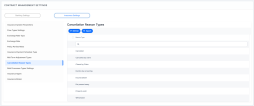
In FintechOS Portal, navigate to Contract Management > Contract Management Settings > Insurance Settings > Cancellation Reason Types.
-
The Cancellation Reason Types list is displayed. Click Insert to add a new reason type.
-
Complete the form with the following details:
-
Reason Type: the name of the cancellation reason;
-
Business Service Component: the name of the business component handling the cancellation logic. For default reason types, this is typically
insp-cancellation, which includes the following routes:-
Route for Alter Dates: calculates the
requestedEndDateandfinalEndDate; -
Route for Returned Premium: calculates the premium amount to be refunded.
-
-
Payment Details Mandatory: indicates whether payment details are required for this cancellation reason;
-
Policy Status: select the business status to be applied to the policy;
-
Master Policy: enable this option to make the reason type available for master policy cancellations, and select the corresponding Master Policy Status. If disabled, the reason type will not appear for master policy cancellations;
-
Async Flow For Register Cancellation and Async Flow For Approve Cancellation: these fields allow you to trigger custom actions during the cancellation process, as described later in this section.
-
-
Click Save and Reload.
-
After saving, the Insurance Type grid becomes available. By default, added insurance types are marked with
isGeneric = true, making the reason type available for all products of that insurance type. If you setisGeneric = false, you can select specific products within that insurance type where the reason should apply. -
Click Save and Close to complete the configuration


Business Status Mapping
You can also configure business status mappings between cancellation reason types and policy or master policy statuses. For example, the Decline by Screening reason type triggers the transition of a policy to the Decline by Screening business status, and a masterpolicy to Cancelled, after reaching the Cancellation Final End Date.
Custom Actions during Cancellation
The system supports custom actions that can be executed when a cancellation is registered or approved.
-
Add a new flow in Configuration Manager > Async engine > Flow config. For example:
Copy{
"flowName": "FTOS_INS_CustomActionForCancellationAsync",
"queueMappings": [
{
"sourceQueueName": "ftos-ins-generatenotecancellation",
"endpointName": "FTOS_CMB_SaveNote_AsyncEngine",
"maxThreads": 10,
"initial": true
}
]
}Here you need to set:
-
endpointName: the endpoint that will be called on that custom action;
-
queue name: the queue that will receive the calls.
-
-
Add the new queue in Configuration Manager > Async engine > Queue config, create the queue and ensure its name matches the one defined in the flow configuration:
Copy{
"name": "ftos-ins-generatenoteforcancellation",
"maxMessages": 10,
"timeToLive": 1
} -
Create the endpoint that will include the logic that you want to be applied on registering or approving a cancellation.
-
Add the Registered User role to the endpoint.
-
In the relevant Cancellation Reason Type, populate:
-
Async Flow for Register Cancellation, and/or
-
Async Flow for Approve Cancellation, with the endpoint name configured earlier.
-
During execution, the system passes the Cancellation ID as a parameter to the custom endpoint.