Create a First Notification of Loss
When registering a new claim, you need to start with creating a First Notification of Loss (FNOL). A new FNOL record can be automatically inserted by a client in a FNOL customer journey, or you can use the FNOL menu in FintechOS Portal to insert information about the policy, the notifier, the people involved, and upload the requested documents.
Follow the steps below to register a new FNOL record:
-
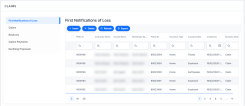
In FintechOS Portal, go to Main Menu > Contract Management > Claims > First Notification of Loss:
-
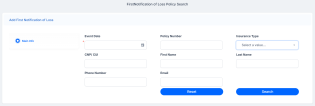
Click Insert to add a new record. Input the general information and the details about the policy in the following fields:
-
Event Date: The date when the event happened;
-
Policy Number: The number of the policy on which the claim is made;
-
Insurance Type: The type of insurance for which the FNOL is opened;
-
CNP/ CUI: The personal number (CNP)/fiscal enrollment number (CUI);
-
First Name: The first name of the policy owner;
-
Last Name: The last name of the policy owner;
-
Phone Number: The contact number;
-
Email: The email of the owner.
-
-
Click Search to display the existing policies based on the parameters from fields that you previously filled in.
-
From the list, select the policy that you want to process and click Add FNOL.
-
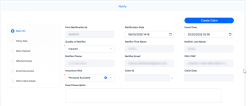
In the Notify form, choose the Quality of Notifier from the drop-down and pick an Insurance Risk. Review the Notification Date and Event Date, which are still editable at this stage,
-
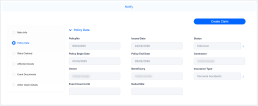
In the Policy Data tab, you can review details about the policy, which are not editable now.
-
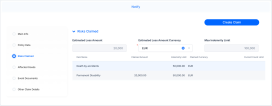
In the Risks Claimed tab, add the Estimated Loss Currency. View the list of covered items, their indemnity limit amount and the currency. In the Claimed Amount column of the affected item, input the amount you wish to claim for the event, and input the Details for the affected goods. The record is updated with the Estimated Loss Amount and the Max Indemnity Limit.
-
In the Affected Goods tab, click Insert to input the details of covered items that have been affected by the event. You can select the number of the claim on which to attach the affected item.
-
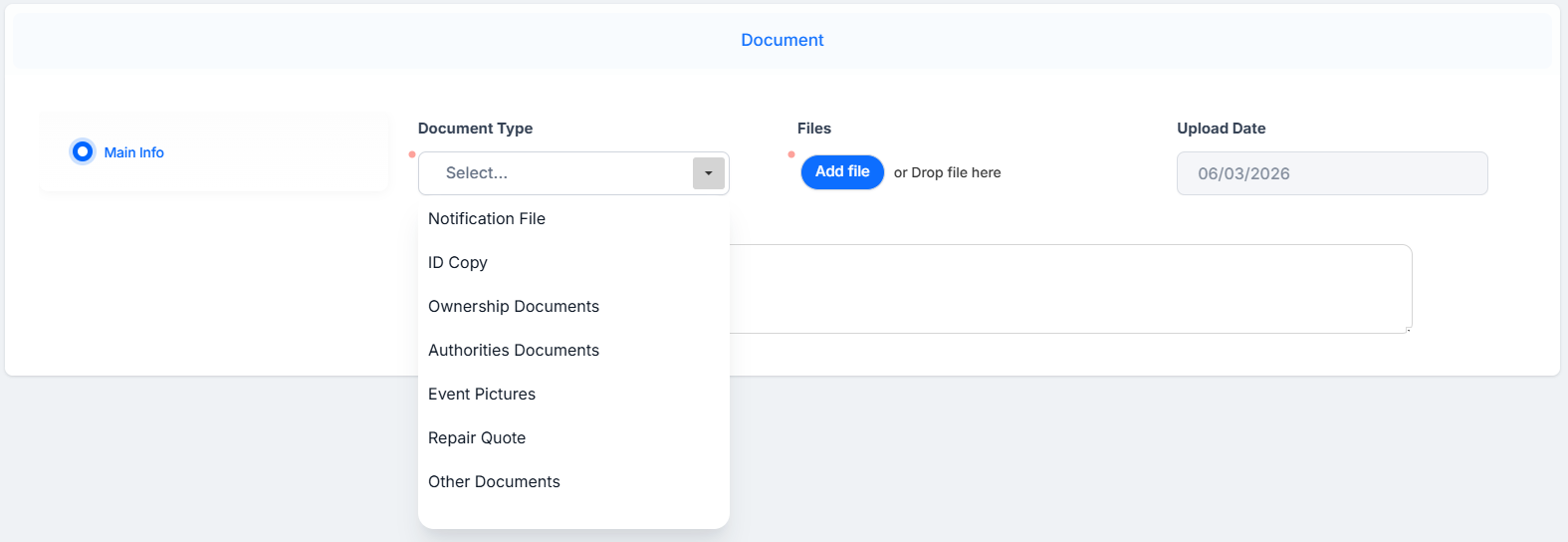
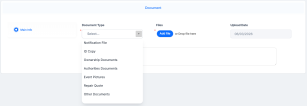
In the Event Documents tab, click Insert to input any scanned document to support the claim. Pick the document type and upload it. The date is set as today. Add a comment if needed.
-
In the Other Claim Details, specify whether there is a third party liable and their name, together with additional comments.
-
Click Create Claim. The record is now updated, and in Claim status.
-
Create a Claim based on the registered FNOL. Go to the Create a Claim page to learn how.