Create a Claim
You can configure Claims Management anytime after the FNOL is initiated. Follow the steps below to create a claim for the registered FNOL:
-
In FintechOS Portal, go to Main Menu > Contract Management > Claims > First Notification of Loss. The list of all FNOL records is displayed.
-
Open the desired FNOL record and click View Claim to create a new claim record.
-
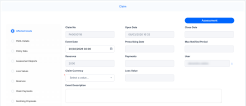
In the Affected Goods tab, you can set the event date, claim currency, description and insert records for affected goods, together with item type, brand, etc.
-
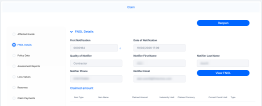
View the FNOL Details tab. You can click View FNOL to open and view the FNOL record for this claim.
-
Click Assessment. In the Assessment Report grid, insert the report.
-
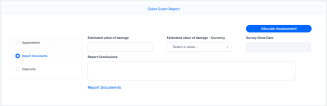
Pick a survey schedule date, report type, and add report notes. In the Report Documents tab, add the estimated value of damage, estimated value of damage - Currency, and report conclusions.
-
Click Allocate Assessment. Review details of the insured in the Appointment tab, then click Save Appointment. The claim record is now in Scheduled status.
-
You can reschedule the appointment if needed, or click Close report after uploading documents.
-
In the Assessment tab, the Assessment Reports grid is updated with the uploaded report records. Click Risk Covered.
-
In the Documents tab, click Insert to upload the file for the settlement. Choose the Document Type, click Add file to insert the document, and write any details, if necessary.
-
Click Save and Close. The Final Claim Settlement grid is now updated with the document record. Write any Final Assessment Comments, if needed.
-
Go to the Reserve tab. Here is where you find details about the reserve date and amount. In the Reserves grid, you can view the record's details, including the claim currency, date, amount and the reserve type and value type.


