Payment Hub
The Payment Hub is a centralized component that manages and monitors all integration requests with external payment providers. It provides visibility into request processing, including the responses received from third-party systems, and enables configuration of retry logic based on those responses.
Through FintechOS integration orchestration capabilities, the Payment Hub allows both technical and non-technical users to configure and adjust integration behavior without modifying core application logic. This improves transparency and control over payment processing flows.
Payment Hub Integration Setup
The Payment Hub enables orchestration of integrations with external payment systems (e.g., credit card processors). It operates based on events generated by business processes.
An event represents a trigger indicating that a payment-related integration is required. Events can originate from multiple business scenarios, such as:
-
Invoice generation for new policies or renewals,
-
Credit card expiration workflows,
-
Customer requests to update payment details.
The system allows configuration of which payment types trigger event processing, making payment flows extensible without impacting existing logic. Each payment type can be associated with a single active event type through configurable rules.
Event Type Configuration
The Event Type entity defines how payment-related events are handled within the Payment Hub. For each event type, you can configure:
-
Activation status and associated payment type
-
The integration action to be executed (e.g., Service Pipes APIs or server-side methods)
-
The execution timing of the action
-
Response mappings to extract relevant data from third-party responses
-
Expected response codes returned by external systems
Before generating events, all required event types must be defined and configured in the environment, as each event must reference a valid event type.
Processing and Integration Flow
The Payment Hub supports different integration patterns:
-
Synchronous processing: the response received immediately after the request represents the final outcome,
-
Asynchronous processing: the external system sends subsequent updates (e.g., status changes), which are recorded and processed at the event level.
The engine supports handling of these asynchronous updates and allows configuration of retry rules based on response codes received during both initial and follow-up interactions.
Additional Capabilities
-
Support for updating card details, including recurring payment scenarios,
-
Management of event and card data via the ftos_ph_updateevent API,
-
Centralized tracking of event lifecycle and integration responses.
Add Payment Hub Event Types
Follow the steps below to add event types:
-
In FintechOS Portal, go to Main Menu > Contract Management > Contract Management Settings > Insurance Settings > Payment Hub Event Type.
-
Click Insert to add a new event type.
-
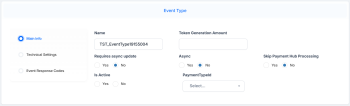
In the Main Info tab, add the following:
-
Name: the name of the event type.
-
Token generation amount: a numerical value (e.g., 0.01) that generates an event for a transaction. This amount is used to create an invoice and trigger a payment event.
-
Requires async update: the event’s final status is received later via an asynchronous update.
-
Async: the event’s action is not executed immediately on creation but is picked up and processed later by the asynchronous job (FTOS_PH_ProcessAsyncEvents).
-
Skip Payment Hub processing: bypass processing in Payment Hub.
-
Is active: decide whether the event should be processed or kept in draft.
-
Payment Type ID: pick the payment type from: Bank Transfer, Broker Collection, Direct Debit, Card Payment, Recurring Card Payment.
-
-
In the Technical Settings section, add the server side logic that will be executed for an event, when the eventDate is reached. The result of action execution will be saved on event level with the type Event Type Action. The mappings are used to automatically identify important details from the responses received for an event. The mapping for identifying the external id will be evaluated on the Event Type Action response object. The mapping for identifying the final response code will be evaluated on the Update Event response object.
-
In the Event Response Codes section, click Insert to add codes:
-
Name: add the name of the response code.
-
Response Code: the actual response code.
-
Response Text: a description of the code.
-
-
In the Technical Settings section, add Server Side Library Name, Server Side Method, and Service Pipe Endpoint. The response code action represents the server side logic that will be executed for an event, when this particular response code is received. The result of action execution will be saved on event level with the type Response Code Action.
-
For retry logic, choose Standard and add the retry number, value, and type. This allows you to set a certain number of automatic retries once every a few seconds, days, hours. You can also set a Custom retry configuration.

Additional details
Pay attention to the following aspects when configuring event types:
-
if
Skip Payment Hub Processing = true, the Payment Hub engine will not execute the actions associated with the event; the processing of the event should be covered with custom logic; -
you should configure either a Service Pipe Endpoint or a Server Side Library Name + Server Side Method as an action for the event type;
-
If
Async = true, the event action will not be executed when the event is created (no matter what’s the event date); the job serverFTOS_PH_ProcessAsyncEventswill execute the action when the event date is reached or when the other execution conditions are met; -
if
Async = false, the event action will be executed when the event is created only if the event date <= current date; if the event date > current date, the job serverFTOS_PH_ProcessAsyncEventswill execute the action when the event date is reached; -
the job server
FTOS_PH_ProcessAsyncEventsruns every 10 minutes and selects a batch of 500 records, ordered by event date-
assuming the job will run at 13:00, 13:10, 13:20, an event with event date 13:02 will be processed at 13:10, if it is included in the 500 records batch.
-