Manage Master Quotes
The Quote Admin solution enables you to securely store and efficiently manage a virtually unlimited number of digital master quotes. In FintechOS Portal, you can view the list of all master quotes stored in your environment.
Generate Master Quotes
Generate a master quote with all the quotes belonging to it:
-
Run the Master Quote Generation API, with all the quote details in the request body.
-
Run the Client Decision API to accept the master quote and the quotes attached.
-
View the master quote in the Master Quotes List.
When the Client Decision API is called on a Master Quote that hasn’t been migrated yet, that specific call is automatically migrated.
There are two ways to generate a master quote without any attached quotes:
-
Finalize > client decision:
-
Run the Master Quote Generation API.
-
Run the Quote Generation API and insert the master quote ID to which you are attaching it.
-
Run the Finalize Master Quote API to submit the quote offer.
-
Run the Client Decision API to accept the master quote and the quotes attached.
-
View the master quote in the Master Quotes List.
-
-
Client decision > finalize:
-
Run the Master Quote Generation API.
-
Run the Client Decision API to accept the master quote and the quotes attached.
-
Run the Quote Generation API and insert the master quote ID to which you are attaching it.
-
Run the Finalize Master Quote API to submit the quote offer.
-
View the master quote in the Master Quotes List.
-
View the Generated Master Quote
Follow the steps below to access the Master Quotes list:
-
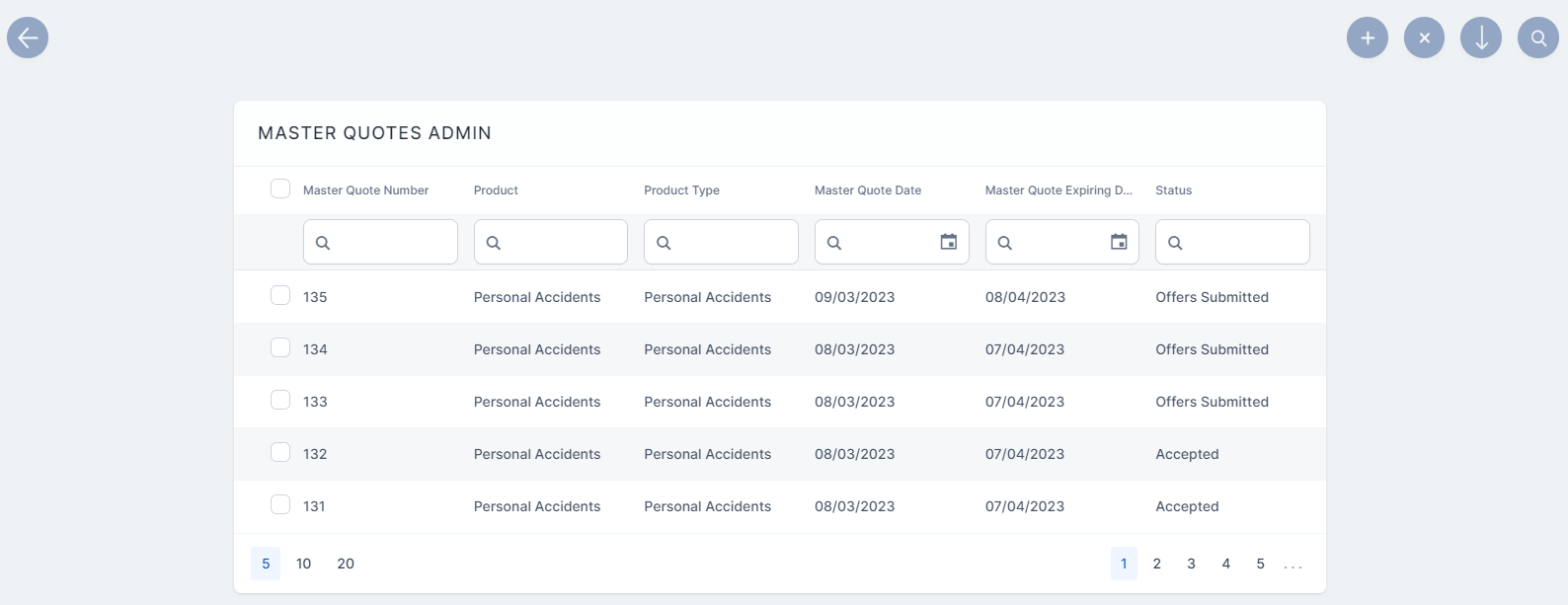
Go to Main Menu > Quote Admin > Master Quotes. The Master Quotes Admin grid is displayed, listing the records of all existing master quotes.
-
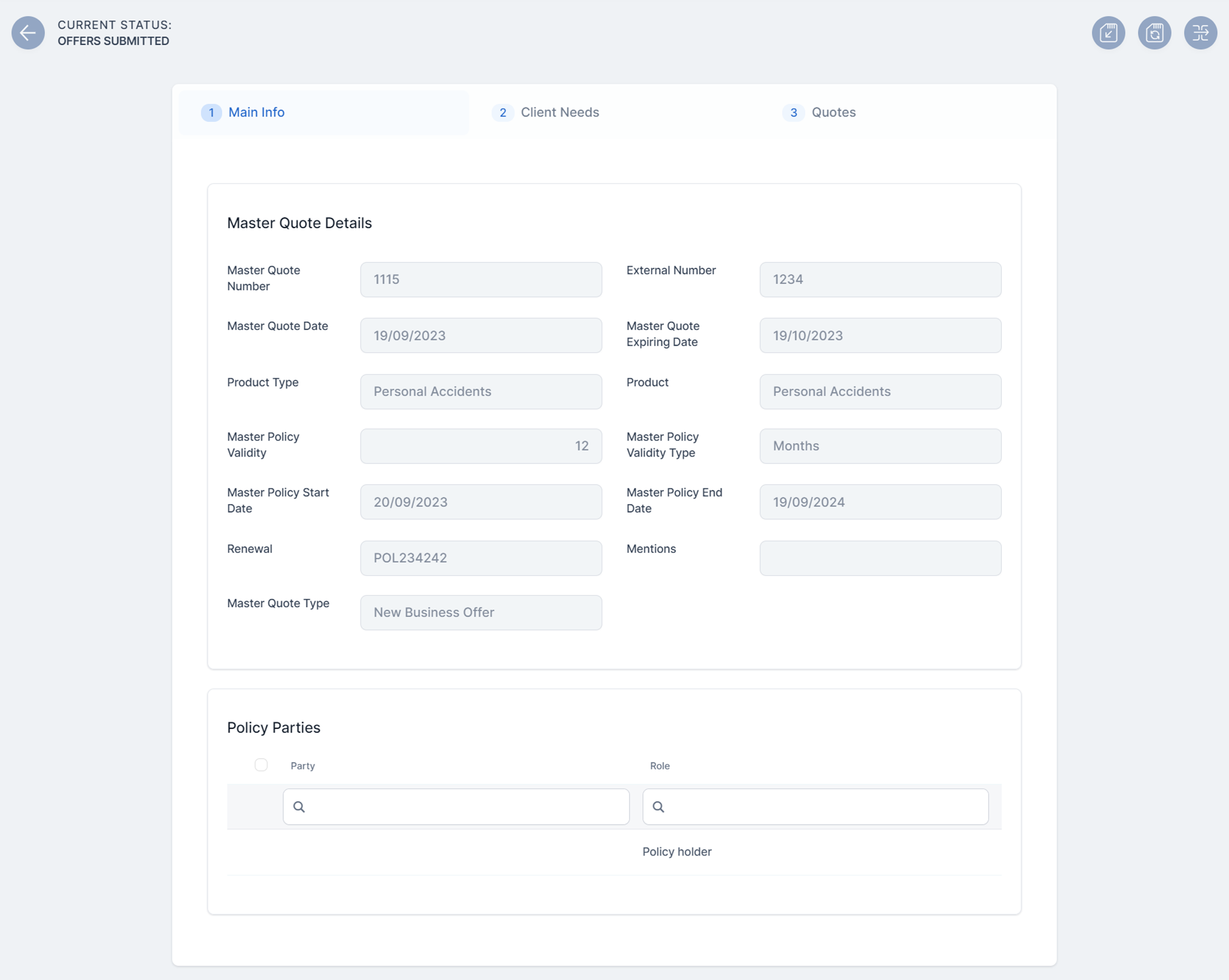
Double-click one of the records and view a master quote form. The first tab, Main Info, displays the following sections:
-
The Master Quote Details section. The details in this grid are read-only, provided in the Master Quote Generation API:
-
Master Quote Number: The unique identifier of the master quote record;
-
External Number: The external reference of the quote;
-
Master Quote Date: The date when the master quote takes effect;
-
Master Quote Expiring Date: The expiration date of the master quote. When the current date is greater than the expiring date, the master quote transitions to the Expired status;
-
Product Type: The insured product type;
-
Product: The insured product;
-
Master Policy Validity: The numeric value of the master policy validity;
-
Master Policy Validity Type: The master policy validity type: months, days etc;
-
Master Policy Start Date: The date when the master policy takes effect;
-
Master Policy End Date: The date when the master policy effect ends;
-
Renewal: The renewal type for the contract;
-
Mentions: Mentions regarding the master quote;
-
Master Quote Type: The type of the master quote.
-
-
The Policy Parties section. This grid includes all the parties involved in the contract for the master quote.
-
-
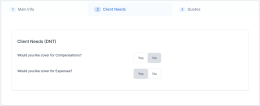
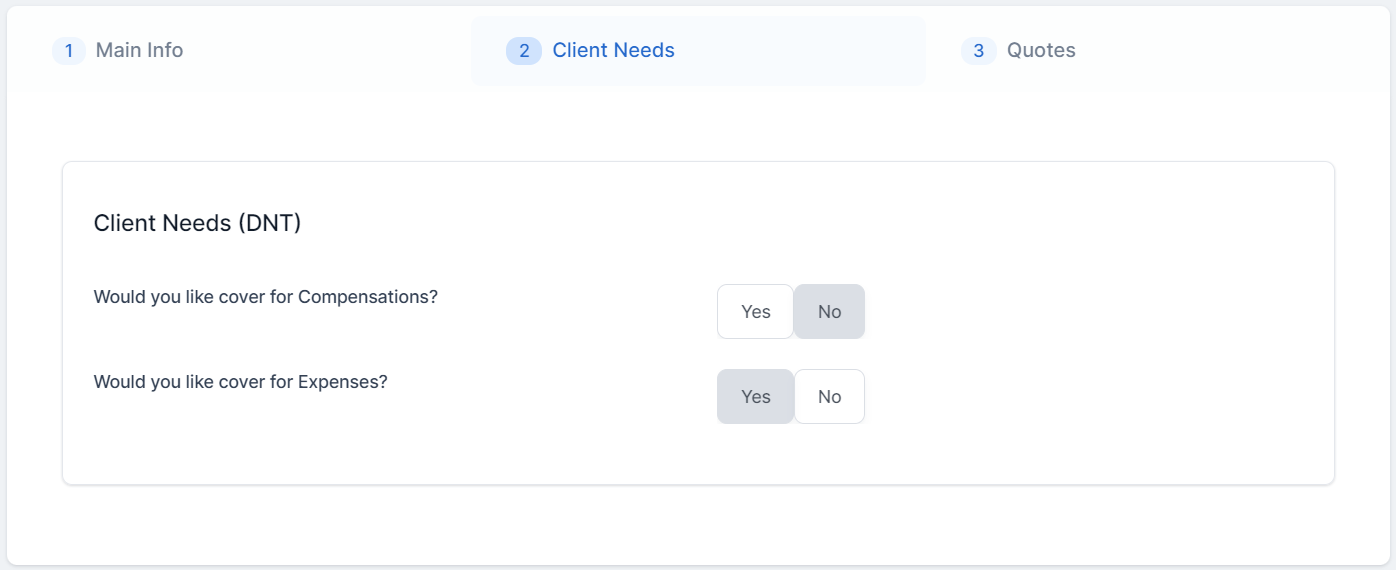
Go to the second tab, Client Needs. View the Client Needs (DNT) section, that contains the DNT questions and the answers provided by the customer.
-
Go to the third tab, Quotes. View the following sections:
-
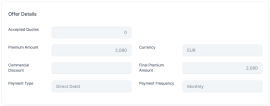
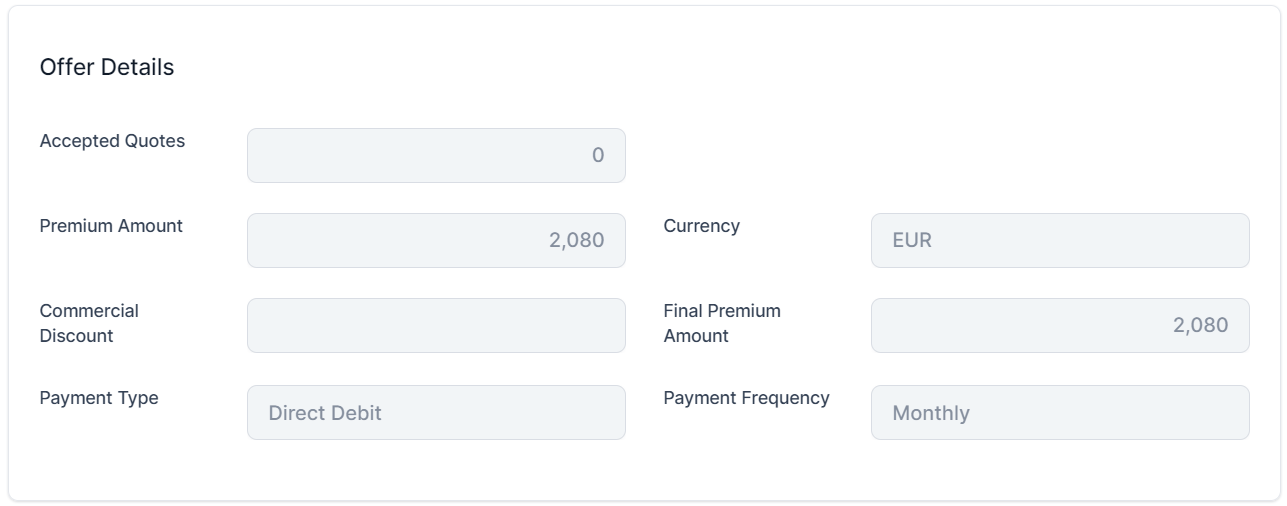
The Offer Details section, listing the following fields:
-
Accepted quotes: The number of quotes that the customer has accepted in the offer;
-
Premium Amount: The premium amount for the quotes;
-
Currency: The currency in which the premium amount is expressed;
-
Commercial Discount: The commercial discount for the quote;
-
Final Premium Amount: The final premium amount of the offer;
-
Payment Type: The payment type to be used by the customer;
-
Payment Frequency: The frequency of the installment payments.
-
-
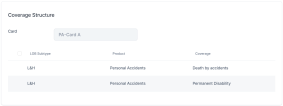
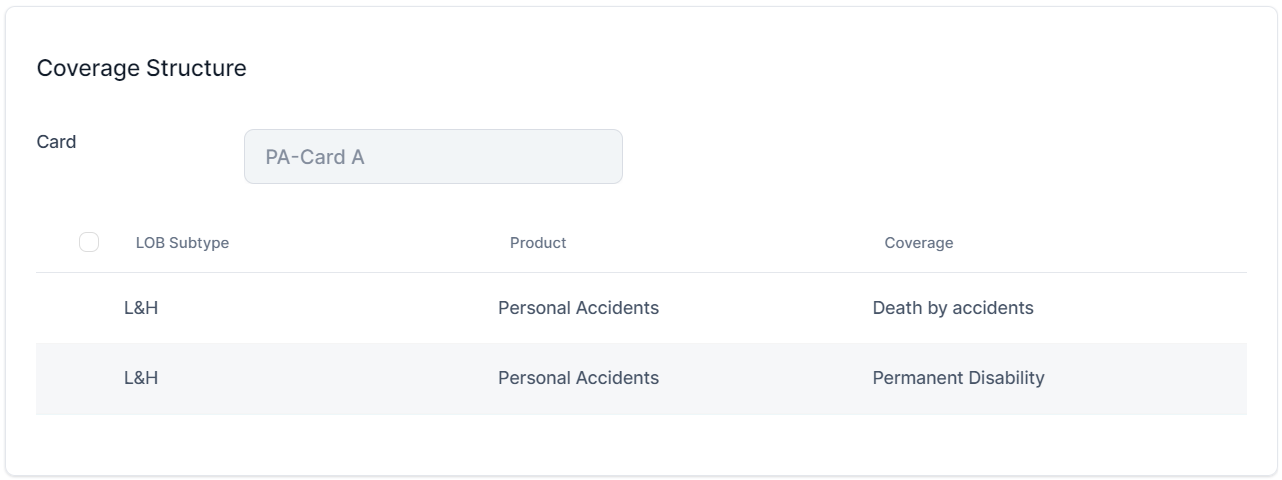
The Coverage Structure section, which contains the list of coverages, according to the selected offer card:
-
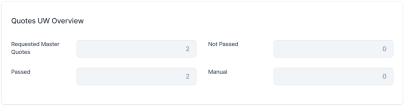
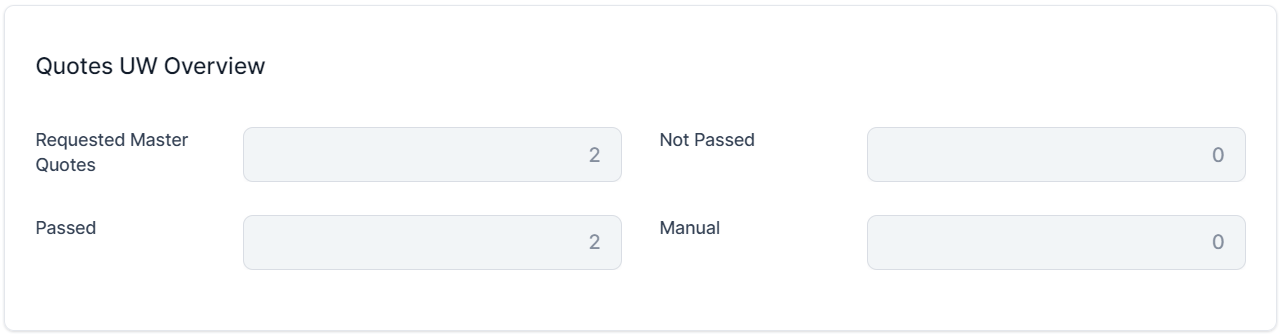
The Quotes UW Overview section displays the status of the underwriting evaluation:
-
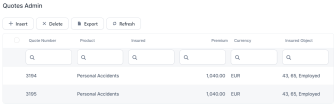
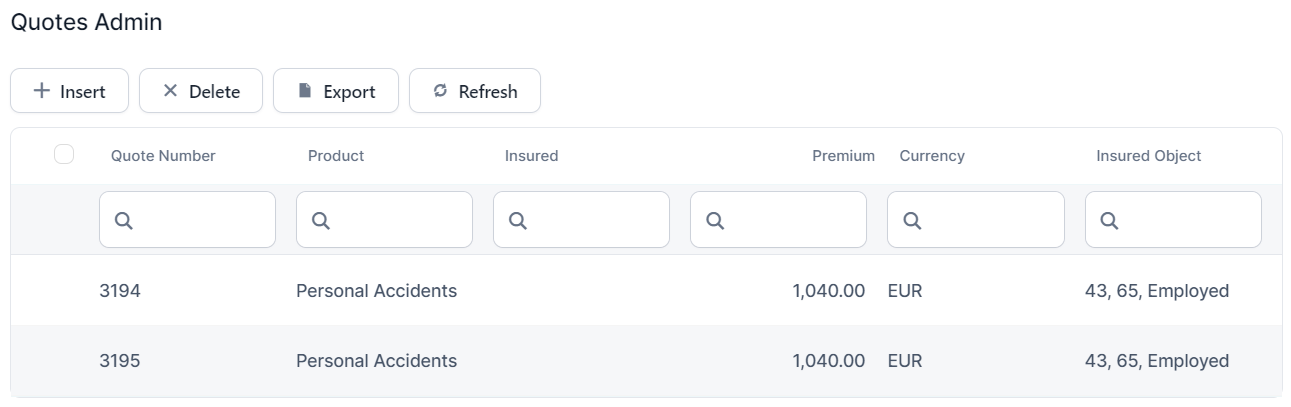
The Quotes Admin section displays a list of all the quotes that are included in the master quote.
-
Accept the Offer and Issue the Master Policy
When the offers associated with a master quotation are approved and policies are issued for them, a master policy is simultaneously generated, encompassing the issued policies within it. To generate the master policy, you firstly need to issue a policy for one of the quote offers. Follow the steps below to issue the master policy related to the master quote:
-
Go to the Quotes tab of a master quote record in Offer Submitted status, and inspect the Quotes Admin Section.
-
Double-click a quote offer record to display its details.
-
Accept the offer and issue the policy for it. To do so, follow the steps described in the Manage Quotes page.
-
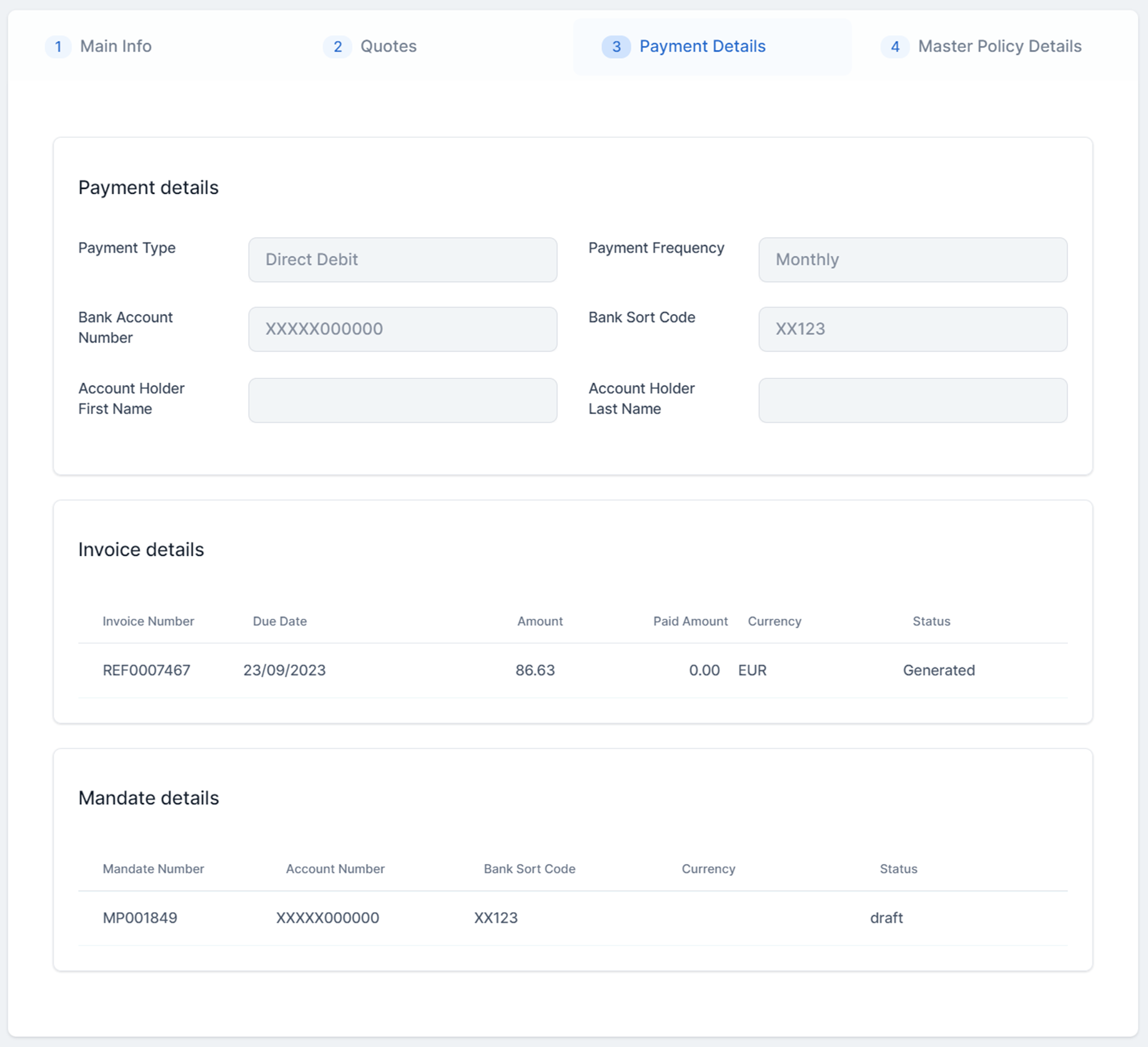
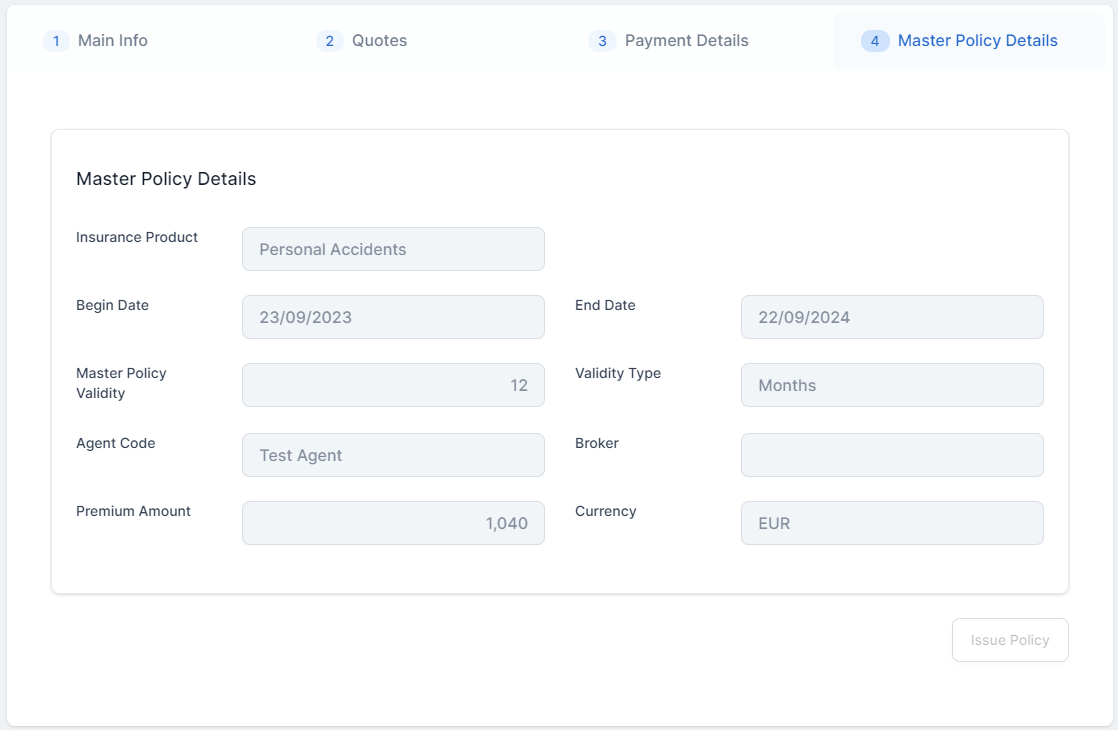
Go to the master quote record. It is now in the Policy Issued status, and two new tabs are available: Payment Details and Master Policy Details.
-
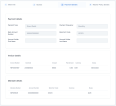
Go to the Payment Details tab to inspect the payment, invoice and mandate details.
-
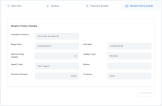
Go to the Master Policy Details tab to inspect the base details of the generated master policy.
-
Go to Main Menu > Policy Admin > Masterpolicies, and open the record of the newly issued policy, to inspect it.