Log Management
A log is a record of the events occurring within an organization’s systems and networks. Logs are composed of log entries. Each entry contains information related to a specific event that has occurred within a system or network.
FintechOS logs contain records related to computer security (which are generated by sources such as antivirus software, firewalls, and intrusion detection and prevention systems), as well as logs generated by operating systems (on servers, workstations, and networking equipment) and applications.
Security Logs
Irrespective of the device or application, it is imperative that log data has accurate time stamps. In FintechOS, logs are generated at the following levels:
 Levels:
-
Applications
Applications log their activity in correlation with the business processes they support, particularly those operations that modify permissions or access rights.
These logs generally include:
- The business operation that was requested.
- Whether the request was accepted or denied.
- The time and date the operation was performed (Start and end times may be appropriate for long operations).
- Who initiated the operation.
- System and network resources used.
- Any information needed for business process controls.
- Client hardware and software characteristics.
-
Systems
Many components of the IT infrastructure generate logs. Examples of these components include:
- Operating Systems.
- Web servers.
- Database servers.
- Print servers.
- File servers.
- Authentication servers.
- DHCP servers.
- DNS servers.
- E-mail server logs.
-
Network devices
Many components of the network infrastructure generate logs. Examples of these components include:
- Routers.
- Switches.
- Wireless access points.
- Network-based firewalls, intrusion detection and prevention systems, next-generation firewalls.
These logs typically describe flows of information through the network, but not the individual packets contained in that flow. Information logged for a flow should include:
- Network (IP) addresses or telephone numbers of the end points.
- Service identifiers (port numbers) for each of the end points.
- Whether the flow was accepted or denied.
- Date, time, and duration of the flow.
- Number of packets and bytes used by the flow.
-
Microsoft Azure
Three types of platform logs are generated which record the following types of actions:
- Azure Active Directory Reports – detailed changes made in Azure AD and login activity.
- Activity logs – record operations performed on an Azure resource – such as creating a VM.
- Resource logs – capture operations performed within an Azure resource, such as querying a database or writing to a storage bucket.
Both Activity Logs and Resource Logs use the Log Analytics workspace to store and access these logs. Also, Log Analytics data is used/analyzed by SIEM to generate alerts/incidents based on defined analytics rules.
Operating System Logs and Application Logs
FintechOS operating system logs and application logs typically hold a variety of information, including computer security-related data.
Logs
-
Operating System logs
Operating systems (OS) for servers, workstations, and networking devices (e.g., routers, switches) usually log a variety of information related to security. FintechOS is logging the most common types of security-related OS data, as follows:
- System Events - System events are operational actions performed by OS components, such as shutting down the system or starting a service. Each event is timestamped and other supporting information may include event, status, and error codes; service name; and user or system account associated with an event.
- Audit Records - Audit records hold security event information such as successful and failed authentication attempts, file accesses, security policy changes, account changes (e.g. account creation and deletion, account privilege assignment), and use of privileges.
-
Applications/platform logs
Logging level can take one of the following values: Verbose, Debug, Information, Warning, Error, Fatal. A minimum level of logging for each logging sink can be set.
FintechOS is actively using two logging sinks which can be enabled together or separately: file logging and Application Insights logging. We also have SEQ logging already added to the platform and can add more Serilog sinks in future FintechOS releases (based on request).
Type of logs that we expect to meet:
-
Platform
- Exceptions in the execution of the FTOS platform logic.
- Warning/Info messages added by the platform developers to have a better view on what happened in a certain workflow.
- Errors where the exceptions are handled, and information is provided about the cause on why a specific logic failed.
- Digital developers can decide to add their own logging with the desired log level in the automation scripts written for client specific implementations.
- Items related to observability on the application performance/statistics are not handled at the platform level and should be extracted using, for example, AppInsights out-of-the-box capabilities.
- Trace.log files configured by default with periodical switching to new files of logs. Trace log files are grabbed by external sources. (SIEM, log server).
-
Database
There are four types of logging events which can be stored in the DB:
-
FintechOS Platform API Logging
-
Optional setting – based on customer requirements
-
Can be filtered by source type (i.e. OpenApi, Data Service) and method name
-
Logs are stored in EbsLogs.ApiLog
-
Attention needs to be paid to filtering and cleaning the logging table, as the high number of requests can increase the DB size considerably
-
Starting with 22.1.0 this can also be sent directly to the same logging sink as platform logging (no filtering on security, it is all or nothing)
-
-
CRUD Operations Logging
-
Optional setting – based on customer requirements
-
It can only be turned on and off without any other granularity settings – logging the CRUD events on all entities
-
Logs stored in EbsLogs.UniversalLog
-
Starting with 22.1.0 this can also be sent directly to the same logging sink as platform logging (no filtering on security, it is all or nothing)
-
-
Authentication Events logging
-
Starting with 24.1, go to the Identity Provider to enable logging user login data.
-
Data is stored in the Event_Entity table in the IDP database.
-
-
Optional setting which by default is turned off
NOTE
FintechOS is logging all CRUD and API operations executed in the platform, by default, in a separate database schema named EbsLogs. Database administrators can restrict read access for this schema and grant insert rights only for the SQL login used by the FintechOS platform. Granular rights can be set up. -
-
-
DCS/DCI (Digital Cloud Services and Digital Cloud Infrastructure)
Logs generated by integration with FTOS technology partners hold data needed for solution debugging, sometimes files sent to the partners and, in some cases, initial requests and responses. Logs are stored on virtual machines where solutions reside. Restricted access to these virtual machines is enforced.
Enable Telemetry
Up until Platform version 24.4.0, logs and traces can be saved in Azure Application Insights or the file system. Starting with version 24.4.1, the Platform introduces support for Open Telemetry, enabling logs and traces to be collected and viewed in observability tools compliant with the Open Telemetry protocol. Find below instructions for configuring integration with either Open Telemetry or (default) Azure App Insights.
You can only use either Application Insights or Open Telemetry, not both. Open Telemetry integration does not support metrics, only logs and traces.
Open Telemetry
-
In Configuration Manager on your environment, go to Studio > App Settings.
-
Configure the
otel-loggingkey and add the following:enabled=1; logLevel=Debug; sdkLogLevel=Information; endpoint=http://example; tracing=1;-
logLevel- the level for logs generated by the platform, for example when a job in the job server starts or ends; -
sdkLogLevel- the logging level for the ftos.logging.log server SDK method; -
endpoint- where telemetry data is sent (logs and traces); -
tracing- keep track of requests and operations across services. It can have the following values:-
0- log data is recorded only; -
1- data on incoming HTTP requests received by the FintechOS component (Portal, Studio, product factory), for example using Client SDK; -
2- records detailed information on dependencies, such as SQL queries, HTTP calls to other systems, the time it took for each server-side SDK method to execute, etc.).
-
-
-
Redo the steps for enabling Open Telemetry for Product Factory. Go to PF API > App Settings.
-
To check that the logs will be recorded, in Azure, navigate to App Insights > Investigate tab > Transaction search.
-
Click the Filter and select Cloud role name. The list of components is displayed: studio-platform, jobserver-platformservices, pfapi, b2cportal-platform, openapi, pfbff, portal-platform, jobservice-serverscripts, async-engine.
-
From the Filter, select Cloud role instance. Check that the list is similar to the one above.
The logs are visible in Azure Application Insights.
Default Azure App Insights Logging
-
In Configuration Manager on your environment, go to Portal > App Settings.
-
Configure the
azure-appinsights-loggingkey and add the following:enabled=1; apiKey=[apikey]; sdkLogLevel=Information; logLevel=Warning; flushInterval=10s;-
sdkLogLevel- the logging level for the ftos.logging.log server SDK method; -
logLevel- the level for logs generated by the platform, for example when a job in the job server starts or ends.
-
-
Enable the
azure-appinsights-loggingkey. -
Configure the
azure-appinsights-telemetry-loggingkey, and add one of the following values:-
0- log data is recorded only; -
1- data on incoming HTTP requests received by the Portal/Studio, such as a call action; -
2- records detailed information on dependencies, such as SQL queries, HTTP calls to other systems, the time it took for each server-side SDK method to execute, etc.
-
Anonymize Logs
The log entries that contain sensitive information, such as usernames, passwords, credit card numbers, personal identification numbers, can be anonymized in the platform, thus assuring compliance with GDPR standards. You can anonymize the properties when a JSON object or array is logged using the log SDK method. The sensitive information is replaced with N/A in anonymized logs.
Enable or Disable Log Anonymization
Log anonymization is enabled by default on environments, and you can check in the Configuration Manager.
-
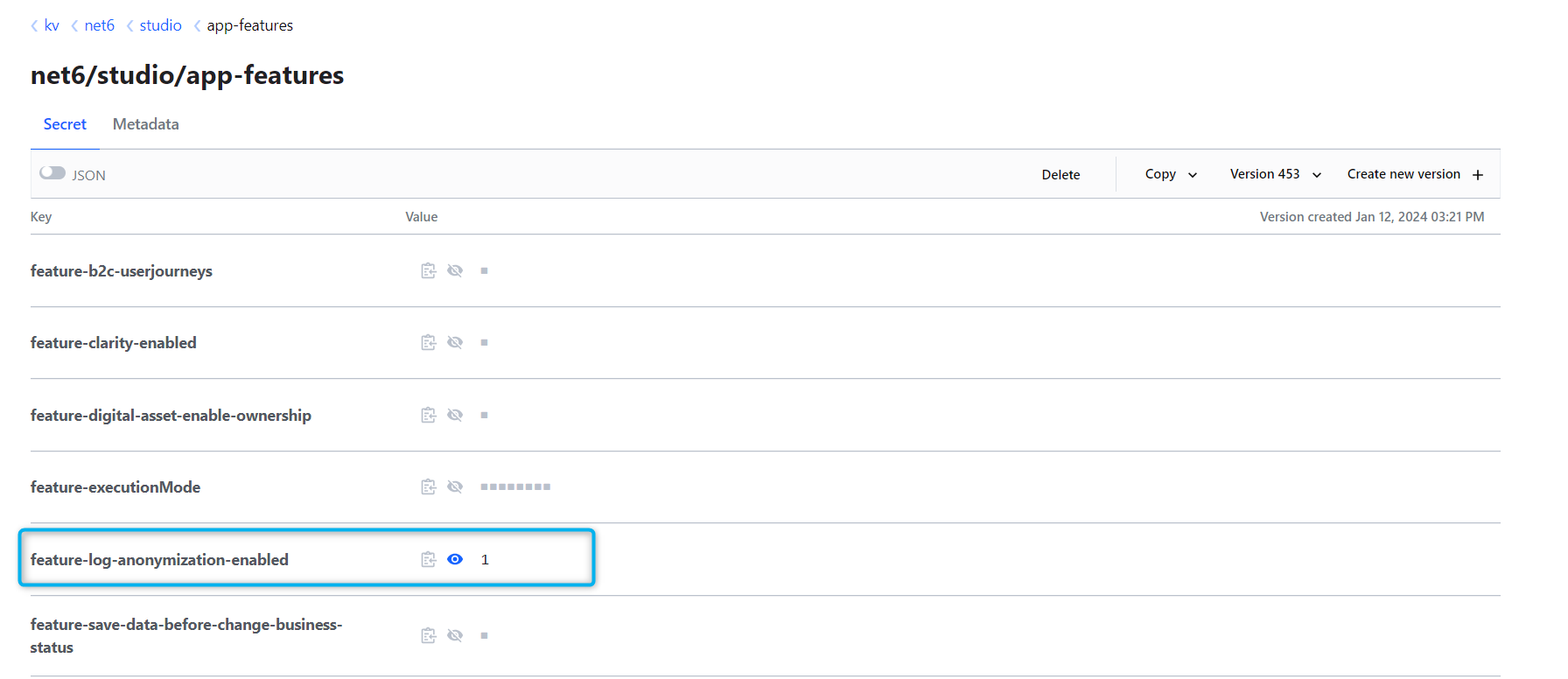
Go to App Features in Configuration Manager on your environment.
-
Add the value
1to thefeature-log-anonymization-enabledto enable anonymization. Add0to disable it.
Define Logs to be Anonymized
Once the log anonymization feature was enabled in Configuration Manager, you must now define which logs to be anonymized.
-
In FintechOS Studio, go to System Parameters.
-
Double click on
sys-log-anonymization-settingsto open this system parameter. -
In the Paramenter Value field, add the logs to be anonymized, eg.: username, password, credit card number. Make sure to separate parameters with a comma.
-
Click Save and close when done.
The message can be string, object, or json format.
Example
In this example, we are anonymizing multiple customer emails and first names using a script that contains an array with 2 objects. In this scenario, Log anonymization is already enabled.
-
Edit the
sys-log-anonymization-settingsand addemail, firstNamein the Parameter Value field. -
In Studio, create a new server script with an array with 2 objects:
Copyexample1 = new Object();
example.email = "example1@mail.com";
example.firstName = "Name";
example2 = new Object();
example.email = "example2@mail.com";
example.firstName = "First";
log([example1, example2]); -
Create an endpoint for the script.
-
Open the console from the browser and execute the script:
ebs.callActionByName("example_script"). -
Check the logs in App Insights and notice that the elements are anonymized.
You can anonymize multiple customer emails and first names using a script that contains 2 elements in Json:
-
Edit the
sys-log-anonymization-settingsand addemail, firstNamein the Parameter Value field. -
In Studio, create a new server script that has 2 elements in Json:
Copylog([{"email":"example1@mail.com", "firstName" = "Name"}, {"email":"example2@mail.com", "firstName" = "First"}])) -
Create an endpoint for the script.
-
Open the console from the browser and execute the script:
ebs.callActionByName("example_script",(res)=>console.log(res)). -
Check the logs in App Insights and notice that the elements are anonymized.
Filter SDK logs
You can set a different level for SDK logs so that you can view certain logs on development environments. In this way, you can differentiate between logs at platform level and logs from server automation scripts. You can filter logs by automation script, digital asset, machine name, user ID, correlation ID.
Enable Filters for Logs
Follow the steps below to enable or disable the filters for logs:
-
In Configuration Manager, go to Studio > App Settings.
-
Add
sdkLogLevel: Info;to theazure-appinsights-loggingentry. You can change the value from Info to any other log level that you need, such asDebugorError.
The log levels are the same as log levels for Microsoft Azure.
Define Filters
You need to add some settings for the logs. Follow the steps below to define which property you want to filter out:
-
In Configuration Manager, go to Studio > App Settings.
-
Edit
sdk-log-filtersto add{"automationscript":["automation_script_name"], "digital-asset":["digital_asset_name"]}. Keep in mind that by adding more than one property, the filtering method is either/or. -
Changes will take effect without restarting, in no more than 20 seconds.
Automation scripts part of digital assets are displayed if the digital asset is specified in
sdk-log-filters.Example
In the following example we're filtering by two automation scripts, test_script_1 and test_script_2, and one digital asset, named test_da.
-
In Configuration Manager, go to Studio > App Settings.
-
Edit
sdk-log-filtersto addsdk-log-filters: {"automationscript":["test_script_1", "test_script_2"], "digital-asset":["test_da"]}. -
Open Studio and run the following commands from the Console, one-by-one:
Copyebs.callActionByName('test_script_1')
ebs.callActionByName('test_script_2')
ebs.callActionByName('test_da') -
Check the logs from App Insights. The scripts and the digital asset are displayed in the logs.