Browser Based Multifactor Authentication
Multifactor authentication (MFA) adds an extra layer of security on top of the basic authentication methods. It requires users to provide multiple proof of their claimed identity prior to being granted access according to their security roles and permissions.
User access can be granted based on two cumulative conditions:
- Something the user knows (login credentials): username and password.
- Something the user controls (a mobile device or email account used to receive a temporary pass code via SMS/E-mail).
When users access the app, they will be prompted to provide the login credentials associated with their FintechOS Platform account. To make sure account access is protected, after the login credentials are provided, a one-time security pass code is sent to the user’s phone (the phone number set in the user account profile) or email address. Once the user enters the code received via the SMS/e-mail, access into the system is granted.
The following authenticator apps can be used:
- Microsoft Authenticator
- Google Authenticator
- FreeOTP
Follow the instructions below to set up multifactor authentication.
1 Create a Browser Authentication Flow
- Log in to the FintechOS Identity Provider admin console.
- Select your FintechOS Platform realm.
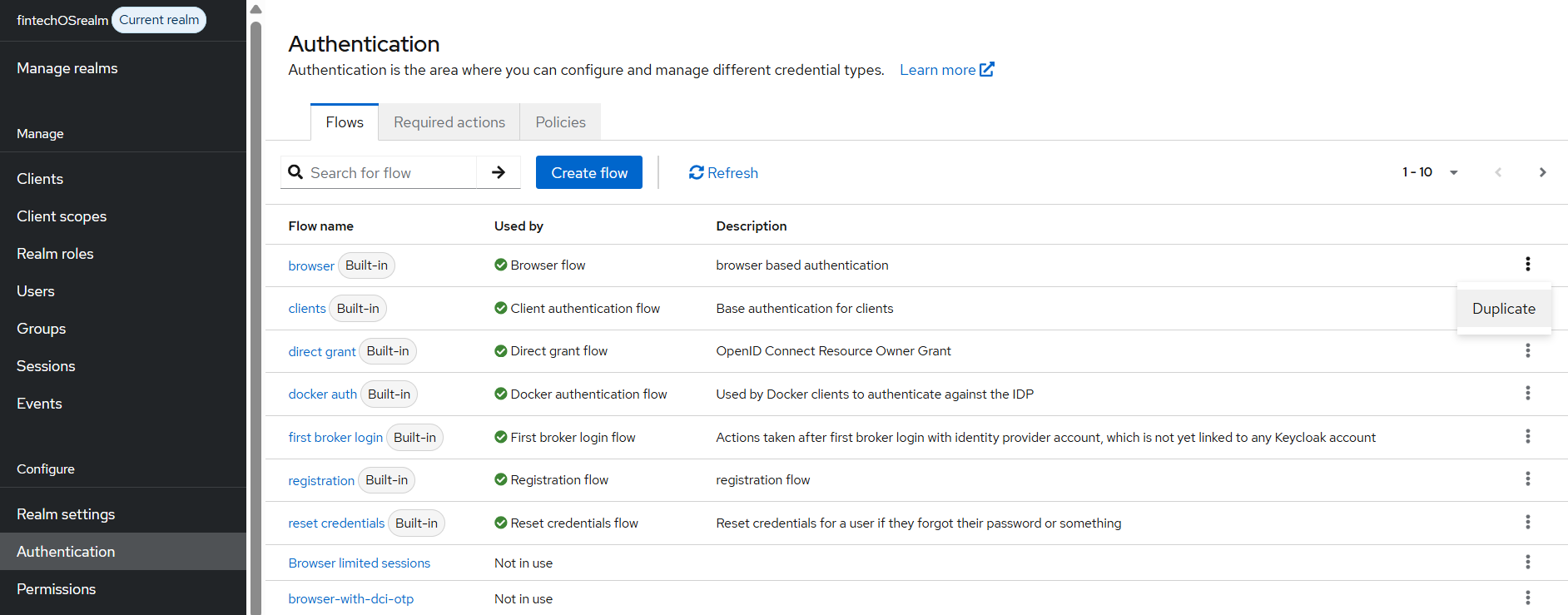
- From the left side menu, click Authentication. The list of authentication flows opens.
- In the Flows tab, next to the Browser based authentication flow, click the dots and select Duplicate. Built-in flows cannot be modified, but you can alter its settings such as OTP forms, conditions, and so on. You might have multiple flows depending on authentication scenarios, such as an authentication flow for existing users, a registration flow, a reset credentials flow and so on. Read more about authentication flows in the official Keycloack documentation.
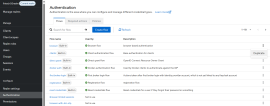
- In the window that opens, assign a name for your new browser authentication flow.
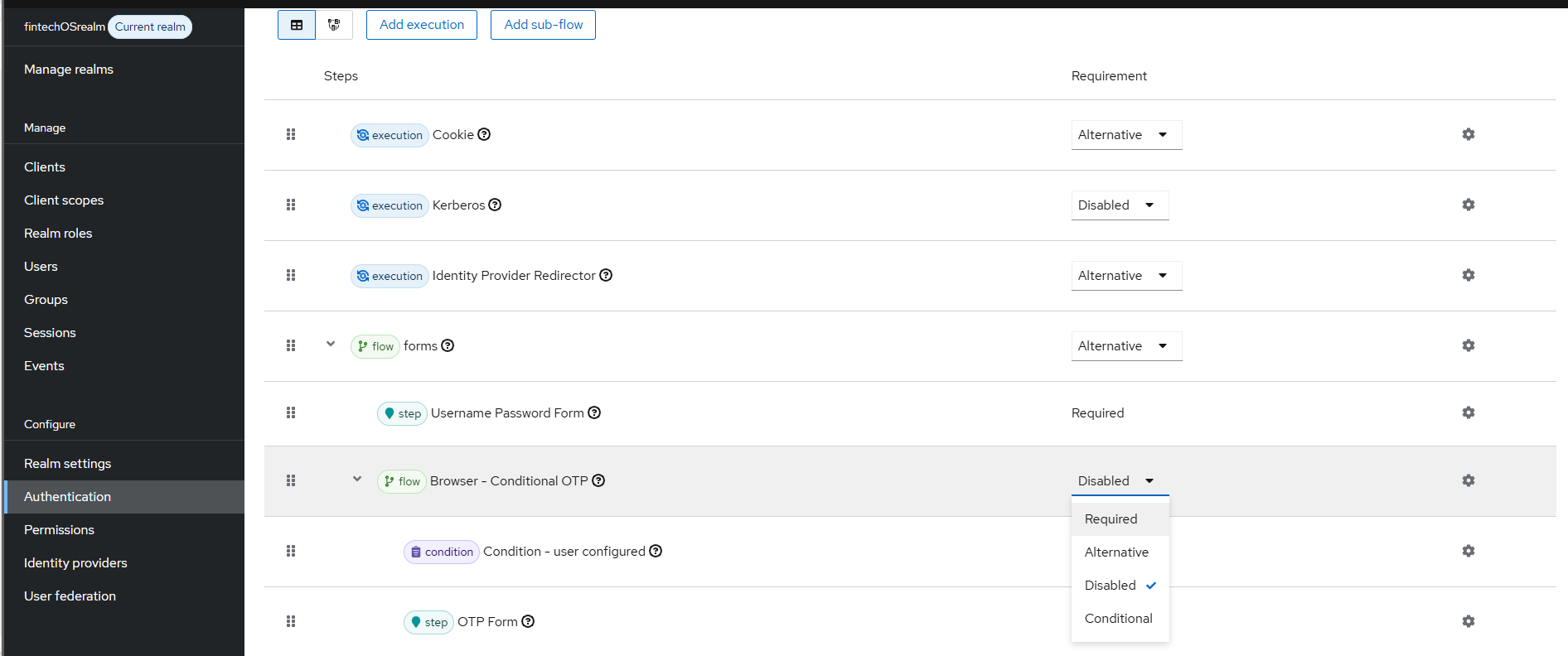
- Open the newly created authentication flow and, in the Forms authentication type, set the Browser - Conditional OTP subflow to Required.
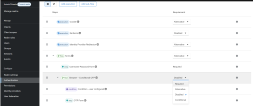
(Optional) Enable Conditional OTP Only for Specific roles
- Open your authentication flow and, in the Forms authentication type, next to the Browser - Conditional OTP subflow, click the plus button and select Add condition.

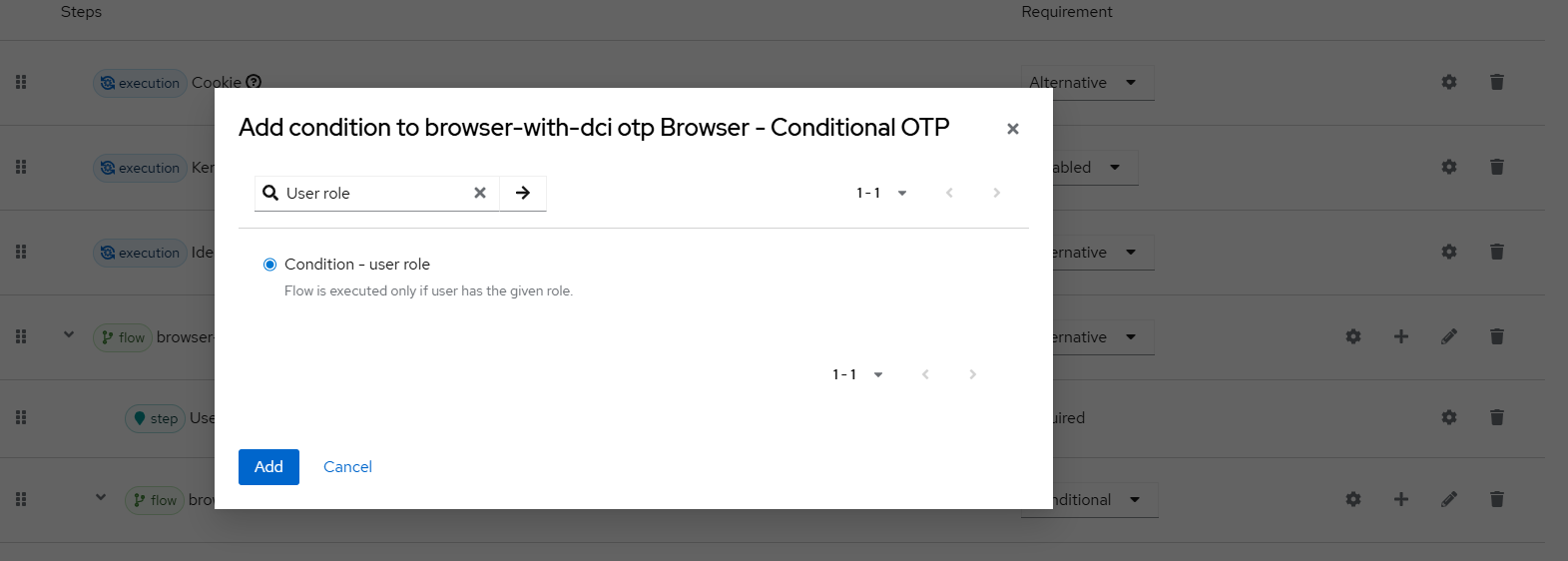
- In the Add condition modal window, search for Condition - user role, ,select and click Add. The condition is added to the flow.
- In the authentication flow window, move the Condition - user role execution above the OTP Authentication execution and click its right side settings button to open the configurations window.
- In the user authenticator configuration page, add an Alias of your choice and select the Role which will require multifactor authentication. If you want to apply multifactor authentication to all user roles except the provided role, tick the Negate output option.
- On your authentication flow page, in the Forms authentication type, set the Browser - Conditional OTP subflow to Conditional.

2 Associate the Authentication Flow to a Client
- In the left side main menu, click Clients to display the list of FintechOS Identity Provider clients, applications and services that can request authentication of a user, for example the Studio or Portal. Click a client to open its configuration.
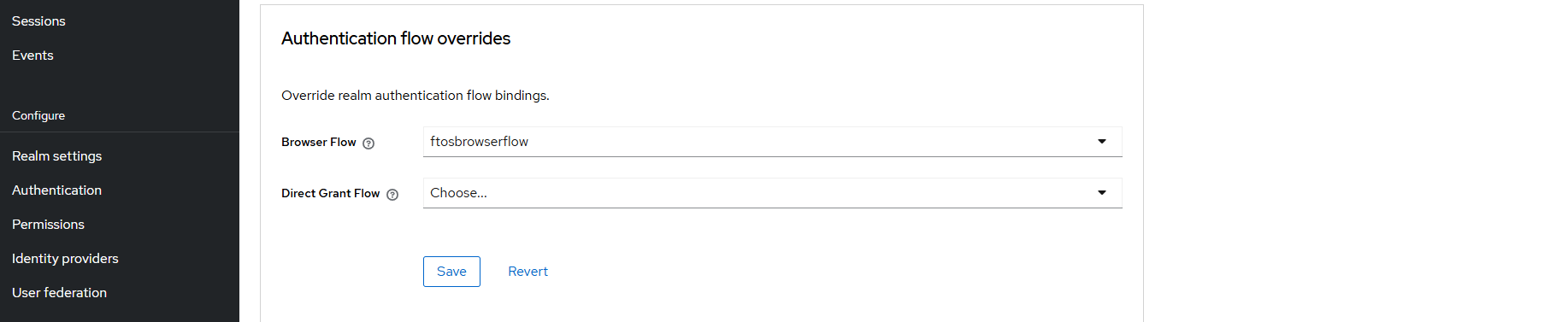
- In the Advanced tab, scroll down to the Authentication flow overrides section. This overrides realm authentication flow bindings.
- In the Browser Flow drop down, pick the flow you created earlier and click Save.
Authenticator Reset
Once set up, the multifactor authentication is required when a user logs in for the first time. If a user loses access to the authenticator app or needs to reconfigure for various reasons, a FintechOS Identity Provider administrator must log in to the administration console and either:
- Delete the created authenticator
or
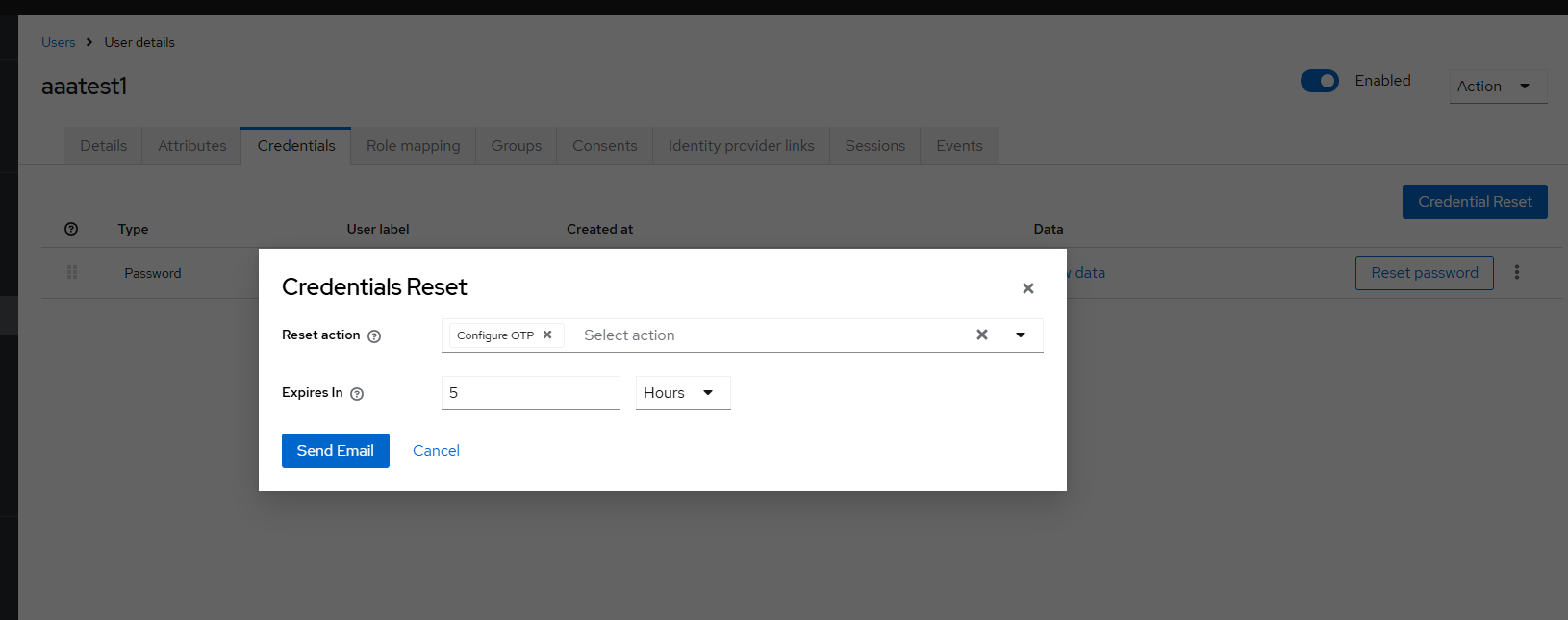
- From the user's Credentials tab, click Credential Reset and select Configure OTP reset action. Click Send Email. The sent email contains a link that directs the user to the OTP setup page.