MFA by Email, SMS
Email and/or SMS Multi-Factor Authentication (MFA) adds an extra layer of security on top of the basic authentication methods. When users access the FintechOS Portal or FintechOS Studio, they will be prompted to provide the login credentials associated with their FintechOS Platform account. To make sure account access is protected, after the login credentials are provided, users are redirected to a secondary login page where they have to enter a one-time security pass code received via email, SMS (the phone number set in the user account profile). Once a user enters the code received via the Email/SMS/IVR(Call Me) option, access to the system is granted.
Follow the instructions below to set up Email/SMS/IVR(Call Me) multi-factor authentication.
1 Create an Authentication Flow
Make sure that the FintechOS Identity Provider has the MFA plugin installed and uses a theme that includes the MFA login screen.
- Log in to the FintechOS Identity Provider admin console.
- Select your FintechOS Platform realm.
- In the left menu, select the Authentication option.
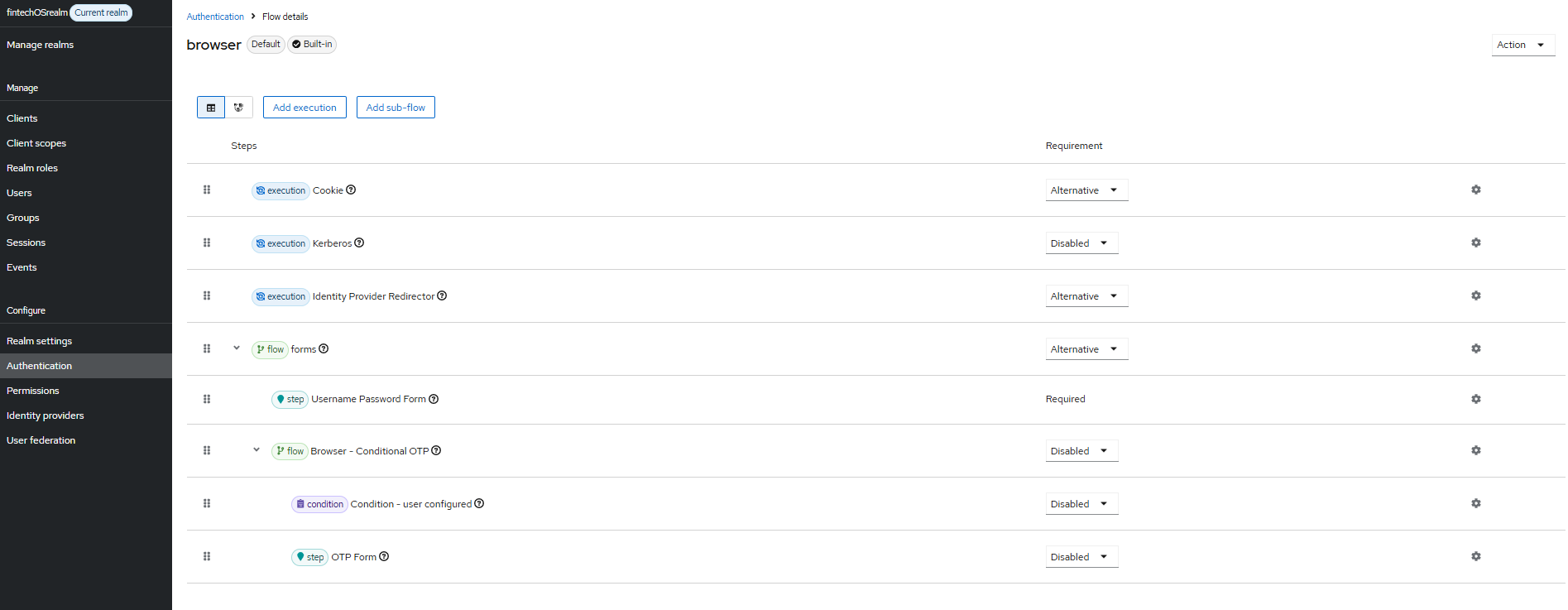
- In the Flows tab, open a built-in authentication flow and alter its requirements. Built-in flows cannot be modified, but you can alter its settings such as OTP forms, conditions, and so on. You might have multiple flows depending on authentication scenarios, such as an authentication flow for existing users, a registration flow, a reset credentials flow and so on. Read more about authentication flows in the official Keycloack documentation.
2 Configure the Flow's MFA Execution Step
- Open your authentication flow and navigate to the OTP Authentication execution step.
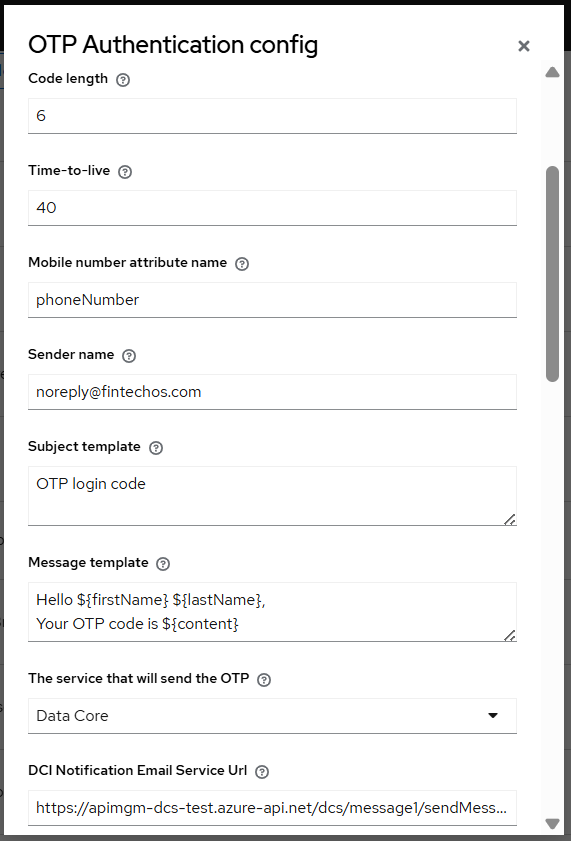
- Click the settings button to open the OTP Authentication config form.
- Set up the following parameters:
Authenticator Reference: Optionally, add a custom reference name for the authenticator. When this authenticator is successfully completed during an authentication flow, the Authentication Method Reference (AMR) protocol mapper will use this value to populate the AMR claim of the generated tokens. Note, the AMR protocol must be configured for the given client to populate the AMR claim.
Authenticator Reference Max Age: Optionally, add the max age in seconds that the authenticator reference value is good for in an SSO session. When the Authentication Method Reference (AMR) protocol mapper is used, the AMR will only be considered valid and populated in the token if the authenticator execution was completed within the specified max age.
- Code length: The length of the one-time password that is going to be sent to the user.
- Time-to-live: The duration in seconds the one-time password is valid.
- Mobile number attribute name: The attribute name that is going to be used to retrieve the user’s phone number.
- Sender name: The sender's email address displayed to the end user when email notifications are sent. It is recommended to pick a sender email address other than generic sender IDs such as “SMS”, “INFO”, “Alert”, "no-reply", and so on. These could be automatically rejected by some email services.
- Subject template: The message subject template that is going to be sent to the user when using the email communication channel. You can use the following placeholders: ${firstName}, ${lastName}, ${content}.
- Message template: The message content template that is going to be sent to the user via SMS or email. You can use the following placeholders: ${firstName}, ${lastName}, ${content}.
The service that will send the OTP: Choose between DCI and DataCore.
DCI Notification Email Service Url: example:
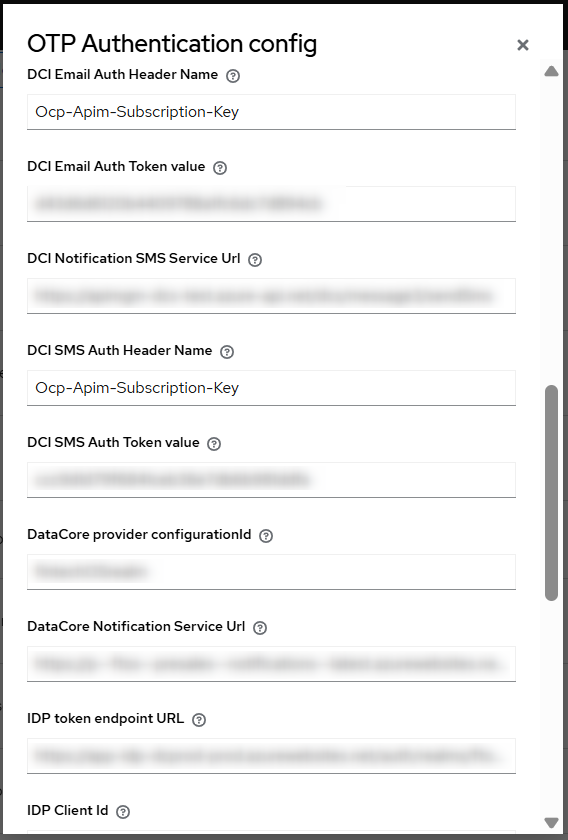
[environemntURL]/dcs/message1/sendMessageDCI Email Auth Header Name: The DCI authorization header name for email service, for example
OCP-Apim-Subscription-KeyDCI Email Auth Token value: The authorization token for the DCI email service, for example:
01234567890abcdef01234567890abcdefDCI Notification SMS Service Url: Add the service URL if you enforce SMS notification, for example:
[environmentURL]/dcs/message3/sendocbsmsDCI SMS Auth Header Name: Add the authentication header name if SMS service, for example
OCP-Apim-Subscription-KeyDCI SMS Auth Token value: Authorization token for SMS service, for example:
01234567890abcdef01234567890abcdefNotification DataCore Service Url: Add service URL if using Data Core, for example:
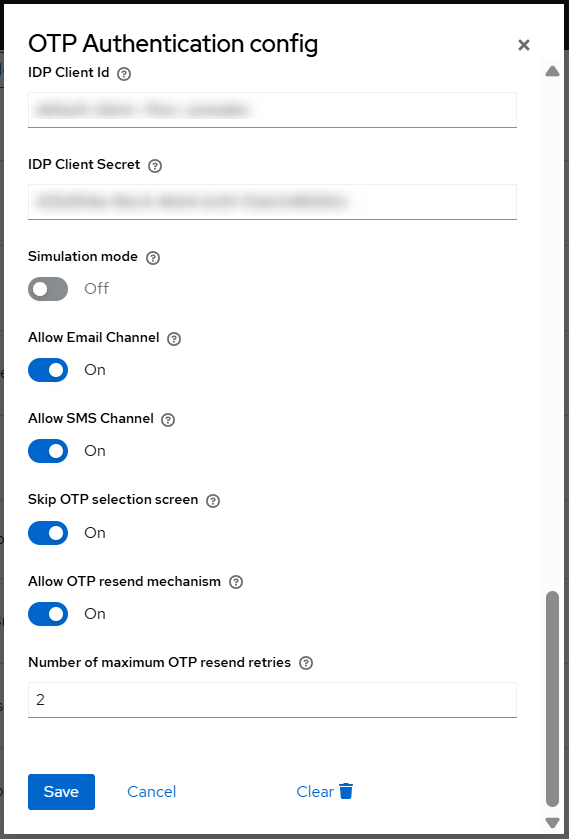
https://app-envoy-rgname-level.azurewebsites.net/datacoreIDP Client Id: The client id used for obtaining valid access tokens to call the DataCore service.
IDP Client Secret: The client secret used for obtaining valid access tokens to call the DataCore service.
- Simulation mode: When set to True, the actual one-time password will not be sent to the user. Instead, the one-time password will be logged on the FintechOS Identity Provider server.
Allow Email channel: If set to true, the user will be able to select Email as communication channel for receiving the OTP.
- Allow SMS channel: If set to true, the user will be able to select SMS as communication channel for receiving the OTP.
- Allow Call Me channel: If set to true, the user will be able to select Call Me as communication channel for receiving the OTP.
- Skip OTP selection screen: if only one channel is configured, then only that option is displayed to the end user
Allow OTP resend mechanism: allows the user to request another OTP code. The number of retries is configured in the below box Number of maximum OTP resend retries.
- Click Save.
If the user adds the wrong OTP code for 8-10 times, their FintechOS IDP user is disabled and can be enabled by an admin user.
To modify the text in the UI in the OTP validation screen, including the text above the radio buttons for picking the validation option (email, SMS, call), go to the FintechOS IDP, choose your UI theme, and inside the UI theme folder navigate to baseStudio > login > messages > messages_en.properties, and change the key values. For example, to display "Send SMS" in screen UI, modify the following key to show: otpSelectionFormSms=Send SMS.
3 Activate the Authentication Flow
Once the authentication flow is configured, in the FintechOS Identity Provider, navigate to Authentication > Bindings and replace the Browser flow with the newly created flow. This will the set authentication flow globally. However, if you want to enable the flow only for one client, you can navigate to the client page, go to Settings > Authetication Flow Overrides, and change the Browser Flow there.
A user who logs in to FintechOS Portal or FintechOS Studio, will be directed to the one-time password form and will receive the required password via Email, SMS or IVR (Call Me).