Managing Company's Data Collection
For new or exiting applications, review and verify the company details retrieved from integrations with external sources in order to edit or add the missing data. The company's details are grouped in:
-
company documents brought through integrations or added manually
-
information about directors and company representatives
-
financial and qualitative indicators
-
charges
-
product configuration
-
detailed information about the group from which the company belongs.
 Managing Company's Details
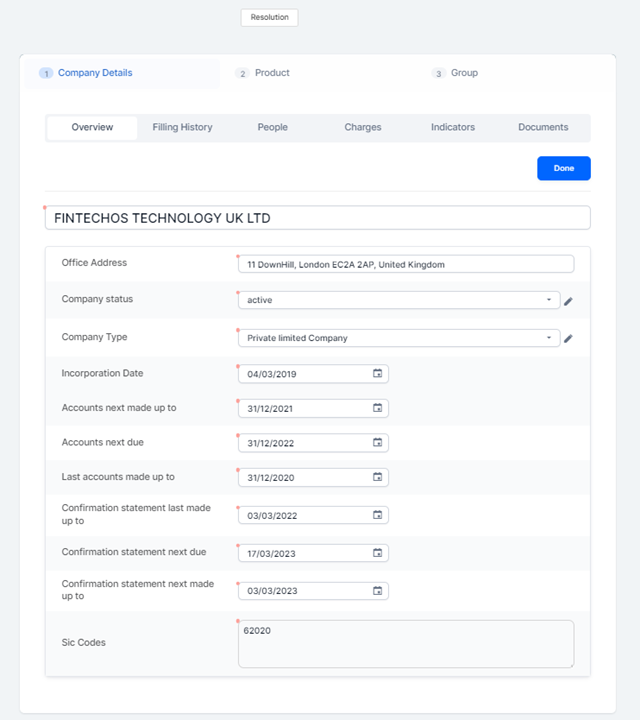
You can see the high-level company details in the Company Details > Overview tab, such as Office Address, Company status, Company Type, Incorporation Date, Accounts next made up to, Accounts next due, Last accounts made up to, Confirmation statement last made up to, Confirmation statement next due, Confirmation statement next made up to and Sic Codes.
The data is brought from Companies House Connector. Review it to ensure it is correct and fill or edit the missing fields to continue the application, then click Done.
Checking Filling History
Check the company's documents available in the Company Details > Filling History tab to ensure that all required documents are provided. The documents are brought from the integration with the Companies House Connector.
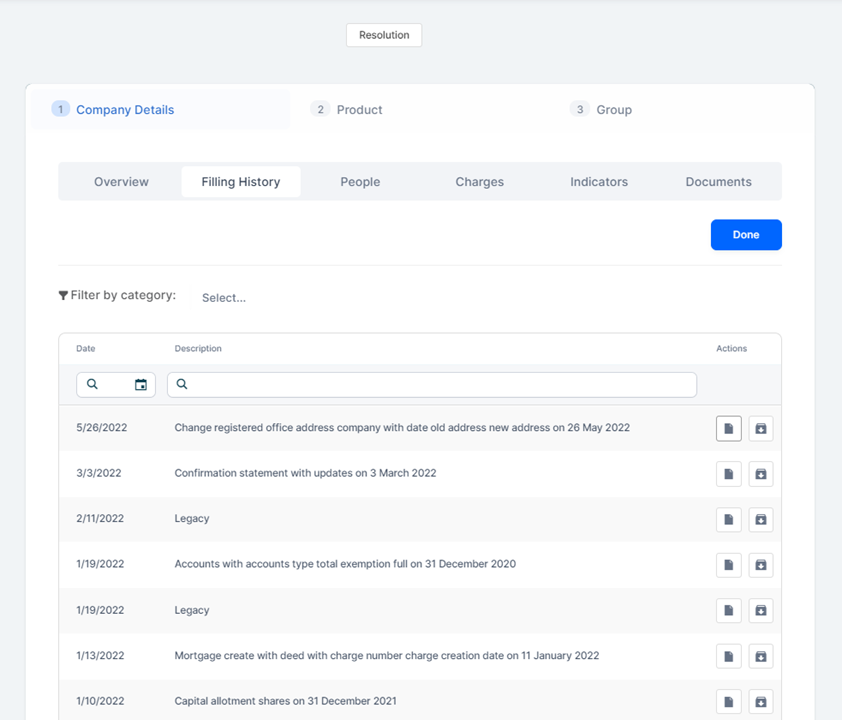
Click the view  or the download
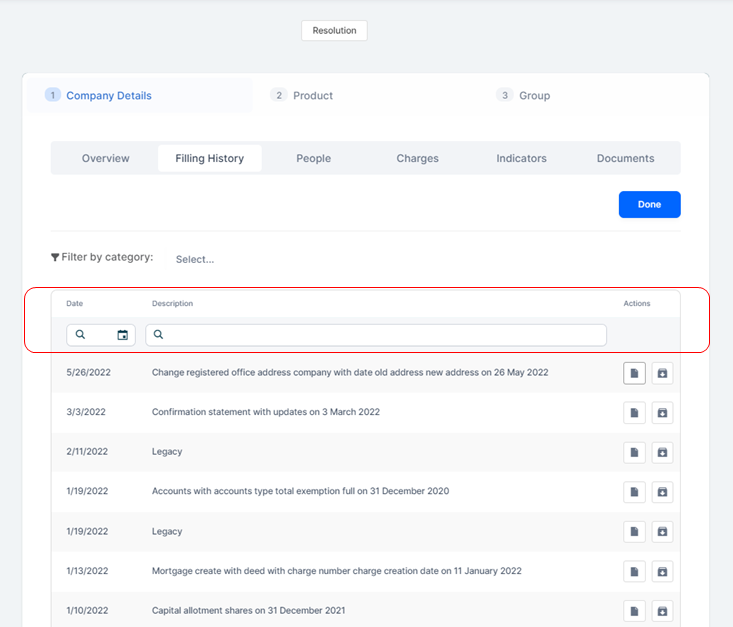
  button to see or download the documents. Filter the documents by date (this is the date of sending the document) or by description (this is a description of the document).
Or, sort the documents displayed using the Filter by category option.
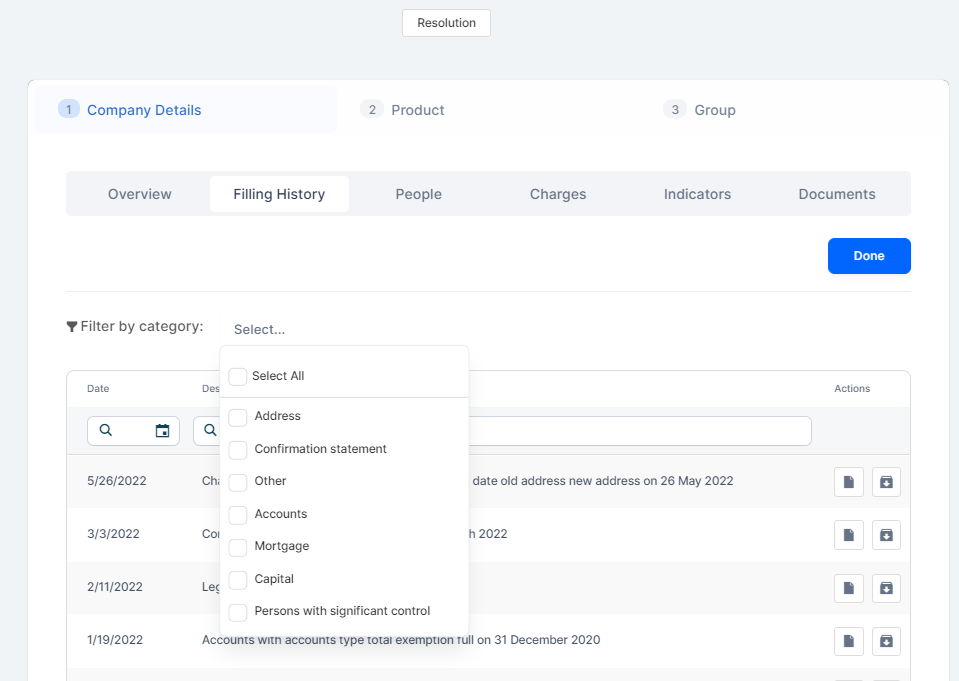
The filter options are those categories available in the API response specific to the selected company.
After checking the filling history, click Done.
Viewing People
On the Company Details > People tab, click the available sections to view the Officers and the Persons with significant control who have a connection with the company that applies for the credit facility. The data is brought from the integration with the Companies House Connector.
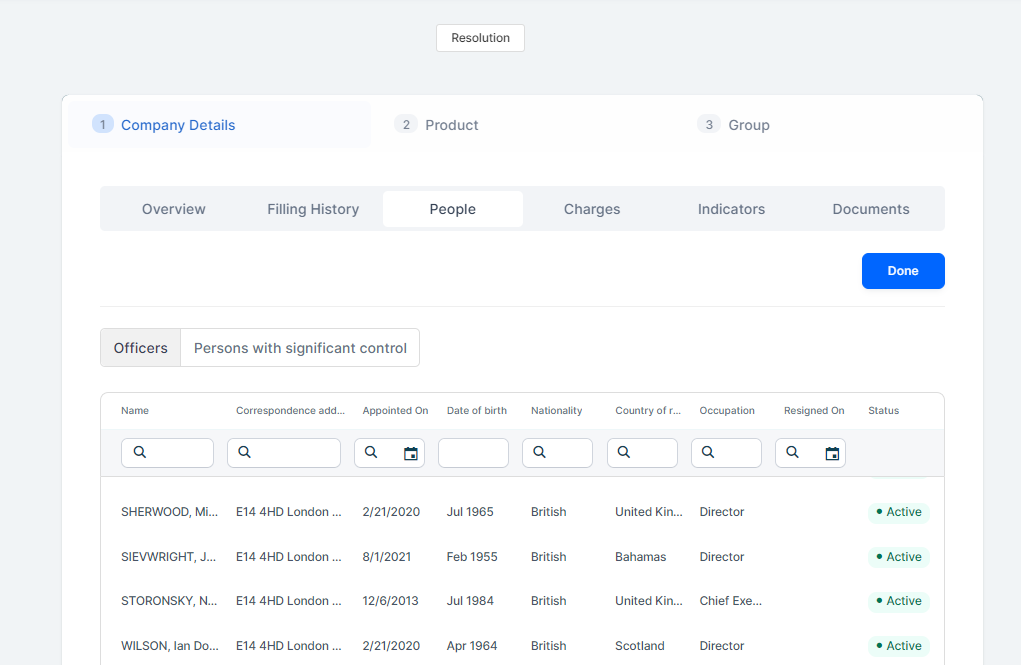
The following details are displayed: Name, Correspondence address (it consists of postal code, locality, addresses and premises), Appointed on, Date of birth, Nationality, Country of residence, Occupation (this column is displayed only in the Officers tab), Type (this column is displayed only in the Persons with significant control tab), Status (Active or Resigned for Officers and Active or Ceased for persons with significant control in the company), Resigned On (this column is displayed only in the Officers tab) and Ceased On (column displayed only in the Persons with significant control tab).
After you review and verify all this information that is important in the underwriting stage, click Done.
Viewing Charges
Details about the SME's applicant charges are displayed in the Company Details > Charges tab: Name, Person Entitled, Brief description, Created, Delivered, Satisfied On and Status (the charge status). The charges are brought from the integration with the Companies House Connector.
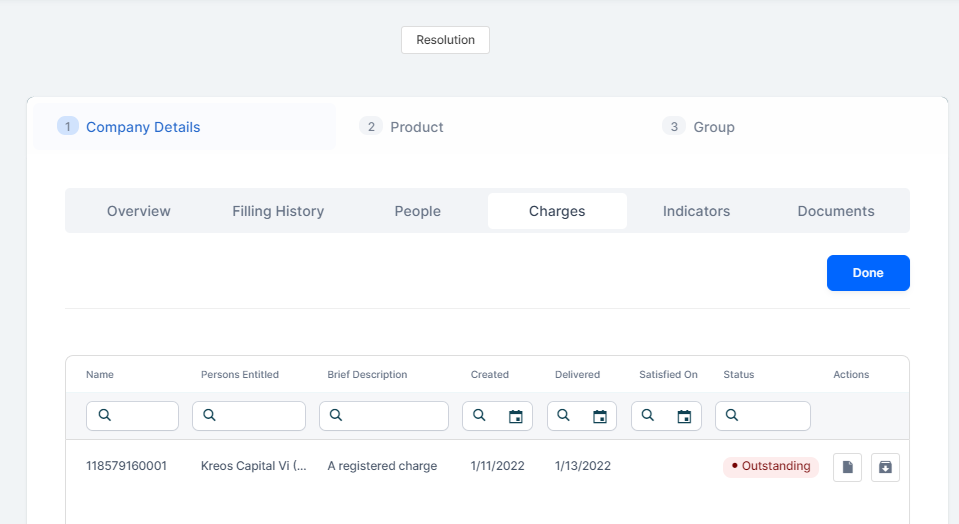
You can view  or download
  the pdf documents for each charge.
Every charge has one or two documents attached. When you click the view or the download button, the most recent document is displayed or downloaded.
Also, you can filter every column to find easily the charge you are searching for.
After viewing the details about the SME's applicant charges, click Done.
Managing Indicators
Check Quantitative Indicators
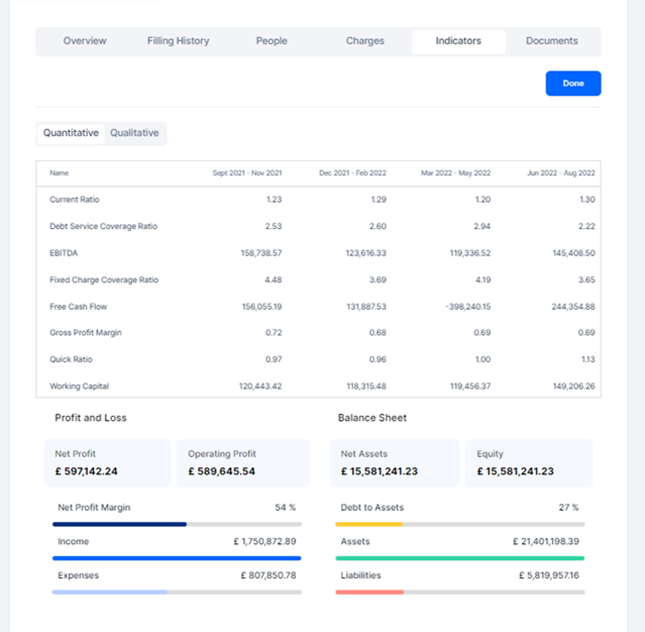
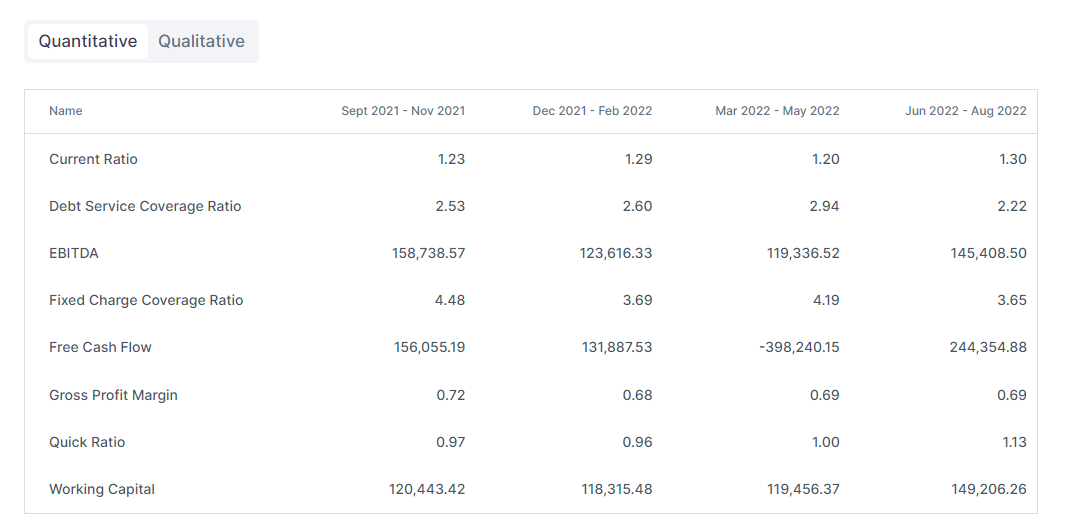
A set of pre-calculated ratios and metrics used to assess the company's performance are displayed in the Company Details > Indicators > Quantitative tab. Review the company's financial indicators to ensure that the SME applicant is suitable for the credit line. The information is displayed from the integration with Codat.
-
Check the following indicators displayed in 4 columns and see the formula used to calculate each category (hover over the indicators, and a tooltip appears).
-
Gross Profit Margin: Gross Profit / Net Sales.
-
EBITDA: Net Income + Interest + Tax + Depreciation + Amortization.
-
Debt Service coverage ratio: Net Operating Income/Total Debt Service. Where the Total Debt Service = Loan Interest + Principal.
-
Current Ratio: Current Assets / Current Liabilities.
-
Quick Ratio: (Current Assets - Inventory – Prepaid Expenses) / Current Liabilities.
-
Free Cash Flow: Net Income + Depreciation and Amortization (non-cash expense) - Working Capital Variation - Purchases of PP&E (CAPEX). Where the Working Capital Variation = Stock + Account Receivable (trade and others) – Account Payables (trade and others).
-
Working Capital Variation: Stock + Account Receivable (trade and others) – Account Payables (trade and others).
-
Working Capital: Current Assets – Current Liabilities.
-
Fixed Service Coverage Charge: (EBIT + Fixed charge before tax) / (Fixed charge before tax + Interest).
-
-
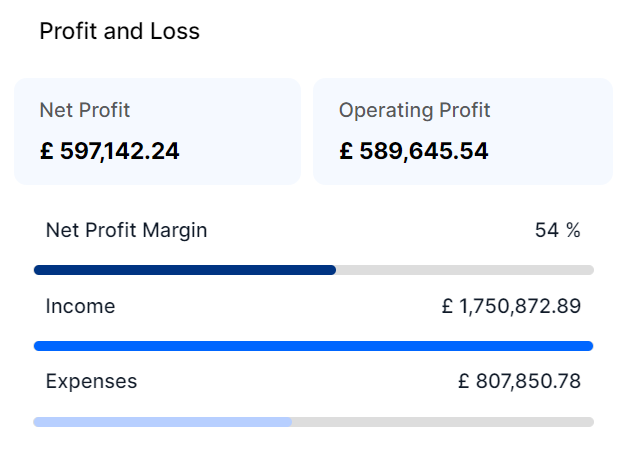
Check the Profit and Loss section containing details about the Net Profit, Operating Profit, Net Profit Margin, Income, and Expenses of the company.
The formula used to calculate the Net Profit Margin indicator is the
(Income-Expenses)/Income, shown in percentages.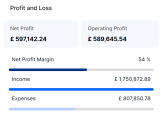
The longest line will correspond to the maximum (Income or Expenses), it could be Income or Expenses the maximum amount.
The second line will be represented as a percentage calculated as follows:
min value/max value * longest line. -
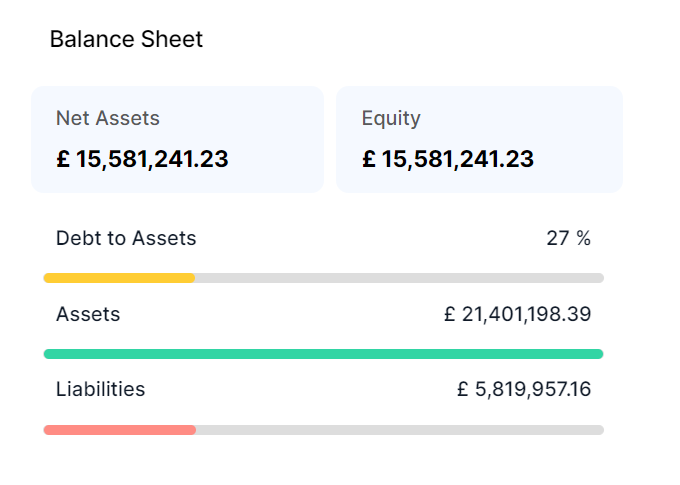
View the Balance Sheet section containing details about Net assets, Equity, Debt to Assets, Assets, and Liabilities.
The formula used to calculate the Debt to Assets indicator is
Liabilities/Assets,shown in percentages.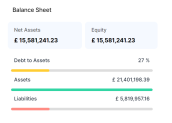
The longest line will correspond to the maximum (Assets, Liabilities), it could be Assets or Liabilities the maximum amount.
The second line will be represented as a percentage calculated as follows:
min value/max value * longest line. -
Click Done.
 Set Qualitative Indicators
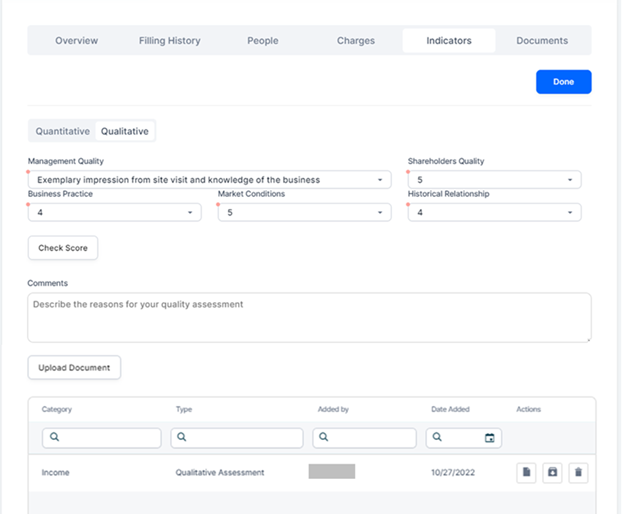
Collect information about the quality indicators of the company applying for the credit facility and check whether or not you can submit the application.
-
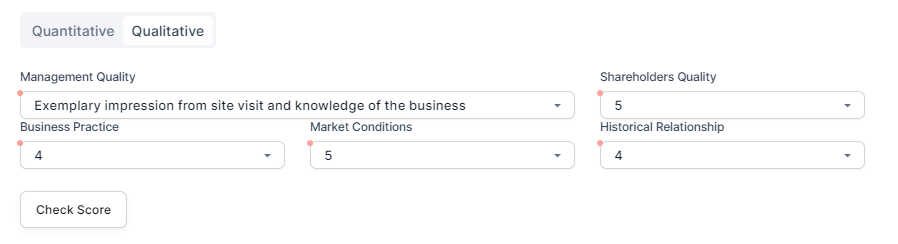
In the Qualitative indicators tab, select a rate for the Management quality. The following values are possible:
-
Exemplary impression from site visit and knowledge of the business.
-
Exemplary presentation with strong knowledge of the business.
-
Good impression from the site visit sufficient knowledge of the business.
-
Sufficient impression from the site visit and sufficient knowledge of the business in a key area.
-
Insufficient knowledge of the business in several key areas.
-
-
Select a rate for the Shareholders quality, Business practice, Market conditions, and Historical relationship.
The possible values are: 5, 4, 3, 2 or 1. Below you can see an explanation for each rate:
-
5: exemplary impression from site visit and knowledge of the business.
-
4: exemplary presentation with strong knowledge of the business.
-
3: good impression from the site visit sufficient knowledge of the business.
-
2: sufficient impression from the site visit and sufficient knowledge of the business in a key area.
-
1: insufficient knowledge of the business in several key areas.
-
-
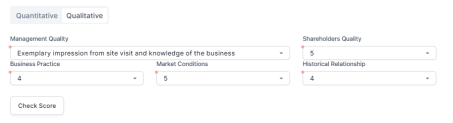
Click Check Score to see the qualitative score corresponding to the configured indicators.
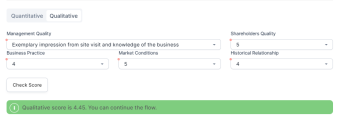
After checking the score, a message is displayed informing you about the quality score and whether or not you can apply the Resolution step.
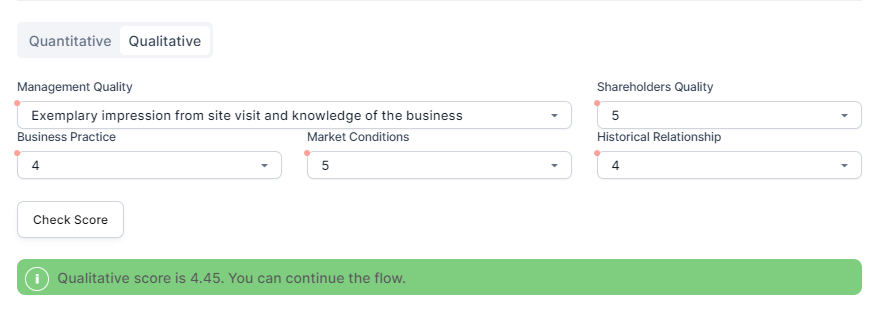
If the quality score >=3, then a message is displayed informing you about the calculated score and that you can continue the flow. See an example below:
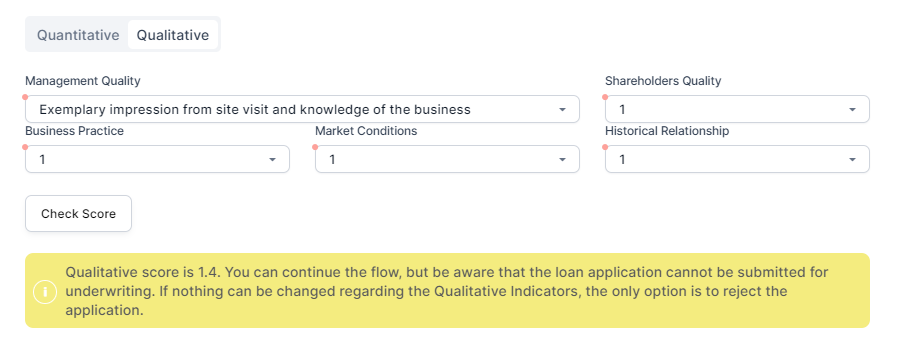
If the quality score <3, then a message is displayed informing you that you can continue the flow, but the loan application can't be submitted. See an example below:
 NOTE
NOTEThe calculated qualitative score is used when you submit the application for the SME customer. If the qualitative score is <3 then you can't submitt the loan application.
-
Add a comment in the Reasons for the Quality Management box to justify the rates for the Management quality, Shareholders quality, Business practice, Market conditions, and Historical relationship.
-
Optionally, click Upload Document to add a document as an additional argument for the decision.
-
In the displayed side bar, select the category and the type of the document you want to upload.
-
Click Add file to upload the file, or drag and drop it into the Upload Document section, then click Save.
The document is added to the list, and you can see the following details:
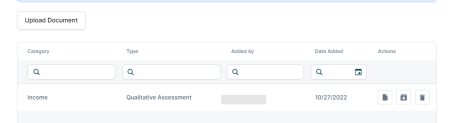
Also you can view, download or delete the document.
NOTEAlthough different types of documents can be added in this screen, only those of the Qualitative assessment type can be viewed.
The uploaded documents are also available in the Documents tab.
-
Click Done.
 Managing Documents
The documents provided by the applicant or brought automatically from other external sources (Companies House and Codat) are stored in the Documents tab.
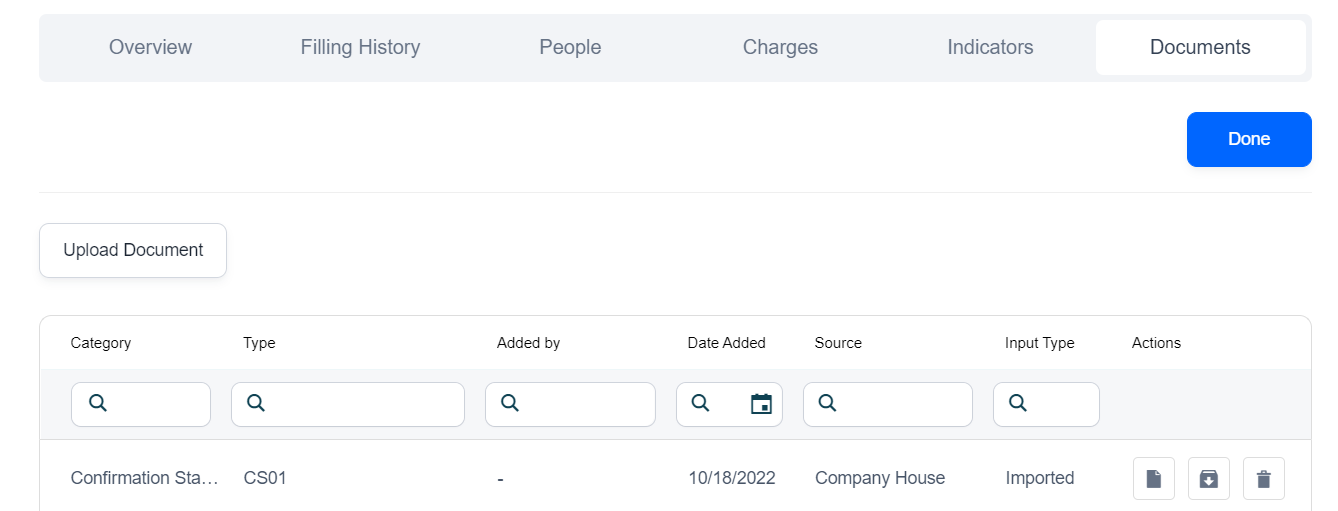
The following details are displayed for each document:
-
Category: This is the category selected when the document was uploaded, or the category set by the source system if the file was imported. E.g., Companies House source or Codat.
-
Type: This is the type selected when the document was uploaded, or the type set by the source system if the file was imported. E.g., Companies House source.
-
Added by: This is populated only if the document is added manually.
-
Date Added: This is filled with the date the integration was triggered (for imported documents) or the date the document was added manually.
-
Source: This is populated with the name of the external sources if the file is added automatically, or with the Flow value if the document is added manually.
-
Input Type: Manually or Imported.
You can view,  download, delete or add new documents to ensure the customer has provided all the necessary documents regarding the credit application since missing documents are one of the main reasons for the rejection of a credit application.
Also, you can  filter every column to find easily the document you are searching for.
To add a new document, follow the steps below:
-
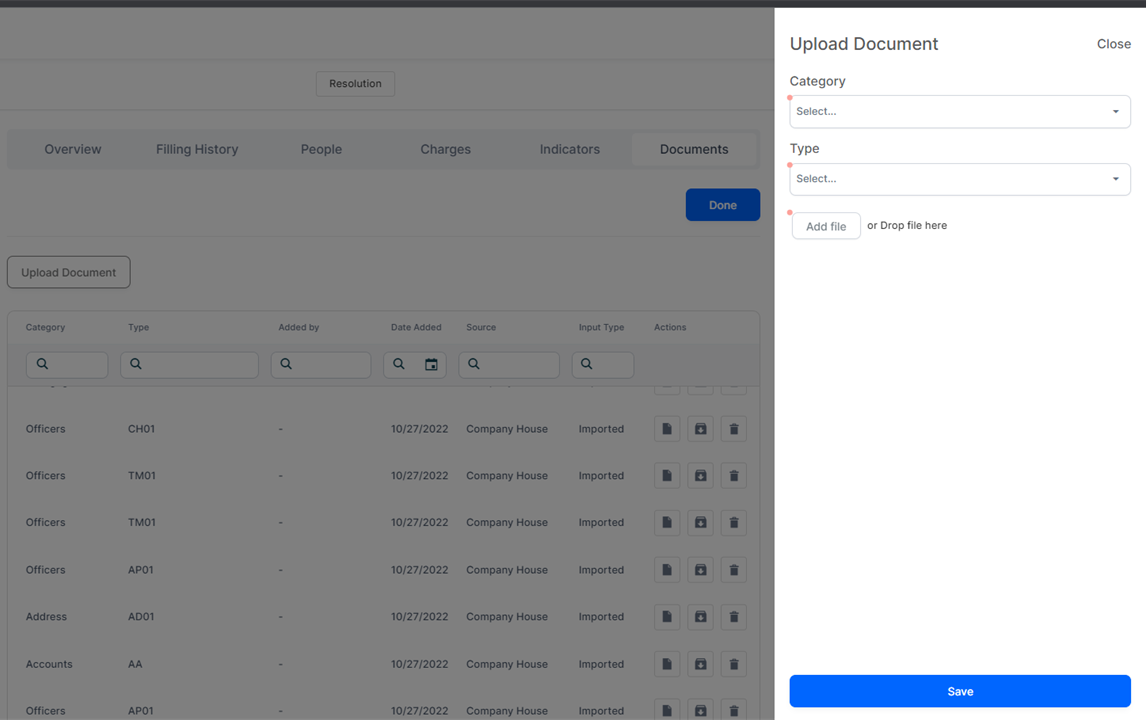
Click the Upload Document and a side bar opens.
-
On the sidebar page, select the category and the type of document you want to upload.
-
Click Add file to upload the files, or drag and drop them into the Upload Document section.
-
Click Save and the documents are added in the Documents tab list.
-
Click Done.
 Adding Product Details
Configure the characteristics of the credit line and add or remove details about the guarantees brought by the customer in the following tabs:
Configure Credit Line
-
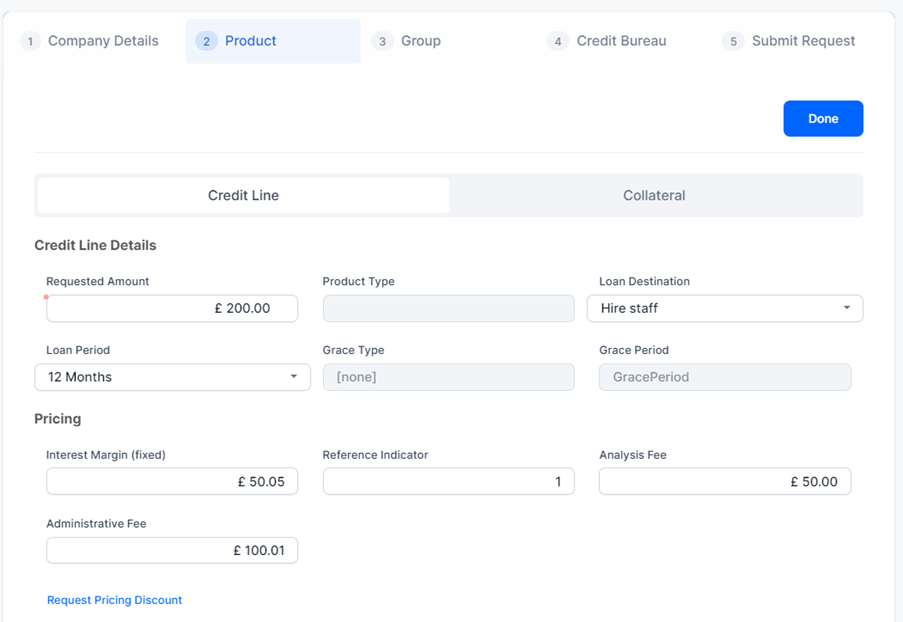
Set information about the credit line in the Credit Line Details section. Fill in the following fields:
-
Requested Amount: Enter the requested credit line amount. You can enter a value between £10,000 and £500,000. This field is mandatory.
-
Product Type: This field is set at banking product level and it is read-only.
-
Loan Destination: Select the loan destination. This field is mandatory, and the following options are available:
Bill or Tax payment, Cashflow headroom, Debt Refinancing, Equipment Purchase, Facilities improvement, Seasonal Trading, Stock Purchase, Relocation, Marketing, Hire staff,andBridging loan. -
Loan Period: Select the credit line period. You can select a period between 4 and 18 months. This field is mandatory.
-
Grace Type: This field is set at banking product level and it is read-only.
-
Grace Period: This field is set at banking product level and it is read-only. The grace period is the amount of time that the bank can offer to a customer at the beginning of the contract without repayments of principal or principal + interest.
-
-
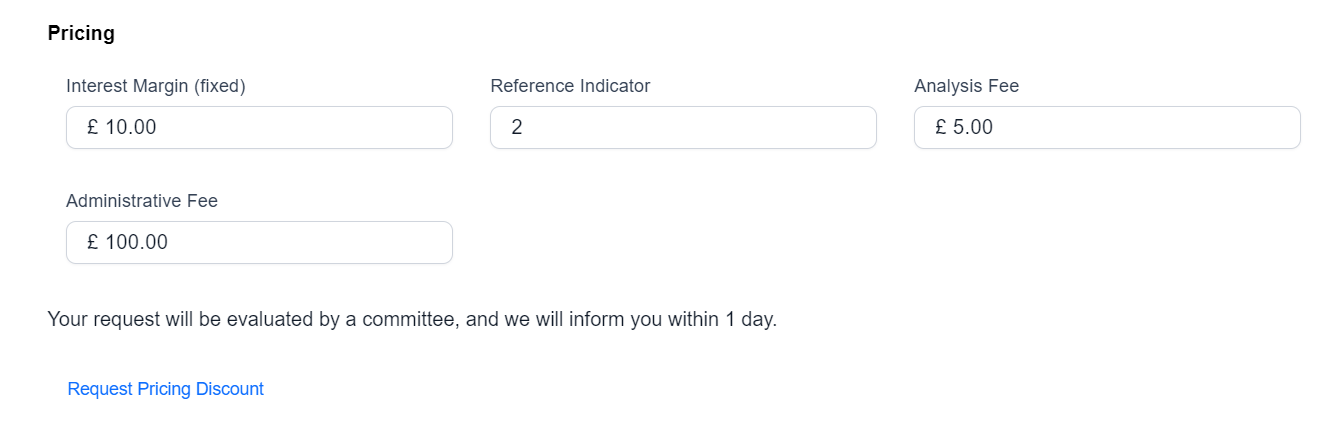
Set details regarding the characteristics of the credit line in the Pricing section to request a pricing discount. Fill in the following fields: Interest Margin (fixed), Reference Indicator, Analysis Fee, and Administrative Fee.
If you click the Request Pricing Discount button, then the fields available in the Pricing section are mandatory. You can see the message displayed informing you that the application is being evaluated by a committee.
-
Click Done.
Add Collateral
-
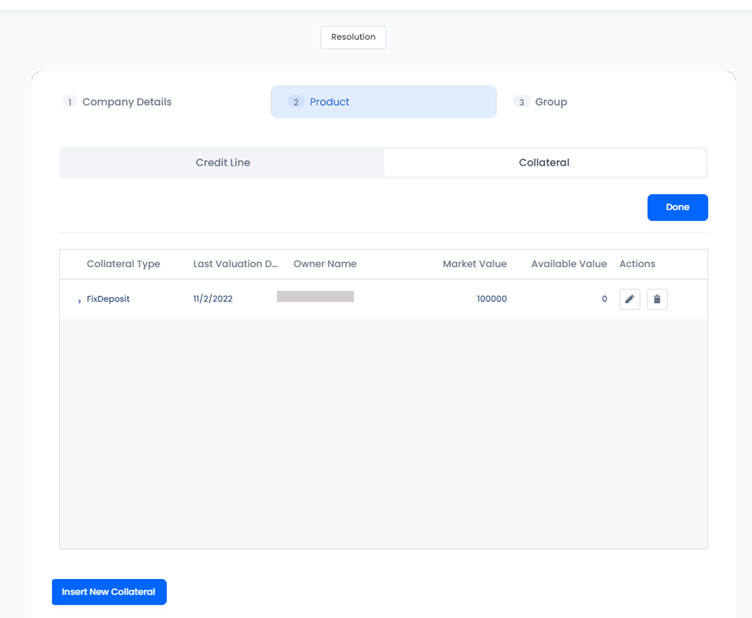
Click the Insert New Collateral button to add collateral to the credit line application.
-
In the newly displayed Add/Edit Collateral, select the Collateral type and set the Last valuation date (Last Valuation Date<=Current Date), Owner name, Market value, and Description fields.
-
Click Save to store the information about the added collateral.
-
After saving the collateral, you can view all the details displayed.
-
Optionally, you can remove the collateral by clicking the delete button, or you can edit the collateral by clicking the edit button.
-
If you click the edit button, the sidebar is displayed again, and you can make the necessary changes.
-
If you want to add a specific document for collateral, expand the collateral from the displayed list, and click the Upload Documents button.
-
In the newly displayed Add Collateral Document page, select the Category and the Type of the added collateral document.
-
Click Add file to upload the document.
-
Click Save, and view the document displayed in the list with the following details: Category, Type, Added by, Date Added, Source, and Actions.
-
Click Done.
To see the uploaded document, go to Company Details > Documents tab.
Viewing Group Details
In the following tabs, you can check detailed information about the shareholders or the structure of the group. These details help you understand the SME applicant's financial relationship with other entities, which is useful in the underwriting process.
Check Corporate Shareholders Details
-
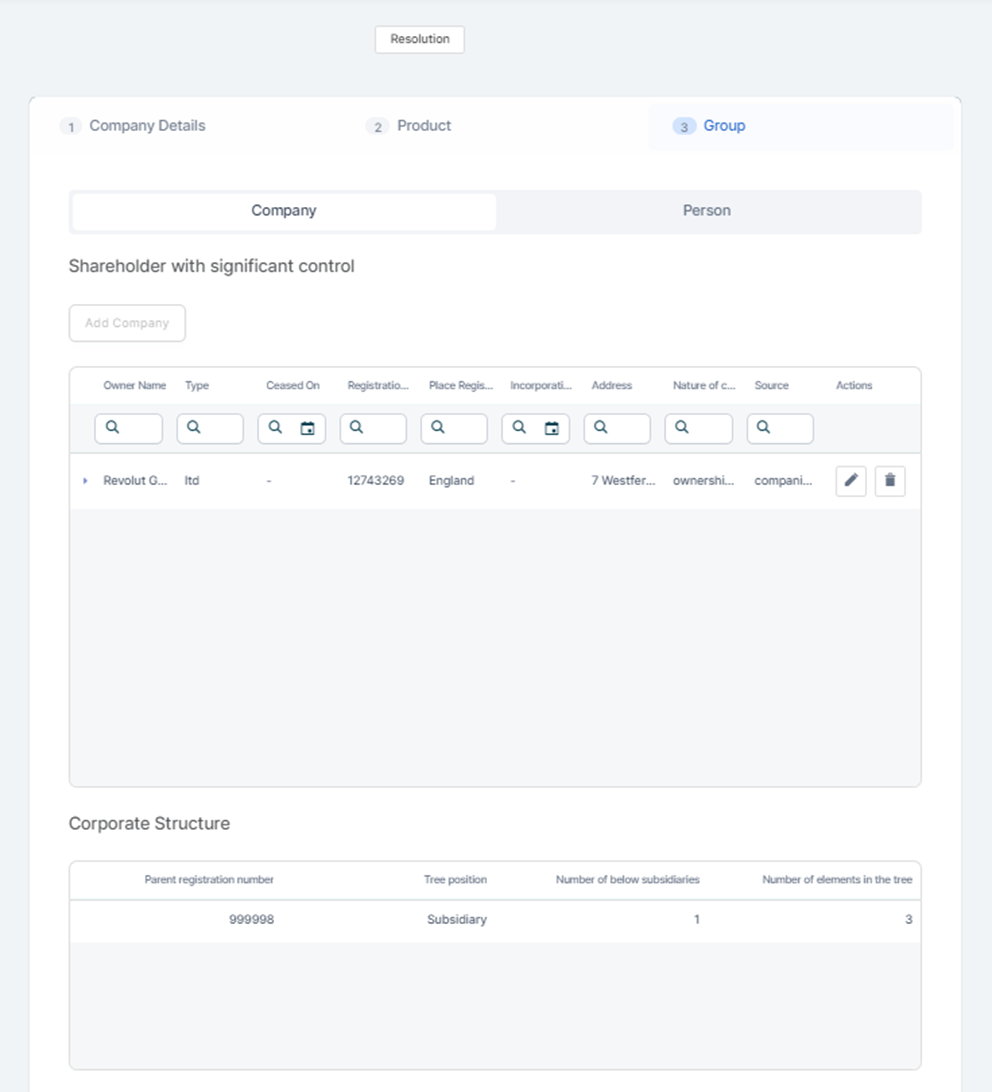
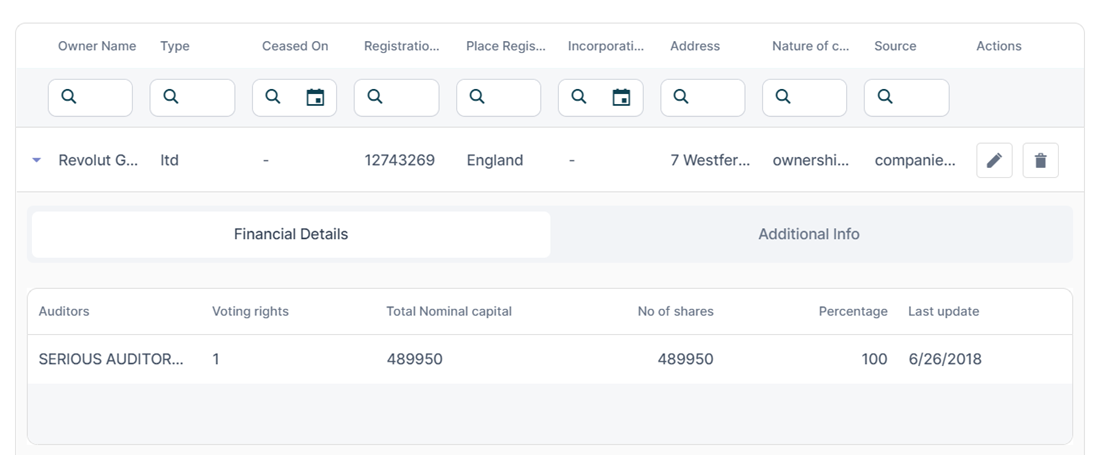
View detailed information about corporate shareholders with significant control in the Group > Company tab. The following details are displayed, and the data is brought from the integration with Companies House Connector.
-
Owner name: The name of the company with significant control.
-
Type: The type of the company.
-
Ceased On: The date that Companies House was notified about the cessation of this person with significant control.
-
Registration Number: The registration number of the corporate entity with significant control.
-
Place Registered: The place the corporate entity with significant control is registered.
-
Incorporation Date: The date when the company was created.
-
Address: The address of the company with significant control.
-
Nature of control: Indicates the nature of control the person with significant control holds.
-
Source: The data source: Companies House.
-
-
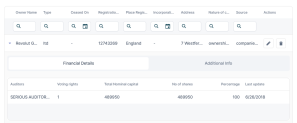
Click a record in the displayed table to see detailed information about each of these corporate shareholders. The data is brought from the integration with Experian.
-
Once you expand a record, the following details are displayed in the Financial Details tab.
-
Auditors: The name of the auditor.
-
Voting rights: The indicator showing whether this Share Capital has voting rights.
-
Total Nominal capital: The calculated Total Nominal Capital for Shareholding.
-
No of shares: The number of shares.
-
Percentage: The calculated Percentage Total Capital for Shareholding.
-
Last update: The date the limited company data for this block was last updated.
-
-
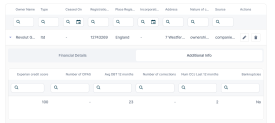
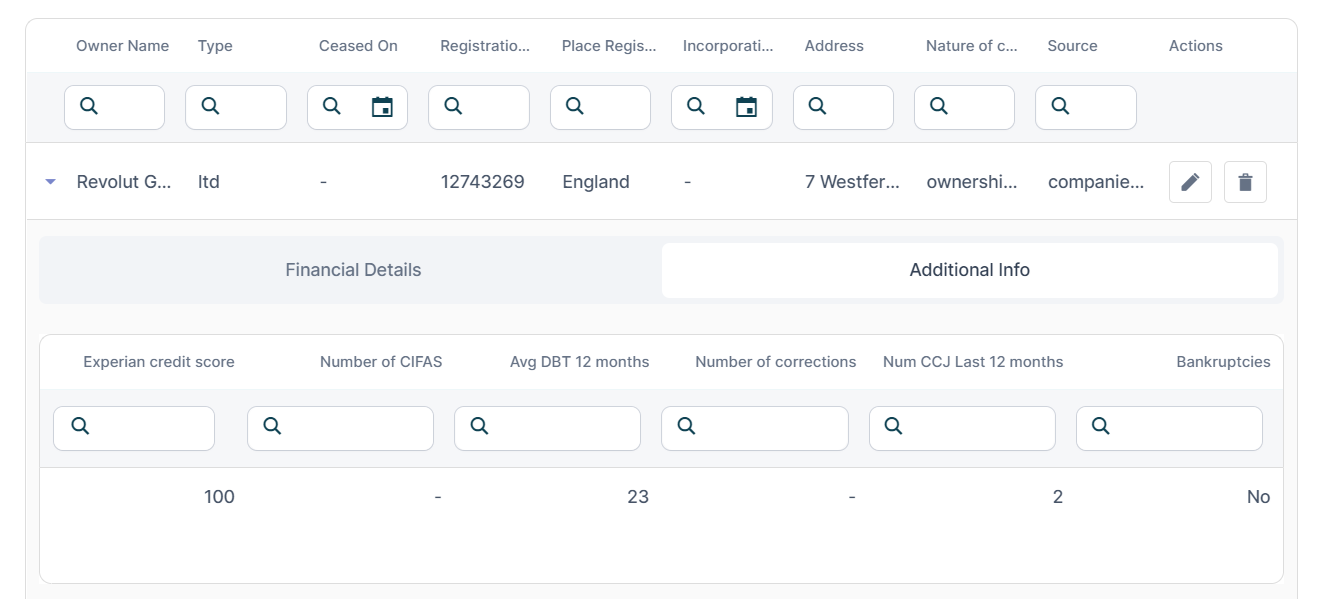
Also, an Additional Info tab is displayed once you click a record, and it contains the following details:
-
Experian credit score: The current Commercial Delphi score for the limited company.
-
Number of CIFAS: The number of CIFAS records in the last year and not expired.
-
Avg DBT 12 months: The average number of days beyond terms for payment over the previous 12 months for the limited company.
-
Number of corrections: The number of Notices of Correction.
-
Num CCJ Last 12 months: The number of County Court Judgements with a Judgement date within the last 12 months.
-
Bankruptcies: Possible values: Yes or No.
-
-
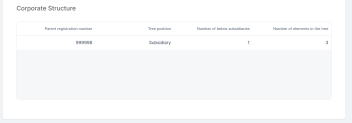
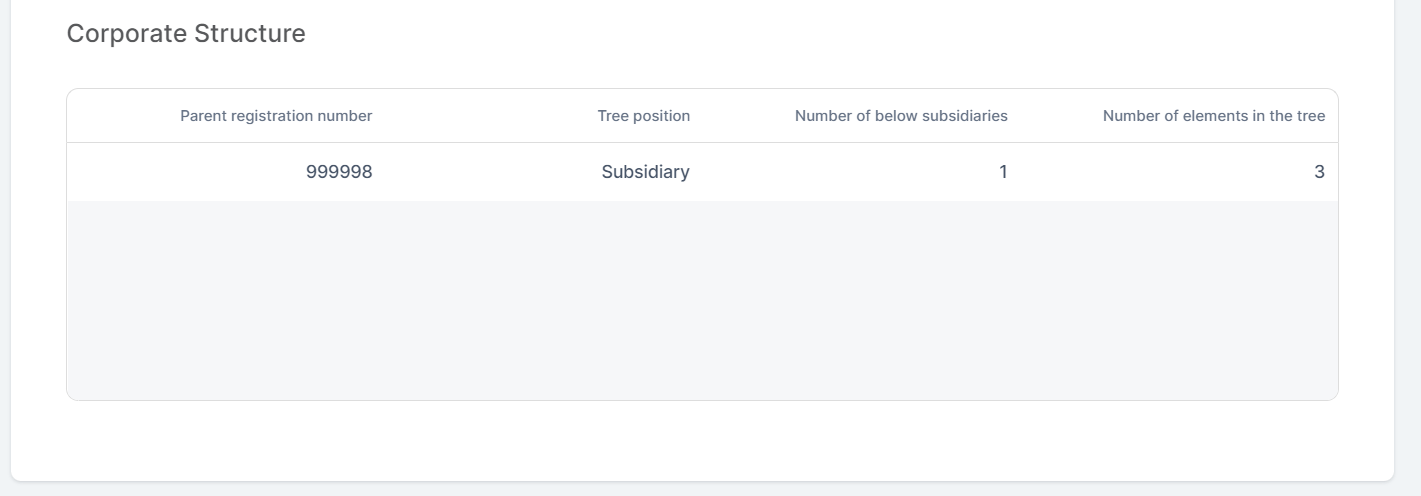
View the corporate structure of the SME company (the one which applies for the credit facility) with the following details in the Corporate Structure section. The data is brought from the integration with Experian.
-
Parent registration number: Parent company registered number.
-
Tree position: Position of the limited company in the corporate tree. The following values are displayed: 1 = Independent company; 2 = Subsidiary; 3 = Parent; 4 = Intermediate parent; 5 = Top of tree.
-
Number of below subsidiaries: Number of subsidiaries in the corporate tree below the limited company.
-
Number of elements in the tree: Total number of elements in the corporate tree.
All these details helps you request additional details about the corporate shareholders if needed in order to submit or reject credit line application.
-
 Check Personal Individual Shareholders Details
-
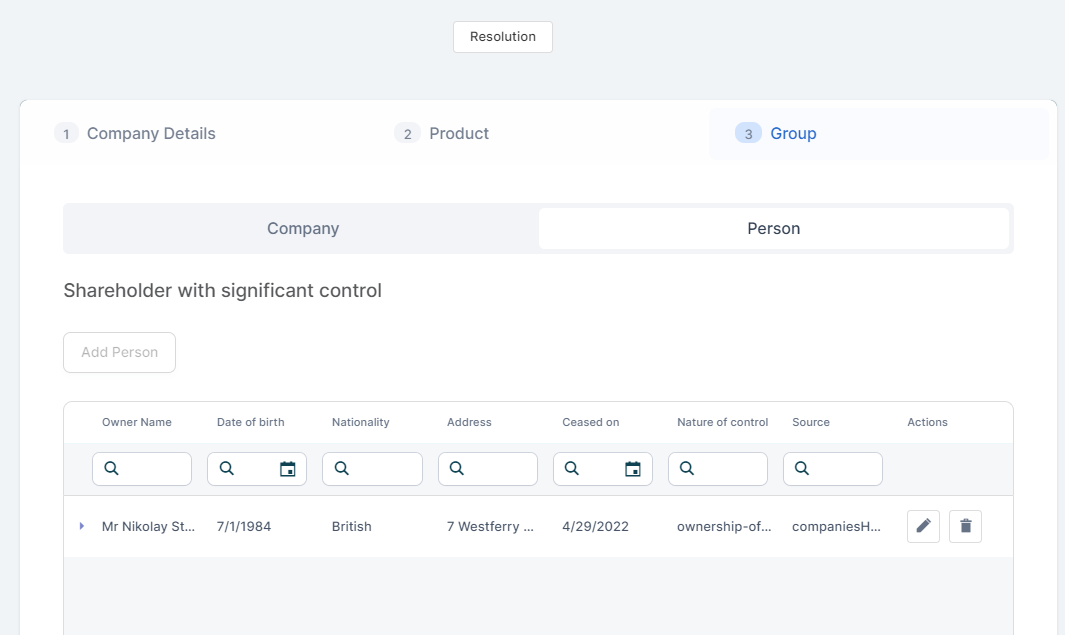
View detailed information about private individuals shareholders with significant control in the Group > Person tab. The following details are displayed, and the data is brought from the integration with Companies House Connector.
-
Owner Name: The name of the person with significant control.
-
Date of birth: The date of birth of the person with significant control.
-
Nationality: The nationality of the person with significant control.
-
Address: The address of the person with significant control.
-
Ceased on: The date that Companies House was notified about the cessation of this person with significant control.
-
Nature of control: Indicates the nature of control the person with significant control holds.
-
Source: The data source: Companies House.
-
-
Click on a record in the displayed table to see detailed information about each of these personal individual shareholders. The data is brought from the integration with Experian.
-
Once you click on a record, the following details are displayed:
-
Voting rights: The indicator showing whether this Share Capital has voting rights.
-
Total Nominal capital: The calculated Total Nominal Capital for Shareholding.
-
No of shares: The number of shares.
-
Percentage: The calculated Percentage Total Capital for Shareholding.
-
Last update: The date the limited company data for this block was last updated.
This helps you request additional details about the personal individual shareholders if needed to submit or reject credit line applications.
-